



Streaming video bitrate is the amount of data transmitted per second during a video stream, measured in kilobits per second (kbps) or megabits per second (Mbps). It directly determines video quality, buffering frequency, and viewer experience. VideoSDK helps manage this automatically through network-adaptive streaming, adjusting bitrate and resolution in real time to prevent drops. To set your bitrate, calculate your target using resolution, frame rate, and bits-per-pixel, then test your upload bandwidth to ensure stability.
Bitrate is the single most critical factor in live streaming, yet it is also the most misunderstood. If your streaming video bitrate is too low, your viewers endure blocky, pixelated chaos. If it is too high, their players buffer endlessly while your encoder chokes on network congestion. Finding the sweet spot requires understanding how data translates to pixels on a screen.
For developers building real-time communication applications, managing bitrate is not just a configuration task. It is an architectural decision. You have to account for varying viewer network conditions, hardware encoding limits, and codec efficiencies. VideoSDK handles much of this complexity through network-adaptive streaming, but knowing the underlying mechanics helps you build more resilient video applications. Let's break down how streaming video bitrate works and how to calculate the optimal settings for your next broadcast.
What Is Streaming Video Bitrate?
Streaming video bitrate is defined as the volume of data encoded for transmission every second. It is typically measured in kilobits per second (kbps) or megabits per second (Mbps). When you configure an encoder, you are telling it how much data it is allowed to spend per second of video.
Bitrate works by dictating the level of detail the encoder can preserve. Higher bitrates allow the encoder to retain more visual information, resulting in clearer images. However, bitrate is often confused with resolution and frame rate. Resolution defines the number of pixels in a frame (like 1920x1080). Frame rate defines how many frames appear per second (like 60 fps). Bitrate is the pipe that feeds these pixels to the viewer. You can have a 4K resolution stream, but if the bitrate is starved, it will look worse than a properly bitrate 1080p stream.
Developers must also understand the difference between Constant Bitrate (CBR) and Variable Bitrate (VBR). CBR maintains a steady data rate regardless of what is on screen, which is ideal for live streaming because it predicts network usage. VBR fluctuates the data rate based on scene complexity, which is better for recording but can cause sudden network spikes during live broadcasts.
Bits-Per-Second vs Bits-Per-Pixel
Bits-per-second is the raw output metric. Bits-per-pixel (BPP) is a conceptual metric that helps you calculate the ideal bits-per-second target. BPP represents the average number of bits allocated to every single pixel in every single frame. It provides a standardized way to estimate quality regardless of resolution or frame rate, making it an essential concept for developers building custom video pipelines.
How Bitrate Affects Video Quality
Streaming quality vs bitrate is not a linear relationship. Four main variables dictate how your stream looks: resolution, frame rate, codec efficiency, and content motion. Understanding how these interact is crucial for optimizing your streaming video bitrate.
A high-motion scene, like a fast-paced first-person shooter game, requires a significantly higher streaming video bitrate than a static talking-head webcam feed. When pixels change rapidly across the screen, the encoder must work harder to compress the differences. If the bitrate is restricted, the encoder drops detail, leading to macroblocking and blurring. Macroblocking occurs when the encoder lacks the data to describe the changing pixels, resulting in large, visible square artifacts.
Frame rate also impacts quality. Moving from 30 fps to 60 fps doubles the number of frames the encoder must process. While 60 fps looks smoother, you need a higher bitrate to maintain the same visual quality per frame. If you keep the bitrate constant when doubling the frame rate, each frame gets half the data, reducing overall clarity.
Color space and chroma subsampling also play a role. Streaming in full 4:4:4 color requires vastly more data than the standard 4:2:0 subsampling used by most platforms. For live streaming, 4:2:0 is the standard, but understanding that color data consumes part of your bitrate budget helps explain why highly saturated, colorful scenes sometimes require more bandwidth.
Here is a quick-look table of typical BPP ranges to guide your quality targets:
| Content Type | Motion Level | Recommended BPP | Visual Quality |
|---|---|---|---|
| Talking head | Low | 0.05 - 0.08 | Good to High |
| Presentation | Low-Medium | 0.08 - 0.10 | High |
| Sports / Gaming | High | 0.10 - 0.15 | High |
Calculating the Right Bitrate
To calculate the right streaming video bitrate, developers use a standard bitrate calculation formula. The formula multiplies resolution width by height, then by frame rate, and finally by the target bits-per-pixel (BPP). The result gives you the raw bits per second, which you then divide by 1000 to convert to kbps.
The formula in natural language is: Width multiplied by Height multiplied by Frame Rate multiplied by BPP equals Bitrate in bits per second.
For example, a 1080p stream at 60 fps with a BPP of 0.10 requires a significant amount of data. You multiply 1920 by 1080 by 60 by 0.10. The result is roughly 12.4 million bits per second, or 12.4 Mbps. You then adjust this number based on your chosen codec. If you use H.265 instead of H.264, you can often cut that target bitrate by 30 to 50 percent while maintaining identical visual fidelity.
Let's look at a second example. If you are streaming a 720p feed at 30 fps for a simple webinar, and you choose a BPP of 0.08. You multiply 1280 by 720 by 30 by 0.08. The result is about 2.2 million bits per second, or 2.2 Mbps. This is easily handled by most modern internet connections and leaves plenty of headroom.
Here is a flowchart showing how input parameters flow through BPP selection and codec multipliers to reach a final bitrate target:
Choosing the Right BPP for Your Content
Selecting the right BPP is an exercise in understanding your content. For low-motion content like podcasts or coding tutorials, a BPP between 0.05 and 0.08 is usually sufficient. The background remains static, so the encoder spends its budget efficiently.
For medium-motion content like standard webinars or casual gaming, aim for a BPP of 0.08 to 0.10. High-motion content, such as competitive esports or high-speed racing games, demands a BPP of 0.10 to 0.15 or higher. Without this allocation, fast camera movements will turn into blurry, blocky messes.
Platform-Specific Bitrate Recommendations
Different platforms impose their own ingest limits and recommended settings. Adhering to these platform bitrate recommendations ensures your stream is not rejected or transcoded aggressively by the provider's servers.
| Platform | Max Bitrate | Recommended Resolution | Recommended FPS | Codec Support |
|---|---|---|---|---|
| YouTube Live | 51,000 kbps | 1080p to 4K | 30 to 60 | H.264, AV1 |
| Twitch | 8,000 kbps | 1080p | 30 or 60 | H.264 |
| Facebook Live | 9,000 kbps | 1080p | 30 | H.264 |
| Kick | 10,000 kbps | 1080p | 60 | H.264 |
| TikTok Live | 6,000 kbps | 720p to 1080p | 30 | H.264 |
YouTube Live Deep Dive
YouTube Live offers the most generous bandwidth allowances, supporting bitrates up to 51 Mbps for 4K streams. In 2026, YouTube has heavily embraced AV1 streaming bitrate options for both ingest and delivery. AV1 allows creators to push 4K resolution at 60 fps with remarkable visual clarity at lower bitrates than H.264 requires. If you are building a custom streaming application using VideoSDK, you can leverage custom video tracks to pass AV1-encoded streams directly to the VideoSDK Cloud SFU for distribution.
Twitch and Gaming Streams
Twitch remains notoriously strict, capping ingest bitrate at 8,000 kbps for standard affiliates. This makes 1080p gaming streams difficult. To achieve a clear picture at 8 Mbps for 1080p at 60 fps, your BPP is extremely low. Most professional streamers drop their resolution to 1600x900 or 936p at 60 fps to increase the BPP within the 8 Mbps limit. This results in a sharper, cleaner image than a starved 1080p stream. Kick offers slightly more headroom at 10 Mbps, but the same principles apply when balancing resolution against your streaming video bitrate.
Optimizing Bitrate for Different Codecs
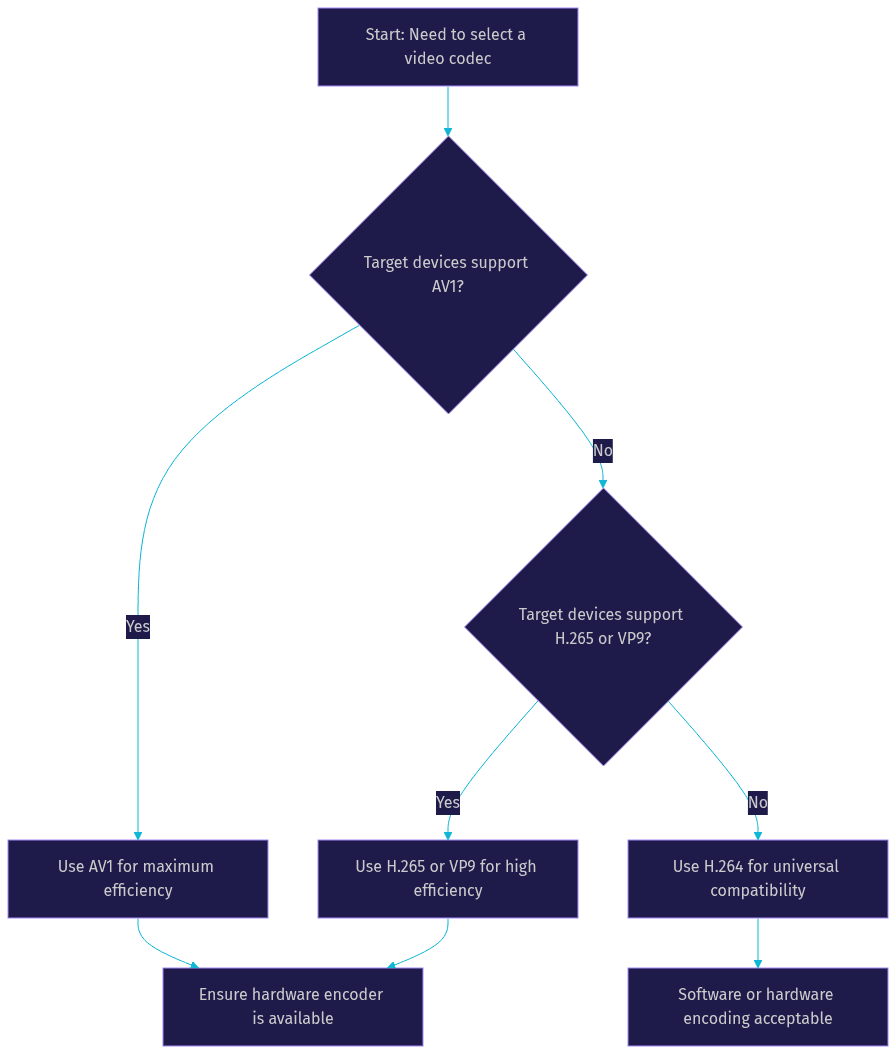
Codec efficiency is the most powerful lever you have for optimizing streaming video bitrate. H.264 (AVC) is the industry standard, supported by virtually every device and browser. It requires the highest bitrate for a given quality level, but its universal compatibility makes it the safest default choice.
H.265 (HEVC) offers roughly a 30 to 50 percent improvement in compression efficiency over H.264. However, hardware support varies, and licensing fees have slowed its adoption on the web. VP9 is Google's royalty-free alternative, widely supported in modern browsers, offering efficiency similar to H.265.
AV1 is the newest codec, offering another 20 to 30 percent efficiency gain over H.265. The downside is that encoding AV1 is computationally heavy. For real-time streaming, hardware encoders like Nvidia's NVENC AV1 or Intel's Quick Sync are practically required. Software encoding AV1 in real-time will overwhelm most CPUs. VideoSDK supports custom video tracks, allowing developers to route hardware-encoded AV1 or H.265 streams through the WebRTC pipeline, provided the receiving clients support decoding them.
Here is a decision tree to help you select the right codec based on your constraints:
Managing Upload Bandwidth and Headroom
Calculating your streaming video bitrate is only half the battle. You also need the upload bandwidth to sustain it. A common mistake is setting the encoder bitrate to match the maximum upload speed of the internet connection. This leaves zero room for network fluctuations.
The golden rule is the 75 percent rule. Your streaming video bitrate should never exceed 75 percent of your total available upload bandwidth. If your upload speed is 20 Mbps, your combined audio and video bitrate should not exceed 15 Mbps. The remaining 25 percent acts as headroom for network overhead, TCP/IP fluctuations, and sudden spikes in content complexity.
Testing your upload speed is critical. Use a wired Ethernet connection rather than Wi-Fi to eliminate packet loss and latency variance. If you are building a platform, implementing network-adaptive streaming is essential. VideoSDK handles this by automatically detecting bandwidth drops and scaling the bitrate and resolution down to prevent the viewer from experiencing buffering. This dynamic adjustment is crucial for maintaining a stable connection over unpredictable mobile networks.
Adaptive Bitrate (ABR) and Live Streaming
Adaptive bitrate streaming (ABR) is the industry standard for delivering video over the internet. Instead of sending a single high-quality stream, the encoder generates a bitrate ladder. This ladder consists of multiple renditions of the same video at different resolutions and bitrates (for example, 1080p at 8 Mbps, 720p at 4 Mbps, and 480p at 1.5 Mbps).
The video player on the viewer's end constantly monitors their network conditions. If their bandwidth drops, the player requests the lower-bitrate rendition to prevent buffering. If their bandwidth improves, it steps back up to the higher quality. VideoSDK's architecture supports this natively through its SFU (Selective Forwarding Unit), which can receive a high-quality stream from the publisher and route the appropriate rendition to each subscriber based on their real-time network quality.
For developers building Interactive Live Streaming (ILS) applications, this is handled seamlessly. Unlike traditional HLS streaming which introduces 10 to 30 seconds of latency, VideoSDK ILS maintains sub-second latency while still allowing the server to manage bitrate ladders for viewers. This means you get the bandwidth benefits of ABR without sacrificing the real-time interaction that makes live streaming engaging.
Common Pitfalls and How to Fix Them
Even with careful planning, streaming issues arise. Over-bitrate buffering occurs when your encoder pushes more data than your upload connection can handle. The fix is to lower your target bitrate or switch to a more efficient codec like H.265 or AV1.
Under-bitrate blockiness happens when your BPP is too low for the amount of motion in your content. The encoder runs out of data to describe the changing pixels. Lowering your resolution or frame rate while keeping the bitrate constant will increase your BPP and clear up the image.
Mismatched audio and video bitrate can cause sync issues. Always ensure your audio bitrate (typically 128 kbps to 160 kbps for AAC) is factored into your total bandwidth calculations alongside your video bitrate. Sudden bitrate spikes happen in Variable Bitrate (VBR) encoding when the encoder panics during a high-motion scene. Switching to Constant Bitrate (CBR) or capped VBR smooths out these spikes, keeping your stream stable across the network.
Quick Checklist for Setting Streaming Video Bitrate
- Determine your content motion level (low, medium, or high).
- Select your target resolution and frame rate.
- Choose your BPP based on the motion level.
- Calculate the raw bitrate using the standard formula.
- Apply the codec efficiency multiplier (reduce target for H.265 or AV1).
- Verify your upload speed and ensure your total bitrate stays under 75 percent of that limit.
- Test the stream on multiple devices and network conditions.
Definitions Glossary
Streaming Video Bitrate: The amount of data transmitted per second during a video stream, measured in kbps or Mbps, directly determining video quality and buffering.
Bits-Per-Pixel (BPP): A conceptual metric representing the average number of bits allocated to every pixel in every frame, used to calculate optimal bitrate targets.
Network-Adaptive Streaming: A VideoSDK feature that automatically adjusts bitrate and resolution in real time based on detected network conditions to prevent buffering.
Codec Efficiency: The ability of a video codec (like H.264, H.265, or AV1) to compress video data while maintaining visual quality, dictating the required bitrate.
Bitrate Ladder: A set of multiple video renditions at different resolutions and bitrates used in adaptive bitrate streaming to accommodate varying viewer bandwidth.
Key Takeaways
- Streaming video bitrate dictates the clarity of your stream, but it must be balanced against available upload bandwidth to prevent buffering.
- Calculating bitrate requires understanding your resolution, frame rate, content motion, and the efficiency of your chosen codec.
- Modern codecs like H.265 and AV1 significantly reduce the required bitrate, but demand hardware encoding support for real-time streaming.
- Always follow the 75 percent rule for upload bandwidth to maintain headroom and stream stability.
- VideoSDK's network-adaptive streaming and custom video tracks allow developers to build resilient pipelines that automatically manage bitrate fluctuations.
Conclusion
Mastering streaming video bitrate is the difference between a professional broadcast and a frustrating viewer experience. By calculating your target using BPP, selecting the right codec, and respecting your upload bandwidth limits, you can deliver high-quality, stable streams. If you are building a custom video application, leveraging a solution like VideoSDK removes the manual burden of bitrate tuning through intelligent network-adaptive streaming. You can focus on your product while the infrastructure handles the network fluctuations. What are you building with VideoSDK? Drop a comment below, I would love to hear about your streaming use cases. Start building today by visiting the VideoSDK documentation or signing up at app.videosdk.live/login.
Free $20 Balance for AI Voice Agents & Video Calls
FAQ