


Streaming bitrate is the amount of data your encoder sends per second, measured in kilobits per second (kbps), and it is the single biggest factor controlling both live stream quality and stability. Set it too low and your stream looks blocky; set it too high for your upload connection and viewers suffer buffering and dropped frames. A good starting rule is to keep your total bitrate under roughly 70 percent of your measured upload speed, then refine it using resolution, frame rate, and codec efficiency. VideoSDK's interactive live streaming handles much of this automatically with network-adaptive streaming, but understanding the numbers helps you configure any encoder correctly.
Getting streaming bitrate wrong is the most common reason a live stream fails. The picture pixelates during fast motion, frames drop mid-broadcast, or the whole session stutters for viewers while looking fine on your end. Almost every one of those problems traces back to one of two mistakes: a bitrate that is too high for the upload connection, or a bitrate that is too low for the content being shown.
This guide covers what streaming bitrate actually is, the factors that determine the right value, the bits-per-pixel formula for calculating it yourself, platform-specific limits for Twitch, YouTube, and Facebook Live, and the practical checks to run before you go live.
What Is Streaming Bitrate and Why It Matters
Streaming bitrate is defined as the volume of encoded video and audio data transmitted per second during a live broadcast, measured in kilobits per second or megabits per second. When someone says they stream at 6000 kbps, they mean their encoder pushes roughly six megabits of compressed media to the ingest server every single second.
Bitrate controls a hard trade-off between quality and bandwidth. Video compression works by discarding information, and the encoder only has so many bits to spend on each frame. Give it more bits and it preserves fine detail, smooth gradients, and fast motion. Give it fewer bits and it starts cutting corners, producing blockiness, blurring, and visible artifacts around movement.
The catch is that every kilobit you send must travel through your upload connection in real time. Unlike downloading a video file, live streaming has no room for catching up. If your encoder produces 6000 kbps but your connection can only reliably sustain 4500 kbps, packets arrive late or get lost, the ingest server receives a broken stream, and viewers see buffering or frozen frames.
That is the quality-versus-buffering trade-off in one sentence: a higher bitrate buys better picture until it exceeds what your connection can actually deliver, at which point quality collapses entirely. The goal is not the highest bitrate possible. The goal is the highest bitrate your upload connection and your platform's ingest limits can both sustain for hours without interruption.
Core Factors That Influence the Ideal Streaming Bitrate
Five variables determine the bitrate a stream actually needs: resolution, frame rate, motion complexity, codec efficiency, and audio overhead. Change any one of them and the ideal bitrate shifts.
Resolution and Frame Rate
Resolution and frame rate together define how many pixels per second the encoder must encode. A 1080p frame at 60 frames per second contains about 124 million pixels per second, roughly double the pixel throughput of 1080p at 30 fps, and roughly two and a half times that of 720p at 60 fps. More pixels per second means more information to compress, which means more bits required to hold the same per-pixel quality.
This is why 1080p60 streams generally need around 1.5 to 2 times the bitrate of 720p30 streams to look comparably sharp. Dropping resolution is often the fastest way to make a constrained connection stable, because pixel count is the largest single driver of bitrate demand.
Motion Complexity and Content Type
Two streams at identical resolution and frame rate can need very different bitrates depending on what is on screen. A talking-head webcam shot against a static background compresses extremely well because most of the frame barely changes. A fast-paced shooter game, a sports broadcast, or a concert with flashing lights changes nearly every pixel every frame.
The industry shorthand for this is the bits-per-pixel factor: low-motion content looks good at lower per-pixel spending, while high-motion content needs more. A chess tutorial and a racing game at 1080p60 might differ by a factor of two in the bitrate each needs to look clean. Always budget for your most demanding content, not your average scene.
Codec Efficiency (H.264, H.265, AV1)
The codec determines how efficiently those bits are spent. H.264 remains the default for live streaming because every platform and every viewer device supports it. H.265 (HEVC) delivers comparable quality at roughly 30 to 50 percent lower bitrate, but hardware encoding support and platform ingest support are less universal. AV1 is the most efficient of the three, cutting bitrate needs by a further 20 to 30 percent versus H.265 in ideal cases, though real-time AV1 encoding demands recent hardware and ingest support is still rolling out across platforms as of 2026.
The practical takeaway: if your encoder and platform both support a newer codec, you can either drop your bitrate while keeping quality, or keep the bitrate and gain visibly cleaner motion. If you must guarantee compatibility for every viewer, H.264 at a slightly higher bitrate remains the safe choice.
Audio Bitrate and Overhead
Audio rides along with video and adds to the total. A typical music-quality stream uses 160 to 320 kbps of AAC audio, while voice-focused streams can get away with 128 kbps. On top of that, the transport protocol itself adds a small percentage of overhead for packaging, headers, and error correction. A stream configured at 6000 kbps video plus 160 kbps audio actually consumes closer to 6500 kbps of connection capacity once overhead is included. It is a small number, but it matters when you are calculating headroom against a tight upload limit.
Upload Speed and Network Headroom
Your upload connection is the ceiling everything else must fit under. The standard practice is to leave 30 to 50 percent headroom: if a speed test reports 10 Mbps upload, plan your total stream bitrate around 6000 to 7000 kbps at most. Headroom absorbs network jitter, packet loss, background traffic from other devices, and the moment-to-moment variance every home connection exhibits. Streams that run at 95 percent of measured upload fail regularly; streams that run at 70 percent run for hours.
Calculating Streaming Bitrate: The Bits-Per-Pixel Formula
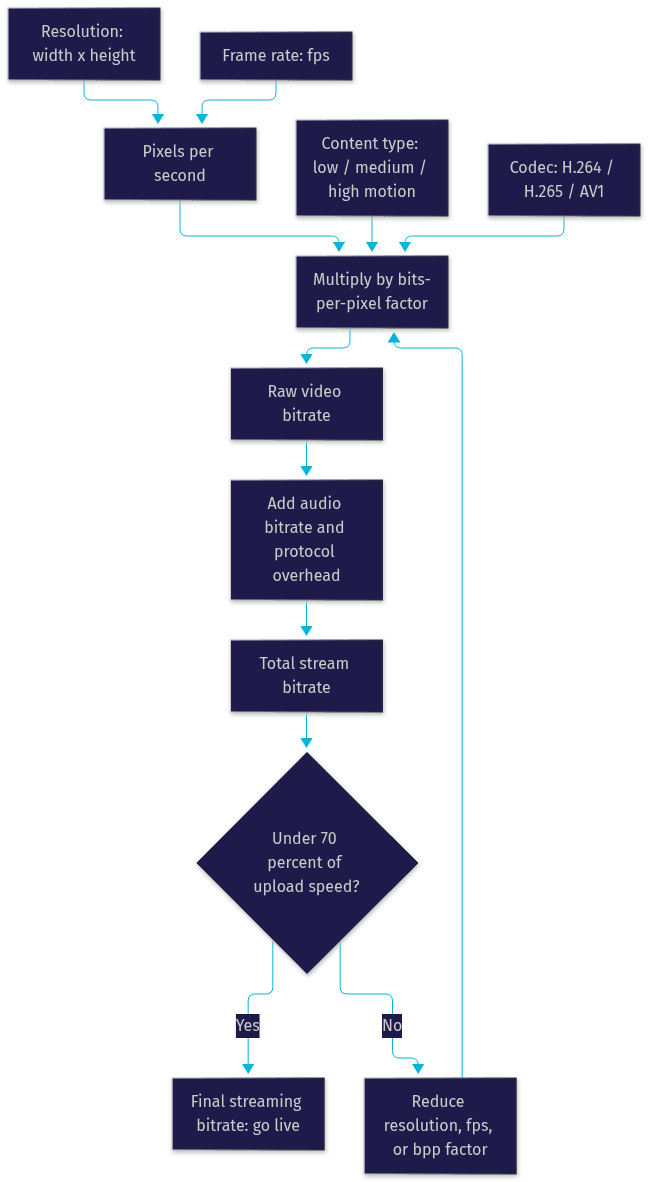
The most reliable way to land on a bitrate is the bits-per-pixel formula. It works by computing how many pixels per second your stream produces, then multiplying by a quality factor representing how many bits each pixel deserves given your content and codec.
The formula reads: bitrate equals width times height times frame rate times bits-per-pixel factor. Start by multiplying your resolution's pixel count, for example 1920 times 1080, by your frame rate, say 60. That gives roughly 124 million pixels per second. Then multiply by your chosen bits-per-pixel value.
Typical bits-per-pixel ranges for H.264 look like this: 0.05 to 0.08 for low-motion content such as screen sharing or a static webcam, 0.08 to 0.12 for medium-motion content such as most gameplay and vlogs, and 0.12 to 0.18 for high-motion content such as fast shooters, sports, and concerts. Running the numbers for 1080p60 high-motion content at 0.12 yields about 15,000 kbps, which explains why that combination strains both home connections and platform caps.
To adjust for codec efficiency, reduce the bits-per-pixel factor by roughly 30 percent for H.265 and by 40 to 50 percent for AV1, since those codecs spend each bit more effectively. Then add your audio bitrate, apply a small overhead allowance of a few percent, and finally check the result against your upload speed with the headroom rule from the previous section.
Platform-Specific Bitrate Guidelines
Every platform enforces its own ingest limits, and exceeding them causes the ingest server to reject or degrade your stream regardless of how good your connection is. These figures reflect platform documentation as of 2026; verify current limits before a major broadcast.
Twitch
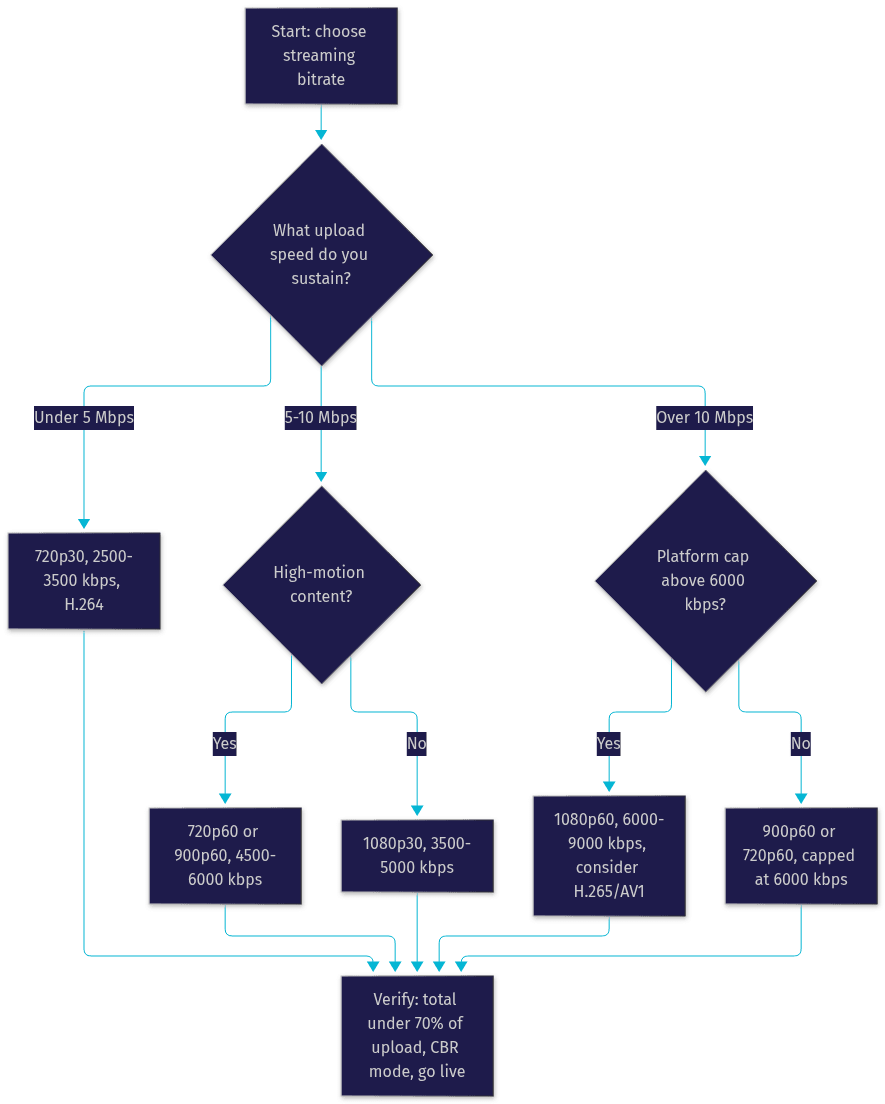
Twitch caps non-partner ingest at 6000 kbps for video plus audio combined, and recommends around 6000 kbps for 1080p60 or roughly 4500 to 6000 kbps for 1080p30. For 720p60, the commonly recommended range is 4500 to 6000 kbps, while 720p30 streams sit comfortably at 3000 to 4500 kbps. Partners and verified organizations can negotiate higher caps, but for everyone else, 6000 kbps is a hard ceiling. Because of that cap, many Twitch streamers choose 936p or 720p at 60 fps rather than full 1080p, since the extra pixels cannot be fed enough bits to look better at the limit.
YouTube Live
YouTube is far more generous. Ingest supports up to roughly 51,000 kbps for 4K at 60 fps, with 1080p60 recommended in the 6000 to 9000 kbps range and 1080p30 around 3000 to 6000 kbps. YouTube also supports H.265 and, increasingly, AV1 ingest for compatible encoders, letting you cut bitrate meaningfully at the same quality. One nuance: YouTube's low-latency and ultra-low-latency modes behave best with a steady, moderately sized stream, so avoid pushing the absolute maximum if you want the interactive latency modes to stay responsive.
Facebook Live and Other RTMP Destinations
Facebook Live recommends around 4000 kbps for 1080p and caps simultaneous streams at 6000 kbps video bitrate, with audio typically at 128 kbps. Other RTMP destinations such as LinkedIn Live and custom media servers vary widely, from 3000 kbps caps to effectively unlimited on self-hosted infrastructure. Always check the destination's ingest documentation, because an over-limit stream often fails silently, connecting successfully while viewers receive a degraded or frozen picture.
| Platform | Max ingest bitrate | 720p60 suggested | 1080p60 suggested | Notes |
|---|---|---|---|---|
| Twitch | 6000 kbps | 4500–6000 kbps | 6000 kbps (cap) | Partners may exceed cap |
| YouTube Live | ~51,000 kbps (4K60) | 3000–6000 kbps | 6000–9000 kbps | H.265 and AV1 ingest supported |
| Facebook Live | 6000 kbps | 3000–4000 kbps | 4000–6000 kbps | 128 kbps audio typical |
| Generic RTMP | Varies | Check docs | Check docs | Self-hosted servers often unlimited |
The most important row for most streamers is Twitch's: its 6000 kbps cap means full 1080p60 high-motion content simply cannot get enough bits, and dropping to 1600x900 or 720p at 60 fps usually looks better at that ceiling.
From Bitrate to Upload Speed: Ensuring a Stable Connection
Once you have a final bitrate, convert it into a connection requirement by multiplying by 1.3 to 1.5. A 6000 kbps stream therefore needs a sustained upload of roughly 8 to 9 Mbps to survive real-world network conditions. That multiplier covers protocol overhead, packet retransmission, and the variance between what a speed test reports and what your connection sustains over a three-hour broadcast.
Network jitter and packet loss matter as much as raw speed. A connection that averages 10 Mbps but swings between 4 and 14 Mbps will drop frames no matter what the average says. Run speed tests at the actual time of day you plan to stream, since evening congestion on shared neighborhood infrastructure can cut upload capacity dramatically compared to a midday test.
Also account for everything else using the connection: cloud backups, operating system updates, other household devices, and game traffic on the same machine. A wired Ethernet connection to the router is strongly preferable to Wi-Fi for exactly this reason, removing one of the largest sources of jitter before it starts.
Choosing Between CBR and VBR for Live Streams
Constant bitrate (CBR) keeps the encoder output at a steady rate regardless of scene complexity, and it is the correct choice for live ingest in almost every case. Live platforms allocate buffers and transcode pipelines around a predictable input rate, and a CBR stream keeps those pipelines fed evenly, minimizing latency spikes and buffering.
Variable bitrate (VBR) lets the encoder spend fewer bits on easy scenes and more on complex ones, which produces better quality per byte for recorded files and video-on-demand. For live streaming, though, VBR's momentary peaks can exceed your upload capacity or platform cap exactly when motion is heaviest, which is when failure is most visible. Use CBR for anything going out live; reserve VBR for uploads, archives, and post-produced content.
Common Pitfalls and How to Avoid Them
The same five mistakes account for most unstable streams.
Over-estimating upload speed. Streamers trust a single favorable speed test or the number their ISP advertises. Advertised speeds are shared and best-case. Test repeatedly at your streaming hour and budget against the lowest consistent result.
Ignoring platform caps. A perfect 8000 kbps stream is useless if Twitch rejects everything above 6000. Set your encoder to the platform ceiling first, then optimize quality within it.
Using outdated codec settings. Encoding 1080p60 with legacy H.264 settings tuned for 720p wastes bits. Modern encoders, and H.265 or AV1 where supported, deliver the same quality at meaningfully lower bitrate.
Forgetting audio and overhead. A 6000 kbps video setting is not a 6000 kbps stream. Audio and protocol overhead add several hundred kilobits, which can push a borderline connection over the edge.
Leaving no headroom. Running at 95 percent of upload capacity works for ten minutes and fails in hour two when a household device starts syncing. The 30 to 50 percent headroom rule exists because networks are variable, not because the numbers are conservative.
Quick Reference Cheat Sheet
A fast checklist for setting your next stream:
- Do calculate bitrate from resolution, fps, and a bits-per-pixel factor matched to your content's motion level.
- Do keep total stream bitrate under 70 percent of your measured upload speed.
- Do use CBR for live ingest and VBR only for recorded files.
- Do add audio bitrate and overhead to your video number before checking headroom.
- Do test your upload at the actual time of day you stream, over a wired connection.
- Don't exceed your platform's ingest cap, no matter how good your connection is.
- Don't stream 1080p60 high-motion content on a 6000 kbps-limited platform; drop to 900p or 720p instead.
- Don't trust a single speed test or your ISP's advertised upload figure.
Definitions Glossary
Streaming bitrate: The amount of encoded video and audio data, in kilobits per second, that an encoder sends to a platform's ingest server every second during a live broadcast.
Bits-per-pixel (bpp): A quality factor representing how many bits the encoder spends per pixel, typically 0.05 to 0.18 for H.264 depending on motion complexity, used to calculate required bitrate.
CBR (constant bitrate): An encoder mode that maintains a steady output rate regardless of scene complexity, preferred for live ingest because it keeps platform pipelines fed predictably.
VBR (variable bitrate): An encoder mode that varies output rate with scene complexity, efficient for recorded files but risky for live streams because peaks can exceed connection or platform limits.
Upload headroom: The safety margin between your total stream bitrate and your measured upload capacity, conventionally 30 to 50 percent, reserved to absorb jitter, packet loss, and background traffic.
Adaptive bitrate: A delivery technique, used by platforms and SDKs such as VideoSDK's interactive live streaming, that automatically adjusts stream quality to each viewer's bandwidth in real time.
Key Takeaways
- Streaming bitrate is the primary control for both live stream quality and stability, and the right value is the highest one your upload connection and platform cap can sustain together.
- Calculate bitrate as resolution times frame rate times a bits-per-pixel factor, then add audio and overhead before checking headroom.
- Keep total stream bitrate under roughly 70 percent of your measured upload speed, tested at your actual streaming hour over a wired connection.
- Platform caps bind hard: Twitch's 6000 kbps limit makes 900p or 720p at 60 fps a better choice than 1080p60 for most streamers.
- Use CBR for live ingest and reserve VBR for recorded content, and prefer H.265 or AV1 over H.264 where both encoder and platform support it.
- If you are building streaming into your own application rather than broadcasting to a platform, VideoSDK's network-adaptive streaming handles bitrate and resolution adjustment automatically, removing most of this manual tuning.
Conclusion
Streaming bitrate comes down to one discipline: match your encoded output to what your connection and platform can actually sustain, not what looks best on paper. Calculate from resolution, frame rate, and motion complexity, respect platform caps, leave real headroom, and verify with speed tests at streaming time. Run a bitrate calculator, do a private test broadcast, and watch your dropped-frame counter before every important stream. If you are building live streaming into your own product instead, explore VideoSDK's interactive live streaming SDK and its network-adaptive streaming, or try it free at app.videosdk.live/login. What are you streaming, and what bitrate did you land on? Drop a comment, I'd love to hear what kind of content you're broadcasting.
Free $20 Balance for AI Voice Agents & Video Calls
FAQ