


VoIP call quality is how clearly voice travels over an IP network, and it depends mostly on delay, jitter and packet loss. To fix poor call quality, test the network, read the call's stats against thresholds, and change one variable at a time. VideoSDK's analytics dashboard sets thresholds of 30 ms jitter, 300 ms RTT and 5% packet loss.
A connection can pass a speed test and still carry a robotic-sounding call. Speed tests measure how much data a link moves, but calls suffer when packets arrive late or unevenly.
This guide gives a five-step test method for VoIP and WebRTC calls and a symptom-to-cause table. It then covers fixes for the network, the app, and SIP-connected AI voice agents.
What affects VoIP call quality?
VoIP call quality depends on a few network measurements, plus the devices and codecs at each end of the call.
VoIP call quality is defined as how clearly, completely and promptly speech reaches the listener over an IP network. It works by sending audio in small RTP packets, so any delay, variation or loss between those packets changes what the listener hears.
- Latency and round trip time (RTT). Latency is the delay from sender to receiver. RTT is the time data takes to reach the server and come back.
- Jitter. Jitter is the variation in packet arrival times. RFC 3550 section 6.4.1 defines how RTP calculates it. Read more in what is jitter and what is a jitter buffer.
- Packet loss. Lost packets leave gaps. The receiver fills small gaps with locally synthesised audio, which the W3C WebRTC statistics spec counts as concealed samples.
- Bandwidth and CPU. VideoSDK's call quality guide says low bandwidth causes frozen video and robotic voice. A heavily loaded CPU can also make audio choppy or robotic.
Together these numbers describe VoIP performance, and every call quality VoIP checklist starts with them. WebRTC calls use the same measures. The table lists the thresholds this guide compares against.
| Metric | Threshold | Source |
|---|---|---|
| Jitter | 30 ms or less | VideoSDK analytics dashboard |
| Round trip time (RTT) | 300 ms or less | VideoSDK analytics dashboard |
| Packet loss | 5% or less | VideoSDK analytics dashboard |
| One-way, mouth-to-ear delay | Under 150 ms feels transparent; 400 ms is the planning limit | ITU-T G.114 (05/2003) |
RTT and one-way delay are different measures, and many guides mix them up. RTT covers the trip to the server and back, while G.114 describes the delay a speaker's words take to reach a listener.
For a single score, mean opinion score (MOS) rates quality from 1 to 5. Our QoE guide explains how MOS relates to these network numbers.
How to test call quality
A reliable VoIP call quality test measures the network first, then a real call, and changes only one thing at a time.
- Baseline the network. Run a speed test and a bufferbloat test on the calling device, once on Wi-Fi and once on Ethernet. Note latency, jitter and upload speed.
- Run a pre-call test or a test call. In a VideoSDK React app,
runPreCallTest()checks the camera and microphone, then measures audio and video in both directions. It samples for 15 seconds by default. - Read the call's stats. In a browser,
RTCPeerConnection.getStats()returns jitter, packets lost, round trip time, concealed samples andqualityLimitationReason. Chrome shows the same data live at chrome://webrtc-internals. - Compare with the thresholds. Check each number against the table above. Then compare the sender's graphs with each receiver's graphs to see which side of the call degrades.
- Change one variable and retest. Swap Wi-Fi for Ethernet or mobile data, then try another device, browser or headset. When the numbers move with one change, you have found the cause.
The pre-call test returns a score from 1 (bad) to 5 (excellent) for uplink and downlink. It also lists the factors behind the score, such as RTT, packet loss, jitter, frozen video and concealed audio.
During a call, VideoSDK's getAudioStats() and getVideoStats() return bitrate, jitter, RTT and packet loss for each participant. The dashboard's Session Stats tab graphs those metrics for any sender and receiver, which is how step 4 works in practice.
A phone call quality test for SIP calls follows the same steps, using the SIP provider's call records instead of browser stats. Tools that check VoIP quality, such as a voice over IP quality test from a phone provider, usually cover only step 1.
Symptom to cause
Most call quality complaints match one of a few symptoms, and each symptom points to a short list of causes.
| Symptom | Likely cause | What to check | First fix |
|---|---|---|---|
| Robotic, choppy or cutting-out voice | Jitter, packet loss or a busy CPU | Jitter over 30 ms, loss over 5%, rising concealed samples, a cpu limitation | Move to Ethernet, close heavy apps, lower video resolution |
| You hear your own voice echo | No echo cancellation, or loud speakers, on the other person's device | The far end's audio settings and headset | Turn on echoCancellation, use headphones |
| One-way audio | NAT or firewall blocking media in one direction, or a blocked microphone | Firewall rules, relay use, microphone permission errors | Open the media and TURN ports; for SIP, use symmetric RTP or TURN |
| Frozen or blurry video while audio holds | Low bandwidth or a CPU limit on the sender | onQualityLimitation type, freezes, bitrate | Keep multiStream on, lower encoderConfig, offer audio-only |
| Long pauses, people talking over each other | High RTT from a distant server, a VPN or bufferbloat | RTT over 300 ms, bufferbloat result, region | Use the nearest region, drop the VPN, fix router queueing |
| Can't join, or can't rejoin later | Expired or invalid token | Error 4002, INVALID_TOKEN | Issue a fresh token before each join |
| SIP call drops after about 32 seconds | The caller's final ACK never arrived | A SIP trace with no ACK | Fix NAT handling on the signalling path |
The timing-related failures need more context:
- Token expiry. VideoSDK's token guide says a token is validated only at join. A token that expires mid-call does not end that call, so a drop at the same minute every time has another cause.
- The 32-second SIP drop. RFC 3261 says the answering side should end the session with a BYE if no ACK arrives within 64 × T1. With T1 at its 500 ms default, that is 32 seconds.
- Drops at a longer fixed interval. SIP session timers in RFC 4028 end a call when a refresh fails. RFC 4028 recommends 1,800 seconds, so check the Session-Expires value.
Is your network causing poor call quality?
Your network is causing poor call quality when jitter, RTT or packet loss cross their thresholds while the device's CPU is not the limit.
The exact warning "Your network is causing poor call quality" appears in Microsoft's Dynamics 365 voice channel. Microsoft's docs say it shows when incoming or outgoing stream quality is poor, or when the call reconnects.
To confirm it on your own network, work through these checks:
- Wi-Fi vs wired. Repeat the test on Ethernet. If jitter and loss drop, the wireless link is the cause, so move closer to the access point or stay wired.
- Bufferbloat. A router that queues too many packets adds delay whenever the link is busy. Run a bufferbloat test while a large upload runs. Routers that support FQ-CoDel, which RFC 8290 describes as a tool for fighting bufferbloat, keep call packets moving.
- Competing traffic. Cloud backups, uploads and video streams on the same link compete with the call.
- Firewalls and VPNs. VideoSDK's firewall guide lists UDP 40000 to 60000 for media with a TCP fallback on those ports. TURN uses UDP and TCP 3478, with TCP 443 as a fallback.
- Network or device? VideoSDK's
onQualityLimitationevent reportsbandwidth,congestionorcpu. The first two point to the network, whilecpupoints to the device.
Quality of service for voice over IP
Quality of service (QoS) for voice over IP means marking voice packets so routers forward them ahead of bulk traffic.
RFC 8837 says browsers should mark WebRTC audio as Expedited Forwarding (EF, DSCP 46) at medium and high priority. Interactive video gets AF41 to AF43 values. Your router then needs a rule that serves EF packets first on the uplink.
Wi-Fi needs its own mapping. RFC 8325 recommends mapping EF to IEEE 802.11 User Priority 6, which places it in the Voice access category.
QoS has limits. RFC 8837 notes that networks do not trust endpoint markings and may rewrite them anywhere along the path. Marking still helps on the first hops you control, such as your office LAN and uplink.
Fixes on the application side
When the network checks out and calls still sound poor, the fix usually sits in the app's media settings.
- Run a pre-call test. Check devices and the network before users join. See pre-call checks in React Native for a mobile example.
- Pick the right codec. VideoSDK's video codec guide makes VP8 the default and the fallback. VP9 and AV1 compress better but need more processing and don't support
multiStream. Compare them in video codecs explained. - Cap bitrate to the connection. Video
encoderConfigpresets run from 90p to 2160p, each with optimized, balanced and high-quality bitrates. Audio presets run from 16 kbps speech to 192 kbps stereo. See what is bitrate. - Clean up the audio. The speech audio presets turn on echo cancellation, noise suppression and gain control. For more, read how noise suppression works.
- Use the nearest region. VideoSDK connects participants to the nearest available server by default. Its geo-fencing guide warns that pinning a distant region can hurt quality, so use it only when compliance requires.
- React during the call. Show a warning when
onQualityLimitationfires, and usegetTransportStats()for a connection indicator. The docs suggest offering audio-only when a participant's connection weakens.
These fixes add up. Examedi, a Latin American healthcare company, reports 50% fewer call failures after moving to VideoSDK, according to a VideoSDK-published case study.
Want to improve call quality in your own app? Create a free VideoSDK account, follow the React quickstart, then add the pre-call test.
Call quality for SIP and AI voice agents
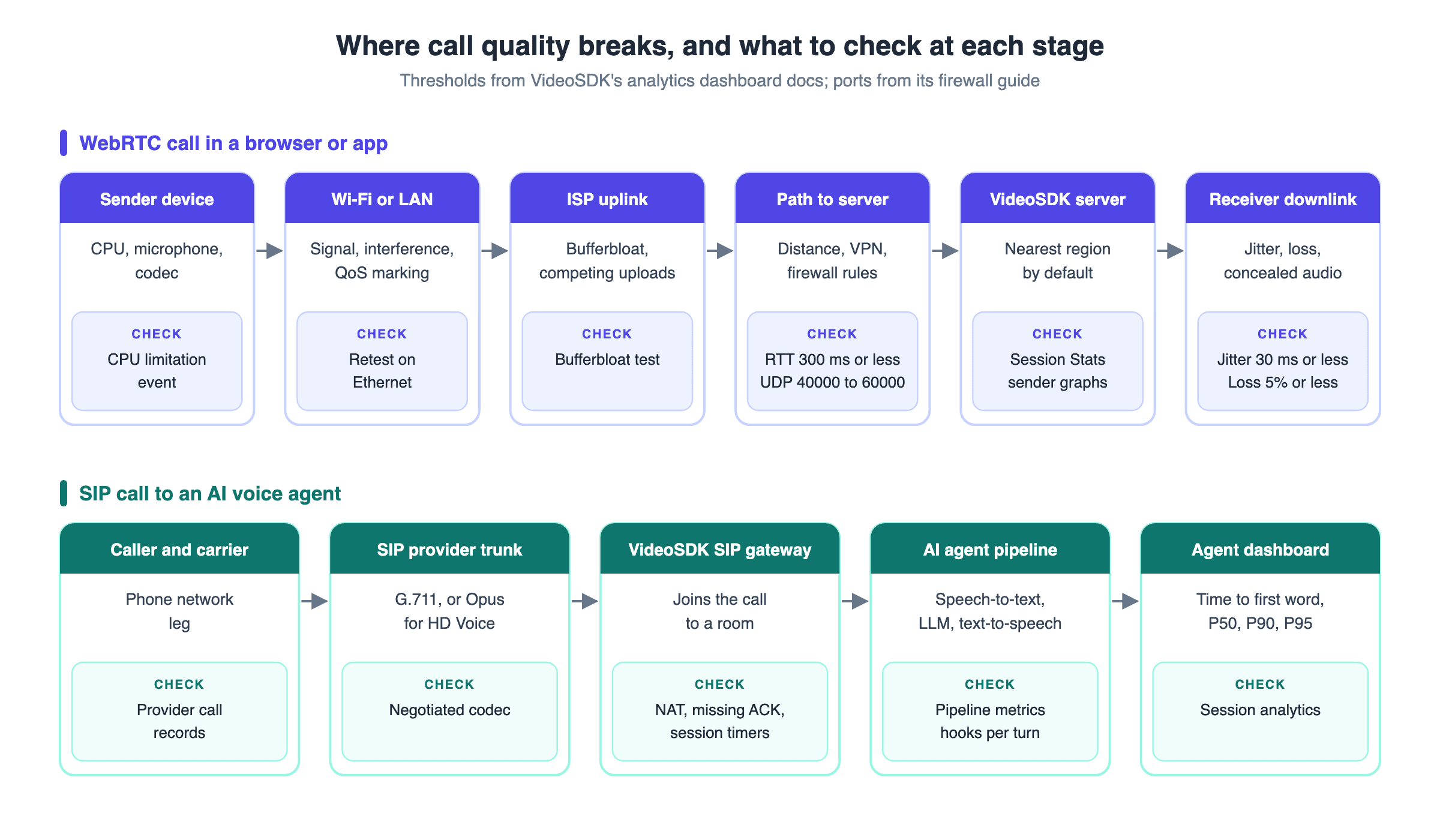
A SIP call to an AI voice agent has more legs than a browser call, and each leg adds its own delay and failure points.
The path runs from the caller's phone and carrier to a SIP provider, then to VideoSDK's SIP gateway and room. From there, the AI agent turns speech into text, generates a reply and speaks it.
- Codec on the phone leg. VoIP quality on this leg depends on the codec. For outbound calls, VideoSDK's HD Voice guide says it offers PCMA and PCMU (G.711) first, then Opus. Wideband HD Voice needs the SIP provider to negotiate Opus.
- Measure each leg. Use the SIP provider's call records for the carrier leg. For the agent, pipeline metrics hooks report speech-to-text, LLM, text-to-speech and end-of-utterance timings for every turn.
- Watch the agent dashboard. The session analytics view shows time to first word plus P50, P90 and P95 response times.
- Check NAT on the SIP side. RFC 6314 shows how some NATs drop media after a STUN lookup, which leads to one-way audio. TURN relays solve it.
- Denoise before transcription. Background noise lowers speech-to-text accuracy, so add the denoise plugin at the front of the pipeline.
To connect a phone number, follow the SIP connect quick start or the telephony overview.
Definitions glossary
Jitter: The variation in packet arrival times, calculated as defined in RFC 3550. VideoSDK's analytics dashboard uses 30 ms as its threshold.
Round trip time (RTT): The time data takes to reach the server and come back. VideoSDK returns it fromgetAudioStats()andgetVideoStats().
Packet loss concealment: Synthesised audio a receiver plays in place of lost packets. The W3C stats API reports it as concealed samples.
Bufferbloat: Excess packet queueing in routers that adds delay when a link is busy. FQ-CoDel, described in RFC 8290, is one fix.
DSCP: A field in the IP header that marks a packet's traffic class. RFC 8837 recommends EF (46) for WebRTC audio.
Key takeaways
- Poor call quality usually comes down to jitter, RTT, packet loss, bandwidth or CPU, not raw download speed.
- Test in five steps: baseline the network, run a test call, read stats, compare with thresholds, change one variable.
- VideoSDK's dashboard thresholds are 30 ms jitter, 300 ms RTT and 5% packet loss.
- QoS markings help on links you control, but networks may rewrite them further along.
- SIP and AI voice agent calls add carrier, codec and pipeline legs that need measuring separately.
Conclusion
Poor call quality has a cause you can measure. Baseline the network, read the call's stats, compare them with thresholds, and change one variable at a time until the numbers move. Then fix the network, the app settings, or the SIP leg that caused it.
To add pre-call tests and live quality alerts to your app, start with the React quickstart. Sign up for VideoSDK with $20 free credit.
Which call quality problem is hardest to track down in your app? Tell us in the comments.
Frequently asked questions
How do you test VoIP call quality?
To test VoIP call quality, run a speed and bufferbloat test, then place a real test call and read its jitter, RTT and packet loss. Compare them with thresholds, such as 30 ms jitter, 300 ms RTT and 5% loss. Change one variable at a time to find the cause.
What are good jitter, latency and packet loss numbers for VoIP?
Good VoIP numbers stay within 30 ms of jitter, 300 ms of RTT and 5% packet loss, the thresholds in VideoSDK's analytics dashboard. ITU-T G.114 adds that one-way, mouth-to-ear delay under 150 ms feels transparent for most calls.
Why does my VoIP call sound robotic?
A VoIP call sounds robotic when packets arrive late or go missing, so the receiver fills the gaps with synthesised audio. High jitter, packet loss, low bandwidth and a busy CPU are the usual causes. Try a wired connection and close heavy apps.
Why can only one person hear on a call?
One-way audio usually means media is blocked in one direction by a NAT or firewall, or a microphone is muted or blocked. Check firewall rules for media and TURN ports, check microphone permissions, and for SIP calls use symmetric RTP or TURN.
What does "your network is causing poor call quality" mean?
"Your network is causing poor call quality" is a Microsoft Dynamics 365 warning shown when incoming or outgoing stream quality is poor, or when the call reconnects. It means the problem is the connection, not the app, so try a better network.
Does QoS improve VoIP call quality?
Yes, QoS improves VoIP call quality on links that honour it, by forwarding voice packets ahead of bulk traffic. RFC 8837 recommends marking WebRTC audio as EF (46). Networks may rewrite markings, so QoS helps most on your own LAN and uplink.
How can I improve call quality in a voice or video app?
To improve call quality in a voice or video app, run a pre-call test, pick a suitable codec, and cap bitrate to the connection. Also turn on echo cancellation and noise suppression, connect users to the nearest region, and warn them when quality drops.