


Interactive live video streaming is a low-latency, audience-centric broadcast that lets viewers become participants in real time. VideoSDK's Interactive Live Streaming (ILS) mode delivers sub-second latency, built-in engagement tools like live polling and viewer promotion, and cross-platform SDKs, so you can launch a fully interactive experience in minutes. This guide walks through the full setup, from token authentication to production pitfalls.
What Is Interactive Live Video Streaming?
Interactive live video streaming blends the reach of a traditional broadcast with the immediacy of a video call. Instead of pushing one video feed to a passive audience, an interactive stream treats the audience as a potential part of the show: viewers can chat, vote in live polls, raise a hand, and be promoted on stage to speak alongside the host.
The contrast with traditional HTTP Live Streaming (HLS) is the defining characteristic. HLS is a one-to-many delivery protocol optimized for scale and playback compatibility, but it introduces a 10 to 30 second delay between what the host says and what the viewer sees. That delay makes genuine interaction impossible. A poll launched by the host lands in the audience half a minute after the moment has passed. Interactive live video streaming, built on WebRTC and an SFU (Selective Forwarding Unit) media routing architecture, keeps latency under one second, and often under 500 milliseconds, which is fast enough for real conversation.
The core model is a Room. A host starts a stream inside a room, and viewers join that same room in a lightweight audience role. At any point, the host can promote a viewer into a full participant with their own audio and video track. This is the architecture behind live shopping events, interactive webinars, gaming tournaments, live auctions, and community town halls, where engagement directly drives conversion and retention.
How VideoSDK Enables Interactive Live Video Streaming
VideoSDK builds ILS on top of its flagship Rooms-based architecture, the same foundation that powers its video calling SDKs. A room created for a video call can be toggled into interactive streaming mode through a single SDK method call, the mode change operation, which switches the room's behavior from a peer-style meeting to a host-and-audience broadcast without tearing anything down or reconnecting participants.
This matters for two reasons. First, you reuse everything you already built for calling: token authentication, participant management, recording, and chat all work identically in both modes. Second, your interactive streaming logic stays portable across platforms. VideoSDK ships SDKs for React, JavaScript, React Native, Android, iOS, Flutter, Unity, C++, IoT, and Python, and the interactive streaming surface is available across the major ones, so a team building a live shopping app for web and mobile writes the interaction logic once and ships it everywhere.
Under the hood, VideoSDK's cloud-based SFU routes each active speaker's media streams directly to every other participant who needs them. You never run a media server on your own infrastructure, never negotiate ICE candidates by hand, and never maintain TURN fallback logic. The SDK handles signaling, connectivity checks, and network fallback automatically. The result is a production-ready, low-latency pipeline without writing any raw WebRTC plumbing. You can explore the full interactive streaming surface in the VideoSDK interactive live streaming documentation.
Key Features of VideoSDK Interactive Live Streaming
VideoSDK's ILS mode ships with the engagement features most teams would otherwise assemble from three or four separate vendors.
- Host and co-host roles – Designate a primary presenter and invite secondary speakers on the fly, with role-based permissions controlling who can stream, moderate, and promote.
- Dynamic role switching – Promote any viewer to a speaker with a single SDK action, and demote them back to the audience instantly when their segment ends.
- Real-time chat overlay – A built-in chat channel synchronized for all participants, renderable as an overlay on the video or as a side panel.
- Live polling and Q&A – Inject interactive widgets that collect votes or audience questions without viewers leaving the stream.
- Screen sharing and custom video tracks – Stream slides, product catalogs, canvas-rendered graphics, or virtual-background video alongside the camera feed.
- RTMP output – Simultaneously push the live feed to YouTube, Twitch, or Facebook Live for broader one-to-many reach while keeping the interactive experience on your own app.
- Recording – Capture the host view, individual speaker tracks, or a composite of all active speakers for on-demand playback and social clips.
- Custom layouts – Control speaker view, gallery view, and sidebar arrangements programmatically to match your brand.
- Prebuilt UI Kit – A drop-in component that renders a fully styled interactive player, complete with chat, polls, and participant list, with zero custom UI code.
For teams that need to move fast, the Prebuilt UI Kit is the shortest path from zero to a working interactive stream.
Step 1: Set Up Your VideoSDK Account and Generate a Token
Every VideoSDK integration starts with token-based authentication, and this is the step most quickstarts gloss over. Getting it right determines whether your stream is secure and whether your viewers get dropped mid-broadcast.
- Create a VideoSDK account – Sign up at the VideoSDK console and obtain your API key and secret. The free tier includes credits sufficient to prototype an entire interactive stream before paying anything.
- Build a token server – On your backend, use the API key and secret to sign a short-lived JWT meeting token. The token encodes the room ID, the roles the bearer is allowed to hold, and an expiration timestamp. Because signing requires the secret, this must happen server-side.
- Secure the endpoint – Never expose the API secret to the client. Your token endpoint should sit behind your own authentication, enforce HTTPS, and only issue tokens to users entitled to join the stream.
- Pass the token to the client – When the frontend initializes the SDK, it presents the JWT. VideoSDK validates the token and grants the participant exactly the permissions encoded inside it, nothing more.
Token scoping is what protects your stream. A token issued for a viewer role cannot start the broadcast, promote participants, or begin recording, even if a malicious user extracts it from the client. The full flow is documented in the authentication and token guide.
Step 2: Create an Interactive Live Stream Room
With authentication in place, the next step is creating the room itself on the server side, using VideoSDK's REST APIs.
- Create the room via the REST API – Invoke the room creation endpoint with a friendly name and the configuration for your event. The response returns a unique room ID that becomes the anchor for everything else: token generation, participant joins, recording control, and post-event analytics.
- Store the room ID – Persist it on your server alongside your event record. You will reuse it when issuing tokens to viewers and when pulling session analytics after the stream ends.
- Configure host permissions – Decide which user starts the broadcast. Role-based access control in the room ensures only the designated host and co-hosts can publish media initially, while everyone else joins as audience.
- Enable recording up front – If you want a cloud recording of the session, configure it at creation time or start it programmatically once the host goes live. Recording can capture the composite view or individual speaker tracks, which is useful for producing highlight clips afterward.
The complete room lifecycle, from creation to deactivation, is covered in the REST API reference. Creating rooms server-side before the event also lets you validate room state, pre-configure layouts, and warm up recording pipelines so nothing delays your go-live moment.
Step 3: Switch to ILS Mode and Invite Participants
This is where the broadcast comes alive: switching the room into interactive mode and bringing the audience in.
- Initialize the SDK with the token and room ID – The host's client joins the room using the token issued in Step 1. At this point the room behaves like a regular video call, which is useful for a pre-show rehearsal with co-hosts.
- Switch to interactive streaming mode – When the host is ready, invoke the SDK's mode change operation. Every connected participant automatically receives the new configuration, and the room transitions into a host-and-audience broadcast without anyone reconnecting.
- Invite viewers – Distribute the room link, or embed the Prebuilt UI Kit on your event page. Viewers join as audience members with a lightweight connection that consumes minimal bandwidth until they are promoted.
- Promote viewers to speakers – When a viewer raises a hand, the host promotes them from the admin panel. The promoted viewer instantly gains an audio and video track on stage, and the layout reflows to include them.
- Manage audience scale – Audience members are cheap connections compared to full participants, so a single room can host a small speaker group in front of a very large audience. When interaction gets noisy, demote speakers back to the audience just as quickly.
The mode-switching behavior and viewer promotion flow are detailed in the interactive live streaming introduction.
How Does VideoSDK Handle Low-Latency Audience Interaction?
VideoSDK keeps interactive streams fast through three cooperating mechanisms: SFU media routing, adaptive bitrate, and intelligent connectivity selection. The architecture looks like this:
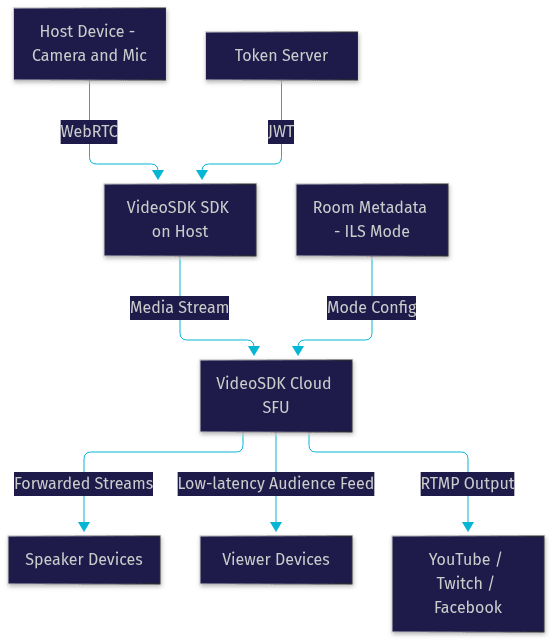
The SFU receives each active speaker's media and forwards it only to the participants who need it, rather than mixing or transcoding. This keeps round-trip time under 500 milliseconds in typical conditions. Adaptive bitrate continuously monitors each viewer's network conditions; when bandwidth degrades, the SDK automatically reduces resolution and bitrate to preserve smooth interaction rather than letting the stream freeze. Connectivity selection happens through the standard ICE framework: the SDK prefers direct peer connections, falls back through STUN-assisted paths, and ultimately uses TURN relays when firewalls or restrictive networks block direct media flow.
Because the SFU runs in edge locations worldwide, geographic distance adds minimal latency, which is why a single interactive stream can serve a global audience without noticeable lag. For a deeper treatment of the underlying mechanics, the WebRTC statistics reference publishes independent data on connection quality across network types.
Best Practices for Engaging Viewers in Interactive Live Video Streams
The technology only matters if the audience actually participates. Teams running high-engagement interactive streams consistently follow a few patterns.
- Launch a poll early – Put a quick poll in front of viewers within the first two minutes. Early participation converts passive watchers into engaged participants, and engaged participants stay longer.
- Use active speaker cues – Highlight the current speaker's tile with a visual border. When multiple people are on stage, viewers lose track of who is talking without a cue.
- Add virtual gifting – A simple gift button that triggers an on-screen animation measurably boosts engagement, and it doubles as a monetization hook for live shopping and creator platforms.
- Keep the mobile UI minimal – Hide non-essential controls on small screens. The Prebuilt UI Kit ships responsive layouts, but trimming chrome preserves both bandwidth and attention.
- Record key moments – Enable composite recording so you can cut highlight clips for social distribution after the event.
- Watch the analytics – Track viewer count, interaction events, and drop-off in real time through the session analytics endpoints, and adjust your pacing while the stream is still live.
Common Pitfalls and How to Avoid Them
Even with a managed SDK, a few recurring issues trip up production interactive streams. Knowing them in advance saves a launch-day fire drill.
| Pitfall | Why It Happens | How to Fix It |
|---|---|---|
| Token expires mid-stream | Short JWT lifetime chosen for security | Issue tokens with a lifetime matching the event length, and implement a silent refresh before expiry |
| TURN connectivity failures | Corporate firewalls blocking UDP media | Ensure TURN fallback is enabled and whitelist VideoSDK's relay IP ranges in restrictive environments |
| Bandwidth spikes freeze the stream | Adaptive streaming not enabled | Enable network-adaptive streaming so the SDK downgrades resolution automatically under congestion |
| Unmoderated chat turns toxic | No moderation configured before a large audience joins | Use role-based moderation, remove abusive participants, and wire chat moderation hooks before go-live |
| Recording storage grows unbounded | Old sessions never cleaned up | Schedule periodic cleanup through the REST API to archive or delete recordings past your retention window |
The two that bite hardest in practice are token expiry and firewall traversal, because both surface only in production, where network conditions and event durations differ from local testing. Always rehearse the full stream, including a mid-event viewer promotion, on the production infrastructure before the real event.
Definitions Glossary
Room: A VideoSDK meeting space identified by a unique room ID where participants join and exchange media streams, usable for both video calling and interactive live streaming.
Participant: Any user or AI agent connected to a room, with their own audio and video tracks and an assigned role such as host, co-host, or speaker.
Stream / Track: The individual audio or video media channel a participant sends or receives, accessible through SDK hooks and methods.
Meeting Token: A short-lived JWT generated server-side from your API key and secret that authenticates a participant's access to a specific room with scoped permissions.
Interactive Live Streaming (ILS): VideoSDK's low-latency streaming mode in which viewers can be promoted to active speakers, with built-in chat, polls, Q&A, and RTMP output.
Custom Video Track: A developer-supplied video source such as screen share, canvas output, or virtual-background video that the SDK treats as a regular video track.
Network-Adaptive Streaming: VideoSDK's automatic adjustment of bitrate and resolution based on real-time bandwidth detection to preserve low latency on poor connections.
Prebuilt UI Kit: A drop-in, zero-code UI component that renders a fully functional interactive live player with chat, polls, and participant management.
Key Takeaways
- Interactive live video streaming keeps latency under one second, enabling real-time audience participation that HLS-based streaming cannot deliver.
- VideoSDK's ILS mode reuses the same Rooms-based architecture as its video calling SDKs, so token logic, recording, and chat carry over unchanged.
- Built-in engagement features, including live polling, viewer promotion, RTMP output, and cloud recording, remove the need to stitch together multiple vendors.
- SFU routing, adaptive bitrate, and TURN fallback keep interactive streams stable across networks and geographies.
- Server-side token generation, REST-based room creation, and rehearsed mode switching are the three steps that separate a smooth launch from a production incident.
Conclusion
Interactive live video streaming is the bridge between passive viewing and real-time collaboration, and it is quickly becoming the default format for live shopping, webinars, and virtual events in 2026. VideoSDK's Interactive Live Streaming gives you a production-grade, low-latency solution that works across web, mobile, and native apps without writing a line of raw WebRTC plumbing. Set up your account, generate a secure token, create an ILS room, and start engaging your audience today. Get started with the VideoSDK quickstart, browse the code samples, join the Discord community, or spin up a free trial at app.videosdk.live/login. What are you building with VideoSDK? Drop a comment, I'd love to hear what kind of interactive streaming use case you're working on.
Free $20 Balance for AI Voice Agents & Video Calls
FAQ