


FFmpeg copy HLS to RTP is the process of demuxing an HTTP Live Streaming (HLS) source and packetizing the media directly into Real-time Transport Protocol (RTP) streams without decoding or re-encoding. This approach preserves original video quality, minimizes CPU usage, and achieves sub-10-millisecond relay latency. Developers use this workflow to feed existing HLS feeds into WebRTC gateways or platforms like VideoSDK Interactive Live Streaming for real-time audience interaction.
Low-latency streaming is the backbone of live sports broadcasting, remote surveillance, and interactive social platforms. When a camera captures a live event, the media often travels through various formats before reaching the viewer. HTTP Live Streaming (HLS) is highly reliable for content delivery networks but introduces significant latency due to its segment-based architecture. A typical HLS stream packages media into two to ten second segments, meaning the player must download and buffer multiple segments before playback begins. This design creates a glass-to-glass latency of five to thirty seconds.
Real-time Transport Protocol (RTP), on the other hand, is designed for immediate media delivery over IP networks. It packetizes audio and video frames and sends them immediately over UDP, achieving sub-second latency. Bridging these two protocols efficiently is a common engineering challenge for developers building live streaming applications.
Re-encoding video from HLS to RTP demands heavy CPU resources and adds hundreds of milliseconds of delay. FFmpeg solves this with its stream copy mode. By skipping the decode and encode stages, FFmpeg can demux HLS segments and packetize the raw H.264 or AAC data directly into RTP. This workflow is a lightweight, bandwidth-preserving relay that maintains sub-second latency, making it ideal for repurposing existing HLS feeds for real-time applications. Whether you are pulling a feed from an IP camera, a drone, or a legacy broadcast system, copy mode offers a direct path to real-time delivery.
What is "ffmpeg copy hls to rtp"?
FFmpeg copy HLS to RTP refers to a specific media relay workflow where FFmpeg reads an incoming HLS stream and outputs it as an RTP stream without altering the underlying audio or video codecs. In a standard transcoding pipeline, FFmpeg decodes the compressed media into raw YUV frames for video and PCM samples for audio, then re-encodes those frames into a new format. This process is computationally expensive and introduces latency due to the buffering required at both the decode and encode stages.
Copy mode bypasses the codec entirely. FFmpeg acts as a demuxer and muxer only. It reads the MPEG-TS or fragmented MP4 segments from the HLS playlist, extracts the encoded H.264 video and AAC audio packets, and feeds them directly into the RTP packetizer. The media remains compressed throughout the entire journey.
This technique works best when the source HLS stream already uses codecs compatible with your RTP destination. Since most HLS content is distributed in H.264 video and AAC audio, which are also standard for RTP and WebRTC, copy mode is usually viable. The result is a high-quality, low-latency relay that can run on minimal hardware, including edge devices and low-power servers. The copy mode ensures that the pixel quality of the original HLS feed is preserved perfectly, as no generational loss occurs from re-compression.
When to Choose Copy Mode vs. Full Transcoding
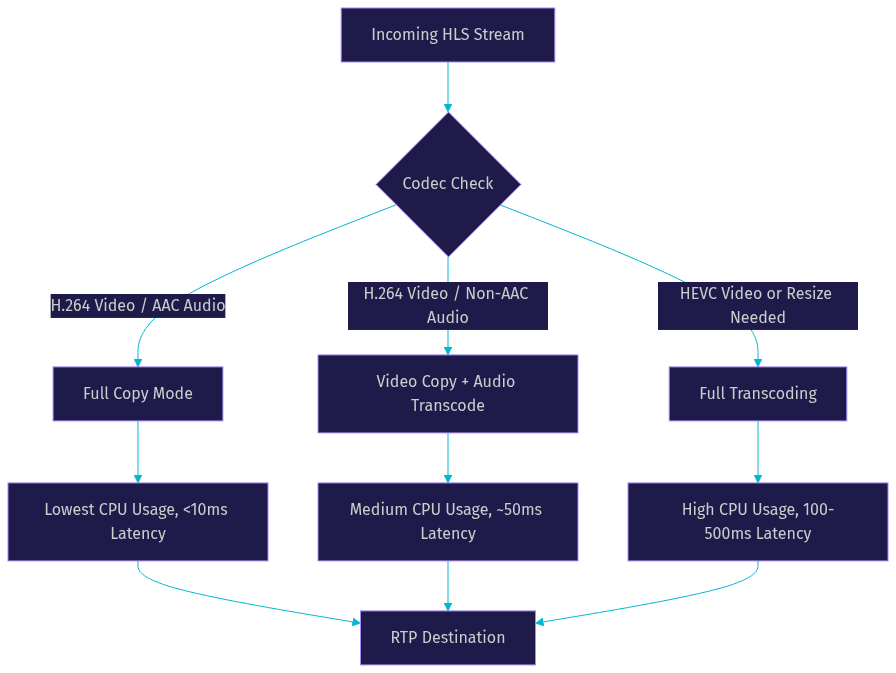
Choosing between copy mode and full transcoding depends on your codec compatibility, latency requirements, CPU constraints, and network environment. Copy mode is the clear winner when the source and destination share the same codec. If your HLS source is H.264 and your RTP receiver expects H.264, re-encoding is a waste of resources.
Full transcoding becomes necessary when codec conversion is required. If the HLS source uses HEVC or H.265 and the destination RTP stream must be H.264 for WebRTC compatibility, you must decode and re-encode. Transcoding is also useful for changing resolution or bitrate to adapt to lower bandwidth networks.
Audio codec compatibility is a frequent stumbling block. HLS streams typically use AAC audio, while WebRTC and many real-time RTP applications prefer Opus for its superior compression at low bitrates. If your application requires Opus, you must transcode the audio track, even if you copy the video track. FFmpeg allows you to copy video while transcoding audio, offering a hybrid approach that saves CPU on the video side while ensuring audio compatibility.
Here is a quick decision framework:
- Use copy mode when video and audio codecs match, CPU is limited, and latency is critical.
- Use video copy with audio transcoding when video is H.264 but audio needs conversion to Opus.
- Use full transcoding when video codecs differ, resolution changes are needed, or bandwidth adaptation is required.
Preparing Your Environment
To build a reliable FFmpeg copy HLS to RTP pipeline, you need a stable environment. Ensure your system runs FFmpeg version 4.0 or newer. Newer builds include improved HLS demuxers and RTP muxers that handle edge cases more gracefully. They also offer better support for fragmented MP4 segments, which are increasingly common in modern low-latency HLS streams.
Network configuration is equally important. RTP typically travels over UDP, which firewalls often block by default. You must open the appropriate UDP port range on both the sending and receiving machines. Unlike TCP, UDP does not establish a connection, so firewalls need explicit rules to allow incoming RTP packets. Pay attention to Maximum Transmission Unit (MTU) sizing. If RTP packets exceed the network MTU, they will be fragmented at the IP layer. Fragmented packets are more likely to be dropped on unstable networks. The standard Ethernet MTU is 1500 bytes. After accounting for IP and UDP headers, your RTP payload should generally not exceed 1400 bytes to avoid fragmentation.
Before starting the relay, verify the source HLS codec. You can use FFprobe to inspect the stream and confirm the video and audio codecs. FFprobe reads the HLS playlist and analyzes the first few segments to report the codec names, resolutions, and frame rates. If the source is not H.264 or AAC, copy mode will fail to produce a compatible RTP stream for most real-time applications. Confirming the codec beforehand saves hours of troubleshooting.
Step-by-Step Conceptual Workflow
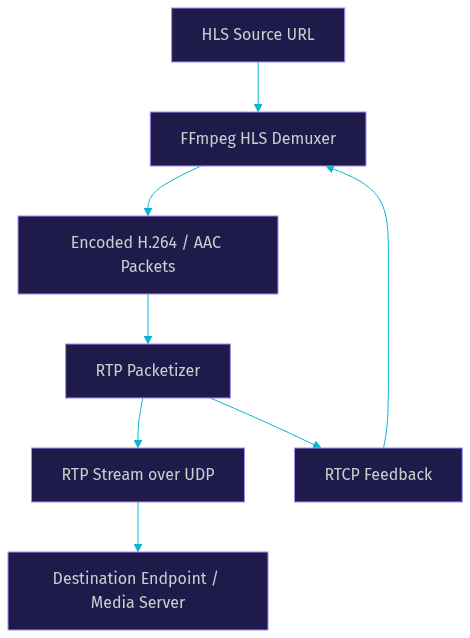
The FFmpeg copy HLS to RTP workflow follows a logical flow: ingest the HLS source, demux the segments, packetize the media into RTP, and send it to the destination endpoint. Understanding each stage helps you diagnose issues when they arise.
First, FFmpeg connects to the HLS source URL. The HLS demuxer reads the master playlist and media playlists, downloading segments as they become available. It handles the segment boundaries seamlessly, presenting a continuous stream of encoded packets to the next stage. The demuxer manages the HTTP requests and handles any retries if a segment is not yet available on the origin server.
Next, FFmpeg separates the audio and video packets. Because copy mode is active, no decoding occurs. The raw H.264 Network Abstraction Layer (NAL) units and AAC frames are passed directly to the RTP muxer.
The RTP muxer then packetizes these raw encoded frames into RTP packets. It assigns sequence numbers, timestamps, and synchronization source (SSRC) identifiers. Video frames are often larger than the MTU, so the muxer fragments them into multiple RTP packets according to the H.264 RTP payload format specification. It uses fragmentation units to split large NAL units across several RTP packets, ensuring each packet fits within the MTU limit.
Finally, FFmpeg sends the RTP packets over UDP to the destination IP and port. The destination could be a media server, a WebRTC gateway, or a direct RTP receiver. FFmpeg also sends RTCP packets to provide feedback on the stream health.
Handling Common Pitfalls
Even with a solid workflow, several common pitfalls can disrupt an FFmpeg copy HLS to RTP pipeline. Addressing these proactively ensures a stable stream.
Incompatible container formats are a frequent issue. HLS traditionally uses MPEG-TS segments, but fragmented MP4 (fMP4) is now standard for low-latency HLS. While modern FFmpeg handles both, older versions might struggle with fMP4 demuxing. Ensure your FFmpeg build is up to date to support the latest HLS specifications.
Timestamp drift and synchronization issues can occur when the HLS source has irregular segment durations or timing gaps. Because copy mode does not re-time the frames, any timestamp irregularities in the source carry over to the RTP stream. The RTP muxer relies on accurate Presentation Time Stamps (PTS) for playback synchronization. If the source timestamps are broken, the RTP receiver will experience audio and video desync. Some HLS sources reset timestamps at each segment boundary, which can confuse the RTP muxer. FFmpeg has options to handle these resets, but you must be aware of the source stream's timing behavior.
Packet size and MTU adjustments are critical for lossy networks. If your RTP packets are too large, they get fragmented at the IP layer. Fragmented packets are more likely to be dropped on unstable networks. Configuring the RTP packetizer to respect the network MTU prevents this issue. If you see high packet loss at the receiver, check the RTP packet sizes to ensure they are not being fragmented.
Monitoring RTP stream health is essential. RTP works alongside RTCP (RTP Control Protocol) to provide feedback on stream quality. RTCP reports include packet loss counters, jitter measurements, and round-trip time. Monitoring these metrics allows you to detect network degradation before it impacts the viewer experience. If packet loss spikes, you may need to reduce your bitrate or investigate network congestion.
Integrating RTP into Real-Time Applications
Relaying HLS to RTP is often just the first step in a larger real-time streaming architecture. Most modern applications ultimately deliver media via WebRTC to browsers and mobile apps. RTP serves as the bridge between your FFmpeg relay and the WebRTC infrastructure.
To connect your RTP stream to a WebRTC application, you typically send the RTP packets to a media server or Selective Forwarding Unit (SFU). The media server receives the RTP stream, handles the WebRTC signaling, and forwards the media to connected participants. This architecture separates the ingest layer from the distribution layer, allowing you to scale independently.
VideoSDK provides a robust platform for this exact use case. You can ingest your RTP stream into a VideoSDK Interactive Live Streaming room. VideoSDK handles the WebRTC translation, participant management, and distribution to thousands of viewers. This allows you to leverage the low-latency ingest from FFmpeg while relying on VideoSDK for the last-mile delivery. You can also use the VideoSDK Prebuilt UI to quickly embed a viewing experience without writing custom frontend code.
Security is a major consideration when integrating RTP. Standard RTP is unencrypted, meaning anyone on the network can intercept the media. For production applications, use Secure RTP (SRTP) to encrypt the payload. Additionally, configure firewall rules to restrict RTP traffic to known IP addresses and port ranges. When feeding media into VideoSDK, the platform handles the WebRTC encryption, but the hop from FFmpeg to the media server should still be secured if it crosses public networks.
Performance and Latency Benchmarks
The primary motivation for using FFmpeg copy HLS to RTP is performance. Copy mode dramatically reduces both latency and CPU usage compared to transcoding.
In a copy mode workflow, the latency added by FFmpeg is typically under 10 milliseconds. The software simply reads packets from the HLS demuxer and writes them to the RTP muxer. There is no decode or encode buffer to wait through. CPU usage remains minimal, often below 5 percent on a modern processor, because the heavy lifting of video compression is skipped. This allows you to run multiple relay pipelines on a single server.
In contrast, a full transcoding pipeline adds anywhere from 100 to 500 milliseconds of latency. Decoding and re-encoding 1080p video in real-time requires significant CPU resources, often consuming 50 to 80 percent of a single core. According to independent streaming benchmarks, such as those tracked by Artificial Analysis, transcoding overhead is the single largest contributor to glass-to-glass latency in media relay pipelines. The processing time for each frame accumulates, pushing the end-to-end delay beyond the threshold for real-time interaction.
For edge devices and low-power servers, copy mode is the only viable way to relay high-definition video. It allows a Raspberry Pi or a low-cost VPS to handle multiple 1080p streams simultaneously without overheating or dropping frames. This efficiency makes it possible to deploy relay nodes close to the source, reducing the physical network distance and further improving latency.
Best Practices for Production Deployments
Running an FFmpeg copy HLS to RTP pipeline in production requires stability and observability. A simple command-line process is not enough for a 24/7 live stream.
Run FFmpeg as a systemd service or inside a Docker container. This ensures the process restarts automatically if it crashes. Systemd provides built-in logging and resource management, while Docker offers environment isolation and easy deployment. Containerizing your FFmpeg relay also makes it easier to scale horizontally by spinning up new containers on different servers.
Implement health checks. A basic health check monitors the FFmpeg process and verifies that RTP packets are flowing. If the HLS source goes offline, FFmpeg might hang or exit. A health check script can detect this and restart the service or switch to a backup source. You can monitor the output bitrate of the RTP stream to ensure media is actually flowing, not just that the process is running.
Log RTP statistics for troubleshooting. FFmpeg can output detailed statistics about the RTP stream, including packet counts and bitrates. Forward these logs to a monitoring system like Prometheus or Datadog. Historical logs help you diagnose intermittent issues that are hard to catch in real-time. Set up alerts for sudden drops in bitrate or spikes in packet loss.
Plan for scaling. A single FFmpeg instance can relay one HLS source to one RTP destination. If you need to send the stream to multiple destinations, run parallel FFmpeg processes. For large-scale distributions, send the single RTP stream to a media server like VideoSDK, which handles the fan-out to thousands of viewers natively. This approach is more efficient than running dozens of FFmpeg instances.
Quick Recap
- FFmpeg copy mode relays HLS to RTP without decoding or re-encoding.
- This workflow adds under 10 milliseconds of latency and minimal CPU load.
- It requires codec compatibility between the HLS source and RTP destination.
- Network configuration, especially UDP ports and MTU sizing, is critical.
- RTP streams can be ingested into WebRTC platforms like VideoSDK for audience delivery.
- Production deployments need process management, health checks, and logging.
Definitions Glossary
HLS (HTTP Live Streaming): A media streaming protocol that breaks content into small HTTP-based segments. VideoSDK supports HLS output for broad compatibility.
RTP (Real-time Transport Protocol): A network protocol for delivering audio and video over IP networks. It is the standard transport layer for WebRTC and VideoSDK media streams.
Copy Mode: An FFmpeg setting that skips decoding and encoding, passing compressed media packets directly from demuxer to muxer.
RTCP (RTP Control Protocol): A companion protocol to RTP that provides feedback on stream quality, including packet loss and jitter.
SFU (Selective Forwarding Unit): A media server architecture that routes media streams to participants without mixing them. VideoSDK uses SFU architecture for scalable video calls.
Key Takeaways
- FFmpeg copy HLS to RTP is the most efficient way to relay live video when codecs match.
- Copy mode eliminates transcoding overhead, reducing latency to under 10 milliseconds.
- Proper network configuration, including UDP port ranges and MTU sizing, is essential for RTP stability.
- Integrating RTP with a WebRTC platform like VideoSDK enables scalable, low-latency delivery to thousands of viewers.
- Production pipelines require process management, health checks, and statistics logging to maintain uptime.
Conclusion
The "ffmpeg copy hls to rtp" workflow is a powerful tool for developers building low-latency streaming applications. By leveraging copy mode, you bypass the computational cost of transcoding and deliver media with minimal delay. This makes it ideal for live sports, surveillance, and interactive broadcasts running on edge hardware.
Once your RTP stream is flowing, the next step is distribution. Ingesting that RTP stream into VideoSDK Interactive Live Streaming lets you leverage a robust WebRTC infrastructure for global audience delivery. You can also explore the VideoSDK REST APIs to automate your streaming workflows. What are you building with FFmpeg and VideoSDK? Drop a comment below, and check out the VideoSDK GitHub repository for more integration ideas.
Free $20 Balance for AI Voice Agents & Video Calls
FAQ