



TL;DR: To build an online doctor consultation platform, you need five core layers: appointment scheduling (external), a secure video session, in-session chat, session recording, and post-session transcription. This guide implements the last four using VideoSDK's React SDK (@videosdk.live/react-sdk), with verified code for every hook and method.To build an online doctor consultation platform, you combine an appointment scheduling system with a real-time video layer that handles the actual clinical interaction. The video layer must support encrypted peer-to-peer communication, in-call messaging, server-side recording, and automatic transcription so the session can feed downstream workflows like prescriptions and EHR entries.
Core features of a doctor consultation platform
A functional telemedicine MVP requires several distinct modules. Not all of them fall inside the VideoSDK boundary, so this section draws a clear line between what the SDK handles and what your backend must own.
Appointment scheduling
Appointment scheduling is the process of matching a patient with an available doctor for a specific time slot. This is outside the VideoSDK scope. You need a calendar-aware booking system, whether that's a custom service, a third-party API like Calendly Embed, or a module inside your EHR. What VideoSDK provides is the room that the appointment links to.
Your booking service should generate a meetingId (room ID) at the time of booking confirmation and store it alongside the appointment record. Both the patient and the doctor receive a secure link containing that ID.
Video session
VideoSDK provides the encrypted media transport. A VideoSDK room is a WebRTC-based session where participants exchange audio and video streams via VideoSDK's media servers. Each room is identified by a meetingId and controlled through short-lived JWT tokens.
In-session chat
VideoSDK includes a PubSub (publish-subscribe) messaging layer that lets participants exchange typed messages within a room without any additional WebSocket server on your end. This is sufficient for clinical messages during a session, such as the doctor sharing a link to a lab report portal.
Session recording
Any participant can trigger cloud recording of the session. Recordings are stored in VideoSDK's infrastructure and are accessible from the developer dashboard. You can also redirect them to an S3-compatible path using the awsDirPath parameter.
Real-time transcription and post-session transcription
VideoSDK offers two distinct transcription modes. The first is real-time transcription, which uses the useTranscription hook to stream spoken words as text during the session, with an optional AI summary delivered to a webhook after stopping. The second is post-session transcription, which runs after the recording ends and produces structured transcript files in JSON, SRT, TXT, TSV, and VTT formats, retrievable via the fetchPostTranscriptions REST API. Both modes support summary generation via a configurable prompt. A telemedicine platform would typically use post-session transcription for permanent clinical records, since the output is more structured and complete.
Architecture
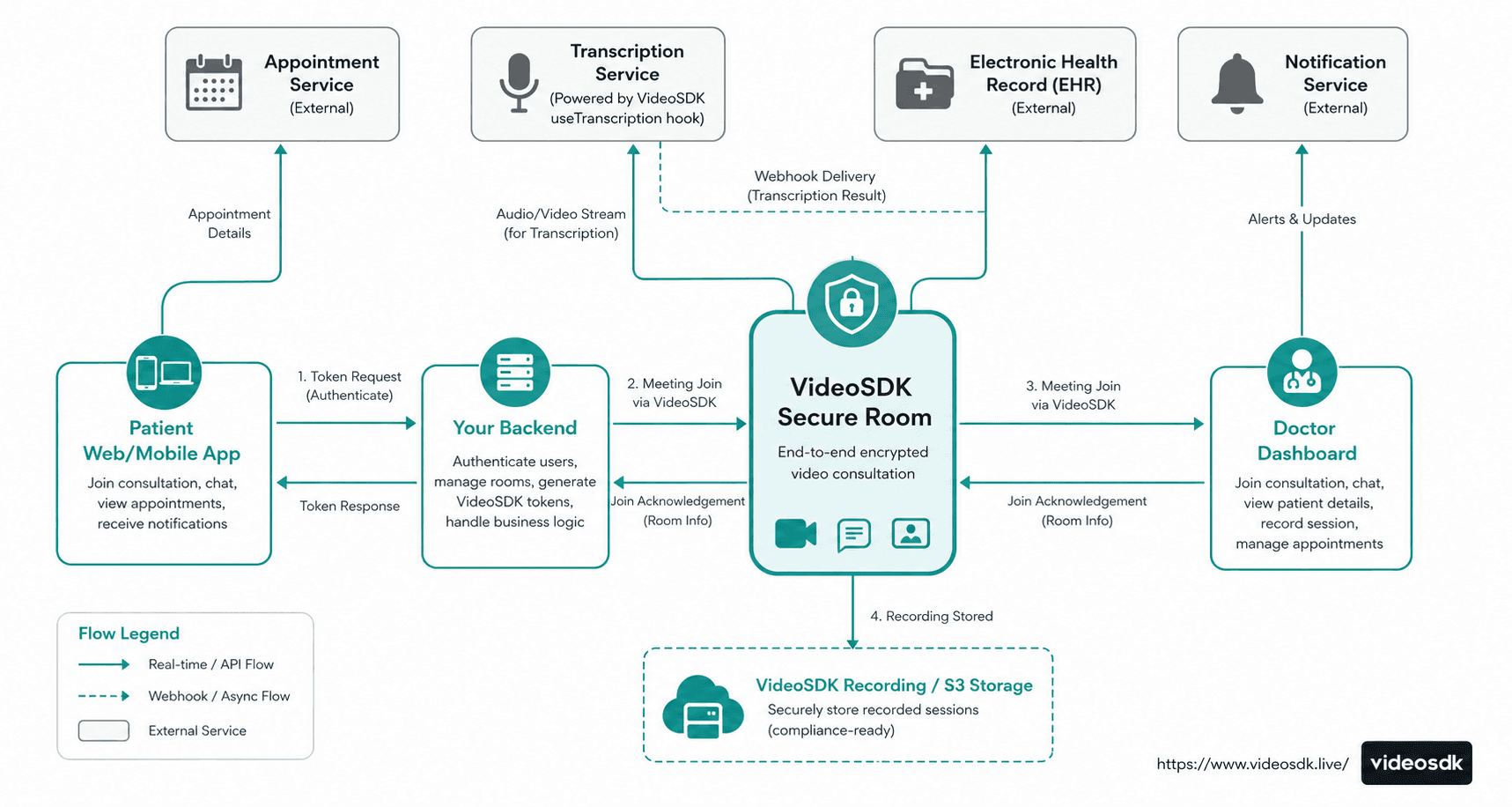
The architecture has four distinct layers. The client layer consists of the patient web or mobile app and the doctor dashboard, both built in React. The VideoSDK layer handles all media routing, PubSub messaging, recording, and transcription inside a secure room. The application backend generates tokens, stores appointment records, and receives webhook payloads from VideoSDK after a session ends. The data layer includes an EHR system and a notification service that consume structured data your backend derives from the webhook payloads.
The VideoSDK room itself does not connect directly to your EHR. Your backend webhook endpoint receives the transcription and recording metadata, then writes to whatever storage layer your platform uses.
Setting up VideoSDK
Install the package
Install the React SDK using npm or yarn:
npm install @videosdk.live/react-sdkOr with yarn:
yarn add @videosdk.live/react-sdkThe package name is @videosdk.live/react-sdk. This is the verified package name from the official VideoSDK documentation.
Generate an API key
Sign up at app.videosdk.live, create a project, and copy your API key and secret. These credentials stay on your server only. Never embed them in client-side code.
Generate a token
VideoSDK uses short-lived JWT tokens for room access. Generate tokens on your server using your API key and secret. A minimal Node.js example:
const jwt = require("jsonwebtoken");

function generateToken() {
  const payload = {
    apikey: process.env.VIDEOSDK_API_KEY,
    permissions: ["allow_join"],
    version: 2,
  };
  return jwt.sign(payload, process.env.VIDEOSDK_SECRET_KEY, {
    expiresIn: "1h",
    algorithm: "HS256",
  });
}
Your frontend fetches this token from your own API endpoint before joining a room.
Create a room
Call the VideoSDK REST API to create a room (meeting) before the session starts:
const response = await fetch("https://api.videosdk.live/v2/rooms", {
  method: "POST",
  headers: {
    Authorization: token,
    "Content-Type": "application/json",
  },
});
const { roomId } = await response.json();
Store the returned roomId in your appointment record. Pass it to both the patient and the doctor as the meetingId for their join flow.
Patient interface (React)
The patient interface needs three things: the ability to join a room, camera and microphone controls, and access to the in-session chat. All three are available through MeetingProvider, useMeeting, and useParticipant from @videosdk.live/react-sdk.
Wrapping the app with MeetingProvider
MeetingProvider is the React context provider that supplies meeting state to all child components. Wrap your session view with it before rendering any hooks:
import {
  MeetingProvider,
  useMeeting,
  useParticipant,
} from "@videosdk.live/react-sdk";

function PatientApp({ meetingId, token, patientName }) {
  return (
    <MeetingProvider
      config={{
        meetingId,
        micEnabled: true,
        webcamEnabled: true,
        name: patientName,
      }}
      token={token}
    >
      <PatientView />
    </MeetingProvider>
  );
}
Joining the meeting and controlling media
Inside PatientView, use the useMeeting hook to get the join, leave, toggleMic, and toggleWebcam methods:
function PatientView() {
  const { join, leave, toggleMic, toggleWebcam, participants } = useMeeting({
    onMeetingJoined: () => console.log("Patient joined"),
    onMeetingLeft: () => console.log("Patient left"),
  });

  return (
    <div>
      <button onClick={join}>Join Consultation</button>
      <button onClick={toggleMic}>Toggle Mic</button>
      <button onClick={toggleWebcam}>Toggle Camera</button>
      <button onClick={leave}>End Session</button>

      {[...participants.keys()].map((participantId) => (
        <ParticipantTile key={participantId} participantId={participantId} />
      ))}
    </div>
  );
}
Rendering a participant's video stream
useParticipant takes a participantId and returns that participant's stream objects. Attach the webcam stream to a <video> element using a ref:
import { useParticipant } from "@videosdk.live/react-sdk";
import { useEffect, useRef } from "react";

function ParticipantTile({ participantId }) {
  const videoRef = useRef(null);
  const { webcamStream, webcamOn, displayName } = useParticipant(participantId);

  useEffect(() => {
    if (videoRef.current && webcamStream) {
      const mediaStream = new MediaStream();
      mediaStream.addTrack(webcamStream.track);
      videoRef.current.srcObject = mediaStream;
    }
  }, [webcamStream, webcamOn]);

  return (
    <div>
      <p>{displayName}</p>
      {webcamOn ? (
        <video ref={videoRef} autoPlay muted />
      ) : (
        <p>Camera off</p>
      )}
    </div>
  );
}
Doctor interface (React)
The doctor view uses the same useMeeting and useParticipant hooks, with the addition of recording controls.
Doctor view with recording
import {
  MeetingProvider,
  useMeeting,
  Constants,
} from "@videosdk.live/react-sdk";

function DoctorSession() {
  const {
    join,
    leave,
    toggleMic,
    toggleWebcam,
    startRecording,
    stopRecording,
    participants,
  } = useMeeting({
    onRecordingStateChanged: (data) => {
      const { status } = data;
      if (status === Constants.recordingEvents.RECORDING_STARTED) {
        console.log("Recording started");
      } else if (status === Constants.recordingEvents.RECORDING_STOPPED) {
        console.log("Recording stopped");
      }
    },
  });

  const handleStartRecording = () => {
    // startRecording(webhookUrl, awsDirPath, config, transcription)
    // Pass null for unused parameters
    startRecording("https://your-backend.com/webhooks/recording", null, null, null);
  };

  return (
    <div>
      <button onClick={join}>Join as Doctor</button>
      <button onClick={toggleMic}>Mic</button>
      <button onClick={toggleWebcam}>Camera</button>
      <button onClick={handleStartRecording}>Start Recording</button>
      <button onClick={stopRecording}>Stop Recording</button>
      <button onClick={leave}>End Consultation</button>

      {[...participants.keys()].map((id) => (
        <ParticipantTile key={id} participantId={id} />
      ))}
    </div>
  );
}
The startRecording method accepts a webhookUrl as its first argument. VideoSDK calls this URL after the recording is ready, passing a download link. The second argument, awsDirPath, lets you specify a custom S3 path. Pass null to use VideoSDK's default storage.
In-session chat
The PubSub feature in VideoSDK lets participants send and receive typed messages keyed to a topic string. You can use any topic string; "CHAT" is a common convention.
usePubSub is the hook that returns a publish function and a messages array. The publish function takes the message text and an options object. Setting persist: true means participants who join late still see the message history.
import { usePubSub } from "@videosdk.live/react-sdk";
import { useState } from "react";

function SessionChat() {
  const [input, setInput] = useState("");
  const { publish, messages } = usePubSub("CHAT");

  const sendMessage = () => {
    if (input.trim()) {
      publish(input, { persist: true });
      setInput("");
    }
  };

  return (
    <div>
      <div className="messages">
        {messages.map((msg, i) => (
          <p key={i}>
            <strong>{msg.senderName}:</strong> {msg.message}
          </p>
        ))}
      </div>
      <input
        value={input}
        onChange={(e) => setInput(e.target.value)}
        placeholder="Type a message..."
      />
      <button onClick={sendMessage}>Send</button>
    </div>
  );
}
Each message in the messages array contains message (the text), senderName, senderId, and timestamp. No additional WebSocket server is required.
Session transcription
VideoSDK provides real-time transcription through the useTranscription hook. This is a verified API from the VideoSDK React SDK documentation. It streams live transcript text through callbacks as the session runs and delivers an optional AI summary to a webhook URL after transcription stops.
Starting and consuming transcription
import { useTranscription, Constants } from "@videosdk.live/react-sdk";
import { useState } from "react";

function TranscriptionPanel() {
  const [transcriptLines, setTranscriptLines] = useState([]);

  function onTranscriptionStateChanged(data) {
    const { status, id } = data;
    if (status === Constants.transcriptionEvents.TRANSCRIPTION_STARTED) {
      console.log("Transcription started, session id:", id);
    } else if (status === Constants.transcriptionEvents.TRANSCRIPTION_STOPPED) {
      console.log("Transcription stopped, summary will be delivered via webhook");
    }
  }

  function onTranscriptionText(data) {
    const { participantName, text, timestamp } = data;
    setTranscriptLines((prev) => [
      ...prev,
      { participantName, text, timestamp },
    ]);
  }

  const { startTranscription, stopTranscription } = useTranscription({
    onTranscriptionStateChanged,
    onTranscriptionText,
  });

  const handleStart = async () => {
    await startTranscription({
      webhookUrl: "https://your-backend.com/webhooks/transcription",
      summary: {
        enabled: true,
        prompt:
          "Write a clinical summary with sections: Chief Complaint, Doctor's Assessment, Prescription Notes, Follow-up Actions",
      },
    });
  };

  return (
    <div>
      <button onClick={handleStart}>Start Transcription</button>
      <button onClick={stopTranscription}>Stop Transcription</button>
      <div className="transcript">
        {transcriptLines.map((line, i) => (
          <p key={i}>
            <strong>{line.participantName}:</strong> {line.text}
          </p>
        ))}
      </div>
    </div>
  );
}
Storing the transcript
When stopTranscription() is called and summary.enabled is true, VideoSDK posts the final transcript and summary to your webhookUrl. Your backend webhook handler receives the payload, parses it, and writes the structured text to the patient's EHR record or your consultation notes database.
There is no separate REST API for retrieving real-time transcripts by session ID in the VideoSDK React SDK docs. The webhook delivery is the correct retrieval path for real-time transcription data. Store the payload on receipt.
Post-session transcription
Post-session transcription is a separate feature from real-time transcription. It runs after the session recording has stopped. VideoSDK transcribes the recorded audio file and optionally generates a structured AI summary. The output is available in multiple formats: JSON, SRT, TXT, TSV, and VTT.
This is particularly useful in a telemedicine context because the doctor does not need to start a separate transcription stream during the call. They simply enable it on startRecording, and the full transcript is available once the recording is processed.
Enabling post-transcription via startRecording
Pass a transcription configuration object as the fourth argument to startRecording:
import { useMeeting } from "@videosdk.live/react-sdk";

function DoctorRecordingWithTranscription() {
  const { startRecording, stopRecording } = useMeeting();

  const handleStartRecording = () => {
    const webhookUrl = "https://your-backend.com/webhooks/recording";

    const transcription = {
      enabled: true, // enables post-session transcription
      summary: {
        enabled: true, // generates an AI summary after transcription
        prompt:
          "Write a clinical summary with sections: Chief Complaint, Doctor's Assessment, Prescription Notes, Follow-up Actions",
      },
    };

    // startRecording(webhookUrl, awsDirPath, config, transcription)
    startRecording(webhookUrl, null, null, transcription);
  };

  return (
    <>
      <button onClick={handleStartRecording}>Start Recording</button>
      <button onClick={stopRecording}>Stop Recording</button>
    </>
  );
}
Retrieving the transcript after the session
Once the recording stops, VideoSDK processes the audio and triggers a webhook to your configured URL. After processing completes, you can also retrieve transcription data using the VideoSDK Post Transcription API (fetchPostTranscriptions). The response includes file paths in all supported formats:
{
  "id": "40b0a4ed-9842-40c9-a288-e4b1bf98a90a",
  "status": "completed",
  "roomId": "abc-xyzw-lmno",
  "sessionId": "621497578bea0d0404c35c4c",
  "recordingId": "65d303d6d2c373dfd71b38a2",
  "transcriptionFilePaths": {
    "json": "https://cdn.videosdk.live/transcriptions/dummy/dummy.json",
    "srt": "https://cdn.videosdk.live/transcriptions/dummy/dummy.srt",
    "txt": "https://cdn.videosdk.live/transcriptions/dummy/dummy.txt",
    "tsv": "https://cdn.videosdk.live/transcriptions/dummy/dummy.tsv",
    "vtt": "https://cdn.videosdk.live/transcriptions/dummy/dummy.vtt"
  },
  "summarizedFilePaths": {
    "txt": "https://cdn.videosdk.live/transcriptions/dummy/dummy-summary.txt"
  }
}
Note that there may be a delay between when stopRecording is called and when the transcript is ready. The delay depends on server load and the duration of the session. Do not assume the transcript is immediately available after the recording stops; poll the status field or rely on the webhook trigger.
The .txt file in transcriptionFilePaths is suitable for storing in a plain EHR notes field. The .json file is better for structured data pipelines that need speaker attribution and timestamps. The summarizedFilePaths.txt contains the AI-generated summary text.
Cloud recording
Recording is exposed through the startRecording and stopRecording methods from useMeeting, Any participant can start or stop recording at any time during a session.
Start, stop, and retrieve recordings
import { useMeeting, Constants } from "@videosdk.live/react-sdk";

function RecordingControls() {
  const { startRecording, stopRecording } = useMeeting({
    onRecordingStateChanged: ({ status }) => {
      switch (status) {
        case Constants.recordingEvents.RECORDING_STARTING:
          console.log("Recording is starting...");
          break;
        case Constants.recordingEvents.RECORDING_STARTED:
          console.log("Recording is active");
          break;
        case Constants.recordingEvents.RECORDING_STOPPING:
          console.log("Recording is stopping...");
          break;
        case Constants.recordingEvents.RECORDING_STOPPED:
          console.log("Recording stopped. File available in dashboard.");
          break;
        default:
          break;
      }
    },
  });

  return (
    <>
      <button
        onClick={() =>
          startRecording(
            "https://your-backend.com/webhooks/recording",
            null,  // awsDirPath — replace with S3 path to use your own storage
            null,  // config
            null   // transcription — see post-transcription section below
          )
        }
      >
        Record Session
      </button>
      <button onClick={stopRecording}>Stop Recording</button>
    </>
  );
}
After the recording is processed, VideoSDK posts a webhook to the URL you passed in startRecording. The payload includes the file URL. Your backend stores this URL in the patient's appointment record, from where it can be surfaced on the doctor's dashboard or sent to the patient via email.
There is no dedicated client-side "retrieve" method in the React SDK. Retrieval is via the webhook payload or the VideoSDK developer dashboard.
Key takeaways
- To build an online doctor consultation platform, you need an external appointment scheduler and a VideoSDK room as the session layer. They connect through a shared
meetingId. - VideoSDK's React SDK exposes four verified hooks for telemedicine:
useMeeting(join, leave, mic, camera, recording),useParticipant(per-user streams),usePubSub(in-session chat), anduseTranscription(real-time speech-to-text with AI summary). - VideoSDK supports two transcription modes.
useTranscriptionstreams live text during the session. Post-session transcription runs after the recording ends and is enabled by passing atranscriptionconfig object as the fourth argument tostartRecording(webhookUrl, awsDirPath, config, transcription). The post-session output includes structured files in JSON, SRT, TXT, TSV, and VTT formats, retrievable via thefetchPostTranscriptionsAPI. - Appointment scheduling, EHR integration, and prescription workflows are outside VideoSDK's scope. Your backend must own those and consume VideoSDK webhook payloads to feed them.
- Token generation must happen on your server. Never expose your VideoSDK API secret on the client.
FAQ
Q1. How many participants can join a VideoSDK room?
VideoSDK's documentation for the React SDK does not specify a hard room participant limit in the public feature guides. For production deployments, check your plan limits in the VideoSDK dashboard at app.videosdk.live or contact their support for exact capacity numbers relevant to your use case.
Q2. Can the doctor share their screen during a consultation?
Screen sharing is part of the VideoSDK feature set. The React SDK documentation lists it under advanced features. It is accessible via stream controls within the useMeeting and useParticipant hooks. The exact method names should be verified against the VideoSDK screen sharing guide before implementation.
Q3. How accurate is the VideoSDK real-time transcription?
The transcription is powered by an AI speech-to-text engine exposed through useTranscription. VideoSDK's documentation does not publish a word error rate benchmark. Accuracy will vary with audio quality, speaker accent, and medical terminology. For clinical documentation, treat the transcript as a draft that the doctor reviews and edits before storing in the EHR.
Q4. Can recordings be sent to the patient automatically?
VideoSDK does not send recordings to patients directly. When stopRecording is called, VideoSDK posts a webhook to the URL you configured in startRecording. Your backend receives that webhook, extracts the file URL, and can then trigger any delivery mechanism: an email with the link, a patient portal notification, or a write to the patient's EHR timeline.
Q5. What is the cost model for VideoSDK?
VideoSDK operates on a usage-based pricing model. Charges are based on participant minutes, recording minutes, and other feature usage. A free tier is available for development. Always verify current rates on their pricing page before estimating costs for a production deployment, as plans may have changed.
Conclusion
Building an online doctor consultation platform requires pairing a booking system you control with a real-time video layer built for low-latency, secure sessions. VideoSDK handles the media transport, chat, recording, and transcription through four well-documented React hooks: useMeeting, useParticipant, usePubSub, and useTranscription. Each hook has a clear responsibility, and all code in this guide uses verified method names from the VideoSDK React SDK documentation.
The appointment scheduling, EHR integration, and prescription workflow remain your application's responsibility. VideoSDK delivers the session data to your backend via webhooks, and from there your platform decides how to store and surface it.
If you are starting a telemedicine app development project, the fastest path to a working MVP is to implement the sections in this guide in order: environment setup, patient join flow, doctor controls with recording, PubSub chat, real-time transcription, and post-session transcription. The post-session transcription is the most EHR-friendly output, as it gives you structured files with speaker attribution that you can parse and store against the appointment record.