


TL;DR: You can build a fully functional multi-participant video cam room using VideoSDK's React SDK in a single afternoon. VideoSDK wraps WebRTC's signalling, ICE negotiation, and media routing into clean React hooks, so you focus on product features instead of transport-layer code.
To build a live video cam room app with WebRTC, you need a signalling layer, a media server or peer-to-peer mesh, and a set of SDK primitives for rooms, participants, and media streams. VideoSDK provides all three through a unified API that abstracts raw WebRTC so you can render a multi-participant video grid, control audio, add in-room chat, and share screens with minimal boilerplate.
How VideoSDK uses WebRTC
WebRTC: WebRTC is an open standard that enables real-time audio and video communication directly between browsers and native apps without a plugin.
VideoSDK uses WebRTC as its transport layer. Rather than exposing raw RTCPeerConnection objects, VideoSDK models a session around three core abstractions documented on the Concept and Architecture page:
Meeting / Room is a virtual place where participants interact in real-time voice, video, and screen-sharing sessions. Every room is uniquely identified by a meetingId or roomId. A single room can host multiple sessions over its lifetime, each identified by a sessionId.
Participant represents each user in the room. The local participant controls their own microphone and camera. Remote participants receive audio and video streams from the local participant and from each other. Every participant has a unique participantId.
MediaStream and Track are the WebRTC primitives VideoSDK exposes when needed. A MediaStream is a collection of audio and video tracks. A track is a continuous flow of audio or video data. VideoSDK manages track negotiation internally but surfaces micStream and webcamStream on each participant so you can attach them to HTML <video> and <audio> elements.
Events and notifications round out the model. The SDK fires callbacks when participants join or leave, when media state changes, and when SDK-level errors occur. These callbacks are the primary mechanism for keeping your UI in sync with the room state.
Setting up the project
Installing the SDK
VideoSDK publishes two web SDKs: a plain JavaScript SDK (@videosdk.live/js-sdk) and a React SDK (@videosdk.live/react-sdk). This guide uses the React SDK because its hooks eliminate most imperative setup code.
npm install "@videosdk.live/react-sdk"For the plain JavaScript SDK:
npm install "@videosdk.live/js-sdk"Getting a token and creating a room
You need two things before joining a room: an auth token and a meetingId. Generate a temporary token from the VideoSDK dashboard. In production, generate tokens server-side and never expose your API secret to the client.
const authToken = "<Generated-from-dashboard>";

async function createMeeting() {
  const res = await fetch("https://api.videosdk.live/v2/rooms", {
    method: "POST",
    headers: {
      authorization: authToken,
      "Content-Type": "application/json",
    },
    body: JSON.stringify({}),
  });
  const { roomId } = await res.json();
  return roomId;
}
Wrapping your app with MeetingProvider
The React SDK exposes MeetingProvider, which is a context provider that makes meeting state available to all child components. Wrap your room UI with it:
import { MeetingProvider } from "@videosdk.live/react-sdk";

function App() {
  const meetingId = "<roomId-from-API>";

  return (
    <MeetingProvider
      config={{
        meetingId,
        micEnabled: true,
        webcamEnabled: true,
        name: "Participant Name",
      }}
      token={authToken}
    >
      <MeetingView />
    </MeetingProvider>
  );
}
Inside MeetingView, call useMeeting to access the join method and start the session:
import { useMeeting } from "@videosdk.live/react-sdk";

function MeetingView() {
  const { join, participants } = useMeeting({
    onMeetingJoined: () => {
      console.log("Joined the meeting");
    },
  });

  return (
    <>
      <button onClick={join}>Join Room</button>
      <ParticipantGrid participants={participants} />
    </>
  );
}
Building the video grid
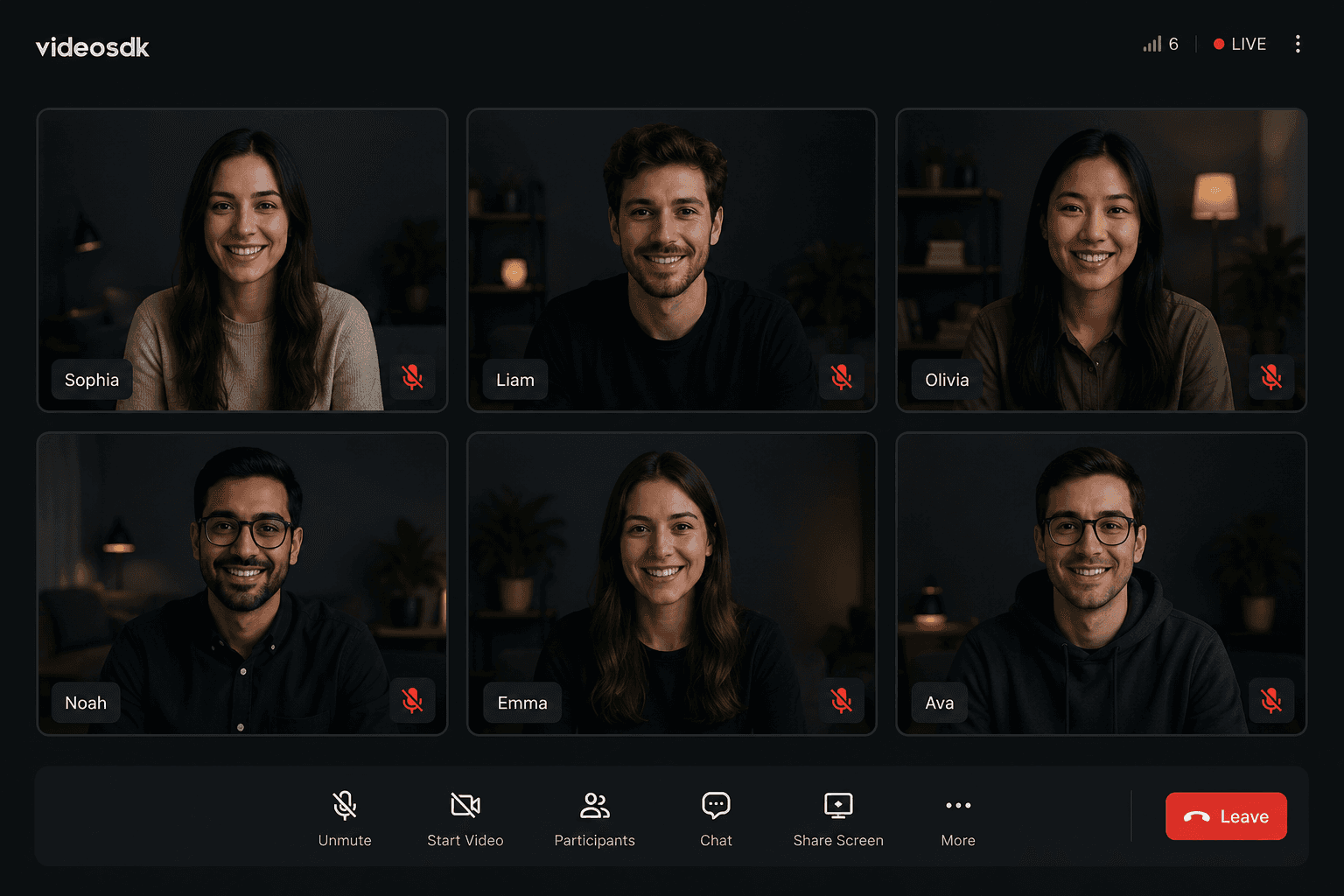
A cam room is a multi-participant real-time video space with a grid layout where every connected participant appears in their own video tile. The useMeeting hook returns a participants Map, where keys are participantId strings and values are participant objects.
Iterate over this Map to render one tile per participant:
import { useParticipant } from "@videosdk.live/react-sdk";
import { useEffect, useRef } from "react";

function ParticipantGrid({ participants }) {
  return (
    <div style={{ display: "grid", gridTemplateColumns: "repeat(3, 1fr)", gap: 8 }}>
      {[...participants.keys()].map((participantId) => (
        <ParticipantTile key={participantId} participantId={participantId} />
      ))}
    </div>
  );
}

function ParticipantTile({ participantId }) {
  const { displayName, webcamStream, micOn, webcamOn } = useParticipant(participantId);
  const videoRef = useRef(null);

  useEffect(() => {
    if (videoRef.current && webcamStream) {
      videoRef.current.srcObject = new MediaStream([webcamStream.track]);
    }
  }, [webcamStream]);

  return (
    <div style={{ position: "relative", background: "#111", borderRadius: 8 }}>
      <video
        ref={videoRef}
        autoPlay
        playsInline
        muted
        style={{ width: "100%", borderRadius: 8, display: webcamOn ? "block" : "none" }}
      />
      {!webcamOn && (
        <div style={{ color: "#fff", textAlign: "center", padding: 24 }}>
          Camera off
        </div>
      )}
      <div style={{ position: "absolute", bottom: 8, left: 8, color: "#fff" }}>
        {displayName} {!micOn && "(muted)"}
      </div>
    </div>
  );
}
The useParticipant hook exposes webcamOn and micOn as booleans that update reactively whenever a participant enables or disables their camera or microphone. No polling or manual event subscriptions required.
Audio controls
Local mute and unmute
The useMeeting hook provides three mic methods, all verified from the Mute / Unmute Mic documentation:
muteMic()stops publishing audio to other participants.unmuteMic()starts publishing audio.toggleMic()switches based on the current state.
import { useMeeting } from "@videosdk.live/react-sdk";

function AudioControls() {
  const { muteMic, unmuteMic, toggleMic, localMicOn } = useMeeting();

  return (
    <button onClick={toggleMic}>
      {localMicOn ? "Mute" : "Unmute"}
    </button>
  );
}
localMicOn is a boolean from useMeeting that reflects the local participant's current mic state.
Detecting audio state changes on remote participants
To show a mute indicator on each tile, read the micOn property from useParticipant. To respond to stream lifecycle events, pass callbacks to useParticipant:
const { micOn } = useParticipant(participantId, {
  onStreamEnabled(stream) {
    if (stream.kind === "audio") {
      console.log("Audio stream on:", stream);
    }
  },
  onStreamDisabled(stream) {
    if (stream.kind === "audio") {
      console.log("Audio stream off:", stream);
    }
  },
  onMediaStatusChanged({ kind, newStatus }) {
    console.log("Media kind:", kind, "new status:", newStatus);
  },
});
The docs do not document an onSpeakerChanged or audio level event on useParticipant in the React SDK. Use the onStreamEnabled / onStreamDisabled / onMediaStatusChanged callbacks for audio state tracking.
Chat in the room
VideoSDK implements in-room messaging through a publish-subscribe mechanism called PubSub. PubSub: PubSub is a pattern where publishers send messages to a named topic and subscribers receive them in real time.
The React SDK exposes usePubSub, verified from the PubSub documentation:
import { usePubSub } from "@videosdk.live/react-sdk";

function ChatView() {
  const { publish, messages } = usePubSub("CHAT", {
    onMessageReceived: (message) => {
      console.log("New message:", message);
    },
    onOldMessagesReceived: (messages) => {
      console.log("Persisted messages:", messages);
    },
  });

  const sendMessage = async () => {
    try {
      await publish("Hello everyone!", { persist: true });
    } catch (e) {
      console.error("PubSub error:", e);
    }
  };

  return (
    <>
      <button onClick={sendMessage}>Send</button>
      {messages.map((msg, i) => (
        <p key={i}>
          <strong>{msg.senderName}:</strong> {msg.message}
        </p>
      ))}
    </>
  );
}
Setting persist: true stores the message for the session duration. Late-joining participants receive these stored messages through the onOldMessagesReceived callback. This solves one of the common cam room development problems: participants who join mid-session miss earlier context.
You can also target specific participants using the sendOnly option, passing an array of participantId strings. PubSub works for any topic name, so you can use it for raise-hand signals, layout switches, and polls in addition to chat.
Screen sharing
Screen sharing in VideoSDK is enabled by calling enableScreenShare() and disabled by calling disableScreenShare(), both available from useMeeting. The docs also provide a toggleScreenShare() shorthand.
import { useMeeting } from "@videosdk.live/react-sdk";

function ScreenShareButton() {
  const { enableScreenShare, disableScreenShare, localScreenShareOn } = useMeeting();

  return (
    <button onClick={localScreenShareOn ? disableScreenShare : enableScreenShare}>
      {localScreenShareOn ? "Stop sharing" : "Share screen"}
    </button>
  );
}
When a participant starts sharing, the screenShareStream property becomes available on that participant's useParticipant hook. Attach it to a <video> element the same way you attach webcamStream. The VideoSDK docs also expose a screenshareEnabled boolean on useParticipant to conditionally render the screen share tile.
Scaling the room
The VideoSDK Scalability Guide documents two features for large multi-participant meetings.
Player component and adaptive subscriptions
The VideoPlayer component (currently in BETA, requires SDK version 0.2.2 or later) automatically pauses off-screen video streams and adjusts stream quality to match the container size when maxQuality: "auto" is set.
import { VideoPlayer } from "@videosdk.live/react-sdk";

function ParticipantTile({ participantId }) {
  return (
    <VideoPlayer
      participantId={participantId}
      type="video"
      containerStyle={{ height: "100%", width: "100%" }}
    />
  );
}
Adaptive Subscriptions (also BETA) prioritize the dominant speaker and pinned participants when bandwidth is constrained. Muted participants' video is paused first, followed by least-dominant speakers.
Enable adaptive subscriptions when the meeting is joined:
const { join, enableAdaptiveSubscriptions } = useMeeting({
  onMeetingJoined: () => {
    enableAdaptiveSubscriptions();
  },
});
Listen for stream pause and resume events on useParticipant to update your UI:
useParticipant("participantId", {
  onStreamPaused: ({ kind, reason }) => {
    console.log(reason); // "muted" or "leastDominance"
  },
  onStreamResumed: ({ kind, reason }) => {
    console.log(reason); // "adaptiveSubscriptionsDisabled" or "networkStable"
  },
});
Participant limits
The VideoSDK docs do not publish a hard participant ceiling in the scalability guide. For rooms with very large participant counts, the docs recommend combining the Player Component, Adaptive Subscriptions, and UI-level pagination to reduce active stream subscriptions. Contact VideoSDK support for production capacity guidance specific to your plan.
Key takeaways
- VideoSDK wraps WebRTC signalling, ICE negotiation, and media routing, so you write React hooks rather than transport-layer code.
- The
useMeetinghook gives you room-level controls: join, leave, mute, screen share, and adaptive subscriptions. - The
useParticipanthook gives you per-participant state: media streams, mic/webcam status, and stream lifecycle callbacks. - PubSub (
usePubSub) handles in-room chat and any custom signalling your product needs. - The Player Component and Adaptive Subscriptions reduce bandwidth consumption in rooms with 10 or more participants, though both are currently in BETA.
FAQ
Q1. What is the maximum number of participants in a VideoSDK room?
The VideoSDK documentation does not specify a hard maximum participant count for conference rooms. The scalability guide addresses rooms with 10 or more participants and recommends the Player Component and Adaptive Subscriptions to manage bandwidth at scale. For specific capacity limits and enterprise-grade room sizes, check the VideoSDK pricing page or contact their support team.
Q2. How do you handle participants joining late?
When a participant joins an existing session, the useMeeting hook's participants Map already contains all currently connected participants. For chat history, use PubSub with persist: true when publishing messages. Late joiners receive persisted messages through the onOldMessagesReceived callback when they subscribe to that PubSub topic.
Q3. Can the room be password-protected?
The VideoSDK React SDK and JavaScript SDK documentation do not describe a built-in password field on the room or MeetingProvider. You can implement access control at the token level by generating tokens server-side only after verifying the user's credentials. This means an unauthorized user can never obtain a valid token for the room and cannot join.
Q4. How do you record the entire session?
VideoSDK supports cloud recording. The docs list cloud recording as a supported feature under the "Recording" section of the sidebar. To start recording, use the startRecording() method available from useMeeting. Recordings are stored on VideoSDK servers and are accessible through the VideoSDK Session Dashboard and the Sessions API. Recording details and storage options vary by plan.
Conclusion
Building a live video cam room app with WebRTC no longer requires deep knowledge of ICE servers, DTLS handshakes, or SDP negotiation. VideoSDK abstracts these layers through the MeetingProvider, useMeeting, and useParticipant hooks, giving you a reliable foundation for multi-participant video room development.
The pattern is consistent: use useMeeting for room-level actions and useParticipant for per-tile state. Add usePubSub for chat, call enableScreenShare() for screen sharing, and enable enableAdaptiveSubscriptions() to handle bandwidth constraints as your cam room grows.
Start with the React SDK quickstart at docs.videosdk.live, get a token from the dashboard, and you can have your first WebRTC video room rendering in minutes.