


A WebRTC player is a client-side library or component that receives, decodes, and renders real-time media streams delivered over WebRTC protocols. It handles SDP negotiation, ICE candidate exchange, and media rendering without browser plugins. VideoSDK provides production-ready WebRTC infrastructure that eliminates the need to build and maintain a custom player from scratch.
Real-time video is no longer a nice-to-have. Whether you are building a telehealth platform, a live shopping experience, or a surveillance dashboard, users expect sub-second latency and smooth playback. The WebRTC protocol stack is the foundation that makes this possible, but the browser's built-in WebRTC APIs are low-level and unforgiving. You need a WebRTC player that abstracts away the signaling handshake, ICE negotiation, and media rendering so you can focus on your product.
The challenge is that the ecosystem is fragmented. Dozens of open-source players exist, each with different adapter support, licensing terms, and community momentum. Pick the wrong one and you will spend weeks debugging ICE failures and SDP mismatches. This guide walks you through everything you need to choose, integrate, and optimize a WebRTC player in 2026, with a comparison of the top libraries and practical integration guidance.
What Is a WebRTC Player?
A WebRTC player is defined as a software component that establishes a WebRTC connection to a remote media source, receives incoming audio and video tracks, and renders them in a browser or application viewport. Unlike a traditional video player that fetches a file or an HLS/DASH manifest, a WebRTC player negotiates a peer connection in real time, receives media over SRTP, and renders it with minimal buffering.
A WebRTC player works by exchanging Session Description Protocol (SDP) offers and answers with a media server or publishing peer, gathering ICE candidates to establish the best network path, and then binding incoming media tracks to a rendering element such as an HTML video tag or a native view. The player manages the full lifecycle of the peer connection, including reconnection logic, track events, and teardown.
There is an important distinction between playback-only players and combined playback-and-publish solutions. Playback-only players are designed to receive streams, which makes them ideal for surveillance, live monitoring, and one-way broadcasting. Combined solutions support both receiving and publishing, which is what you need for interactive video calling, webinars, and two-way communication. VideoSDK's video calling SDK handles both directions with a rooms-based architecture, so you do not have to choose between the two modes or wire them together manually.
Core Architecture of a WebRTC Player
Every WebRTC player shares a common architectural backbone, even if the implementation details differ across libraries. Understanding this flow is essential because most integration bugs trace back to a failure at one of these stages.
The architecture begins with the user device requesting a stream from a signaling endpoint. The signaling layer exchanges SDP descriptions to agree on codecs, media formats, and transport parameters. Once the SDP offer and answer are exchanged, the ICE layer takes over, gathering candidates from STUN and TURN servers to find the optimal network path. After ICE connectivity is established, media flows over SRTP from the media server to the player, which then renders it on a video element.
A well-designed WebRTC player is media-server-independent at its core. It communicates through adapters that translate the player's internal signaling contract into the specific protocol a media server expects, whether that is WHEP, WHIP, a custom WebSocket protocol, or an HTTP-based SDP exchange. This adapter pattern lets you swap media servers without rewriting the player logic.
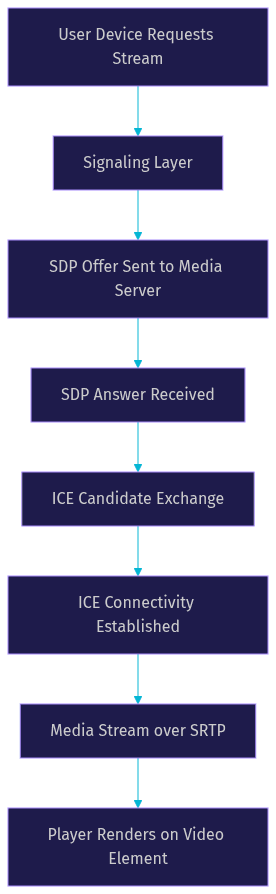
The diagram above shows the vertical flow from initial request to final render. Each stage can fail independently, which is why a robust player exposes events at every step rather than just a single "connected" callback.
Choosing the Right WebRTC Player Library
Selecting the right WebRTC player library depends on your media server, your publishing requirements, your team's familiarity with WebRTC internals, and the licensing model that fits your project. The open-source landscape has matured significantly by 2026, but no single library covers every use case.
Here is a comparison of the most widely used open-source WebRTC player libraries as of mid-2026. Community activity and adapter support can shift quickly, so verify the latest status on each project's GitHub repository before committing.
| Library | Language | Playback / Publish | Adapter Support | Licensing | Best For |
|---|---|---|---|---|---|
| Eyevinn WebRTC Player | JavaScript / TypeScript | Playback | WHEP, WHIP, custom | Apache 2.0 | WHEP-based streaming, media-server-agnostic projects |
| WebRTC Engine | JavaScript | Both | Custom adapters | MIT | Applications needing fine-grained control over peer connections |
| Flussonic WebRTC Player | JavaScript | Playback | Flussonic-specific | Proprietary / OSS hybrid | Flussonic media server deployments |
| Besovideo WebRTC Player | JavaScript | Both | WHEP, WHIP, custom | MIT | Surveillance and monitoring dashboards |
| Realtime-Player | JavaScript / TypeScript | Playback | WHEP, custom | Apache 2.0 | Low-latency one-way streaming with minimal setup |
| VideoSDK Prebuilt UI Kit | JavaScript / React | Both | VideoSDK native | Commercial with free tier | Teams that want production video without managing WebRTC internals |
[LINKABLE ASSET — comparison table]
The most important row for most developers is the last one. If your goal is to ship a video experience quickly and you do not want to maintain signaling servers, ICE configurations, and adapter code, VideoSDK's Prebuilt UI Kit gives you a working player and publisher in a single embeddable component. You trade some low-level control for a dramatically shorter integration path.
For teams that need a pure playback-only player connected to a WHEP-compatible media server, Eyevinn WebRTC Player is the strongest open-source choice. It has active community support, clean adapter architecture, and Apache 2.0 licensing that works for commercial products.
Integrating a WebRTC Player into Your Application
Integrating a WebRTC player involves a sequence of configuration and initialization steps that are consistent across most libraries, even though the exact method names differ. The goal is to get from a blank page to a live rendered stream with proper error handling and cleanup.
Step 1: Select and Install Your Library
Choose a library based on the comparison table above and install it through your package manager. Most modern WebRTC players are distributed as npm packages. After installation, import the player module into your application entry point. The library typically exposes a constructor or factory function that you will use to create a player instance.
Step 2: Configure ICE Servers
Before initializing the player, provide a list of STUN and TURN servers. STUN servers help the player discover its public IP address for NAT traversal. TURN servers relay media when a direct peer-to-peer connection is not possible, which happens frequently behind corporate firewalls and symmetric NATs. Without a properly configured TURN server, a significant percentage of your users will experience connection failures. Use Google's public STUN server for development, but deploy your own STUN and TURN infrastructure for production.
Step 3: Provide a Signaling Endpoint
The player needs a signaling endpoint URL to exchange SDP and ICE candidates with the media server. Depending on your media server, this could be an HTTP endpoint that accepts POST requests with SDP bodies (common with WHEP), or a WebSocket connection for bidirectional signaling. Provide the endpoint URL and any required authentication headers to the player configuration.
Step 4: Initialize the Player and Attach a Rendering Target
Create the player instance with your configuration object and attach it to a DOM element, typically an HTML video tag. The player will bind incoming media tracks to this element once the connection is established. Most libraries accept the video element's ID or a direct reference.
Step 5: Handle Player Events
Register event listeners for the key lifecycle events. At minimum, handle the connected event (media is flowing), the disconnected event (the connection dropped), the error event (something went wrong during negotiation or playback), and the track-received event (a new media track arrived). These events are your primary debugging surface.
Step 6: Clean Up on Unmount
When the player is no longer needed, call the library's teardown or dispose method. This closes the peer connection, releases media tracks, and frees network resources. Failing to clean up is a common source of memory leaks and orphaned connections in single-page applications.
If you are using VideoSDK, the authentication and token guide covers token-based authentication in detail. VideoSDK uses JWT tokens generated server-side with your API key and secret, which you pass to the SDK during room initialization. Never expose your API secret on the frontend.
Handling Signaling and ICE
Signaling is the most misunderstood part of WebRTC because it is not defined by the WebRTC specification. You are free to implement signaling over any transport, which is both a strength and a source of confusion.
For a WHEP-based player, signaling is a simple HTTP POST. The player sends an SDP offer to the media server's WHEP endpoint, the server responds with an SDP answer, and the exchange is complete. For more complex setups, a WebSocket signaling server maintains a persistent connection and relays SDP and ICE candidates in real time.
ICE configuration is where most connection failures originate. Always provide at least one STUN server and one TURN server in your ICE server configuration. For production, use authenticated TURN credentials rather than long-lived static passwords. Many TURN servers support time-limited credential generation, which reduces the risk of credential abuse.
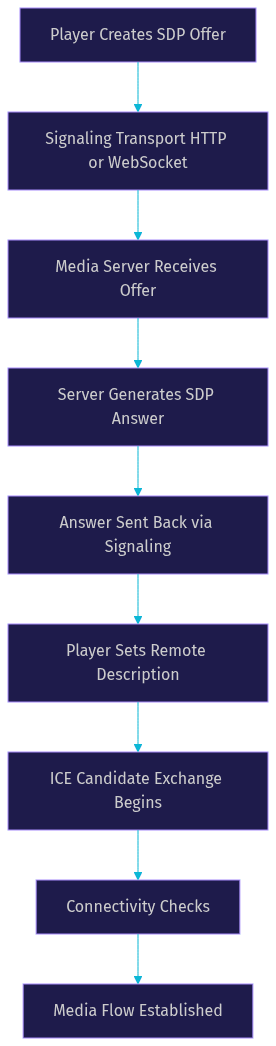
The diagram above illustrates the signaling message flow from offer to media establishment. Each transition is a potential failure point, so your player should log the outcome of every step.
Managing Playback Events and Errors
A production-grade WebRTC player emits events that tell you exactly what is happening at each stage of the connection lifecycle. Understanding these events is critical for building a reliable user experience.
The connected event fires when the peer connection is established and media is flowing. The disconnected event fires when the connection drops, which can happen due to network changes, server restarts, or media server timeouts. The no-media event indicates that the connection is open but no media tracks are arriving, which often points to a server-side encoder issue. The media-recovered event fires when media resumes after a temporary interruption.
For troubleshooting, start by checking whether the ICE connection state reached connected or failed. If it failed, your TURN server configuration is the likely culprit. If ICE succeeded but no media appears, inspect the SDP answer from the server to confirm that codecs and payload types match what the player expects. Browser developer tools also expose WebRTC internals through the chrome webrtc internals page, which shows detailed stats about every peer connection.
Advanced Features and Extensions
Once you have basic playback working, the next set of challenges involves adapting the player to your specific media server, handling stream switches seamlessly, and collecting performance metrics.
Custom Adapters for WHEP, WHIP, and WHPP
The adapter pattern is what makes a WebRTC player media-server-independent. An adapter translates the player's internal signaling contract into the protocol a specific media server understands. WHEP (WebRTC-HTTP Egress Protocol) is the emerging standard for playback, while WHIP (WebRTC-HTTP Ingest Protocol) handles publishing. WHPP is Eyevinn's variant designed for their media server stack.
To implement a custom adapter, you define how the player sends its SDP offer to your media server and how it parses the SDP answer that comes back. If your server uses WebSocket signaling instead of HTTP, the adapter manages the WebSocket lifecycle and message format. The player core remains unchanged, which means you can support multiple media servers by swapping adapters.
Stream Switching Without Re-Creating the Player
In live shopping or multi-camera surveillance, users switch between streams frequently. Re-creating the player for each switch causes a visible flash and adds latency. A well-architected player supports in-place stream switching by renegotiating the SDP with the new source while keeping the peer connection and rendering element alive. This reduces switch latency from seconds to milliseconds.
Recording, Statistics, and Plugin Systems
Some players support local recording of incoming streams using the MediaRecorder API. Others expose statistics collection through the standard WebRTC getStats interface, which gives you packet loss, jitter, round-trip time, and bitrate data. Plugin systems let you extend the player with custom overlays, analytics, or quality adaptation logic without modifying the core library.

This diagram shows how adapters and plugins attach to the player core without modifying it, which is the architectural pattern that keeps your integration maintainable as requirements grow.
Performance and Quality Optimization
WebRTC is designed for low latency, but low latency does not automatically mean good quality. Optimizing a WebRTC player requires attention to bitrate, resolution, browser quirks, and network conditions.
Latency in a well-configured WebRTC player typically ranges from 100 to 500 milliseconds end-to-end, compared to 2 to 30 seconds for HLS. According to data from webrtcstats.com, the median round-trip time for WebRTC connections in 2026 is approximately 87 milliseconds, though this varies significantly by region and network type.
Adaptive bitrate is critical for handling variable network conditions. The media server should adjust the outgoing bitrate based on bandwidth estimation feedback from the player's RTCP reports. If your media server does not support adaptive bitrate, users on mobile networks will experience frequent freezes and disconnections.
Browser-specific quirks also matter. Safari has historically been stricter about autoplay policies, requiring a user gesture before media can play with audio. Chrome handles ICE restarts more gracefully than Firefox in some edge cases. Test your player across all major browsers and mobile WebViews early in development.
For teams that want adaptive bitrate, network-adaptive streaming, and noise suppression handled automatically, VideoSDK's video calling SDK includes these features out of the box. The SDK monitors real-time bandwidth and adjusts resolution and bitrate without developer intervention.
Security Best Practices
WebRTC media is encrypted by default using DTLS-SRTP, which means the media stream between the player and the media server is protected against eavesdropping. However, encryption of the media path does not protect your signaling layer, which is where most security vulnerabilities live.
Always serve your signaling endpoint over HTTPS or WSS (WebSocket Secure). Never exchange SDP over plain HTTP in production. If your signaling server accepts authentication tokens, scope those tokens to specific streams or rooms and set short expiration times. A token that grants access to all streams on your server is a security liability.
For TURN servers, use time-limited credentials generated server-side rather than static usernames and passwords. Static TURN credentials can be extracted from client-side code and abused to relay arbitrary traffic through your infrastructure. Time-limited credentials expire within minutes, limiting the damage from credential theft.
A common pitfall is leaving the player's configuration object visible in the browser's JavaScript bundle with embedded API keys. Always proxy sensitive configuration through a backend service that returns scoped tokens on demand. VideoSDK's REST API reference provides endpoints for generating tokens and validating room access server-side.
Common Pitfalls and How to Fix Them
Even with a solid library, WebRTC integration has recurring failure modes that trip up developers. Here are the most frequent issues and their fixes.
ICE failures and no connectivity: This is the number one reported issue. The player cannot establish a connection because all ICE candidates fail. The fix is to ensure your TURN server is reachable and credentials are valid. Test TURN connectivity in isolation by temporarily removing STUN-only entries from your ICE configuration. If the connection succeeds with TURN only, your STUN configuration was masking a deeper NAT traversal problem.
Mismatched SDP and codec negotiation failures: The player sends an SDP offer with codecs the media server does not support, or the server's answer includes payload types the player cannot decode. Inspect the SDP exchange in the chrome webrtc internals page and compare the offered codecs with the answered codecs. Ensure your media server is configured to use H.264 or VP8, which have the broadest browser support.
Media track arrives but is muted or black: The peer connection is established but the video element shows a black frame. This often happens when the media server sends an audio-only stream but the player expects video. Check the track kind in the track-received event and update your UI accordingly. Another cause is the browser's autoplay policy blocking playback with sound. Add the muted attribute to the video element and unmute after a user gesture.
Browser autoplay restrictions: Safari and Chrome block autoplay of media with audio unless the user has interacted with the page. The fix is to start the video element muted, then display an unmute button that the user clicks. Some players handle this automatically, but if you are building a custom UI, you must implement it yourself.
Memory leaks from orphaned peer connections: In single-page applications, navigating away from the player view without calling the teardown method leaves the peer connection open. Over time, this exhausts browser resources. Always call the player's dispose method in your component's unmount lifecycle hook.
Future Trends for WebRTC Players
The WebRTC player ecosystem is evolving rapidly. Several trends are shaping where the technology is headed in 2026 and beyond.
The WHEP and WHIP protocols are moving toward standardization through the IETF, which will reduce the need for custom adapters. As more media servers implement these protocols natively, players will converge on a common signaling contract, making library switching much easier.
AI-enhanced video is another emerging trend. Players are beginning to integrate client-side machine learning models for background blur, noise suppression, and super-resolution upscaling. VideoSDK already offers virtual backgrounds and noise suppression as built-in features, and the roadmap includes more AI-driven enhancements.
The WebRTC Realtime API, a proposed browser API that would expose lower-level control over WebRTC connections, could change how players are built. If adopted, it would allow players to bypass some of the current abstractions and achieve even lower latency. For now, the existing peer connection API remains the standard surface.
Definitions Glossary
WebRTC Player: A client-side component that negotiates a WebRTC peer connection, receives media streams, and renders them in a browser or application viewport.
SDP (Session Description Protocol): A text-based format used to negotiate media codecs, transport parameters, and payload types between the player and the media server.
ICE (Interactive Connectivity Establishment): The framework WebRTC uses to find the best network path between the player and the media server, using STUN and TURN servers to traverse NATs and firewalls.
WHEP (WebRTC-HTTP Egress Protocol): An emerging standard for WebRTC playback signaling that uses simple HTTP POST requests to exchange SDP offers and answers.
WHIP (WebRTC-HTTP Ingest Protocol): The publishing counterpart to WHEP, used for sending media from a client to a media server over WebRTC.
Adapter: A module that translates a WebRTC player's internal signaling contract into the specific protocol a media server expects, enabling media-server-independent design.
Key Takeaways
- A WebRTC player handles SDP negotiation, ICE candidate exchange, and media rendering, abstracting the browser's low-level WebRTC APIs into a usable component.
- Playback-only players suit surveillance and broadcasting, while combined playback-and-publish solutions are needed for interactive video calling and webinars.
- The adapter pattern is the key architectural decision that keeps your player media-server-independent and maintainable as requirements grow.
- ICE configuration, particularly TURN server setup, is the most common source of connection failures and should be tested early and thoroughly.
- VideoSDK's video calling SDK and Prebuilt UI Kit handle WebRTC playback, publishing, adaptive bitrate, and security out of the box, eliminating the need to build and maintain a custom player for most production use cases.
Conclusion
Building a reliable WebRTC player from open-source components gives you fine-grained control over signaling, ICE, and media rendering, but it comes with real maintenance costs. You will debug ICE failures across network conditions, maintain adapters as media servers update their protocols, and handle browser-specific quirks for years. For most teams, the faster path is to use a managed WebRTC infrastructure like VideoSDK, which handles the protocol complexity while giving you SDKs across React, React Native, Flutter, Android, iOS, and JavaScript. Start with the VideoSDK quickstart or explore the Prebuilt UI Kit for zero-code embedding. You can sign up for free at app.videosdk.live/login and join the VideoSDK Discord community to connect with thousands of developers building real-time video experiences. What are you building with WebRTC? Drop a comment below, I would love to hear what kind of streaming use case you are working on.
Free $20 Balance for AI Voice Agents & Video Calls
FAQ