


The Flutter SDK is Google's bundled toolkit for building natively compiled cross-platform applications from a single Dart codebase. It combines the Dart SDK, the Flutter framework, the rendering engine, and a full command-line toolchain in one download. Developers who master its architecture and tooling ship faster across iOS, Android, web, and desktop, and you can extend it with real-time features using SDKs like VideoSDK's Flutter video calling SDK.
Shipping a polished mobile app on both iOS and Android used to mean two teams, two codebases, and two sets of platform quirks. The Flutter SDK collapsed that equation. One codebase, one language, near-native performance, and a hot-reload workflow that changed how developers iterate. As of 2026, Flutter powers hundreds of thousands of published apps, from startups to large enterprises.
But most developers only scratch the surface of what the SDK actually contains. Understanding its layered architecture, its command-line tooling, and its versioning strategy is what separates a smooth production workflow from a frustrating one. This guide walks through the Flutter SDK end to end: what it is, what's inside it, how to install and maintain it, and how to keep a healthy setup as your project grows.
What Is the Flutter SDK?
The Flutter SDK is defined as Google's complete development toolkit for building, testing, and compiling Flutter applications. It bundles the Flutter framework (a widget-based UI library written in Dart), the Dart SDK (the language compiler and runtime), the rendering engine, platform embedders, and a suite of command-line and debugging tools into a single distributable package.
The Flutter SDK works by compiling your Dart code ahead-of-time into native machine code for release builds, while using a just-in-time compilation mode during development to enable hot reload. That dual-mode compilation is why development feels instant while production builds run at native speed.
The SDK's layered architecture is worth understanding early, because almost every troubleshooting scenario and performance question traces back to one of these layers. At the top sits the framework, where you write your UI as compositions of widgets. Below it sits the engine, which handles rasterization and text layout. At the bottom, platform embedders glue the engine to each operating system.
Core Layers of the SDK
The framework layer is what you touch daily. It provides the widget catalog, including Material Design components for Android-style interfaces and Cupertino widgets that mirror iOS conventions. Everything you see on screen is a widget, from full page layouts to padding and alignment.
The engine layer is where pixels get produced. Historically this used Skia, the open-source 2D graphics library. In recent years Google has shifted toward Impeller, a newer rendering backend that precompiles shaders to eliminate the jank caused by runtime shader compilation. The platform embedder layer then wraps the engine for each target, handling input events, the app lifecycle, and platform channels that let Dart talk to native code.

Key Components Inside the Flutter SDK
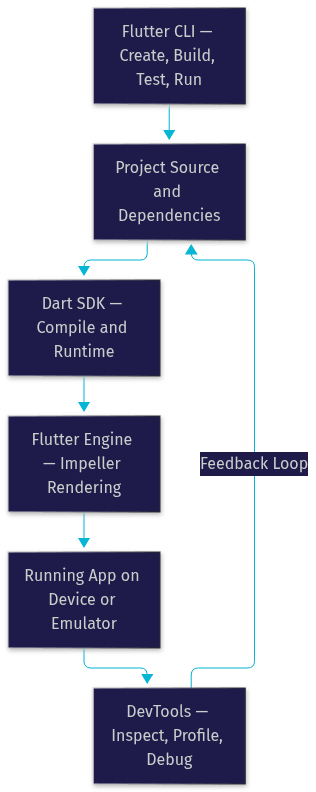
Every piece of the Flutter SDK exists to serve one of three jobs: writing code, building and testing it, or inspecting it at runtime. Knowing which component owns which job makes debugging dramatically faster.
The Dart SDK is the foundation. It ships with the Flutter SDK and includes the Dart compiler, the pub package manager, and the core Dart libraries. Flutter pins a specific Dart version with each release, so upgrading Flutter implicitly upgrades Dart. This tight coupling is why the framework and language evolve in lockstep, and why mixing a standalone Dart installation with the bundled one causes confusing version conflicts.
The Flutter command-line tool is the workhorse of the SDK. From a terminal, it handles project creation, dependency resolution, building for every target platform, running tests, and publishing. The same tool drives continuous integration pipelines, where builds run headless without any IDE involved. Alongside it, the bundled Dart CLI handles language-level tasks like formatting, static analysis, and package management.
DevTools is the SDK's inspection suite. It surfaces as a web-based dashboard that connects to your running app and provides a widget inspector, a network profiler, a memory and CPU profiler, and logging views. For performance work, the timeline view shows frame rendering costs frame by frame, which is essential when hunting dropped frames.
The SDK also includes built-in testing APIs at three levels: unit tests for pure Dart logic, widget tests that run components in a simulated environment, and integration tests that exercise the full app on a real device or emulator. Finally, the plugin and interop APIs let you bridge Dart to native Kotlin, Swift, Java, or Objective-C code through platform channels, which is how packages expose camera access, Bluetooth, and other native capabilities.
Installing the Flutter SDK
Flutter SDK installation comes down to two main paths. The first is the official installer, which handles download, extraction, and initial setup for your platform. The second is the archive approach: you download a release archive, extract it to a permanent location, and add its tool directory to your system path yourself. The archive method gives you more control and makes it easier to keep multiple SDK versions side by side.
Platform specifics matter. On Windows, the SDK needs the Visual Studio toolchain for desktop builds and Android Studio's SDK components for Android targets. On macOS, Xcode and its command-line tools are required for iOS builds, along with accepting license agreements. On Linux, a set of build-essential packages and platform libraries must be present before the toolchain works.
After installation, the doctor command is your first checkpoint. It inspects your environment and reports on the Flutter installation itself, Android and iOS toolchains, connected devices, and IDE plugin status, flagging anything missing or misconfigured. Treat it as a diagnostic report rather than an installer: it tells you what to fix, and it is safe to run repeatedly.
For updates, the SDK uses release channels. The stable channel is what production teams should track, receiving only tested releases. The beta channel previews upcoming features, and older dev channels have largely been folded into the beta flow. Switching channels and upgrading are both handled through the command-line tool, and you can always roll back to a previously used version.
Managing SDK Versions and Updates
Flutter SDK versioning follows semantic versioning, with major versions signaling breaking changes. Each release ships with detailed release notes and, where APIs change, migration guides that explain exactly what moved and why. Reading the migration guide before upgrading is the single highest-leverage habit for avoiding a broken build on a Monday morning.
In CI/CD pipelines, pinning matters. Unpinned builds drift as runners pick up newer SDK versions, and a framework update can silently change widget behavior or break a plugin dependency. Teams that pin an exact SDK version in their pipeline configuration get reproducible builds, and version manager tools make switching between pinned versions per project straightforward on local machines as well.
When a breaking change does land, the migration guides typically enumerate every affected API, and the SDK's static analysis often flags deprecated usage in your code before it becomes an error. Upgrading one minor version at a time, rather than jumping several versions at once, keeps each migration small and reviewable.
IDE Integration and Development Tools
The Flutter SDK integrates with the three IDEs most developers already use: Visual Studio Code, Android Studio, and IntelliJ IDEA. The integration works through official plugins that consume the SDK directly. Once the plugin knows where the SDK lives, it provides Dart-aware autocompletion, inline static analysis, refactoring tools, and project templates.
The feature that defines the workflow is hot reload. Because the SDK's development mode uses just-in-time compilation, code changes inject into a running app in under a second while preserving app state. You edit a widget, save, and see the change immediately, which fundamentally changes iteration speed compared to traditional full-rebuild cycles.
A practical detail worth knowing: the Flutter team maintains a compatibility window, historically around two years, meaning newer SDK versions keep working with somewhat older IDE plugin versions and vice versa. This reduces the pressure to upgrade everything simultaneously, though staying current across the board is still the safest policy.
Ecosystem: Packages, Plugins, and Pub.dev
The Flutter SDK's ecosystem lives on pub.dev, the official package registry shared with the broader Dart community. Packages come in two flavors: pure Dart packages that work anywhere Dart does, and plugins that wrap native platform code and expose it through the SDK's platform channel mechanism.
The most active categories reflect where developers spend their effort. State management solutions dominate downloads, with options ranging from built-in tools to community favorites. Firebase wrappers, HTTP and serialization libraries, animation helpers, and navigation packages round out the top tiers. For teams adding real-time communication, packages like VideoSDK's Flutter SDK provide video and audio calling with WebRTC-grade performance, showing how the plugin architecture extends to even the most demanding real-time use cases.
Evaluating package health is a skill in itself. Pub.dev scores each package on maintenance frequency, popularity, and platform compatibility, and these scores are visible on every package page. Before adopting a dependency, check that it supports your target platforms, that its version constraint matches your SDK version, and that its repository shows recent activity. An abandoned package with a hard version pin can lock your entire upgrade path.
Best Practices for Maintaining a Healthy SDK Setup
A healthy Flutter SDK setup is a maintained one. Run the doctor command regularly, especially after OS updates or Xcode upgrades, because toolchain breakage tends to appear at exactly those moments. Upgrade deliberately on the stable channel, and read release notes before you do.
Keep the Dart SDK in sync by letting Flutter manage it rather than maintaining a separate standalone installation. Two Dart installations on one machine is a classic source of
Free $20 Balance for AI Voice Agents & Video Calls
FAQ