


Video KYC has become mandatory for onboarding in banks, NBFCs, insurance companies, and lending platforms. The customer-facing side of a video KYC session gets most of the attention, but the agent side is where the workflow actually runs.
The agent, or KYC operator, needs to: join the session, see the customer clearly, control media when needed, capture the ID document frame, trigger verification checks, log notes, record the session, and end it cleanly. All of this needs to happen inside a single, purpose-built interface.
What the Agent Dashboard Must Do
Before writing a line of code, define what the KYC operator interface is responsible for:
Join the VideoSDK room as a participant. The agent joins the same meeting room as the customer. Both are participants with the same underlying SDK primitives.
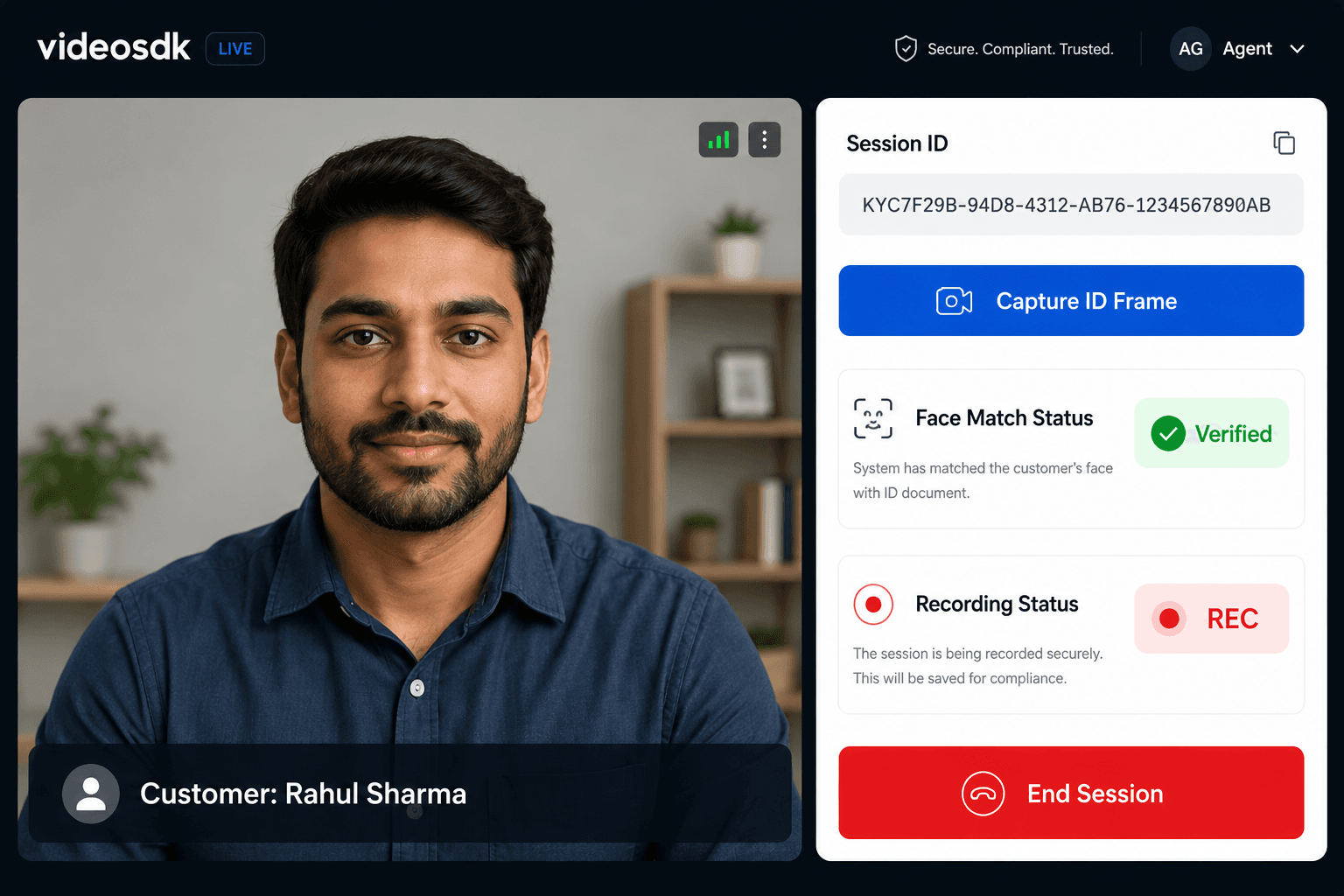
View the remote participant's video. The customer's video stream is the primary signal. It must render reliably, labeled with the customer's name.
Control remote participant media. The agent may need to request that the customer enable their camera or mic, or disable it if there is interference. VideoSDK's useParticipant hook exposes enableMic(), disableMic(), enableWebcam(), and disableWebcam() for this purpose.
Capture a frame for ID verification. The agent triggers a screenshot from the customer's video track. This base64 image is then sent to an OCR or face match API.
Start and stop cloud recording. The full session must be recorded for regulatory audit. VideoSDK's startRecording() and stopRecording() methods handle this from within the meeting.
Send and receive in-session messages. The agent and customer can exchange text using VideoSDK's usePubSub hook over a named topic channel.
End the session. The agent calls end() to terminate the meeting for all participants, not just the one leave() which would only remove the local participant.
Setting Up the Agent React App
Install the SDK
The correct npm package name for the VideoSDK React SDK, verified from the docs, is:
npm install @videosdk.live/react-sdkAuth Token for Agents
Agents should receive a token from your backend. Tokens can include permissions like allow_join, which lets the agent join directly, or ask_join, which requires approval from another participant.
For a KYC agent dashboard, use allow_join so the operator can enter the room immediately without a waiting state.
// Fetch token from your server
const fetchToken = async () => {
  const response = await fetch("/api/generate-videosdk-token");
  const { token } = await response.json();
  return token;
};
Wrapping the App with MeetingProvider
MeetingProvider is the top-level context wrapper. All hooks inside it have access to the live session.
import { MeetingProvider } from "@videosdk.live/react-sdk";

function App() {
  const [token, setToken] = useState(null);
  const meetingId = "your-kyc-room-id";

  return (
    <MeetingProvider
      config={{
        meetingId,
        micEnabled: true,
        webcamEnabled: true,
        name: "KYC Agent",
      }}
      token={token}
      joinWithoutUserInteraction={false}
    >
      <AgentDashboard />
    </MeetingProvider>
  );
}
useMeeting and useParticipant Hooks
useMeeting is the primary hook for controlling the session itself. It returns methods like join(), end(), startRecording(), stopRecording(), and properties like participants, isRecording, and recordingState.
useParticipant takes a participantId and returns stream access, media control methods, and participant-level stats for that specific user.
import { useMeeting, useParticipant } from "@videosdk.live/react-sdk";

function AgentDashboard() {
  const { participants, join, end, startRecording, stopRecording, isRecording } =
    useMeeting({
      onMeetingJoined: () => console.log("Agent joined"),
      onMeetingLeft: () => console.log("Session ended"),
      onRecordingStarted: () => console.log("Recording live"),
      onRecordingStopped: () => console.log("Recording stopped"),
    });

  // Get the first remote participant (the customer)
  const customerParticipant = [...participants.values()].find(
    (p) => p.local === false
  );

  return (
    <div>
      {customerParticipant && (
        <CustomerVideoPane participantId={customerParticipant.id} />
      )}
    </div>
  );
}
Displaying the Customer Video Feed
The useParticipant hook returns webcamStream and micStream for the given participant. You attach the stream to a <video> element using a ref.
import { useParticipant } from "@videosdk.live/react-sdk";
import { useEffect, useRef } from "react";

function CustomerVideoPane({ participantId }) {
  const { webcamStream, webcamOn, displayName } = useParticipant(participantId);
  const videoRef = useRef(null);

  useEffect(() => {
    if (videoRef.current && webcamStream) {
      const mediaStream = new MediaStream();
      mediaStream.addTrack(webcamStream.track);
      videoRef.current.srcObject = mediaStream;
      videoRef.current.play().catch((err) => console.error(err));
    }
  }, [webcamStream, webcamOn]);

  return (
    <div style={{ position: "relative" }}>
      {webcamOn ? (
        <video ref={videoRef} autoPlay playsInline muted />
      ) : (
        <div>Customer camera is off</div>
      )}
      <span style={{ position: "absolute", bottom: 8, left: 8, color: "#fff" }}>
        {displayName}
      </span>
    </div>
  );
}
webcamStream is a Stream object. You extract its .tte on OCR and Face Match APIs: Theack property and add it to a MediaStream instance before assigning it to the video element.
Remote Participant Controls
useParticipant exposes direct media control methods for any participant in the session. These are verified from the VideoSDK documentation:
enableMic(): Sends a request to the participant. They receive an onMicRequested callback and must accept before the mic enables. disableMic(): Disables the participant's mic immediately, without a request flow. enableWebcam(): Sends a request; the participant receives onWebcamRequested. disableWebcam(): Disables the participant's webcam immediately.
function AgentControls({ participantId }) {
  const { enableMic, disableMic, disableWebcam, enableWebcam } =
    useParticipant(participantId);

  return (
    <div>
      <button onClick={() => enableMic()}>Request Mic On</button>
      <button onClick={() => disableMic()}>Mute Customer</button>
      <button onClick={() => enableWebcam()}>Request Camera On</button>
      <button onClick={() => disableWebcam()}>Disable Customer Camera</button>
    </div>
  );
}
One important note: enableMic() and enableWebcam() trigger a permission request on the customer's side. The customer must accept. disableMic() and disableWebcam() are hard overrides that do not require acceptance. Use them carefully and make sure your KYC consent flow covers this use.
Integrating OCR and Face Match
VideoSDK's useParticipant hook exposes a captureImage() method that returns a base64-encoded screenshot of the participant's current video stream.
function CaptureIDFrame({ participantId, videoSdkToken }) {
  const { captureImage } = useParticipant(participantId);
  const [matchStatus, setMatchStatus] = useState(null);

  const handleCapture = async () => {
    // captureImage() returns a base64 string — verified from useParticipant docs
    const base64Image = await captureImage({ height: 720, width: 1280 });

    // Format required by VideoSDK Face Match API
    const formattedImage = `data:image/jpeg;base64,${base64Image}`;

    // Step 1: Run OCR via VideoSDK OCR API
    // Endpoint: POST https://api.videosdk.live/ai/v1/ocr (verify exact path in OCR docs)
    // See: https://docs.videosdk.live/react/guide/identity-verification/ocr

    // Step 2: Run Face Match via VideoSDK Face Match API
    // POST https://api.videosdk.live/ai/v1/face-verification/verify
    const faceResponse = await fetch(
      "https://api.videosdk.live/ai/v1/face-verification/verify",
      {
        method: "POST",
        headers: {
          Authorization: videoSdkToken, // JWT token, no "Bearer" prefix
          "Content-Type": "application/json",
        },
        body: JSON.stringify({
          img1: formattedImage,       // Live frame captured from customer video
          img2: idDocumentBase64,     // ID photo extracted from OCR step
        }),
      }
    );

    const faceData = await faceResponse.json();
    // Response shape: { "verified": true } or { "verified": false }
    setMatchStatus(faceData.verified ? "verified" : "failed");
  };

  return (
    <div>
      <button onClick={handleCapture}>Capture ID Frame</button>
      {matchStatus && (
        <span style={{ color: matchStatus === "verified" ? "green" : "red" }}>
          {matchStatus === "verified" ? "Face Match: Verified" : "Face Match: Failed"}
        </span>
      )}
    </div>
  );
}
Note: The VideoSDK Face Match API (POST https://api.videosdk.live/ai/v1/face-verification/verify) is available on the Enterprise plan. The Authorization header takes your VideoSDK JWT token directly, with no "Bearer" prefix. For OCR and Face Spoof Detection, refer to the VideoSDK Identity Verification docs at OCR API and Face Spoof Detection respectively.
Recording Controls
startRecording() and stopRecording() are methods on the useMeeting hook, confirmed from the VideoSDK React SDK docs. Recording state is tracked via isRecording (boolean) and recordingState properties.
function RecordingControls() {
  const { startRecording, stopRecording, isRecording } = useMeeting();

  const handleStart = () => {
    startRecording(
      "https://your-webhook.example.com/recording-done", // webhookUrl
      "/kyc-recordings/", // awsDirPath (optional, for your own S3)
      {
        layout: {
          type: "SPOTLIGHT",
          priority: "PIN",
        },
        theme: "DEFAULT",
        mode: "video-and-audio",
        quality: "high",
      }
    );
  };

  return (
    <div>
      {isRecording ? (
        <button onClick={() => stopRecording()}>Stop Recording</button>
      ) : (
        <button onClick={handleStart}>Start Recording</button>
      )}
      <span>{isRecording ? "REC" : "Idle"}</span>
    </div>
  );
}
When recording stops, the onRecordingStopped event fires on all participants. VideoSDK then processes the file and sends a POST request to your webhookUrl with the recording metadata, including the download URL. You store this URL in your case management system for audit retrieval.
If you want to store recordings in your own S3 bucket, fill in the awsDirPath parameter and complete the VideoSDK AWS S3 integration form in the dashboard.
In-Session Chat Using PubSub
usePubSub is the hook for topic-based messaging within a meeting. You call it with a topic string and callback options, and it returns publish and messages.
import { usePubSub } from "@videosdk.live/react-sdk";
import { useState } from "react";

function SessionChat() {
  const [input, setInput] = useState("");

  const { publish, messages } = usePubSub("KYC_CHAT", {
    onMessageReceived: (message) => {
      console.log("New message:", message);
    },
    onOldMessagesReceived: (oldMessages) => {
      console.log("History loaded:", oldMessages);
    },
  });

  const sendMessage = async () => {
    if (!input.trim()) return;
    try {
      await publish(input, { persist: true }, null);
      setInput("");
    } catch (e) {
      console.error("PubSub send error:", e);
    }
  };

  return (
    <div>
      <div>
        {messages.map((msg) => (
          <div key={msg.id}>
            <strong>{msg.senderName}:</strong> {msg.message}
          </div>
        ))}
      </div>
      <input
        value={input}
        onChange={(e) => setInput(e.target.value)}
        placeholder="Type a message..."
      />
      <button onClick={sendMessage}>Send</button>
    </div>
  );
}
Each message object returned by usePubSub contains: id, message, senderId, senderName, timestamp, topic, and payload. Setting persist: true in publish options means the message is stored and delivered to any participant who joins mid-session, which is useful for audit continuity.
Note that message must be a string. Pass any metadata (like document type or step labels) via the payload object, which accepts any serializable object.
Key Takeaways
Before the FAQ, here is a summary of what matters most when building this KYC operator interface:
- The VideoSDK React SDK package is
@videosdk.live/react-sdk. The primary hooks for a KYC agent dashboard areuseMeeting,useParticipant, andusePubSub. - Use
end()on the agent side to close the session for everyone. Useleave()only if the agent needs to exit without ending the call. disableMic()anddisableWebcam()fromuseParticipantdisable a remote participant's media without requiring their approval.enableMic()andenableWebcam()send requests that the remote user must accept.- VideoSDK's
captureImage({ height, width })method (onuseParticipant) returns a base64 image of the participant's live video stream. This is the correct frame capture mechanism. OCR and face match are handled by your own backend integration. - Recording download URLs are delivered via webhook after the session ends. Store the webhook payload in your case management system for regulatory audit retrieval.
FAQ
Can multiple agents monitor the same video KYC session?
Yes. Multiple agents can join the same meetingId as separate participants. Each agent gets their own useMeeting instance in their own browser tab or device. All of them receive the same participant streams and can independently trigger actions like recording controls or chat messages. However, only agents whose token includes allow_join permission can enter without needing approval. You should implement application-level access control on your backend to restrict which agent roles can join a given KYC session.
How do you handle agent reconnection during a video KYC session?
If an agent's connection drops, they can re-join the same meetingId using the same token, as long as the meeting is still active. The useMeeting hook reinitializes and re-subscribes to participant streams on join. For state continuity, persist session data (current step, OCR result, face match status) in your backend or a state management store. Do not rely solely on in-memory React state for anything that must survive a page refresh. PubSub messages published with persist: true will also be available to the agent when they rejoin, via the onOldMessagesReceived callback.
Where are video KYC recordings stored after the session?
By default, VideoSDK stores recordings on its own infrastructure and delivers the file URL via a webhook POST to the URL you provide in startRecording(webhookUrl, ...). If your compliance policy requires you to own the storage, you can configure your own AWS S3 bucket via the VideoSDK dashboard integration. The awsDirPath parameter in startRecording() specifies the S3 path prefix. Recordings are not available for download during the session; the file is processed and delivered after stopRecording() is called.
Can the KYC agent join from a mobile device?
The @videosdk.live/react-sdk package is designed for web-based React applications. A web app built with this SDK can run on mobile browsers (Chrome on Android, Safari on iOS) if you handle responsive layout correctly. However, the agent dashboard as described in this guide is optimized for desktop. If you need a native mobile agent app, VideoSDK provides separate React Native, Android, and iOS SDKs with equivalent APIs. The useMeeting and useParticipant hook patterns map directly to those SDKs, though the exact import paths differ.
Conclusion
Building a video KYC agent dashboard is not just about rendering a video tile. The operator interface needs to handle session lifecycle, media controls, frame capture, recording, real-time chat, and clean session termination, all in a single flow.
VideoSDK's React SDK gives you the core primitives: useMeeting for session control, useParticipant for per-user stream access and media management, and usePubSub for real-time messaging. Frame capture via captureImage() gives you the base64 data needed to call any ID verification API of your choice.
The production version of this interface should add agent authentication and role-based access, backend-side session logging, proper error handling for dropped connections, and integration with your case management system for recording URLs and verification outcomes.