


Building a voice AI agent sounds complex. WebRTC, speech-to-text, text-to-speech, real-time audio pipelines - it's a lot to figure out before you even write your first React component.
VideoSDK takes all of that off your plate. You configure your agent from a dashboard, clone a starter app, add your credentials, and run it. That's the whole process. This guide walks you through each step so you can go from zero to a working voice AI app in one sitting.
What You're Building
By the end of this tutorial, you'll have a React app where:
- A user opens the app and joins a meeting room
- A deployed AI agent automatically joins that same room
- The user speaks, the agent listens, and responds in real time
- Live transcription shows up on screen as the conversation happens
Before You Start
Here's what you need before writing a single line of code:
- A VideoSDK account — Sign up at app.videosdk.live if you haven't already.
- A deployed AI agent — VideoSDK has a Low-Code Deployment UI in the dashboard. You configure your agent's persona and pipeline (Realtime or Cascading) directly from there, no code required. Once it's deployed, grab your Agent ID and Version ID from the dashboard.
- Your Auth Token — Follow this docs for creating a auth token
- For development, you can generate a temporary token right there. In production, generate this from your own backend to keep your credentials safe.
- Node.js v18 or later — Check with
node -vif you're unsure.
Step 1: Create Your Agent
Before touching any code, you need an agent deployed on VideoSDK. This is done entirely from the dashboard, no coding required.
1.1 Build Your Agent
Head to the VideoSDK Dashboard and follow the Build a Custom Voice AI Agent guide. Here you'll set up your agent's persona, give it a name and personality, and choose its pipeline type:
- Realtime pipeline — lower latency, better for fast back-and-forth conversations
- Cascading pipeline — more control over each stage (STT, LLM, TTS) separately
You can also test your agent directly from the dashboard before deploying it.
1.2 Deploy Your Agent
Once you're happy with the configuration, hit Deploy. VideoSDK builds and hosts your agent on its Agent Cloud infrastructure.
1.3 Get Your Agent ID and Version ID
You'll need two identifiers to connect your React app to the agent:
Agent ID — After creating your agent, open its page and find the JSON editor on the right side. Copy the agentId from there.
Version ID — Click the three dots next to the Deploy button and select "Version History". Each time you deploy, a new version is created. Copy the version ID for the version you want to use.
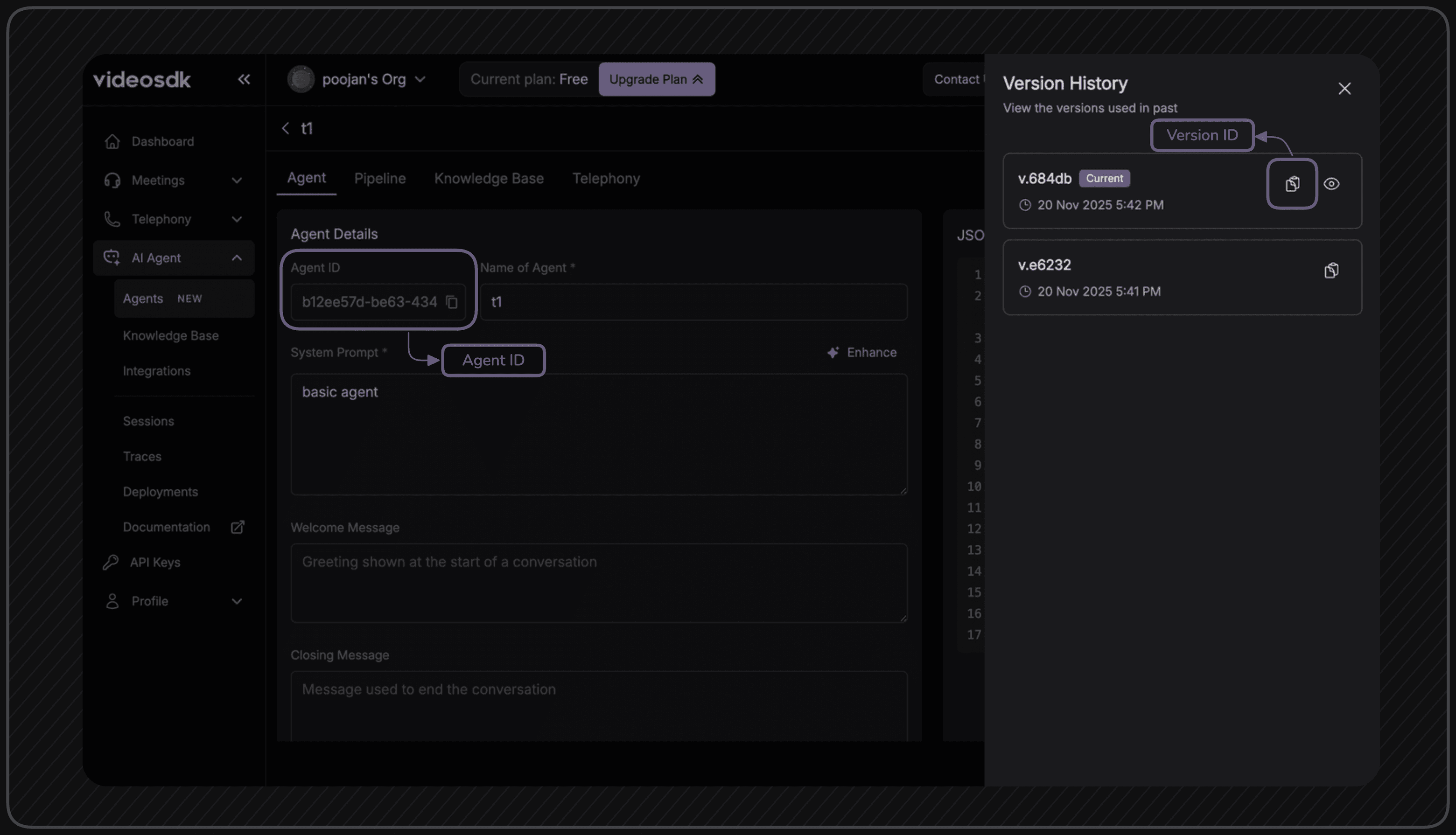
Keep both of these handy. You'll need them in Step 4 when setting up your environment variables.
Step 2: Clone the Starter App
VideoSDK provides a ready-to-go React starter app. Clone it and navigate into the project folder:
git clone https://github.com/videosdk-live/agent-starter-app-react.git
cd agent-starter-react
Step 3: Install Dependencies
npm install
# or
yarn install
This pulls in everything the app needs: the VideoSDK SDK, React, and all the supporting packages.
Step 4: Set Up Your Environment Variables
Copy the example env file:
cp .env.example .env
Now open .env and fill in your credentials:
AUTH_TOKEN=your_videosdk_auth_token
AGENT_ID=your_agent_id
VERSION_ID=your_version_id
MEETING_ID=your_meeting_id
A quick note on each:
- AUTH_TOKEN — your VideoSDK token from the dashboard
- AGENT_ID — the ID of the agent you deployed from the dashboard
- VERSION_ID — the specific version of your agent you want to run (find this under "Version History" on your agent's page)
- MEETING_ID — optional. If you leave this blank, the app will create a new meeting room automatically
Step 5: Run the App
npm run dev
# or
yarn dev
Open your browser, allow microphone access, and start talking. The app uses VideoSDK's Dispatch API to send your deployed agent into the meeting room. You'll see transcription appear on screen in real time as you speak and as the agent responds.
What's Happening Under the Hood
When you hit run, a few things happen in sequence:
- The app calls VideoSDK's API to create (or join) a meeting room
- It uses the Dispatch API to summon your deployed agent into that room, passing it the
AGENT_IDandVERSION_ID - The agent joins as a participant, listens through the room's audio channel, and responds using its configured pipeline
- The SDK streams transcription back to the frontend in real time
You don't manage any of that manually. The SDK and your dashboard-deployed agent handle it.
Real-World Use Cases
Once you have this running, you're one agent config away from building any of these:
1) Customer Support Bots Replace your static FAQ chatbot with a voice-first support agent. Users speak their issue, the agent understands context, and responds instantly.
2) AI Interview Practice Tools Build a mock interview app where the AI agent asks questions, listens to answers, and gives feedback. Great for job seekers, students, or sales training.
3) Voice-Enabled Coding Assistants Let developers describe what they want to build, and the agent helps them think through solutions, hands-free while they're heads-down in their editor.
4) Interactive Learning and Tutoring Build a language learning app, a math tutor, or an onboarding guide that actually talks back. Learners engage better when they can have a real conversation.
5) Accessibility-First Interfaces For users who struggle with keyboards or touchscreens, a voice AI agent makes your product genuinely usable, not just technically compliant.
Troubleshooting
A few things to check if something isn't working:
- Agent isn't joining the room Double-check your
AGENT_IDandVERSION_IDin.env. A single wrong character here is the most common culprit. - Audio isn't working Check that your browser has microphone permissions. Most browsers will prompt you, but it's worth checking in your system settings too.
- "Failed to connect agent" error Verify your token is still valid and hasn't expired. Check the browser console for network errors, they usually point to exactly what's wrong.
- React build issues Make sure you're on Node.js 18 or higher. If you're seeing weird dependency errors, try a clean install:
rm -rf node_modules
npm install
Conslusion
Adding a voice AI agent to a React app used to mean stitching together STT, TTS, WebRTC, and a custom backend. With VideoSDK, you configure your agent from a dashboard, clone a starter app, fill in a few env vars, and run it.
The Dispatch API does the heavy lifting. Your agent shows up in the room, listens, and responds. You just build the experience around it.
If you haven't deployed your agent yet, start there. The Low-Code Deployment UI on the VideoSDK Dashboard walks you through it without touching code. Once it's deployed, come back here and you'll be live in under 10 minutes.
Ready to build?
- VideoSDK Dashboard link - Sign up for VideoSDK
- Github link to Clone the React Starter App
- Explore and Read the full docs here.
- Connect with our support team for guidance and enterprise use cases.
- 👉 Share your thoughts, roadblocks, or success stories in the comments or join our Discord community ↗. We’re excited to learn from your journey and help you build even better AI-powered communication tools!