


A "websocket connection failed" error means the client could not complete the TCP handshake or the HTTP Upgrade negotiation with the server. Common causes include the server process not running, firewall blocking the port, reverse proxy missing Upgrade headers, TLS certificate mismatches, or CORS restrictions. VideoSDK abstracts away these connection complexities for real-time communication apps, but understanding the underlying WebSocket diagnostics helps you debug signaling and custom infrastructure issues.
Introduction
WebSockets enable full-duplex, persistent communication between a browser and a server, making them the backbone of real-time applications like chat platforms, live dashboards, collaborative editing tools, and multiplayer games. When a websocket connection failed error surfaces in your browser console or server logs, it blocks every real-time feature your users depend on.
The error message itself is deliberately vague. Browsers report it as a generic failure, often accompanied by a close code like 1006 that tells you the connection closed abnormally but not why. The actual root cause could live anywhere along the path from your client-side code through the network stack, the reverse proxy, the load balancer, and finally the WebSocket server process.
This guide walks through a systematic diagnostic process for resolving websocket connection failed errors. You will learn how to verify server processes, confirm URL accuracy, inspect firewalls, evaluate reverse proxy configurations, check TLS certificates, diagnose CORS issues, interpret browser close codes, and implement reconnection strategies. By the end, you will have a repeatable checklist that narrows down any WebSocket failure to its root cause in minutes rather than hours. For a deeper reference on the WebSocket API itself, the MDN WebSocket documentation provides comprehensive browser-side API details.
Quick Diagnostic Checklist for WebSocket Connection Failed
Before diving into any single layer, run through these top-level checks to narrow the problem space quickly:
- Confirm the WebSocket server process is running and listening on the expected port
- Verify the client URL matches the server hostname, port, and protocol (ws versus wss)
- Check that firewalls, security groups, and corporate proxies allow traffic on the target port
- Ensure reverse proxies or load balancers forward the Upgrade and Connection headers
- Validate TLS certificates for secure WebSocket connections over wss
- Review CORS and Origin headers if the client and server are on different domains
- Inspect browser console messages and WebSocket close codes for specific failure indicators
The following flowchart visualizes the decision path you should follow when diagnosing a websocket connection failed error:
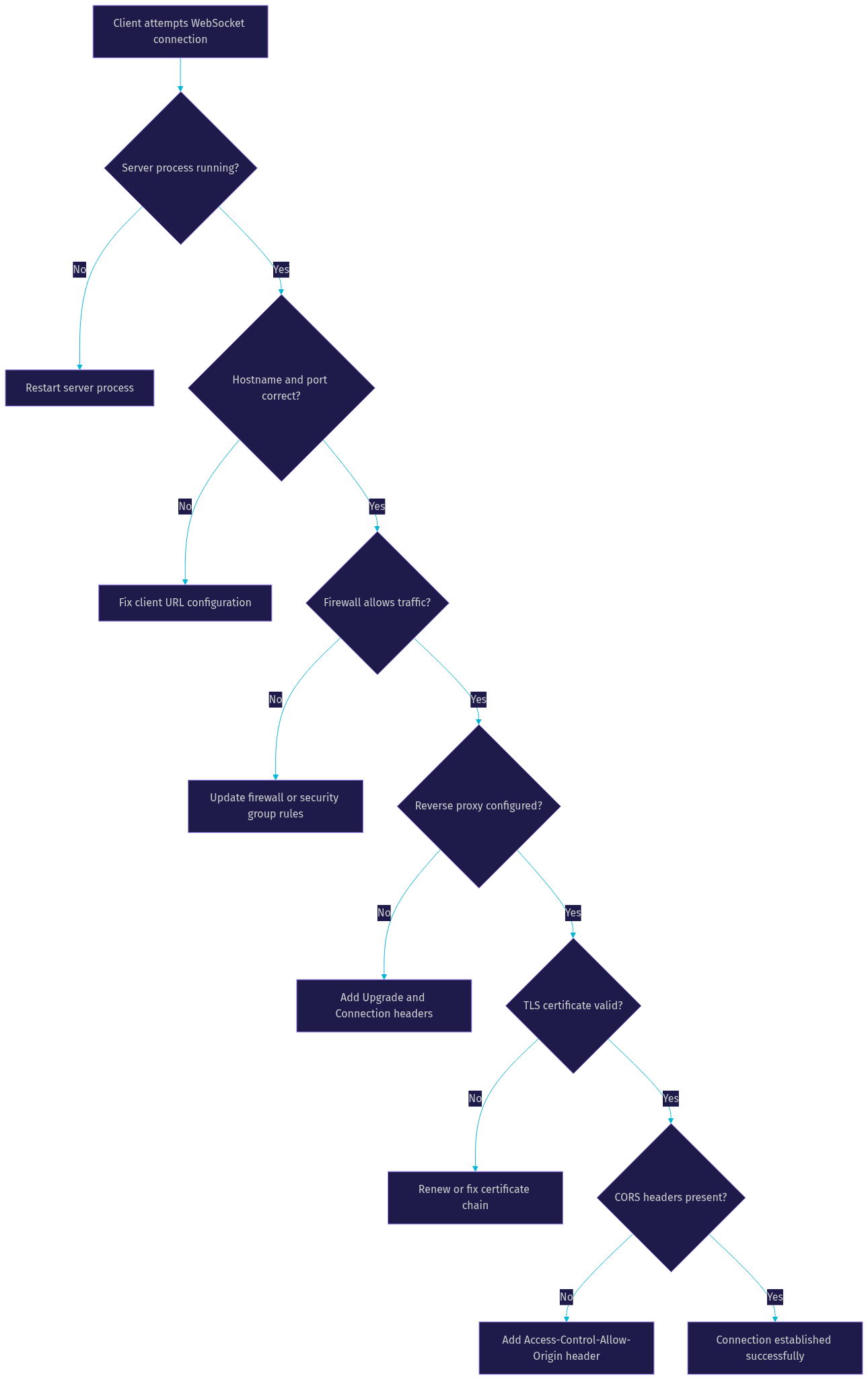
Following this flow from top to bottom ensures you do not waste time debugging TLS certificates when the real problem is a crashed server process.
1. Verify the Server Process Is Running
The first and most common cause of a websocket connection failed error is simply that the WebSocket server process is not running or has crashed. Before investigating complex network issues, confirm the server is alive and listening on the expected port.
Start by checking whether the server process is active on the host machine. On Linux systems, you can use process monitoring tools to list running processes and filter for your WebSocket server by name. If the process is missing, review your application logs for crash reports, unhandled exceptions, or out-of-memory errors that terminated it.
Next, verify the process is bound to the correct port and address. A frequent mistake is binding the WebSocket server to localhost or the loopback address when the client connects via an external hostname or IP address. In this scenario, the server is technically running but only accepts connections from the local machine, causing every remote connection attempt to fail with a connection refused error.
Port conflicts are another common pitfall. If another process already occupies the port your WebSocket server expects, the server either fails to start or binds to a different port silently. Use network diagnostic tools like netstat or ss on Linux to list all listening ports and confirm your WebSocket server occupies the expected one. On cloud platforms, check the provider health check metrics to confirm the server is responding to internal probes.
If the server process crashed, investigate the root cause before restarting. Common crash triggers include unhandled promise rejections in Node.js applications, memory leaks that exceed container limits, or dependency failures in microservice architectures. Once you identify and fix the crash cause, restart the process and verify the client can connect.
2. Confirm Hostname and Port Accuracy
After confirming the server is running, the next step is verifying the client connects to the correct hostname, port, and protocol. A surprising number of websocket connection failed errors stem from hardcoded URLs that do not match the actual server configuration.
The client URL must exactly match the server bind address and port. If your WebSocket server listens on port 8080 but the client connects to port 80, the TCP handshake fails immediately. Similarly, if the server moved to a new hostname but the client still references the old one, the connection attempt hits a dead endpoint.
Protocol Selection: ws versus wss
Protocol selection matters critically. Browsers enforce strict mixed-content policies. If your web page loads over HTTPS, the browser blocks any insecure WebSocket connection using the ws protocol. You must use the secure WebSocket protocol (wss) when the page is served over HTTPS. Conversely, if your page loads over HTTP, most browsers allow ws connections but some may warn about insecure contexts.
A robust practice is to construct the WebSocket URL dynamically based on the current page protocol and hostname rather than hardcoding it. This approach automatically selects wss when the page uses HTTPS and ws when it uses HTTP, eliminating an entire class of configuration errors.
The diagram below illustrates how a client should construct its WebSocket URL based on the page context:
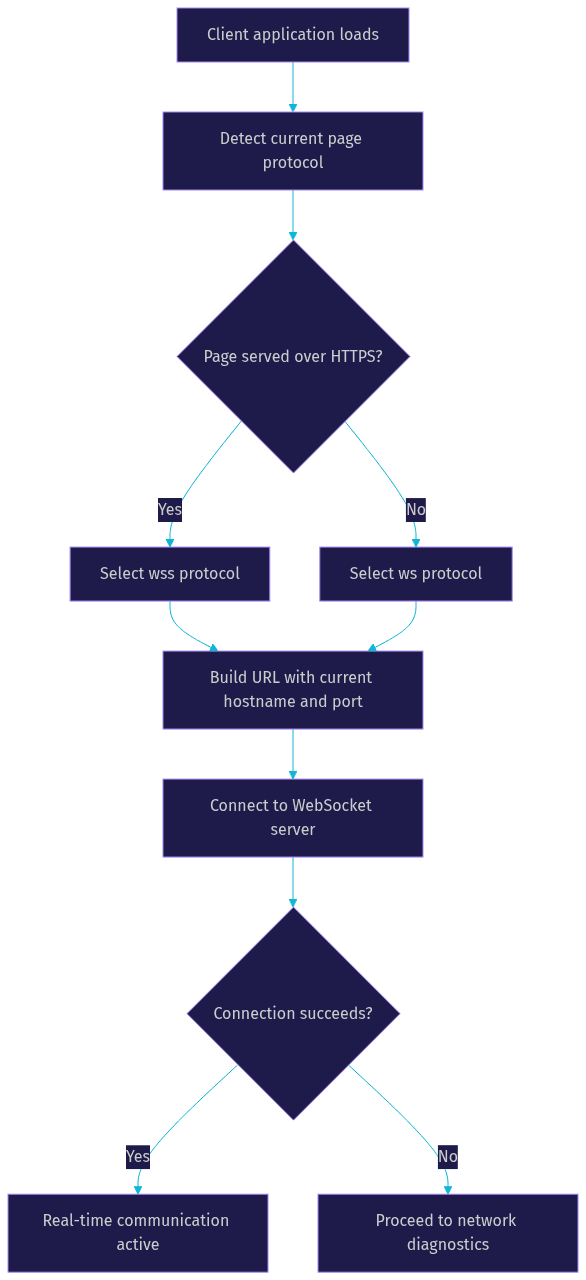
For developers building real-time communication apps with VideoSDK, the SDK handles connection URL construction and protocol selection internally, eliminating this common source of failure.
3. Inspect Network Path and Firewalls
If the server is running and the URL is correct, the next layer to investigate is the network path between the client and server. Firewalls, security groups, corporate proxies, and NAT devices can all silently drop TCP packets, causing a websocket connection failed error with no obvious explanation.
In cloud environments like AWS, Google Cloud, or Azure, security groups act as virtual firewalls that control inbound and outbound traffic. If your WebSocket server listens on a non-standard port like 8080 or 8443, you must explicitly add an inbound rule allowing TCP traffic on that port from the appropriate source IP ranges. A common mistake is opening port 443 for HTTPS traffic but forgetting to allow the WebSocket port.
Operating System Firewalls
Operating system firewalls add another layer. On Linux, tools like iptables, ufw, or firewalld may block incoming connections on certain ports. On Windows, the built-in firewall can similarly restrict inbound traffic. Verify that the firewall rules on the server host allow connections on the WebSocket port from the expected client IP ranges.
Corporate Proxies and VPNs
Corporate networks and VPNs introduce additional complexity. Many corporate proxies intercept and filter HTTP traffic, and some do not support the WebSocket upgrade handshake. If your users report websocket connection failed errors only when connected to corporate networks, a proxy is likely the culprit. In these cases, using port 443 with wss can help because most corporate firewalls allow HTTPS traffic on that port.
To test raw TCP connectivity without the WebSocket layer, use tools like telnet or netcat. These tools let you attempt a basic TCP connection to the server hostname and port. If the TCP connection itself fails, the problem is network-level, not WebSocket-specific. If the TCP connection succeeds but the WebSocket handshake fails, the issue is at the HTTP upgrade or application layer.
The following diagram shows a typical cloud network layout with firewall rules that affect WebSocket connectivity:
4. Evaluate Reverse Proxy and Load Balancer Settings
Reverse proxies like Nginx, Apache, and Caddy sit between the client and the WebSocket server in many production deployments. When a websocket connection failed error occurs in production but not in local development, the reverse proxy is one of the most likely culprits.
The core issue is that WebSocket connections begin as an HTTP request with an Upgrade header. The reverse proxy must recognize this upgrade request and forward it to the backend server with the Upgrade and Connection headers intact. If the proxy strips these headers or treats the request as a standard HTTP request, the WebSocket handshake never completes.
Nginx WebSocket Proxying
For Nginx, the critical configuration involves setting the Upgrade and Connection headers in the proxy pass block. The proxy must use HTTP version 1.1 when forwarding to the backend and explicitly pass the Upgrade and Connection headers from the client request. Without these directives, Nginx terminates the connection after the initial HTTP response instead of establishing a persistent tunnel.
Apache WebSocket Proxying
Apache requires similar configuration using the modproxy and modproxy_wstunnel modules. The proxy directive must include the upgrade parameter to handle WebSocket traffic. Without enabling the WebSocket tunnel module, Apache treats the upgrade request as a regular HTTP request and returns a standard response, causing the handshake to fail.
Cloud Load Balancer Considerations
Caddy handles WebSocket proxying more automatically in many cases, but you still need to ensure the reverse proxy directive points to the correct backend address and port. Cloud load balancers like AWS Application Load Balancer or Google Cloud Load Balancer also support WebSocket traffic, but you must verify the target group uses the correct protocol and health check path.
The diagram below illustrates how the Upgrade and Connection headers flow through a reverse proxy:
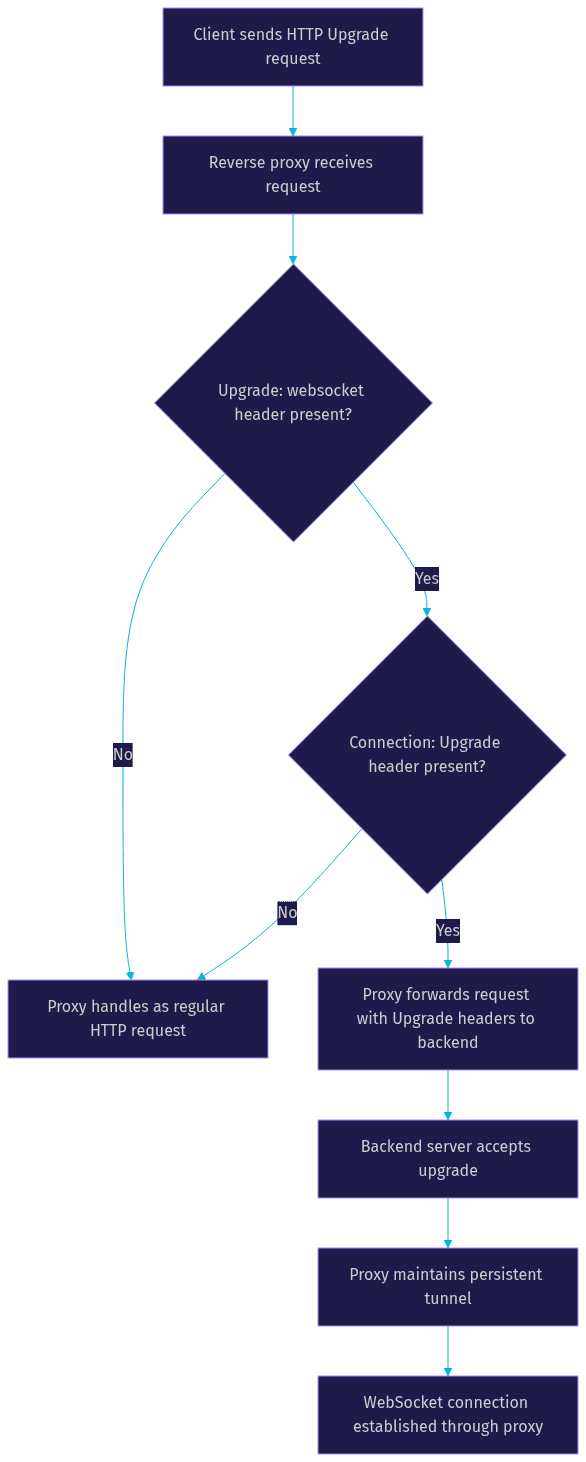
A critical diagnostic step is testing the WebSocket connection directly against the backend server, bypassing the reverse proxy entirely. If the connection succeeds when hitting the backend directly but fails through the proxy, you have confirmed the proxy configuration is the problem. This isolation test saves hours of debugging.
For teams building production real-time applications, VideoSDK handles the proxy and signaling layer automatically, so developers do not need to manage reverse proxy WebSocket configuration themselves.
5. Check TLS and SSL Configuration for Secure WebSockets
Secure WebSocket connections using the wss protocol add a TLS layer on top of the standard WebSocket handshake. If the TLS configuration is incorrect, the browser aborts the connection before the WebSocket upgrade even begins, resulting in a websocket connection failed error.
Certificate mismatches are a frequent cause. The common name or subject alternative name on the TLS certificate must match the hostname the client connects to. If the certificate was issued for api.example.com but the client connects to ws.example.com, the browser rejects the connection with a certificate validation error.
Expired certificates produce similar failures. Browsers refuse to establish TLS connections with expired certificates, and the error message in the console may not explicitly mention the certificate. Check the certificate expiration date and renew it before it lapses. Many teams automate certificate renewal using tools like certbot with Let's Encrypt to avoid this issue.
Missing intermediate certificate chains cause failures on some browsers but not others. The server must present the full certificate chain including the intermediate certificates. If the server only sends the leaf certificate, some browsers cannot build the trust chain to the root certificate authority and reject the connection.
Mixed-content policies add another constraint. If your web page loads over HTTPS, the browser blocks insecure WebSocket connections using the ws protocol. This policy is non-negotiable in modern browsers. You must use wss for all WebSocket connections from HTTPS pages, even for development and testing. According to the W3C WebRTC specification, secure contexts are mandatory for real-time communication APIs, making proper TLS configuration essential.
6. Diagnose CORS and Origin Restrictions
Cross-Origin Resource Sharing policies can prevent WebSocket connections when the client and server operate on different origins. Unlike standard HTTP requests where the browser enforces CORS by checking response headers, WebSocket CORS works slightly differently.
The browser sends an Origin header with the WebSocket upgrade request. The server can inspect this header and decide whether to accept or reject the connection. If the server rejects the origin, it responds with an HTTP error status instead of completing the upgrade, and the browser reports a websocket connection failed error.
Some WebSocket server libraries handle origin checking automatically. If the server is configured to only accept connections from specific origins, connections from unlisted domains will fail. Review the server origin whitelist and ensure the client origin is included.
The Access-Control-Allow-Origin header plays a role in some WebSocket implementations, particularly those that use a preflight OPTIONS request before the upgrade. If the server does not return the correct CORS headers in response to the preflight, the browser aborts the connection attempt.
Note that browser-enforced CORS for WebSockets is less strict than for standard HTTP requests in some respects. The browser does not enforce the same-origin policy on the WebSocket connection itself once established. The enforcement happens at the handshake level through the Origin header, giving the server the responsibility for validating origins.
7. Interpret Browser Error Codes and Close Codes
When a websocket connection failed error occurs, the browser provides additional context through close codes. Understanding these codes helps you classify the failure as transient or permanent and choose the appropriate response strategy.
The most common close code is 1006, which indicates the connection closed abnormally. This code is never sent by the server. The browser generates it when the connection drops without a proper close frame, which can happen due to network interruptions, server crashes, or proxy timeouts. Code 1006 requires investigation at the network or server level.
Code 1011 indicates the server encountered an internal error and is terminating the connection. This is a server-side problem that requires checking server logs for unhandled exceptions or resource exhaustion.
Code 1008 indicates a policy violation, such as a failed origin check or authentication failure. The server actively rejected the connection based on a business rule.
The table below summarizes the most common WebSocket close codes and recommended actions:
| Close Code | Meaning | Category | Recommended Action |
|---|---|---|---|
| 1006 | Abnormal closure, no close frame received | Transient | Check network, firewall, proxy, and server process |
| 1011 | Internal server error | Server-side | Review server logs for unhandled exceptions |
| 1008 | Policy violation | Permanent | Verify authentication, origin, and CORS configuration |
| 1009 | Message too large | Permanent | Increase max message size on server or reduce payload |
| 1013 | Try again later | Transient | Implement reconnection with exponential backoff |
| 1015 | TLS handshake failure | Permanent | Fix certificate configuration for wss connections |
| 400 to 499 | HTTP error during upgrade | Permanent | Check proxy configuration and server routes |
This table serves as a quick reference during incident response. When a websocket connection failed error appears, check the close code first to determine whether the issue is transient and likely to resolve with a reconnection attempt, or permanent and requiring a configuration change.
8. Implement Robust Error Handling and Reconnection Logic
Even after fixing the root cause of a websocket connection failed error, network conditions can cause intermittent drops in production. Robust error handling and reconnection logic ensure your application recovers gracefully from transient failures.
Implement exponential backoff for reconnection attempts. Instead of retrying immediately after each failure, wait an increasing interval between attempts. Start with one second, then two, then four, then eight, capping at a maximum delay. This approach prevents overwhelming a recovering server with connection attempts.
Add jitter to the backoff intervals. If multiple clients disconnect simultaneously (such as during a network blip), they would all retry at the same intervals without jitter, creating a thundering herd of reconnection attempts. Jitter adds a random component to each delay, spreading reconnection attempts over time.
Classify errors based on the close codes from the previous section. For transient errors like 1006 and 1013, attempt reconnection automatically. For permanent errors like 1008 and 1015, display a user-friendly message explaining the issue and suggesting corrective action rather than retrying indefinitely.
Provide visual feedback to users during reconnection attempts. A subtle banner or toast notification indicating the connection is temporarily unavailable and the app is retrying keeps users informed without alarming them. For extended outages, offer a manual retry button.
For developers using VideoSDK for real-time communication, the SDK includes built-in reconnection logic with network-adaptive streaming, automatically handling transient connection drops without requiring custom implementation.
9. Real-World Case Study: Resolving a WebSocket Connection Failed Error
Consider a mid-stage startup building a live customer support chat platform. The team deployed their WebSocket server behind an Nginx reverse proxy on AWS, with the application load balancer terminating TLS on port 443. During initial testing, everything worked perfectly in the local development environment. But when they deployed to staging, every client connection attempt resulted in a websocket connection failed error with close code 1006.
The team spent several hours investigating. They confirmed the WebSocket server process was running on the backend instance. They verified the security group allowed traffic on port 443. They checked the TLS certificate, which was valid and properly chained. The client URL used the correct hostname and wss protocol.
The breakthrough came when they tested the WebSocket connection directly against the backend server on port 8080, bypassing the Nginx proxy. The connection succeeded immediately. This isolation test confirmed the problem was in the Nginx configuration.
Upon reviewing the Nginx proxy configuration, they discovered the proxy pass block was missing the Upgrade and Connection header forwarding directives. Nginx received the WebSocket upgrade request, stripped the Upgrade header, and forwarded it as a standard HTTP request to the backend. The backend server responded with a normal HTTP 200 response instead of switching protocols, and Nginx closed the connection after sending the response to the client. The browser interpreted this abrupt closure as an abnormal termination and reported close code 1006.
The fix involved adding the proxy header directives to forward the Upgrade and Connection headers from the client request to the backend, and setting the proxy HTTP version to 1.1 as required by the WebSocket protocol specification. After updating the configuration and reloading Nginx, all client connections succeeded through the proxy.
This case illustrates the importance of the isolation test: connecting directly to the backend to bypass the proxy layer. It also highlights how local development environments (where the client typically connects directly to the backend without a reverse proxy) can mask production-specific configuration issues.
Definitions Glossary
WebSocket: A communication protocol providing full-duplex, persistent connections between a client and server over a single TCP connection, enabling real-time data exchange without repeated HTTP polling.
WebSocket Handshake: The initial HTTP Upgrade request and response exchange that transitions a standard HTTP connection into a persistent WebSocket connection.
Close Code 1006: A browser-generated close code indicating the WebSocket connection closed abnormally without a proper close frame, typically caused by network failures, server crashes, or proxy misconfigurations.
Reverse Proxy Upgrade Headers: The HTTP Upgrade and Connection headers that a reverse proxy must forward from the client to the backend server to successfully establish a WebSocket tunnel through the proxy.
WSS (Secure WebSocket): The WebSocket protocol layered over TLS, providing encrypted communication between client and server, required by browsers when the hosting page is served over HTTPS.
Exponential Backoff with Jitter: A reconnection strategy that increases the delay between retry attempts exponentially while adding random variation to prevent synchronized reconnection storms across multiple clients.
Key Takeaways
- A websocket connection failed error requires systematic diagnosis across the server, network, proxy, TLS, and CORS layers rather than guessing at a single cause.
- The reverse proxy is the most common production-specific failure point because it must explicitly forward Upgrade and Connection headers to complete the WebSocket handshake.
- Close code 1006 indicates an abnormal closure that requires network-level investigation, while codes like 1008 and 1015 point to permanent configuration issues.
- Testing the WebSocket connection directly against the backend server, bypassing the reverse proxy, is the fastest way to isolate proxy-related failures.
- Platforms like VideoSDK handle connection management, signaling, and reconnection logic internally, abstracting away WebSocket-level complexity for developers building real-time communication features.
Conclusion
Resolving a websocket connection failed error becomes straightforward when you follow a systematic diagnostic path: verify the server process, confirm the URL, inspect firewalls, evaluate reverse proxy headers, check TLS certificates, diagnose CORS, and interpret close codes. Each layer has distinct failure modes and specific diagnostic techniques. The real-world case study demonstrates how a single missing proxy directive can masquerade as a mysterious connection failure, and how the isolation test cuts through the confusion in minutes. If you are building real-time applications and want to skip the WebSocket debugging entirely, VideoSDK handles connection management, signaling, and reconnection so you can focus on your product. You can start with the free tier and ship a working video or audio calling experience without managing WebSocket infrastructure. What WebSocket connection issues have you encountered in production? Drop a comment and share your hardest debugging story.
Free $20 Balance for AI Voice Agents & Video Calls
FAQ