


Adding video call transcription to your application converts spoken audio into readable text in real time, making meetings accessible, searchable, and compliant. VideoSDK provides built-in real-time transcription through its room-based architecture, routing participant audio streams to speech-to-text providers and returning live captions to all participants. This guide walks through provider selection, architecture design, and a complete implementation plan using VideoSDK's SDKs and REST APIs.
Live captions have moved from a nice-to-have feature to a baseline expectation in video applications. The W3C WebRTC specification defines media streams as carrying both audio and video tracks that can be independently processed, which means developers can tap into audio streams for transcription without disrupting the video experience. Whether you are building a telehealth platform, an edtech tutoring app, or a remote collaboration tool, adding video call transcription improves accessibility, creates searchable meeting archives, and helps meet emerging regulatory requirements.
By the end of this guide, you will understand the full transcription pipeline, know how to choose the right speech-to-text provider, and have a step-by-step implementation plan for integrating live captions into your VideoSDK-powered application.
What Real-Time Video Call Transcription Actually Is
Real-time video call transcription converts spoken meeting audio into readable text within seconds of the speaker's words. It is defined as the process of capturing live audio from a video meeting, sending it to a speech-to-text service, and displaying the resulting text as on-screen captions while the conversation is still happening.
This differs from post-call transcription, which processes the entire recording after the meeting ends and produces a complete transcript or summary document. Real-time transcription works by capturing audio from each participant's microphone, preprocessing it to remove noise and echo, sending the cleaned audio in small chunks to a speech-to-text service, receiving partial and final transcription results, and displaying them as on-screen captions. The pipeline involves five stages: audio capture, preprocessing, speech-to-text conversion, post-processing (punctuation, speaker labeling, profanity filtering), and display.
VideoSDK provides real-time transcription through its room-based architecture, where each participant's audio stream is accessible via SDK hooks and methods. The transcription service receives audio from the VideoSDK SFU (Selective Forwarding Unit), processes it, and returns text that your application renders as live captions. VideoSDK also supports post-call transcription and summary generation for meetings where real-time display is not required.
Why Add Transcription to Your Video Calls?
Adding transcription to your video calls transforms spoken conversations into structured, accessible, and legally defensible text records. The benefits extend across accessibility, knowledge management, automation, and compliance.
Accessibility and Inclusion
Live captions make video calls usable for the approximately 466 million people worldwide who the World Health Organization reports have "disabling hearing loss." Captions also benefit non-native speakers who can read text more reliably than they can parse fast spoken language, and they help anyone joining a call from a noisy environment where audio is hard to hear. VideoSDK's Prebuilt UI Kit includes built-in caption display, so developers can ship accessible video calls without building custom caption rendering from scratch.
Searchable Knowledge Base
When every meeting is transcribed, your application can store the text in a searchable database. Users can search for specific topics, decisions, or mentions across all their meetings. This turns ephemeral conversations into a persistent knowledge base. For edtech platforms, students can search past tutoring sessions for specific concepts. For telehealth, practitioners can reference exact patient descriptions without rewatching recordings. The transcript becomes a first-class data asset in your application.
Automated Meeting Minutes
Transcription enables automatic generation of meeting summaries, action items, and key decisions. Instead of assigning someone to take notes, your application can process the transcript with an LLM to produce structured minutes. VideoSDK's post-call summary feature handles this by sending the transcript to a language model that extracts action items, key topics, and decisions, then stores the result alongside the recording.
Compliance and Legal Protection
Regulatory bodies are increasingly mandating captioning in communication platforms. The FCC has established rules under 47 CFR Section 14.21 requiring interoperable video conferencing services to support real-time text and captioning for emergency communications. The FCC's captioning guidelines outline requirements that many communication platforms must meet. Adding transcription now positions your application ahead of upcoming compliance deadlines.
Choosing the Right Transcription Provider
Your speech-to-text provider choice directly determines accuracy, latency, cost, and language coverage for every call your application handles. The provider landscape falls into two categories: cloud-based APIs and on-premise (self-hosted) models.
Cloud providers like Deepgram, Google Cloud Speech-to-Text, AssemblyAI, and OpenAI Whisper API offer managed endpoints with high availability and no infrastructure overhead. On-premise options like OpenAI Whisper (open-weight model) give you full data control but require GPU infrastructure and ongoing model maintenance.
Here is how the leading cloud providers compare on the dimensions that matter most to developers building video call transcription:
| Provider | Accuracy (WER) | Latency | Pricing Model | Language Support | Best For |
|---|---|---|---|---|---|
| Deepgram | ~8-12% conversational | Sub-300ms streaming | Pay-per-minute | 36+ languages | Real-time captions with lowest latency |
| Google Cloud STT | ~10-14% conversational | ~500ms-1s streaming | Pay-per-15-seconds | 125+ languages | Multi-language apps needing broad coverage |
| AssemblyAI | ~9-13% conversational | ~300-600ms streaming | Pay-per-hour | 99 languages | Post-call analysis with speaker diarization |
| OpenAI Whisper API | ~10-15% conversational | ~1-2s streaming | Pay-per-minute | 57 languages | Applications already using OpenAI ecosystem |
According to Artificial Analysis's Speech Arena benchmark, Deepgram's Nova-3 model currently leads on conversational word error rate, achieving roughly 8.2% WER on conversational audio. Google Cloud Speech-to-Text with the Chirp model follows closely. These figures shift as providers release new models, so verify current benchmarks before committing.
The decision flow below helps you narrow your choice based on your application's priorities:
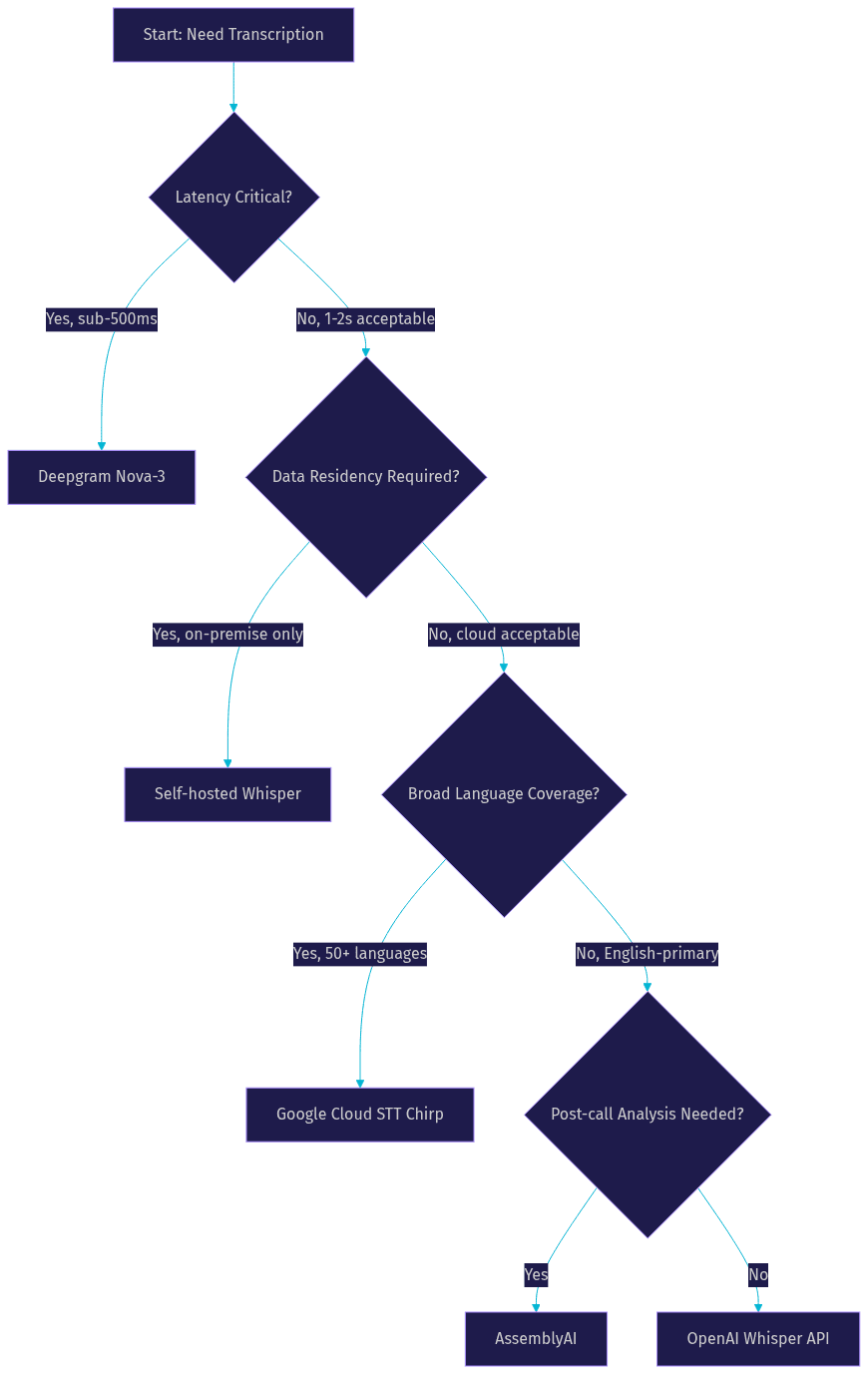
For most VideoSDK developers building real-time captioning, Deepgram offers the best combination of low latency and conversational accuracy. If your application needs broad multi-language support, Google Cloud Speech-to-Text is the stronger choice. If you need deep post-call analytics with speaker diarization, AssemblyAI excels.
Architecture Overview: Integrating Transcription with VideoSDK
Video call transcription architecture runs a parallel audio pipeline alongside the media path without affecting call quality. The flow is straightforward: participant audio enters the VideoSDK room, the SFU routes audio to a transcription service, and the resulting text returns to participants as on-screen captions.
VideoSDK uses a room-based architecture where participants join a VideoSDK room using a meeting token. Each participant publishes audio and video tracks to the SFU, which selectively forwards media to other participants. For transcription, the SFU can also route a participant's audio track to an external transcription service through a server-side webhook or a direct API integration.
The transcription pipeline operates alongside the normal video call flow without adding latency to the media path. Audio destined for transcription takes a parallel path through your backend, which forwards audio chunks to the speech-to-text provider and receives text results. Your backend then pushes captions back to the frontend through a WebSocket connection or through VideoSDK's pub/sub messaging system.
Here is the architecture flow:
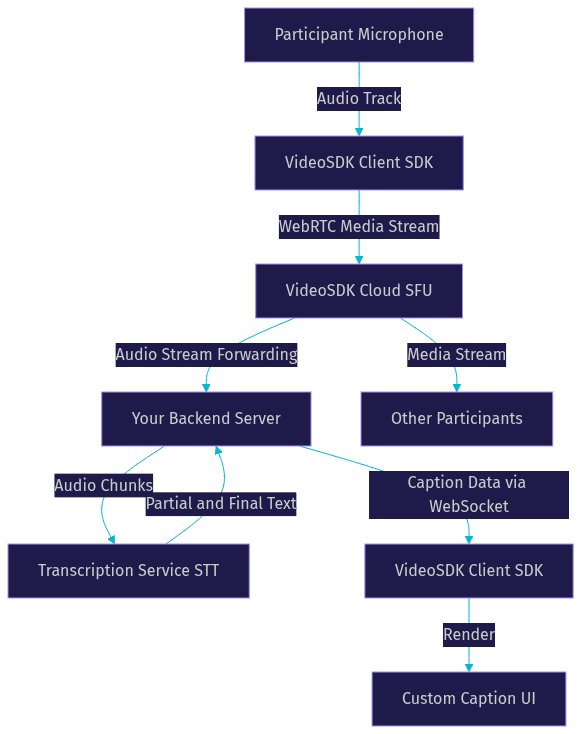
This architecture keeps the transcription pipeline decoupled from the media delivery path. If the transcription service experiences a latency spike, the video call continues uninterrupted. Captions may lag, but the call quality remains stable. VideoSDK's network-adaptive streaming ensures the audio and video quality adjusts to available bandwidth, while the transcription pipeline operates on its own performance budget.
Step-by-Step Guide to Adding Video Call Transcription
Implementing video call transcription requires five sequential steps, from environment preparation to production error handling. Each step builds on the previous one, and skipping any step leads to common integration failures.
1. Prepare Your Video SDK Environment
Start by selecting the VideoSDK platform that matches your application. VideoSDK supports React, React Native, Flutter, Android, iOS, JavaScript, Unity, and Python SDKs, so choose the one that aligns with your frontend stack. Generate a VideoSDK token server-side using your API key and secret. Never expose your API secret in client-side code. Create a room using the VideoSDK REST API by sending a request to the Create Room endpoint with your token in the authorization header. The response includes a room ID that participants will use to join the meeting.
2. Capture Audio Streams
Once participants join the room, enable audio tracks for each participant. VideoSDK's SDK exposes participant audio through hooks such as the useParticipant hook in React or equivalent methods in other SDKs. Configure echo cancellation and noise suppression at the SDK level to ensure the audio sent to the transcription service is clean. VideoSDK includes built-in noise suppression, which improves transcription accuracy by reducing background interference. Expose the mixed audio stream from the SFU to your backend transcription pipeline, either through a server-side media bridge or by forwarding audio chunks from the client to your backend server.
3. Connect to a Transcription Service
Authenticate with your chosen speech-to-text provider using their API credentials. Establish a streaming connection so audio chunks are sent continuously rather than in batch mode. Most providers support WebSocket-based streaming endpoints that accept raw audio bytes and return partial transcription results as they process each chunk. Send audio in 100 to 200 millisecond chunks to balance latency and throughput. Handle streaming responses by distinguishing partial results (which update as more context arrives) from final results (which are committed once the speaker pauses). Your backend should maintain a session map linking each VideoSDK participant ID to their active transcription session.
4. Process and Display Captions
Apply post-processing to the raw transcription output. Most providers return unpunctuated text, so enable automatic punctuation if the provider supports it. Apply speaker diarization to label captions with the correct speaker name or participant ID. On the frontend, build a custom caption UI that displays captions in a readable position, typically at the bottom of the video tile or in a dedicated sidebar. Provide user controls for caption size, color, and opacity to accommodate accessibility needs. VideoSDK's Prebuilt UI Kit includes caption display capabilities, so if you are using the Prebuilt SDK, captions may appear automatically once transcription is enabled.
5. Handle Errors and Edge Cases
Network drops are the most common transcription failure. If the WebSocket connection to the transcription service drops, queue audio chunks locally and reconnect automatically. Implement exponential backoff for reconnection attempts. Handle token expiry by refreshing VideoSDK tokens before they expire, typically with a buffer of 30 to 60 seconds before the stated expiry time. For latency spikes, display a subtle indicator that captions are catching up rather than freezing the UI. As a fallback, if real-time transcription fails for more than 10 seconds, queue the audio for post-call transcription so users still receive a complete transcript after the meeting.
Production-Ready Considerations
Moving transcription from prototype to production demands careful planning around scalability, cost, latency, security, and compliance. These factors determine whether your transcription feature remains reliable under real-world load.
Scalability
In a multi-participant call, each speaking participant generates a separate audio stream that needs transcription. For a 10-person meeting where 3 people speak simultaneously, your backend must maintain 3 concurrent transcription sessions. Design your backend to handle concurrent sessions per room, and use a queue system to manage transcription session lifecycle. VideoSDK's room-based architecture supports up to hundreds of participants per room, so your transcription backend must scale horizontally to match.
Cost-Per-Call Calculations
Transcription providers charge per minute of audio processed. At typical rates of $0.0043 to $0.024 per minute depending on the provider, a 30-minute call with 3 active speakers costs roughly $0.39 to $2.16 in transcription fees alone. Calculate your per-call cost by multiplying the number of active speakers by the call duration by the provider's per-minute rate. Factor in infrastructure costs for your backend transcription bridge, including server compute and bandwidth for audio forwarding.
Latency Budgeting
End-to-end transcription latency in production typically ranges from 0.6 to 2.1 seconds. This includes audio capture (50 to 100ms), network transport to the transcription service (100 to 300ms), speech-to-text processing (200 to 800ms), and caption display rendering (50 to 200ms). Budget each stage and monitor for bottlenecks. If your total latency exceeds 3 seconds, users will find captions distracting rather than helpful.
Security
VideoSDK supports end-to-end encryption for media streams, but transcription introduces a third party that processes decrypted audio. Ensure your transcription provider offers data processing agreements and complies with GDPR, HIPAA, or SOC 2 depending on your industry. Scope VideoSDK tokens to specific rooms and roles using role-based access control, and never log raw audio or transcripts in plaintext.
Compliance Checklist
Verify that your transcription implementation meets applicable regulations. For healthcare applications, ensure HIPAA-compliant transcription with signed business associate agreements. For communications platforms serving US users, review FCC requirements under 47 CFR Section 14.21 for real-time text support. For European users, ensure GDPR-compliant data handling with explicit user consent for audio processing.
Monitoring, Analytics, and Continuous Improvement
Transcription quality degrades silently without active monitoring, making continuous measurement essential for production reliability. Without ongoing monitoring, accuracy can degrade as audio conditions change, new participants join with different accents, or provider models receive updates that shift performance.
Capture transcription quality metrics by logging the ratio of final transcription results to partial updates, the average latency per caption, and the frequency of empty or error responses from the provider. Monitor word error rate by periodically sampling recorded calls and comparing transcripts against human-corrected reference transcripts. According to Artificial Analysis's Speech Arena benchmark, top providers maintain 8 to 14% WER on conversational audio, but real-world performance varies with microphone quality, background noise, and speaker accents.
Adjust audio bitrate if you notice degraded accuracy. VideoSDK's network-adaptive streaming automatically adjusts media bitrate based on available bandwidth, but the audio forwarded to your transcription service may need a separate quality floor. Ensure audio sent to the transcription service maintains at least 16kHz sample rate, as lower rates significantly increase WER.
Iterate on provider selection as the market evolves. New models release quarterly, and a provider that was optimal six months ago may no longer lead on accuracy or latency. Run quarterly benchmarks comparing your current provider against alternatives using the same test audio corpus, and switch if a competitor offers meaningful improvement.
Quick Recap and Next Steps
You now have a complete framework for adding video call transcription to your application. The key decisions are choosing a speech-to-text provider based on your latency, accuracy, and language requirements, designing a transcription architecture that runs parallel to your VideoSDK media path, and implementing a five-step plan covering environment setup, audio capture, provider connection, caption display, and error handling.
For your next steps, explore VideoSDK's Prebuilt UI Kit to see how captions render in a production-ready video call interface. Review the VideoSDK REST API reference for room management and transcription control endpoints. Check the VideoSDK code samples for integration examples across React, Flutter, Android, and iOS.
Definitions Glossary
Real-Time Transcription: The process of converting spoken audio into text as the conversation happens, with captions appearing within one to three seconds of the speaker's words.
Speaker Diarization: The ability of a speech-to-text system to identify and label different speakers in a conversation, producing transcripts that attribute text to specific participants.
Word Error Rate (WER): The standard metric for measuring transcription accuracy, calculated as the percentage of words incorrectly transcribed compared to a reference transcript. Lower WER means higher accuracy.
Room: A VideoSDK meeting room that participants join using a meeting token, where audio and video streams are routed through the SFU to all connected participants.
Custom Caption UI: A developer-built interface for displaying transcription text on screen, with controls for size, color, opacity, and positioning to meet accessibility requirements.
Key Takeaways
- Real-time video call transcription converts spoken audio into live captions through a five-stage pipeline: audio capture, preprocessing, speech-to-text conversion, post-processing, and display.
- Deepgram offers the lowest latency for real-time captions, Google Cloud Speech-to-Text provides the broadest language coverage, and AssemblyAI excels at post-call analysis with speaker diarization.
- VideoSDK's room-based architecture routes participant audio streams to external transcription services through a parallel pipeline that does not affect video call quality or latency.
- Production transcription requires careful attention to scalability, cost-per-call calculations, latency budgeting (0.6 to 2.1 seconds typical), security, and regulatory compliance.
- Ongoing monitoring of word error rate, latency, and provider performance is essential because transcription quality degrades silently without active measurement.
Conclusion
Adding video call transcription to your application is no longer optional for developers building serious video products. Accessibility requirements, knowledge management needs, and regulatory mandates are converging to make live captions a baseline feature. VideoSDK's room-based architecture, multi-platform SDKs, and built-in transcription support give you the infrastructure to ship this feature without building a media pipeline from scratch. Start by generating a token and creating a room with the VideoSDK quickstart guide, then connect your chosen speech-to-text provider and render captions through the Prebuilt UI Kit or your custom interface. Sign up for free at app.videosdk.live/login to get started with VideoSDK's free tier. What are you building with VideoSDK? Drop a comment below and let me know what kind of transcription use case you are working on.
Free $20 Balance for AI Voice Agents & Video Calls
FAQ