


React HLS playback combines the hls.js library with React's component model to stream .m3u8 video inside a custom player. Safari supports HLS natively through its HTML5 video element, while Chrome, Edge, and Firefox require hls.js and Media Source Extensions. VideoSDK's Interactive Live Streaming builds on the same principles but adds sub-second latency for real-time audience interaction.
Streaming video is the backbone of modern web experiences, from live sports and gaming to product launches and virtual classrooms. HTTP Live Streaming, or HLS, has become the dominant protocol for delivering adaptive video over standard web infrastructure. It works everywhere, scales through CDNs, and handles fluctuating network conditions gracefully. But getting HLS to play reliably inside a React application still trips up a lot of developers.
The challenge is not the protocol itself. It is the gap between what browsers support natively and what you need to build a production-grade player UI. Safari handles HLS out of the box. Chrome and Firefox do not. You need a JavaScript library like hls.js to bridge that gap, and you need React to manage the player state, controls, and lifecycle cleanly.
By the end of this guide, you will understand how HLS works, how to wire hls.js into a React hook, how to add custom controls and adaptive bitrate selection, and when to reach for a pre-built wrapper instead of building your own. You will also see how VideoSDK's video calling SDK extends these concepts for interactive, low-latency use cases.
What Is HLS and How It Works?
HTTP Live Streaming is an adaptive bitrate streaming protocol originally developed by Apple. HLS works by breaking a video stream into small sequential segments, each delivered as a standalone file over standard HTTP. A playlist file, called a manifest, lists all available segments and their URLs. The player reads the manifest, fetches segments in order, and stitches them together for continuous playback.
The manifest file uses the .m3u8 format, which is a plain-text playlist structure. A master manifest references multiple variant playlists, each encoding the same content at different bitrates and resolutions. The player monitors available bandwidth and switches between variants to maintain smooth playback without buffering. This is called adaptive bitrate streaming, or ABR, and it is the core advantage HLS has over progressive download.
In browsers that lack native HLS support, the hls.js library parses the .m3u8 manifest, fetches the segments, and feeds them into a video element through Media Source Extensions. MSE is a browser API that lets JavaScript append media data buffers to an HTML5 video element in real time. Safari skips this entirely because its video element parses HLS manifests natively without any JavaScript library.
Here is how the data flows from origin to screen:
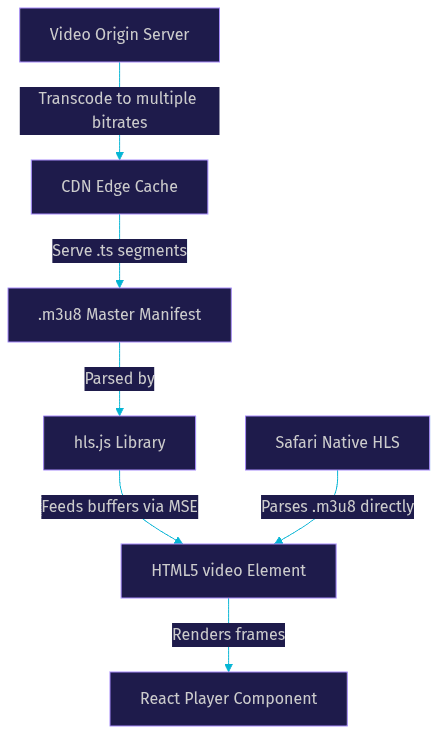
The key takeaway is that hls.js acts as a translation layer. It takes a protocol the browser does not understand and converts it into something the browser's video element can consume through MSE.
Why Use React for HLS Playback?
React's component model maps cleanly onto video player architecture. A video player has distinct concerns: the media element itself, playback controls, quality selection, subtitle tracks, buffering indicators, and error overlays. Each of these maps to a React component or a slice of state, which keeps your code organized and testable.
React's declarative rendering also simplifies control wiring. Instead of imperatively toggling play and pause through DOM manipulation, you drive the video element through React state. When the user clicks play, you update state, and React reconciles the video element's properties accordingly. This is especially valuable for complex UIs like live shopping overlays, interactive polls, or synchronized chat, where the player is one piece of a larger interface.
For teams already building with React, keeping video playback inside the same framework avoids the overhead of a separate vanilla JavaScript player that fights with React's render cycle.
Native HLS vs. Wrapper Libraries
Not all browsers treat HLS the same way. Safari on macOS and iOS includes native HLS support in its HTML5 video element. You point the video source at a .m3u8 URL and playback works without any JavaScript library. Chrome, Edge, and Firefox lack this support and require hls.js or a similar MSE-based library to parse and play HLS streams.
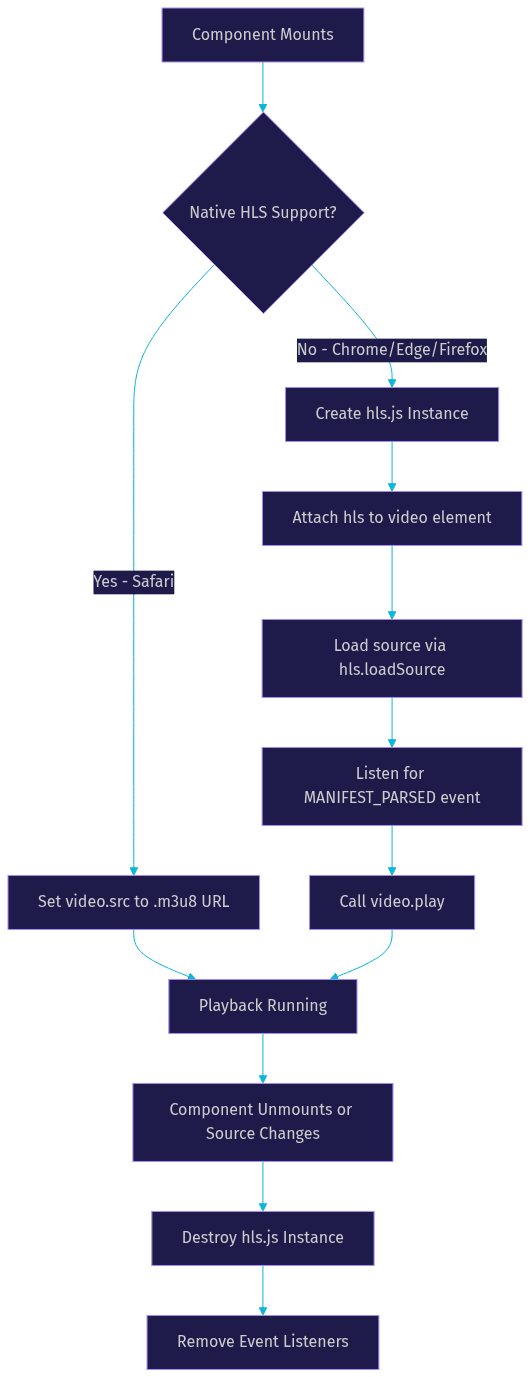
This split means any production React HLS player needs conditional logic. If the browser supports native HLS, use the video element directly. If it does not, initialize hls.js, attach it to the video element, and load the stream through the library.
Wrapper libraries like @gumlet/react-hls-player and react-hls-video-player abstract this conditional logic away. They handle the Safari detection, the hls.js lifecycle, and the video element mounting in a single component you drop into your app. The tradeoff is control. A wrapper gives you a working player fast, but customizing error recovery, ABR behavior, or the exact control UI can mean fighting the wrapper's abstractions.
A custom implementation using hls.js directly gives you full control over every aspect of playback. You decide how errors are handled, how quality levels are exposed, and how the UI responds to buffering. The cost is more upfront work and responsibility for lifecycle management, which is where a well-structured React hook becomes essential.
Building a Custom React HLS Player with hls.js
Building a custom React HLS player comes down to three pieces: a hook that manages the hls.js instance lifecycle, a component that renders the video element, and a set of controls driven by React state. The goal is to keep the hls.js instance isolated from React's render cycle so that re-renders do not destroy and recreate the player.
The Core Hook
The heart of a custom React HLS player is a hook that creates an hls.js instance, attaches it to a video element, and cleans it up when the component unmounts. The hook should accept a video source URL and a reference to the video element. On mount, it checks whether the browser supports native HLS. If it does, it sets the video source directly. If it does not, it creates a new hls.js instance, attaches it to the video element, and loads the source.
The hook must return a cleanup function that destroys the hls.js instance when the component unmounts or the source changes. Failing to destroy the instance leaks memory and can cause duplicate audio tracks or ghost buffers. The hook should also expose the hls.js instance through a ref so that the parent component can access quality levels, subtitle tracks, and error events.
Player Component
The player component renders a standard HTML5 video element and passes its ref to the hook. The video element needs the standard attributes: controls can be disabled if you are building custom UI, crossOrigin should be set if your segments are served from a different domain, and playsInline is required for iOS Safari to prevent forced fullscreen playback.
The component should also render a container div that wraps the video element and any custom control overlays. This container becomes the fullscreen target when the user requests fullscreen mode.
Adding Custom Controls
Custom controls are where React's state model shines. You track playback state (playing or paused), current time, duration, volume, muted, and fullscreen status in React state. Event listeners on the video element update this state: the play event sets playing to true, the timeupdate event updates current time, and the volumechange event syncs volume and muted.
Control buttons call methods on the video element directly through the ref. Play and pause toggle the video element's playback. Seeking sets the video element's currentTime property. Volume changes set the volume property. Fullscreen uses the browser's Fullscreen API on the container element. React state drives the UI, and the video element's methods drive the media.
Here is the lifecycle of the hook and how it connects to the video element:
Enhancing the Player
A basic player that starts and stops video is just the beginning. Production HLS players need adaptive bitrate control, subtitle support, and robust error recovery. Each of these features builds on the hls.js instance your hook already manages.
Adaptive Bitrate and Quality Selector
HLS streams typically include multiple quality levels, from low-resolution mobile-optimized variants to full HD or 4K. By default, hls.js handles ABR automatically, monitoring bandwidth and switching levels to avoid buffering. The hls.js instance exposes all available levels through its levels property, and you can read the currently active level through currentLevel.
To add a manual quality selector, you render a dropdown or set of buttons that lists each level's height and bitrate. When the user selects a level, you set hls.currentLevel to that index. Setting it to negative one returns control to automatic ABR. This gives users on metered connections the ability to lock playback to a lower quality, and users on fast connections the ability to force the highest quality even if the ABR algorithm is being conservative.
Subtitles and Captions
HLS manifests can include subtitle tracks, typically delivered as WebVTT files referenced inside the variant playlists. The hls.js library parses these tracks and exposes them through its subtitleTracks property. To display them, you listen for the subtitle track's cue changes and render the text as an overlay, or you let the video element's native text track rendering handle it by adding track elements to the video element.
For manually added VTT tracks, you append track elements to the video element with the appropriate kind, label, language, and source attributes. The video element's built-in caption rendering handles display, and you can toggle tracks on and off through the textTracks API.
Error Recovery and Retry Logic
Network conditions change, CDN edges fail, and segments occasionally return errors. A production player needs to handle these gracefully instead of freezing. The hls.js instance emits error events that you can listen for and respond to. Fatal errors require recovery actions, which hls.js provides through methods like startLoad and recoverMediaError.
For non-fatal errors, logging and monitoring are usually sufficient. For fatal errors, you can implement exponential backoff retry logic. On the first failure, retry immediately. On subsequent failures, wait progressively longer before retrying. After a configurable number of attempts, show the user an error overlay with a manual retry button. This prevents the player from hammering a failing CDN edge while still recovering from transient issues automatically.
Performance and Compatibility Considerations
HLS playback performance depends on factors beyond the player code itself. Media Source Extensions have buffering limits that vary by browser. Chrome and Edge typically allow larger buffer sizes than mobile Safari, which means your maxBufferLength configuration in hls.js should be tuned per platform. Setting it too high on mobile can cause memory pressure and crashes, while setting it too low on desktop leads to frequent rebuffering.
CDN configuration matters as much as player configuration. Segment files should be cached at CDN edge locations with appropriate cache headers. Long cache times for segment files are safe because each segment URL is unique to its content. Manifest files for live streams need short cache times or no caching at all, since they update continuously as new segments are appended.
If your streams require authentication, you will likely use token-signed HLS URLs. The token is appended as a query parameter to the .m3u8 URL and each segment URL. The hls.js library supports custom request headers and URL manipulation through its xhrSetup and fetchSetup configuration options, which let you inject authentication tokens or modify requests before they are sent.
Mobile behavior differs significantly from desktop. iOS Safari enforces inline playback restrictions unless you set the playsInline attribute. Autoplay is restricted on both iOS and Android unless the video is muted. Battery saver modes on mobile can throttle JavaScript execution, which affects hls.js segment fetching. Test on real mobile devices, not just browser dev tools in mobile emulation mode.
Testing and Debugging Your React HLS Player
Debugging HLS playback issues requires looking at both the network layer and the hls.js internal state. Chrome DevTools is your primary tool. The Network tab shows every segment request, its status code, timing, and size. Look for failed segment requests, unexpected 403 errors from expired tokens, or long latency on specific CDN edges.
The hls.js library has a built-in debug logging system that you enable through its debug configuration option. When enabled, it logs detailed information about manifest parsing, level switching, fragment loading, and error recovery to the console. This is invaluable for diagnosing ABR behavior and understanding why the player chose a particular quality level.
Common pitfalls include CORS misconfiguration on segment or manifest files. The CDN must return the appropriate Access-Control-Allow-Origin headers for the domain serving your React app. MIME types also matter. Some servers serve .m3u8 files with incorrect MIME types, which causes hls.js to reject them. The correct MIME type for HLS manifests is application/vnd.apple.mpegurl, and for segments it is video/mp2t or video/mp4 depending on the container format.
Another common issue is mixed content. If your React app is served over HTTPS but your HLS stream URL uses HTTP, the browser will block the request. Always serve HLS streams over HTTPS in production.
When to Choose a Pre-Built React HLS Component
Building a custom React HLS player gives you maximum control, but it is not always the right choice. If you are prototyping a feature, need a player running in an hour, or your video UI is straightforward, a pre-built wrapper library saves significant time.
Wrapper libraries like @gumlet/react-hls-player, react-hls-video-player, and video-react with hls.js plugins handle the browser detection, hls.js lifecycle, and basic controls for you. They give you a component that accepts a source URL and renders a working player with minimal configuration.
Choose a pre-built component when your player UI follows standard patterns: a single video with play, pause, seek, volume, and fullscreen controls. Choose a custom implementation when you need fine-grained control over ABR behavior, custom error recovery logic, non-standard control layouts, or tight integration with a larger React application state. Also consider a custom build when your player is part of a real-time interactive experience, where VideoSDK's Interactive Live Streaming offers sub-second latency that standard HLS cannot match.
For developers who need both HLS delivery and real-time audience interaction, VideoSDK's React SDK provides a rooms-based architecture where viewers can be promoted to active speakers, something no HLS-only player can do. You can explore code samples to see how this works in practice.
Definitions Glossary
HLS (HTTP Live Streaming): An adaptive bitrate streaming protocol that breaks video into small segments delivered over HTTP, with a .m3u8 manifest file listing available segments and quality variants.
hls.js: A JavaScript library that parses HLS manifests and feeds video segments to the HTML5 video element through Media Source Extensions, enabling HLS playback in browsers that lack native support like Chrome and Firefox.
Media Source Extensions (MSE): A browser API that allows JavaScript to append media data buffers to an HTML5 video element in real time, which is how hls.js delivers HLS segments to the browser.
Adaptive Bitrate Streaming (ABR): A technique where the player monitors available bandwidth and automatically switches between different quality levels of the same video stream to maintain smooth playback without buffering.
.m3u8 Manifest: A plain-text playlist file used by HLS that lists media segment URLs, their durations, and available quality variants. A master manifest references variant playlists for each bitrate.
Interactive Live Streaming (ILS): VideoSDK's low-latency streaming mode that keeps delay under one second, allowing viewers to interact, vote, or be promoted to active speakers in real time, unlike traditional HLS which has 10 to 30 seconds of latency.
Key Takeaways
- React HLS playback requires conditional logic because Safari supports HLS natively while Chrome, Edge, and Firefox need the hls.js library and Media Source Extensions.
- A custom React hook that manages the hls.js instance lifecycle is the cleanest way to integrate HLS into React without leaking memory or fighting re-renders.
- Adaptive bitrate streaming is built into HLS and hls.js, but you can expose manual quality selection by reading and setting the currentLevel property on the hls.js instance.
- Production players need error recovery with exponential backoff, CORS-compliant CDN configuration, HTTPS for all stream URLs, and platform-specific buffer tuning for mobile versus desktop.
- For use cases where audience interaction matters more than broad CDN delivery, VideoSDK's Interactive Live Streaming offers sub-second latency that standard HLS cannot achieve.
Conclusion
Building a React HLS player with hls.js gives you full control over adaptive streaming, custom controls, and error handling while keeping everything inside React's component model. The core is a well-structured hook that manages the hls.js lifecycle, surrounded by React state that drives your player UI. Start with the hook, add controls, then layer in ABR selection, subtitles, and error recovery as your use case demands.
If your project needs real-time audience interaction rather than one-way streaming, explore VideoSDK's Interactive Live Streaming for sub-second latency and viewer-to-speaker promotion. You can sign up for free at app.videosdk.live/login and check out the React SDK quickstart to see it in action.
What are you building with React HLS? Drop a comment below, I would love to hear what kind of streaming use case you are working on.
Free $20 Balance for AI Voice Agents & Video Calls
FAQ