


TL;DR: You can add 1:1 video chat to a React Native dating app by installing@videosdk.live/react-native-sdk, creating a private room per match via the VideoSDK REST API, and rendering a two-participant call UI using theuseMeetinganduseParticipanthooks. Layer on end-to-end encryption using theuseKeyProviderhook for user privacy.
Adding a dating app video call feature to your React Native app increases match-to-conversation conversion rates and lets users verify identity before meeting in person. The VideoSDK React Native SDK provides the real-time video infrastructure so you can focus on your app logic rather than WebRTC internals.
This guide covers every step: SDK installation, private room creation, building the call UI, end-to-end encryption, anonymous mode, and handling call invitations.
React Native SDK setup
To add 1:1 video chat in a React Native dating app, start by installing the SDK and its companion in-call manager package.
Installing the packages
npm install "@videosdk.live/react-native-sdk" "@videosdk.live/react-native-incallmanager"Or with Yarn:
yarn add "@videosdk.live/react-native-sdk" "@videosdk.live/react-native-incallmanager"Note: On Windows, always include double quotes around package names.
Android permissions and native setup
Add the following to android/app/build.gradle:
dependencies {
  implementation project(':rnwebrtc')
}
Add to android/settings.gradle:
include ':rnwebrtc'
project(':rnwebrtc').projectDir = new File(rootProject.projectDir, '../node_modules/@videosdk.live/react-native-webrtc/android')
Add to android/gradle.properties:
# Fixes a WebRTC runtime problem on some devices
android.enableDexingArtifactTransform.desugaring=false
Update MainApplication.java:
import live.videosdk.rnwebrtc.WebRTCModulePackage;

public class MainApplication extends Application implements ReactApplication {
  private static List<ReactPackage> getPackages() {
    List<ReactPackage> packages = new PackageList(this).getPackages();
    packages.add(new WebRTCModulePackage());
    return packages;
  }
}
Add the required permissions to AndroidManifest.xml:
<uses-permission android:name="android.permission.INTERNET" />
<uses-permission android:name="android.permission.ACCESS_NETWORK_STATE" />
<uses-permission android:name="android.permission.CAMERA" />
<uses-permission android:name="android.permission.RECORD_AUDIO" />
<uses-permission android:name="android.permission.MODIFY_AUDIO_SETTINGS" />
<uses-permission android:name="android.permission.WAKE_LOCK" />
<uses-permission android:name="android.permission.BLUETOOTH" android:maxSdkVersion="30" />
<uses-permission android:name="android.permission.BLUETOOTH_CONNECT" />
Set minSdkVersion to 23 in build.gradle.
iOS setup
For iOS, follow the React Native iOS integration guide to add camera and microphone usage descriptions to Info.plist and link the native modules.
Register services
In your index.js (or index.ts), call register() before AppRegistry.registerComponent:
import { register } from '@videosdk.live/react-native-sdk';
import { AppRegistry } from 'react-native';
import { name as appName } from './app.json';
import App from './src/App.js';

register();
AppRegistry.registerComponent(appName, () => App);
Creating a private 1:1 room
A room in VideoSDK is a scoped session identified by a roomId. For a dating app, you create one room per match. You can use the match ID from your own database as a customRoomId, so each matched pair maps to exactly one room.
Room creation via the REST API
The endpoint for room creation is:
POST https://api.videosdk.live/v2/roomsHeaders required: Authorization: YOUR_JWT_TOKEN and Content-Type: application/json.
// Server-side: create a room when two users match
const response = await fetch('https://api.videosdk.live/v2/rooms', {
  method: 'POST',
  headers: {
    Authorization: process.env.VIDEOSDK_TOKEN,
    'Content-Type': 'application/json',
  },
  body: JSON.stringify({
    customRoomId: `match-${matchId}`, // link to your match record
  }),
});
const { roomId } = await response.json();
// Store roomId alongside the match record in your database
The response returns a roomId (e.g. "abc-xyzw-lmno") that both participants will use to join the call.
Token generation per user
Each participant needs a short-lived JWT token generated from your VideoSDK API key and secret. Generate this token server-side and send it to the client along with the roomId. The token must be passed raw, with no Bearer or Basic prefix, when used in the SDK.
For token generation details, see the VideoSDK authentication guide.
Building the call UI
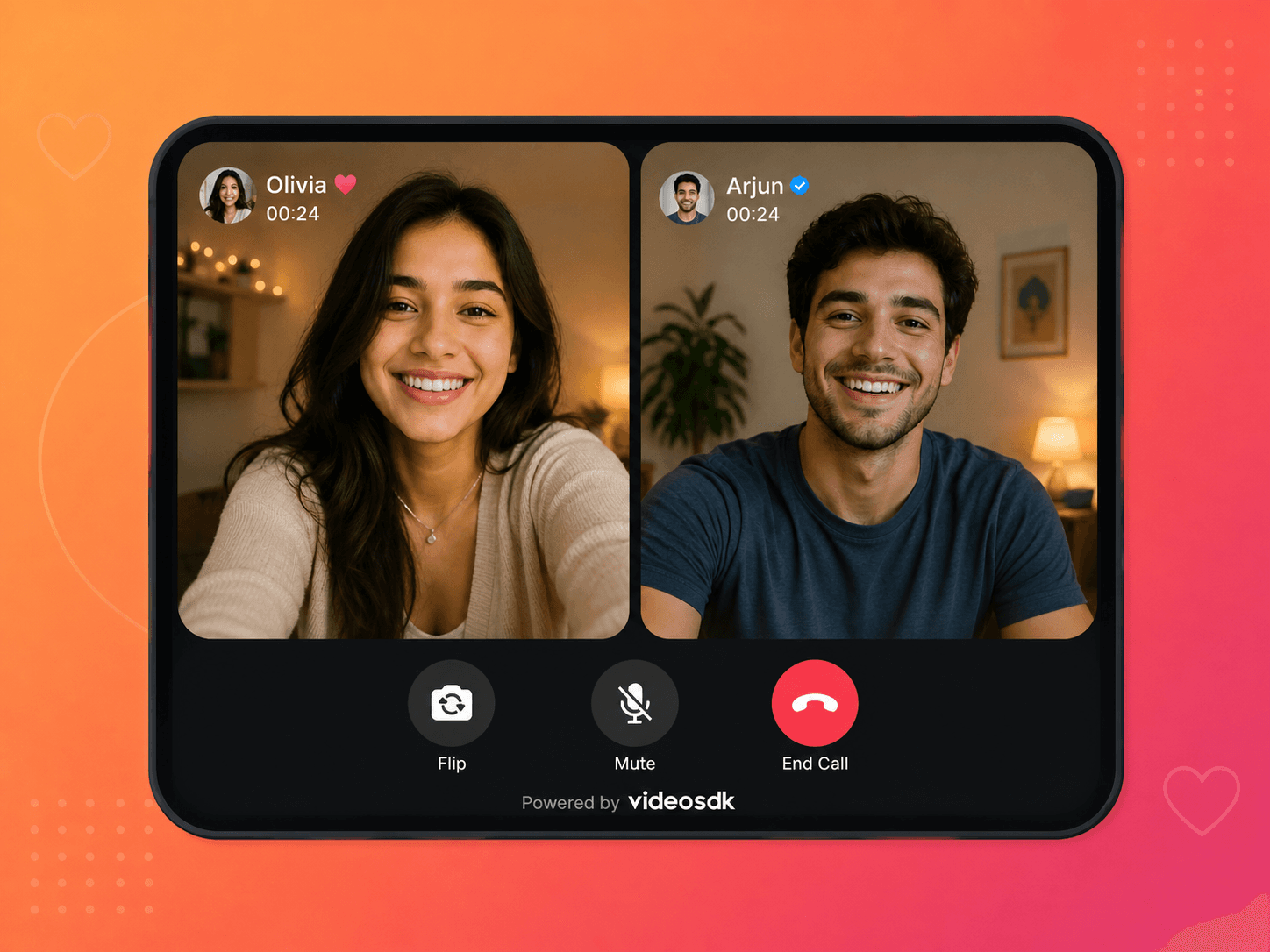
The call UI for a 1:1 dating app video call needs two video tiles, a mic toggle, a camera flip button, and an end-call button.
Initializing the meeting provider
MeetingProvider is the context provider that wraps your call screen. Pass the meetingId, token, participant name, and initial media state:
import { MeetingProvider } from '@videosdk.live/react-native-sdk';

function CallScreen({ roomId, token, displayName }) {
  return (
    <MeetingProvider
      config={{
        meetingId: roomId,
        micEnabled: true,
        webcamEnabled: true,
        name: displayName,
      }}
      token={token}
    >
      <VideoCallView />
    </MeetingProvider>
  );
}
Rendering participants with useMeeting and useParticipant
useMeeting is a hook that returns meeting-level controls and state. useParticipant returns per-participant media streams and metadata.
import { useMeeting, useParticipant, RTCView } from '@videosdk.live/react-native-sdk';
import { View, TouchableOpacity, Text, StyleSheet } from 'react-native';

function VideoCallView() {
  const {
    participants,
    localWebcamOn,
    toggleWebcam,
    localMicOn,
    toggleMic,
    changeWebcam,
    leave,
  } = useMeeting();

  const participantIds = [...participants.keys()];

  return (
    <View style={styles.container}>
      {participantIds.map((id) => (
        <ParticipantTile key={id} participantId={id} />
      ))}
      <View style={styles.controls}>
        <TouchableOpacity onPress={() => changeWebcam()}>
          <Text>Flip Camera</Text>
        </TouchableOpacity>
        <TouchableOpacity onPress={() => toggleMic()}>
          <Text>{localMicOn ? 'Mute' : 'Unmute'}</Text>
        </TouchableOpacity>
        <TouchableOpacity onPress={() => leave()}>
          <Text>End Call</Text>
        </TouchableOpacity>
      </View>
    </View>
  );
}

function ParticipantTile({ participantId }) {
  const { displayName, webcamStream, webcamOn } = useParticipant(participantId);

  return (
    <View style={styles.tile}>
      <Text style={styles.name}>{displayName}</Text>
      {webcamOn && webcamStream ? (
        <RTCView
          streamURL={webcamStream.toURL()}
          style={styles.video}
          objectFit="cover"
        />
      ) : (
        <View style={styles.noVideo} />
      )}
    </View>
  );
}

const styles = StyleSheet.create({
  container: { flex: 1, backgroundColor: '#1a1a1a' },
  tile: { flex: 1, position: 'relative' },
  video: { flex: 1 },
  noVideo: { flex: 1, backgroundColor: '#333' },
  name: { position: 'absolute', top: 8, left: 8, color: '#fff', zIndex: 1 },
  controls: {
    flexDirection: 'row',
    justifyContent: 'space-evenly',
    padding: 16,
    backgroundColor: '#000',
  },
});
Flipping the camera
The changeWebcam() method from useMeeting switches between front and rear cameras, as confirmed by the docs. Call it without arguments to toggle to the next available camera.
Muting and unmuting
toggleMic() from useMeeting mutes or unmutes the local microphone. The current state is available via localMicOn.
End-to-end encryption for user privacy
End-to-end encryption (E2EE): E2EE is a security model where media is encrypted on the sender's device and decrypted only on the receiver's device. No intermediate server, including VideoSDK's infrastructure, can access the content.
E2EE is documented and supported in the VideoSDK React Native SDK starting from version 0.2.1.
Why E2EE matters in dating apps
Users on dating platforms share personal video with strangers. Without E2EE, video frames pass through relay servers in decryptable form. With E2EE enabled, a leaked server-side recording would contain only ciphertext. This is a trust signal that differentiates your product.
Enabling E2EE
Use the useKeyProvider hook to generate a key provider, set a shared key, and pass it to MeetingProvider:
import { MeetingProvider, useKeyProvider } from '@videosdk.live/react-native-sdk';

export default function SecureCallScreen({ roomId, token, sharedKey }) {
  const keyProvider = useKeyProvider({ discardFrameWhenCryptorNotReady: true });
  keyProvider?.setSharedKey(sharedKey);

  return (
    <MeetingProvider
      config={{
        meetingId: roomId,
        micEnabled: true,
        webcamEnabled: true,
        name: 'User',
      }}
      token={token}
      keyProvider={keyProvider || null}
    >
      <VideoCallView />
    </MeetingProvider>
  );
}
Set sharedKey before passing keyProvider to the provider. The key itself must be distributed to both participants through your own secure channel: for example, an HTTPS API call that returns the key alongside the room token when a match is accepted.
You can verify E2EE is active with e2eeEnabled from useMeeting:
const { e2eeEnabled } = useMeeting();
console.log('E2EE active:', e2eeEnabled);
Note: E2EE applies only to media streams. Chat messages and signaling data are protected by TLS but are not end-to-end encrypted. Recording and transcription features are also not supported when E2EE is enabled.
Preventing inappropriate content
VideoSDK does not include a built-in content moderation layer. If your dating app needs to detect and block inappropriate video, you need to integrate a third-party moderation service alongside the VideoSDK stream.
A common pattern:
- Capture periodic screenshots from the local or remote video stream using a frame processing hook or a React Native screen-capture library.
- Send those frames to a moderation API such as AWS Rekognition, Google Cloud Vision SafeSearch, or Hive Moderation.
- If the moderation API returns a violation, call
leave()ortoggleWebcam()fromuseMeetingand report the participant to your backend.
This moderation layer runs entirely in your application code and does not require changes to the VideoSDK integration.
Handling call invitations
VideoSDK does not provide a push notification or call invitation service. Call initiation is outside the scope of the SDK and belongs to your app's backend. However, the room creation step fits naturally into your match acceptance flow.
A practical pattern:
- When User A accepts a match with User B, your server calls
POST https://api.videosdk.live/v2/roomsto create a room and stores theroomId. - Your server sends a push notification to User B (via FCM for Android or APNs for iOS) containing the
roomIdand a one-time participant token. - When User B taps the notification, your app navigates to the
CallScreencomponent and joins the room using the receivedroomIdand token.
For native call UI on incoming calls (lock-screen notification with accept/decline), refer to the VideoSDK VoIP/CallKit guides for Android (using Callkeep) and iOS (using CallKit).
Anonymous mode
Many dating apps let users interact anonymously until they choose to reveal their real name. VideoSDK supports this natively via the name field in MeetingProvider.
Using a display name instead of a real name
Set the name config property to the user's chosen username or handle rather than their real name:
<MeetingProvider
  config={{
    meetingId: roomId,
    micEnabled: true,
    webcamEnabled: true,
    name: user.username, // "CoffeeLover42" instead of real name
  }}
  token={token}
>
The displayName returned by useParticipant will then show the username to all participants.
Video blur and virtual backgrounds for anonymous mode
VideoSDK provides a dedicated @videosdk.live/react-native-media-effects package that gives you background effects directly from JavaScript, with no custom native frame processor code required.
Install the package:
npm install "@videosdk.live/react-native-media-effects"On iOS, add the following to your Podfile and comment out the Flipper line:
use_frameworks! :linkage => :static
# :flipper_configuration => flipper_config,  # comment this out
Then apply effects using the VideosdkMediaEffects object:
import VideosdkMediaEffects from '@videosdk.live/react-native-media-effects';

// Blur the background with a given radius
VideosdkMediaEffects.applyBlurBackground(25.0);

// Replace background with an image (URL must use HTTPS)
VideosdkMediaEffects.applyImageBackground('https://example.com/bg.jpg');

// Set a solid color background
VideosdkMediaEffects.applyColorBackground('#1a1a1a');

// Remove any active background effect
VideosdkMediaEffects.removeBackground();
These methods work on both Android and iOS. The feature can also be used on the pre-call screen, before joining the room.
For apps using the native iOS SDK directly rather than the React Native SDK, VideoSDK provides background blur via the VideoSDKVideoProcessor protocol. You implement onFrameReceived(frame:) using ARKit's VNGeneratePersonSegmentationRequest (iOS 15+) to segment the person, blur the background with applyingGaussianBlur(sigma:), composite the result, and activate it with meeting.setVideoProcessor(processor:). Pass nil to disable it.
Key takeaways
- Install
@videosdk.live/react-native-sdkand@videosdk.live/react-native-incallmanager, then callregister()in your app entry point before mounting any component. - Create one room per match via
POST https://api.videosdk.live/v2/roomsand store theroomIdwith your match record. UsecustomRoomIdto mirror your own match ID. - Use
useMeetingfor call controls (mute, camera flip viachangeWebcam(), leave) anduseParticipantwithRTCViewfor rendering each participant's video stream. - Enable E2EE with
useKeyProviderandsetSharedKey. Distribute the shared key to both participants from your server over HTTPS, not from the client. - Add background blur or virtual backgrounds using the
@videosdk.live/react-native-media-effectspackage: callapplyBlurBackground(radius),applyImageBackground(url), orapplyColorBackground(hex)directly from JavaScript on both platforms. - VideoSDK does not provide content moderation or push notifications. Both require third-party integration on top of the SDK.
FAQ
Q1: Can a user block a participant mid-call?
VideoSDK does not have a built-in per-participant block feature within a session. To implement blocking mid-call, call leave() on the blocking user's side to remove them from the room, then update your app's backend to flag the block. On the other participant's side, the onParticipantLeft event from useMeeting will fire. You can also use the REST API endpoint POST https://api.videosdk.live/v2/sessions/{sessionId}/participant/remove to force-remove a participant server-side.
Q2: What happens when one user loses connection?
The SDK handles transient disconnections automatically using WebRTC's reconnection mechanisms. If a participant drops, the onParticipantLeft callback fires on the other participant's useMeeting hook. If the disconnected participant's device recovers network connectivity, they can rejoin the same roomId with a valid token. You should show a reconnecting state in your UI by listening to the onError event from useMeeting and tracking participant presence with onParticipantLeft and onParticipantJoined.
Q3: Does VideoSDK support video filters?
For background effects, VideoSDK provides the @videosdk.live/react-native-media-effects package with built-in methods: applyBlurBackground(radius), applyImageBackground(url), applyColorBackground(hex), and removeBackground(). These work from JavaScript with no custom native code on both Android and iOS. For more advanced per-frame visual effects (color grading, face overlays, etc.) beyond background manipulation, you use the Video Processor system to write a custom native processor, as no JavaScript filter API exists for those use cases in the current SDK version.
Conclusion
Adding a 1:1 video chat to a React Native dating app requires a working SDK installation, private room creation tied to your match logic, a call UI built on useMeeting and useParticipant, and E2EE enabled via useKeyProvider. The VideoSDK React Native SDK handles the real-time media transport. Your app is responsible for token generation, push notifications, content moderation, and key distribution.
The primary keyword throughout this guide has been 1:1 video chat React Native dating app: the foundation is the @videosdk.live/react-native-sdk package combined with a server-side room creation call and client-side E2EE configuration.