


TL;DR: VideoSDK's Interactive Live Streaming lets multiple hosts join a room inSEND_AND_RECVmode and broadcast a single composited HLS stream to thousands of viewers. Hosts share audio and video in real time; viewers receive a low-latency HLS feed. RTMP simulcast to YouTube or Twitch runs in parallel viastartLivestream().
Multi-host live streaming collaborative rooms let several presenters broadcast together from a single session while a large audience watches an HLS stream. VideoSDK's Interactive Live Streaming (ILS) is the infrastructure layer that makes this work: hosts join as active participants, VideoSDK composes their feeds, and viewers receive a scalable HLS output without joining the room as senders.
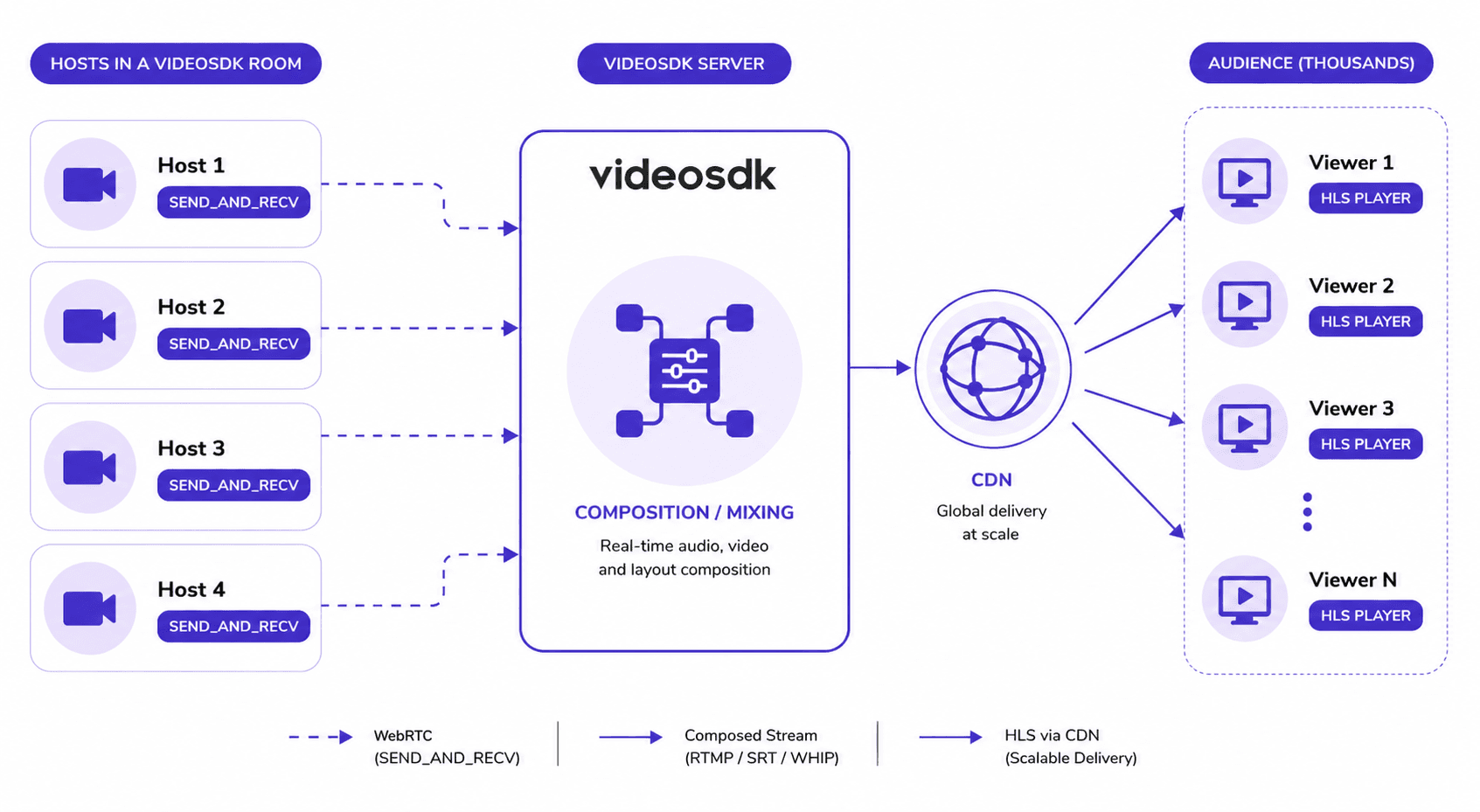
VideoSDK interactive live streaming architecture
Interactive Live Streaming (ILS): ILS is VideoSDK's feature set for rooms where some participants send audio and video (hosts) while others only receive a composed stream (viewers).
Each participant in a VideoSDK room joins with one of two modes:
SEND_AND_RECV: the participant can publish audio and video and receive other participants' feeds. Use this for every host on the panel.RECV_ONLY: the participant receives streams but cannot publish. Use this for audience members who join the room directly.
For the majority of viewers, VideoSDK recommends a different path: they never join the room at all. Instead, they receive a composed HLS (HTTP Live Streaming) stream generated by startHls(). HLS: HLS is an adaptive streaming protocol that serves media as small .ts segments over HTTP, enabling CDN-scale distribution to thousands of concurrent viewers.
The flow is: hosts in SEND_AND_RECV publish to a VideoSDK room, VideoSDK composes their feeds, startHls() encodes and segments the composition, and viewers play back the resulting playbackHlsUrl.
Setting up multi-host rooms
Install the React SDK first:
npm install @videosdk.live/react-sdkCreate a room using the VideoSDK REST API and obtain a meetingId. Then initialize the room with MeetingProvider and join every host with mode: "SEND_AND_RECV". The mode value is passed when calling joinMeeting inside the provider config.
import { MeetingProvider } from "@videosdk.live/react-sdk";

function App() {
  return (
    <MeetingProvider
      config={{
        meetingId: "<MEETING_ID>",
        micEnabled: true,
        webcamEnabled: true,
        name: "Host Name",
        // Hosts join in SEND_AND_RECV mode
        mode: "SEND_AND_RECV",
      }}
      token="<VIDEOSDK_TOKEN>"
      joinWithoutUserInteraction={true}
    >
      <HostMeetingView />
    </MeetingProvider>
  );
}
For viewer clients that join the room directly (rather than via HLS), pass mode: "RECV_ONLY". Viewers who watch via HLS do not join the room at all and use a standard HLS player instead.
Managing host permissions
The useParticipant hook exposes a mode field for each participant. You can read this to build a host roster or conditionally render controls.
import { useParticipant } from "@videosdk.live/react-sdk";

function ParticipantTile({ participantId }) {
  const { displayName, webcamStream, mode } = useParticipant(participantId);

  // Only render a video tile for hosts
  if (mode !== "SEND_AND_RECV") return null;

  return (
    <div>
      <p>{displayName}</p>
      {/* Attach webcamStream to a video element */}
    </div>
  );
}
To promote a RECV_ONLY audience member to host during the show, use changeMode() from useMeeting. The recommended pattern from the docs is a PubSub-based invite: the host publishes a topic-specific message, and the audience member's client calls changeMode("SEND_AND_RECV") on receiving it.
import { useMeeting, usePubSub } from "@videosdk.live/react-sdk";

// On the audience member's client
const ChangeModeListener = () => {
  const { changeMode, localParticipant } = useMeeting();

  usePubSub(`REQUEST_TO_JOIN_AS_HOST_${localParticipant?.id}`, {
    onMessageReceived: async ({ message }) => {
      changeMode(message.mode); // "SEND_AND_RECV"
    },
  });

  return <></>;
};
There is no direct server-side API to forcibly change another participant's mode. The changeMode() call always runs on the participant's own client. The invite approach via usePubSub is the documented pattern.
Starting HLS for the audience
Once all hosts have joined, any host (or your server) calls startHls() from the useMeeting hook. This triggers VideoSDK to compose the room and begin producing the HLS stream.
import { useMeeting } from "@videosdk.live/react-sdk";

const MeetingView = () => {
  const { startHls, stopHls } = useMeeting();

  const handleStartHls = () => {
    startHls({
      layout: {
        type: "GRID",       // "SPOTLIGHT" | "SIDEBAR"
        priority: "SPEAKER", // "PIN"
        gridSize: 4,        // MAX: 25
      },
      theme: "DARK",        // "LIGHT" | "DEFAULT"
      mode: "video-and-audio", // "audio"
      quality: "high",      // "low" (SD) | "med" (HD) | "high" (FHD)
      orientation: "landscape", // "portrait"
    });
  };

  return <button onClick={handleStartHls}>Start HLS</button>;
};
The onHlsStateChanged event fires as the stream transitions through states. When the state reaches Constants.hlsEvents.HLS_PLAYABLE, the playbackHlsUrl is available. Pass this URL to any HLS-compatible player (hls.js, Video.js, native Safari) on the viewer side.
import { Constants, useMeeting } from "@videosdk.live/react-sdk";

function onHlsStateChanged(data) {
  const { status } = data;
  if (status === Constants.hlsEvents.HLS_PLAYABLE) {
    const { playbackHlsUrl } = data;
    console.log("Stream ready:", playbackHlsUrl);
  }
}

const { meetingId } = useMeeting({ onHlsStateChanged });
Note: downstreamUrl is deprecated. Use playbackHlsUrl (supports DVR playback) or livestreamUrl (live-only, no playback seek) in all new implementations.
Layout management for multiple hosts
The startHls() config object gives you direct control over how the VideoSDK compositor arranges host tiles. Three layout types are documented:
GRID: Default. All participants visible in a grid. When a participant is pinned, they appear prominently at the top; unpinned participants fill the remaining cells. Maximum gridSize is 25.
SIDEBAR: One main screen (the first pinned participant) with a sidebar for additional pinned participants. Unpinned participants are hidden.
SPOTLIGHT: Only pinned participants are visible, filling the main screen. No sidebar grid.
For a panel stream with four co-hosts, GRID with gridSize: 4 and priority: "SPEAKER" is the most natural choice. It keeps all hosts visible and automatically promotes the active speaker to the most prominent position.
To switch layouts mid-stream without stopping, call startHls() again with the new config. The docs do not document a dedicated mid-stream layout switch endpoint separate from startHls().
RTMP simulcast to YouTube and Twitch
VideoSDK supports RTMP simulcast via startLivestream() from the useMeeting hook. This runs independently of HLS: you can have both active simultaneously.
import { useMeeting } from "@videosdk.live/react-sdk";

const MeetingView = () => {
  const { startLivestream, stopLivestream } = useMeeting();

  const handleStartLivestream = () => {
    startLivestream(
      [
        {
          // YouTube Live RTMP endpoint + stream key
          url: "rtmp://a.rtmp.youtube.com/live2",
          streamKey: "<YOUR_YOUTUBE_STREAM_KEY>",
        },
        {
          // Twitch RTMP endpoint + stream key
          url: "rtmp://live.twitch.tv/app",
          streamKey: "<YOUR_TWITCH_STREAM_KEY>",
        },
      ],
      {
        layout: {
          type: "GRID",
          priority: "SPEAKER",
          gridSize: 4,
        },
        theme: "DARK",
      }
    );
  };

  const handleStopLivestream = () => {
    stopLivestream();
  };

  return (
    <>
      <button onClick={handleStartLivestream}>Go Live on YouTube/Twitch</button>
      <button onClick={handleStopLivestream}>Stop Simulcast</button>
    </>
  );
};
The outputs array accepts multiple objects, so you can push to YouTube and Twitch in a single call. For each platform: find the RTMP ingest URL in the platform's live dashboard, copy the stream key, and plug both values in. The onLivestreamStateChanged callback fires through LIVESTREAM_STARTING, LIVESTREAM_STARTED, LIVESTREAM_STOPPING, and LIVESTREAM_STOPPED states.
Handling host drop-offs
When a host closes their tab, loses connectivity, or deliberately leaves, VideoSDK fires the onParticipantLeft event on all remaining clients. Use this to remove the departed host's tile from your local UI state.
import { useMeeting } from "@videosdk.live/react-sdk";
import { useState } from "react";

const MeetingView = () => {
  const [hostIds, setHostIds] = useState([]);

  const onParticipantJoined = (participant) => {
    if (participant.mode === "SEND_AND_RECV") {
      setHostIds((prev) => [...prev, participant.id]);
    }
  };

  const onParticipantLeft = (participant) => {
    setHostIds((prev) => prev.filter((id) => id !== participant.id));
  };

  useMeeting({ onParticipantJoined, onParticipantLeft });

  return (
    <div>
      {hostIds.map((id) => (
        <HostTile key={id} participantId={id} />
      ))}
    </div>
  );
};
The onParticipantLeft callback receives the participant object. Filtering the departed participant's ID from your state removes the tile immediately. The HLS compositor on VideoSDK's side automatically reflows the grid when a participant leaves: no manual recomposition call is required.
If the departing participant was the only one who called startHls(), the HLS stream continues running. The session owner or a remaining host is responsible for calling stopHls() when the event ends.
Key takeaways
- Hosts join a VideoSDK room in
SEND_AND_RECVmode; mass viewers consume the output viaplaybackHlsUrlfromstartHls()without joining the room at all. - Layout types
GRID,SIDEBAR, andSPOTLIGHTcontrol how the compositor arranges host tiles in the HLS output;gridSizegoes up to 25 in GRID mode. - RTMP simulcast to YouTube, Twitch, or any RTMP-compatible platform runs via
startLivestream()and can run simultaneously with HLS. - Mode promotion (audience member to host) happens via
changeMode("SEND_AND_RECV")on the participant's own client, triggered by a PubSub invite from the host. onParticipantLeftgives you the hook to remove a dropped host from your UI; the HLS compositor reflows automatically.
FAQ
Q1. How many simultaneous hosts can a VideoSDK room support in SEND_AND_RECV mode?
The startHls() config accepts a gridSize of up to 25 for the GRID layout. This is the maximum number of participants whose video tiles will appear in the HLS output grid at one time. The room itself can contain additional SEND_AND_RECV participants beyond 25, but the compositor will only surface up to gridSize tiles in the HLS stream. For panel formats with 2 to 6 hosts, any of the three layout types works well.
Q2. What is the HLS stream latency that viewers experience?
VideoSDK's HLS implementation produces a playbackHlsUrl and a livestreamUrl. The livestreamUrl targets lower latency for live-only playback without DVR support. The playbackHlsUrl adds playback seek support, which typically introduces a few additional seconds of buffering. Exact latency figures depend on player buffer settings, CDN edge proximity, and network conditions. VideoSDK does not publish a fixed latency SLA in its public documentation as of the time of writing.
Q3. Can a host join the multi-host live streaming collaborative room from a mobile device?
Yes. VideoSDK's React Native SDK supports ILS with the same SEND_AND_RECV and RECV_ONLY modes. A host on a React Native mobile app can publish their camera and microphone into the same room as desktop hosts, and VideoSDK will composite their feed into the HLS output the same way. The orientation: "portrait" option in startHls() config is specifically documented for mobile-first vertical stream layouts.
Q4. How do you switch between different HLS stream layouts during a live multi-speaker live stream?
Call startHls() again with the updated layout config object. For example, to switch from GRID to SPOTLIGHT during a keynote segment: call startHls({ layout: { type: "SPOTLIGHT", priority: "PIN" }, ... }). The VideoSDK docs also document a pin() method on participants via the useParticipant hook, which works with the PIN priority to control which host appears in the SPOTLIGHT or SIDEBAR main view. For a custom composed layout beyond the three prebuilt types, VideoSDK supports a templateURL parameter via the REST API to specify a custom template hosted by your infrastructure.
Conclusion
Multi-host live streaming collaborative rooms require two distinct things to work well: a reliable real-time room for hosts in SEND_AND_RECV mode, and a scalable delivery path for viewers. VideoSDK's Interactive Live Streaming handles both in a single SDK. Hosts join the room, startHls() starts the composition and delivery, and startLivestream() extends reach to YouTube and Twitch simultaneously.
The primary keyword here is multi-host live streaming collaborative rooms, and the architecture described above is the current documented pattern in the VideoSDK React SDK as of January 2026. All method names, event names, and parameter values in this guide were verified directly against the VideoSDK documentation.
For the full SDK reference, see the VideoSDK React SDK API reference and the Interactive Live Streaming quickstart.