
1Help me join a VideoSDK meeting from Python.
2
31. Run `mkdir videosdk-python && cd videosdk-python`.
4
52. Run `pip install videosdk`.
6
73. Create `api.py` with `create_meeting(token)` POSTing to
8
9   `https://api.videosdk.live/v2/rooms`, `meeting_events.py` and
10
11   `participant_events.py` subclassing `MeetingEventHandler` and
12
13   `ParticipantEventHandler`, and `main.py` that builds a `MeetingConfig`, calls
14
15   `VideoSDK.init_meeting(...)`, attaches both handlers, calls `meeting.join()` and
16
17   runs the asyncio loop forever.
18
194. Ask me for a token from app.videosdk.live/api-keys and set it as
20
21   `VIDEOSDK_TOKEN` in `main.py` and `token` in `api.py`.
22
235. Run `python main.py` and join the same room from a browser to confirm the
24
25   participant and stream events fire.
26
27REFERENCE
28
29https://docs.videosdk.live/python/guide/quick-start/audio-video.md
Prerequisites
Before proceeding, ensure that your development environment meets the following requirements:
- VideoSDK Developer Account (Not having one? Follow VideoSDK Dashboard)
- Basic understanding of Python
- Python installed on your device.
- Python VideoSDK
- Python asyncio (optional)
Important: You need a VideoSDK account to generate a token. Visit the VideoSDK dashboard to generate a token.
Getting Started with the Code!
Follow the steps to create the environment necessary to add video calls to your app. You can also find the code sample for quickstart here.
Create a New Python Project
Create a new Python project using the below command.
1mkdir videosdk-python && cd videosdk-pythonInstall VideoSDK
Install the VideoSDK using the pip command below.
1pip install videosdkProject Structure
Your project structure should look like this:
1videosdk-python
2├── main.py
3├── meeting_events.py
4├── participant_events.py
5├── api.py
Step 1: Create an API Call
Before moving on, create an API request to generate a unique meetingId. You will need an authentication token, which you can create either through the videosdk-rtc-api-server-examples or directly from the VideoSDK Dashboard for developers.
1import requests
2
3# This is the Auth token, you will use it to generate a meeting and connect to it
4token = "<Your-Token>"
5
6# API call to create a meeting
7def create_meeting(token):
8    url = "https://api.videosdk.live/v2/rooms"
9    headers = {
10        "authorization": token,
11        "Content-Type": "application/json"
12    }
13    response = requests.post(url, headers=headers, json={})
14    response_data = response.json()
15    room_id = response_data.get("roomId")
16    return room_id
17
18# Example usage
19meeting_id = create_meeting(token)
20print("Meeting ID:", meeting_id)
Step 2: Join the Meeting
Join an existing meeting or a new meeting created above.
Add the following code to the main.py file.
1import asyncio
2from videosdk import MeetingConfig, VideoSDK
3
4VIDEOSDK_TOKEN = "<TOKEN>"
5MEETING_ID = "<MEETING_ID>"
6NAME = "<NAME>"
7loop = asyncio.get_event_loop()
8
9def main():
10    meeting_config = MeetingConfig(
11        meeting_id=MEETING_ID,
12        name=NAME,
13        mic_enabled=True,
14        webcam_enabled=True,
15        token=VIDEOSDK_TOKEN
16    )
17
18    # Initialize the meeting
19    meeting = VideoSDK.init_meeting(**meeting_config)
20
21    print("Joining the meeting...")
22
23    # Join the meeting
24    meeting.join()
25
26    print("Joined successfully")
27
28if __name__ == '__main__':
29    main()
30    loop.run_forever()
Step 3: Listen to Meeting Events
We can listen to meeting events as callbacks by inheriting the class MeetingEventHandler. We will use MyMeetingEventHandler class in step 5.
1from videosdk import Participant, MeetingEventHandler
2from participant_events import MyParticipantEventHandler
3
4class MyMeetingEventHandler(MeetingEventHandler):
5    def __init__(self):
6        super().__init__()
7
8    def on_meeting_joined(self, data):
9        print("Meeting joined:", data)
10
11    def on_meeting_left(self, data):
12        print("Meeting left:", data)
13
14    def on_participant_joined(self, participant: Participant):
15        print("Participant joined:", participant)
16        participant.add_event_listener(MyParticipantEventHandler(participant_id=participant.id))
17
18    def on_participant_left(self, participant: Participant):
19        print("Participant left:", participant)
Step 4: Listen to Participant Events
We can listen to participant events as callbacks by inheriting the class ParticipantEventHandler. We will use MyParticipantEventHandler class in step 5.
1from videosdk import ParticipantEventHandler, Stream
2
3class MyParticipantEventHandler(ParticipantEventHandler):
4    def __init__(self, participant_id: str):
5        super().__init__()
6        self.participant_id = participant_id
7
8    def on_stream_enabled(self, stream: Stream):
9        print("Participant stream enabled:", self.participant_id, stream.kind)
10
11    def on_stream_disabled(self, stream: Stream):
12        print("Participant stream disabled:", self.participant_id, stream.kind)
Step 5: Add Event Listeners
Now that we have created the event listeners, let's add them to the meeting and participants in the existing main.py file.
Add the event listener before joining the meeting.
1from meeting_events import MyMeetingEventHandler
2
3# Add this line
4meeting.add_event_listener(MyMeetingEventHandler())
5
6# Before joining the meeting, add the event listener
7meeting.join()
8...
Listen for participant events when a participant joins the meeting in the existing meeting_events.py file.
1from participant_events import MyParticipantEventHandler
2
3# Rest of the code as is
4def on_participant_joined(self, participant):
5    print("Participant joined:", participant)
6    participant.add_event_listener(MyParticipantEventHandler(participant_id=participant.id))
7...
Step 6: Run your code
Run the example using the following command:
1python main.pyOutput
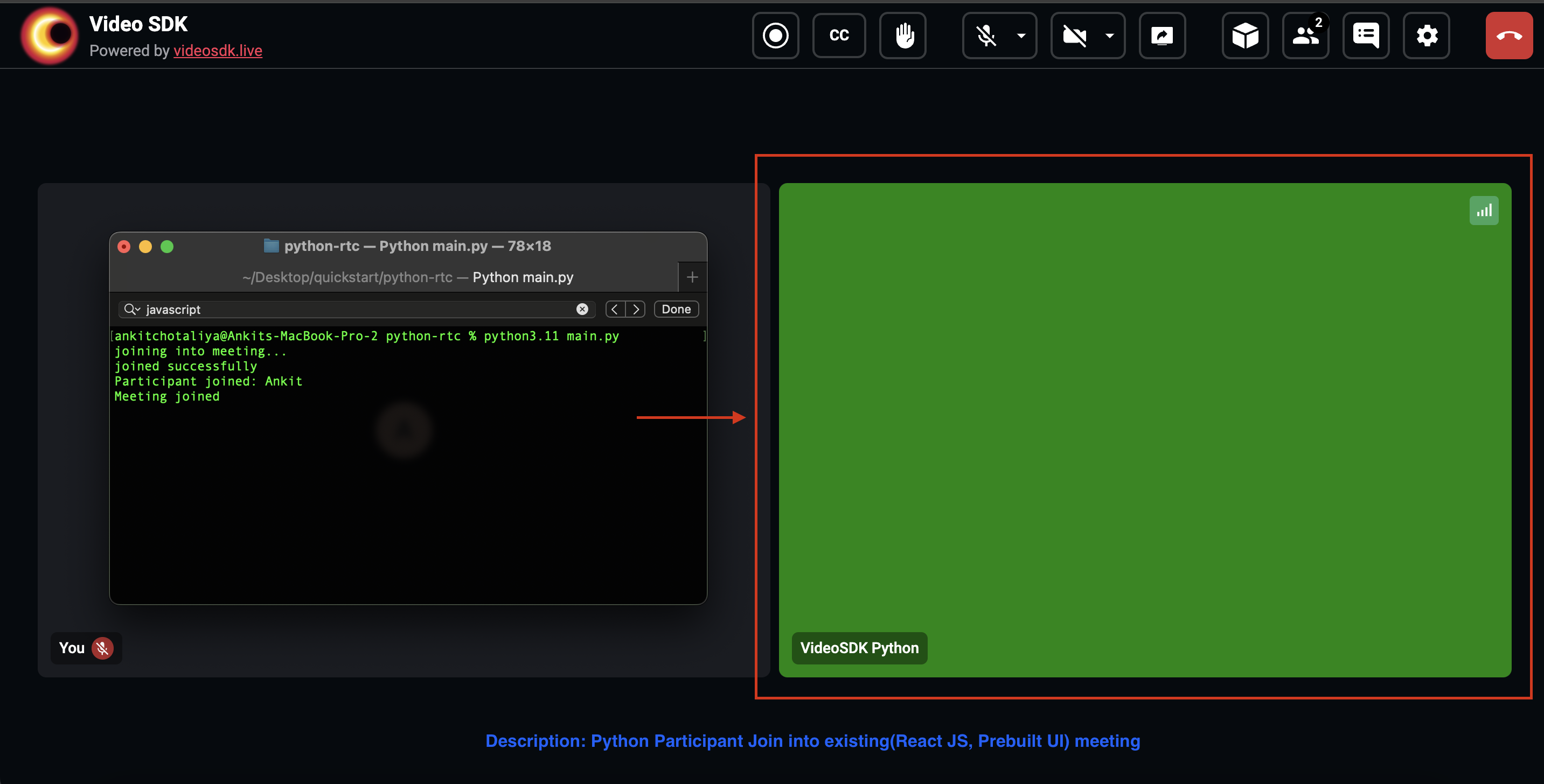
Note: You have completed the implementation of audio-video call using VideoSDK in Python. To explore more features like transform participant video, vision ai go through upcoming detailed guide.
Tip: You can check out the complete quick start example here.


