
Info: For low-latency interactive live streaming (under 100ms), follow this documentation.
1Help me add HLS live streaming to my plain JavaScript app with VideoSDK.
2
31. Create an empty folder and load `https://sdk.videosdk.live/js-sdk/1.1.1/videosdk.js`
4
5   and `https://cdn.jsdelivr.net/npm/hls.js` with script tags, or run
6
7   `npm install @videosdk.live/js-sdk`.
8
92. Create `index.html` with a join screen offering join-as-host and join-as-viewer,
10
11   a speaker grid, an HLS `<video>` element, and start and stop HLS buttons; put
12
13   `TOKEN` in `config.js`.
14
153. Create `index.js` that calls `VideoSDK.config(TOKEN)`, creates a room by POSTing
16
17   to `https://api.videosdk.live/v2/rooms`, then calls `VideoSDK.initMeeting({...})`
18
19   with `mode` set to `VideoSDK.Constants.modes.SEND_AND_RECV` for the host and
20
21   `SIGNALLING_ONLY` for the viewer. Handle `meeting-joined`, `meeting-left`,
22
23   `participant-joined`, `participant-left` and `stream-enabled`.
24
254. Wire the host buttons to `meeting.startHls({ layout: { type: "SPOTLIGHT",
26
27   priority: "PIN", gridSize: 4 }, theme: "LIGHT", mode: "video-and-audio", quality:
28
29   "high", orientation: "landscape" })` and `meeting.stopHls()`, and call
30
31   `localParticipant.pin()`. On `hls-state-changed`, when the status is
32
33   `Constants.hlsEvents.HLS_PLAYABLE`, load `playbackHlsUrl` into hls.js for the
34
35   viewer, using the native `video.src` path on Safari.
36
375. Ask me for a token from app.videosdk.live/api-keys, set it as `TOKEN` in
38
39   `config.js`, run `live-server --port=8000`, and open the same meeting id as host
40
41   in one tab and viewer in another.
42
43REFERENCE
44
45https://docs.videosdk.live/javascript/guide/video-and-audio-calling-api-sdk/quick-start-ILS.md
Prerequisites
Before proceeding, ensure that your development environment meets the following requirements:
- Video SDK Developer Account (Not having one, follow Video SDK Dashboard)
- Have Node and NPM installed on your device.
Important: One should have a VideoSDK account to generate token. Visit VideoSDK dashboard to generate token
Getting Started with the Code!
Follow the steps to create the environment necessary to add video calls into your app. You can also find the code sample for quickstart here.
Install Video SDK
Import VideoSDK using the <script> tag or Install it using the following npm command. Make sure you are in your app directory before you run this command.
1<html>
2  <head>
3    <!--.....-->
4  </head>
5  <body>
6    <!--.....-->
7    <script src="https://sdk.videosdk.live/js-sdk/1.1.1/videosdk.js"></script>
8  </body>
9</html>1npm install @videosdk.live/js-sdk1yarn add @videosdk.live/js-sdkStructure of the project
Your project structure should look like this.
1  root
2   ├── index.html
3   ├── config.js
4   ├── index.js
You will be working on the following files:
- index.html: Responsible for creating a basic UI.
- config.js: Responsible for storing the token.
- index.js: Responsible for rendering the meeting view and the join meeting functionality.
Step 1: Design the user interface (UI)
Create an HTML file containing the screens, join-screen and grid-screen.
1<!DOCTYPE html>
2<html>
3  <head> </head>
4
5  <body>
6    <div id="join-screen">
7      <!-- Create new Meeting Button -->
8      <button id="createMeetingBtn">Create Meeting</button>
9      OR
10      <!-- Join existing Meeting -->
11      <input type="text" id="meetingIdTxt" placeholder="Enter Meeting id" />
12      <button id="joinHostBtn">Join As Host</button>
13      <button id="joinViewerBtn">Join As Viewer</button>
14    </div>
15
16    <!-- for Managing meeting status -->
17    <div id="textDiv"></div>
18
19    <div id="grid-screen" style="display: none">
20      <!-- To Display MeetingId -->
21      <h3 id="meetingIdHeading"></h3>
22      <h3 id="hlsStatusHeading"></h3>
23
24      <div id="speakerView" style="display: none">
25        <!-- Controllers -->
26        <button id="leaveBtn">Leave</button>
27        <button id="toggleMicBtn">Toggle Mic</button>
28        <button id="toggleWebCamBtn">Toggle WebCam</button>
29        <button id="startHlsBtn">Start HLS</button>
30        <button id="stopHlsBtn">Stop HLS</button>
31      </div>
32
33      <!-- render Video -->
34      <div id="videoContainer"></div>
35    </div>
36    <script src="https://sdk.videosdk.live/js-sdk/1.1.1/videosdk.js"></script>
37    <script src="config.js"></script>
38    <script src="index.js"></script>
39
40    <!-- hls lib script  -->
41    <script src="https://cdn.jsdelivr.net/npm/hls.js"></script>
42  </body>
43</html>
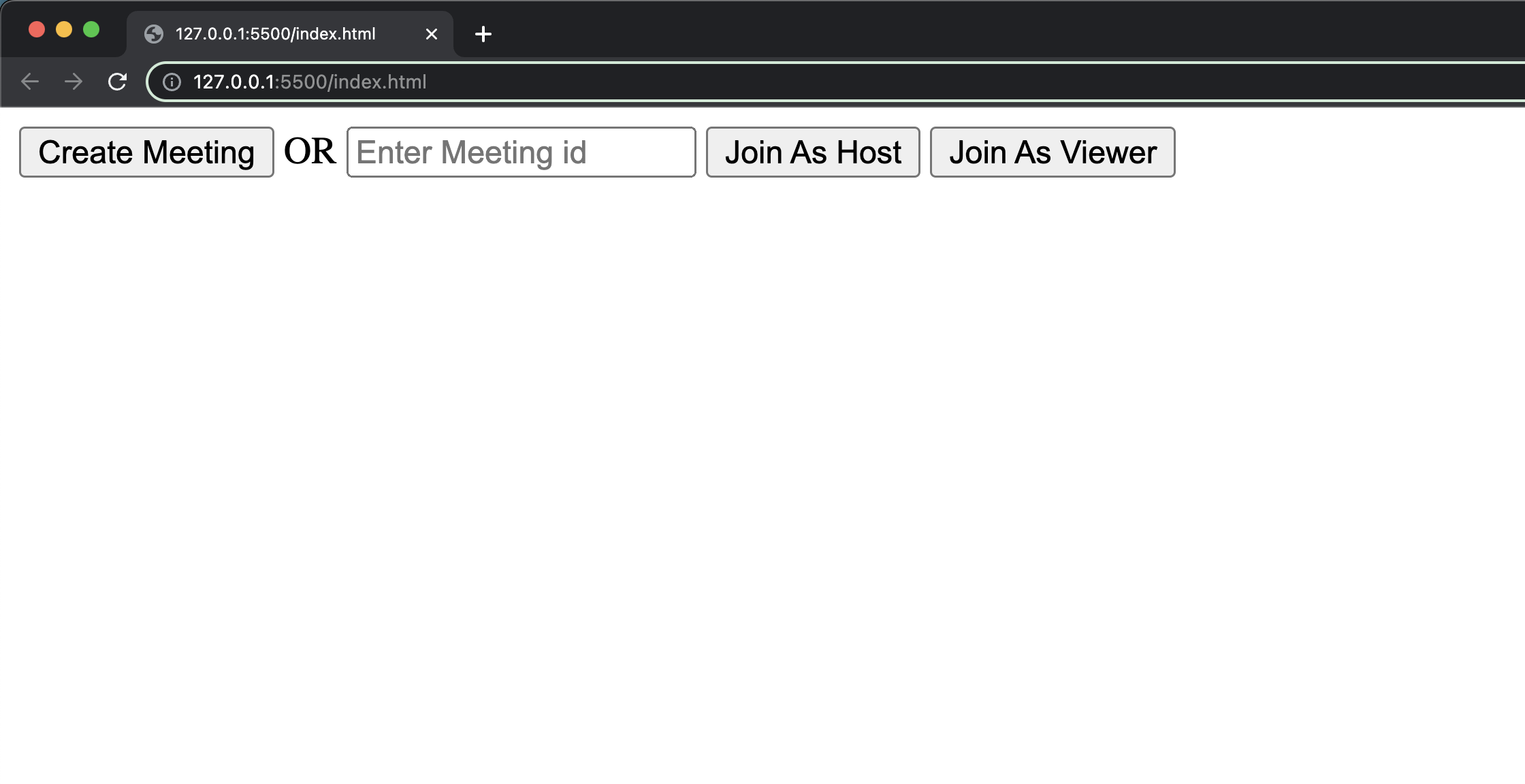
Output
Step 2: Implement Join Screen
Configure the token in the config.js file, which you can obtain from the VideoSDK Dashbord.
1// Auth token will be used to generate a meeting and connect to it
2TOKEN = "Your_Token_Here";
Next, retrieve all the elements from the DOM and declare the following variables in the index.js file. Then, add an event listener to the join and create meeting buttons.
Join screen will serve as a medium to either schedule a new meeting or join an existing one as a host or a viewer.
This functionality will have 3 buttons:
1. Join as Host: When this button is clicked, the person will join the meeting with the entered meetingId as HOST.
2. Join as Viewer: When this button is clicked, the person will join the meeting with the entered meetingId as SIGNALLING_ONLY.
3. Create Meeting: When this button is clicked, the person will join a new meeting as HOST.
1// getting Elements from Dom
2const joinHostButton = document.getElementById("joinHostBtn");
3const joinViewerButton = document.getElementById("joinViewerBtn");
4const leaveButton = document.getElementById("leaveBtn");
5const startHlsButton = document.getElementById("startHlsBtn");
6const stopHlsButton = document.getElementById("stopHlsBtn");
7const toggleMicButton = document.getElementById("toggleMicBtn");
8const toggleWebCamButton = document.getElementById("toggleWebCamBtn");
9const createButton = document.getElementById("createMeetingBtn");
10const videoContainer = document.getElementById("videoContainer");
11const textDiv = document.getElementById("textDiv");
12const hlsStatusHeading = document.getElementById("hlsStatusHeading");
13
14// declare Variables
15let meeting = null;
16let meetingId = "";
17let isMicOn = false;
18let isWebCamOn = false;
19
20const Constants = VideoSDK.Constants;
21
22function showJoinScreen(message) {
23  document.getElementById("join-screen").style.display = "block";
24  document.getElementById("grid-screen").style.display = "none";
25  textDiv.textContent = message ?? "";
26}
27
28function initializeMeeting() {}
29
30function createLocalParticipant() {}
31
32function createVideoElement() {}
33
34function createAudioElement() {}
35
36function setTrack() {}
37
38// Join Meeting As Host Button Event Listener
39joinHostButton.addEventListener("click", async () => {
40  document.getElementById("join-screen").style.display = "none";
41  textDiv.textContent = "Joining the meeting...";
42
43  roomId = document.getElementById("meetingIdTxt").value;
44  meetingId = roomId;
45
46  await initializeMeeting(Constants.modes.SEND_AND_RECV);
47});
48
49// Join Meeting As Viewer Button Event Listener
50joinViewerButton.addEventListener("click", async () => {
51  document.getElementById("join-screen").style.display = "none";
52  textDiv.textContent = "Joining the meeting...";
53
54  roomId = document.getElementById("meetingIdTxt").value;
55  meetingId = roomId;
56
57  await initializeMeeting(Constants.modes.SIGNALLING_ONLY);
58});
59
60// Create Meeting Button Event Listener
61createButton.addEventListener("click", async () => {
62  document.getElementById("join-screen").style.display = "none";
63  textDiv.textContent = "Please wait, we are joining the meeting";
64
65  const url = `https://api.videosdk.live/v2/rooms`;
66  const options = {
67    method: "POST",
68    headers: { Authorization: TOKEN, "Content-Type": "application/json" },
69  };
70
71  try {
72    const response = await fetch(url, options);
73    if (!response.ok) {
74      throw new Error(`Failed to create meeting: ${response.status}`);
75    }
76    const { roomId } = await response.json();
77    meetingId = roomId;
78    await initializeMeeting(Constants.modes.SEND_AND_RECV);
79  } catch (error) {
80    console.error("Failed to create meeting", error);
81    showJoinScreen(
82      "Unable to create the meeting. Check your token and try again."
83    );
84  }
85});
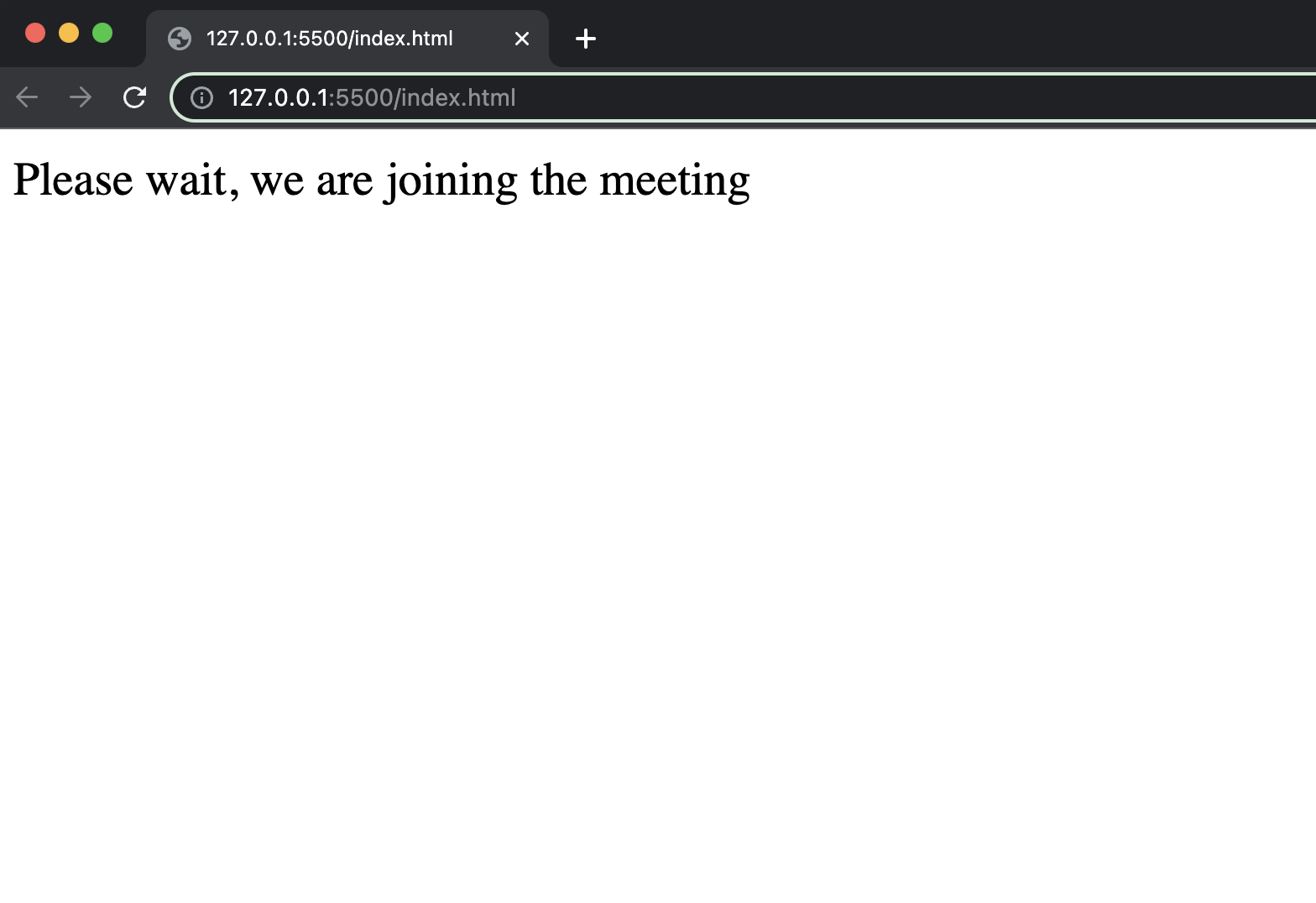
Output
Step 3: Initialize meeting
Initialize the meeting based on the mode passed to the function and only create a local participant stream when the mode is SEND_AND_RECV.
From v1.0.0, all these methods are asynchronous and return a Promise, so await them and handle failures with try / catch. For details, see the Migration Guide.
1// Initialize meeting
2async function initializeMeeting(mode) {
3  try {
4    // VideoSDK.config and initMeeting are synchronous in 1.x — no await.
5    window.VideoSDK.config(TOKEN);
6
7    meeting = window.VideoSDK.initMeeting({
8      meetingId: meetingId, // required
9      name: "Thomas Edison", // required
10      mode: mode,
11    });
12
13    // Register all event handlers before joining so no event is missed.
14    meeting.on("meeting-joined", async () => {
15      textDiv.textContent = null;
16
17      document.getElementById("grid-screen").style.display = "block";
18      document.getElementById(
19        "meetingIdHeading"
20      ).textContent = `Meeting Id: ${meetingId}`;
21
22      if (meeting.hlsState === Constants.hlsEvents.HLS_STOPPED) {
23        hlsStatusHeading.textContent = "HLS has not stared yet";
24      } else {
25        hlsStatusHeading.textContent = `HLS Status: ${meeting.hlsState}`;
26      }
27
28      if (mode === Constants.modes.SEND_AND_RECV) {
29        document.getElementById("speakerView").style.display = "block";
30
31        // Pin the local participant if he joins in `SEND_AND_RECV` mode
32        try {
33          await meeting.localParticipant.pin();
34        } catch (error) {
35          console.error("Failed to pin the local participant", error);
36        }
37      }
38    });
39
40    meeting.on("meeting-left", () => {
41      videoContainer.innerHTML = "";
42    });
43
44    meeting.on("hls-state-changed", (data) => {
45      //
46    });
47
48    if (mode === Constants.modes.SEND_AND_RECV) {
49      // creating local participant
50      createLocalParticipant();
51
52      // setting local participant stream
53      meeting.localParticipant.on("stream-enabled", (stream) => {
54        setTrack(stream, null, meeting.localParticipant, true);
55      });
56
57      // participant joined
58      meeting.on("participant-joined", async (participant) => {
59        if (participant.mode === Constants.modes.SEND_AND_RECV) {
60          let videoElement = createVideoElement(
61            participant.id,
62            participant.displayName
63          );
64          let audioElement = createAudioElement(participant.id);
65
66          participant.on("stream-enabled", (stream) => {
67            setTrack(stream, audioElement, participant, false);
68          });
69
70          videoContainer.appendChild(videoElement);
71          videoContainer.appendChild(audioElement);
72
73          try {
74            await participant.pin();
75          } catch (error) {
76            console.error("Failed to pin the participant", error);
77          }
78        }
79      });
80
81      // participants left
82      meeting.on("participant-left", (participant) => {
83        let vElement = document.getElementById(`f-${participant.id}`);
84        vElement.remove(vElement);
85
86        let aElement = document.getElementById(`a-${participant.id}`);
87        aElement.remove(aElement);
88      });
89    }
90
91    // `join()` resolves when the join request is accepted — wait for the
92    // `meeting-joined` event before calling other meeting methods.
93    await meeting.join();
94  } catch (error) {
95    console.error("Failed to initialize meeting", error);
96    videoContainer.innerHTML = "";
97    showJoinScreen("Unable to join the meeting. Please try again.");
98  }
99}
Note:
await meeting.join()resolves when the join request is accepted — not when the meeting is fully joined. Wait for themeeting-joinedevent before calling other meeting methods.
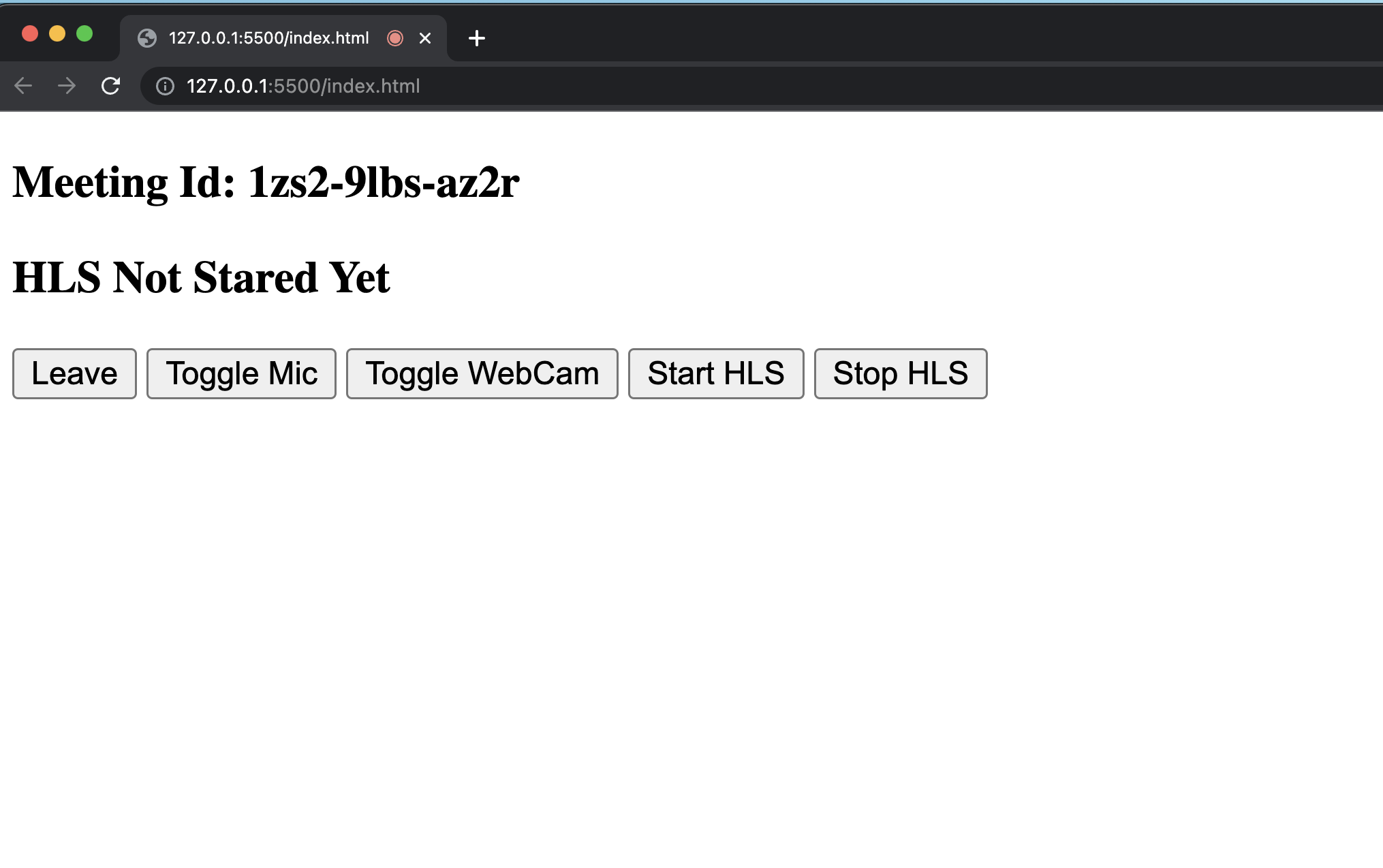
Output
Step 4: Speaker Controls
Next step is to create SpeakerView and Controls components to manage features such as join, leave, mute and unmute.
You have to retrieve all the participants using the meeting object and filter them based on the mode set to SEND_AND_RECV ensuring that only Speakers are displayed on the screen.
1// leave Meeting Button Event Listener
2leaveButton.addEventListener("click", async () => {
3  try {
4    await meeting?.leave();
5  } catch (error) {
6    console.error("Failed to leave meeting", error);
7  }
8  document.getElementById("grid-screen").style.display = "none";
9  document.getElementById("join-screen").style.display = "block";
10});
11
12// Toggle Mic Button Event Listener
13toggleMicButton.addEventListener("click", async () => {
14  try {
15    if (isMicOn) {
16      // Disable Mic in Meeting
17      await meeting?.muteMic();
18    } else {
19      // Enable Mic in Meeting
20      await meeting?.unmuteMic();
21    }
22    isMicOn = !isMicOn;
23  } catch (error) {
24    console.error("Failed to toggle mic", error);
25  }
26});
27
28// Toggle Web Cam Button Event Listener
29toggleWebCamButton.addEventListener("click", async () => {
30  try {
31    if (isWebCamOn) {
32      await meeting.disableWebcam();
33    } else {
34      await meeting.enableWebcam();
35    }
36  } catch (error) {
37    console.error("Failed to toggle webcam", error);
38    return;
39  }
40
41  isWebCamOn = !isWebCamOn;
42  const vElement = document.getElementById(`f-${meeting.localParticipant.id}`);
43  if (vElement) {
44    vElement.style.display = isWebCamOn ? "inline" : "none";
45  }
46});
47
48// Start Hls Button Event Listener
49startHlsButton.addEventListener("click", async () => {
50  try {
51    await meeting?.startHls({
52      layout: {
53        type: "SPOTLIGHT",
54        priority: "PIN",
55        gridSize: 4,
56      },
57      theme: "LIGHT",
58      mode: "video-and-audio",
59      quality: "high",
60      orientation: "landscape",
61    });
62  } catch (error) {
63    console.error("Failed to start HLS", error);
64  }
65});
66
67// Stop Hls Button Event Listener
68stopHlsButton.addEventListener("click", async () => {
69  try {
70    await meeting?.stopHls();
71  } catch (error) {
72    console.error("Failed to stop HLS", error);
73  }
74});
Step 5: Speaker Media Elements
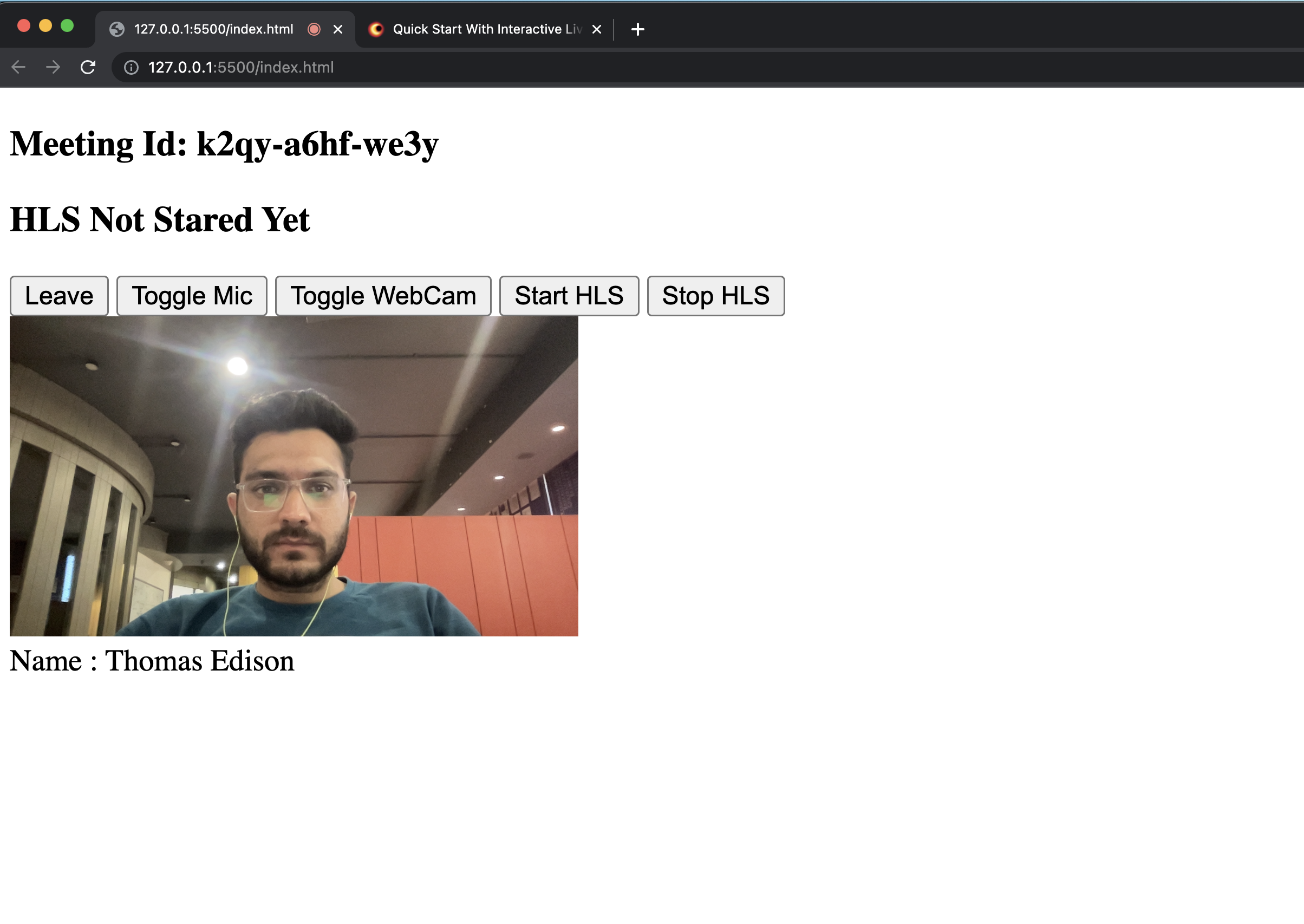
In this step, Create a function to generate audio and video elements for displaying both local and remote participants for the speaker. Set the corresponding media track based on whether it's a video or audio stream.
1// creating video element
2function createVideoElement(pId, name) {
3  let videoFrame = document.createElement("div");
4  videoFrame.setAttribute("id", `f-${pId}`);
5
6  //create video
7  let videoElement = document.createElement("video");
8  videoElement.classList.add("video-frame");
9  videoElement.setAttribute("id", `v-${pId}`);
10  videoElement.setAttribute("playsinline", true);
11  videoElement.setAttribute("width", "300");
12  videoFrame.appendChild(videoElement);
13
14  let displayName = document.createElement("div");
15  displayName.innerHTML = `Name : ${name}`;
16
17  videoFrame.appendChild(displayName);
18  return videoFrame;
19}
20
21// creating audio element
22function createAudioElement(pId) {
23  let audioElement = document.createElement("audio");
24  audioElement.setAttribute("autoPlay", "false");
25  audioElement.setAttribute("playsInline", "true");
26  audioElement.setAttribute("controls", "false");
27  audioElement.setAttribute("id", `a-${pId}`);
28  audioElement.style.display = "none";
29  return audioElement;
30}
31
32// creating local participant
33function createLocalParticipant() {
34  let localParticipant = createVideoElement(
35    meeting.localParticipant.id,
36    meeting.localParticipant.displayName
37  );
38  videoContainer.appendChild(localParticipant);
39}
40
41// setting media track
42function setTrack(stream, audioElement, participant, isLocal) {
43  if (stream.kind == "video") {
44    isWebCamOn = true;
45    const mediaStream = new MediaStream();
46    mediaStream.addTrack(stream.track);
47    let videoElm = document.getElementById(`v-${participant.id}`);
48    videoElm.srcObject = mediaStream;
49    videoElm
50      .play()
51      .catch((error) =>
52        console.error("videoElem.current.play() failed", error)
53      );
54  }
55  if (stream.kind == "audio") {
56    if (isLocal) {
57      isMicOn = true;
58    } else {
59      const mediaStream = new MediaStream();
60      mediaStream.addTrack(stream.track);
61      audioElement.srcObject = mediaStream;
62      audioElement
63        .play()
64        .catch((error) => console.error("audioElem.play() failed", error));
65    }
66  }
67}
Output
Step 6: Implement ViewerView
When the host initiates the live streaming, viewers will be able to watch it.
To implement the player view, you have to use hls.js. It will be helpful for playing the HLS stream. The script of hls.js file already added in the index.html file.
Now on the hls-state-changed event, when participant mode is set to SIGNALLING_ONLY and the status of hls is HLS_PLAYABLE, we will pass the playbackHlsUrl to the hls.js and play it.
Note:
downstreamUrlis now depecated. UseplaybackHlsUrlorlivestreamUrlin place ofdownstreamUrl
1// Initialize meeting
2async function initializeMeeting() {
3  // ...
4
5  // hls-state-chnaged event
6  meeting.on("hls-state-changed", (data) => {
7    const { status } = data;
8
9    hlsStatusHeading.textContent = `HLS Status: ${status}`;
10
11    if (mode === Constants.modes.SIGNALLING_ONLY) {
12      if (status === Constants.hlsEvents.HLS_PLAYABLE) {
13        const { playbackHlsUrl } = data;
14        let video = document.createElement("video");
15        video.setAttribute("width", "100%");
16        video.setAttribute("muted", "false");
17        // enableAutoPlay for browser autoplay policy
18        video.setAttribute("autoplay", "true");
19
20        if (Hls.isSupported()) {
21          var hls = new Hls({
22            maxLoadingDelay: 1, // max video loading delay used in automatic start level selection
23            defaultAudioCodec: "mp4a.40.2", // default audio codec
24            maxBufferLength: 0, // If buffer length is/become less than this value, a new fragment will be loaded
25            maxMaxBufferLength: 1, // Hls.js will never exceed this value
26            startLevel: 0, // Start playback at the lowest quality level
27            startPosition: -1, // set -1 playback will start from intialtime = 0
28            maxBufferHole: 0.001, // 'Maximum' inter-fragment buffer hole tolerance that hls.js can cope with when searching for the next fragment to load.
29            highBufferWatchdogPeriod: 0, // if media element is expected to play and if currentTime has not moved for more than highBufferWatchdogPeriod and if there are more than maxBufferHole seconds buffered upfront, hls.js will jump buffer gaps, or try to nudge playhead to recover playback.
30            nudgeOffset: 0.05, // In case playback continues to stall after first playhead nudging, currentTime will be nudged evenmore following nudgeOffset to try to restore playback. media.currentTime += (nb nudge retry -1)*nudgeOffset
31            nudgeMaxRetry: 1, // Max nb of nudge retries before hls.js raise a fatal BUFFER_STALLED_ERROR
32            maxFragLookUpTolerance: 0.1, // This tolerance factor is used during fragment lookup.
33            liveSyncDurationCount: 1, // if set to 3, playback will start from fragment N-3, N being the last fragment of the live playlist
34            abrEwmaFastLive: 1, // Fast bitrate Exponential moving average half-life, used to compute average bitrate for Live streams.
35            abrEwmaSlowLive: 3, // Slow bitrate Exponential moving average half-life, used to compute average bitrate for Live streams.
36            abrEwmaFastVoD: 1, // Fast bitrate Exponential moving average half-life, used to compute average bitrate for VoD streams
37            abrEwmaSlowVoD: 3, // Slow bitrate Exponential moving average half-life, used to compute average bitrate for VoD streams
38            maxStarvationDelay: 1, // ABR algorithm will always try to choose a quality level that should avoid rebuffering
39          });
40          hls.loadSource(playbackHlsUrl);
41          hls.attachMedia(video);
42          hls.on(Hls.Events.MANIFEST_PARSED, function () {
43            video.play();
44          });
45        } else if (video.canPlayType("application/vnd.apple.mpegurl")) {
46          video.src = playbackHlsUrl;
47          video.addEventListener("canplay", function () {
48            video.play();
49          });
50        }
51
52        videoContainer.appendChild(video);
53      }
54
55      if (status === Constants.hlsEvents.HLS_STOPPING) {
56        videoContainer.innerHTML = "";
57      }
58    }
59  });
60
61  // ... `await meeting.join()` runs after all handlers are registered.
62}
Output
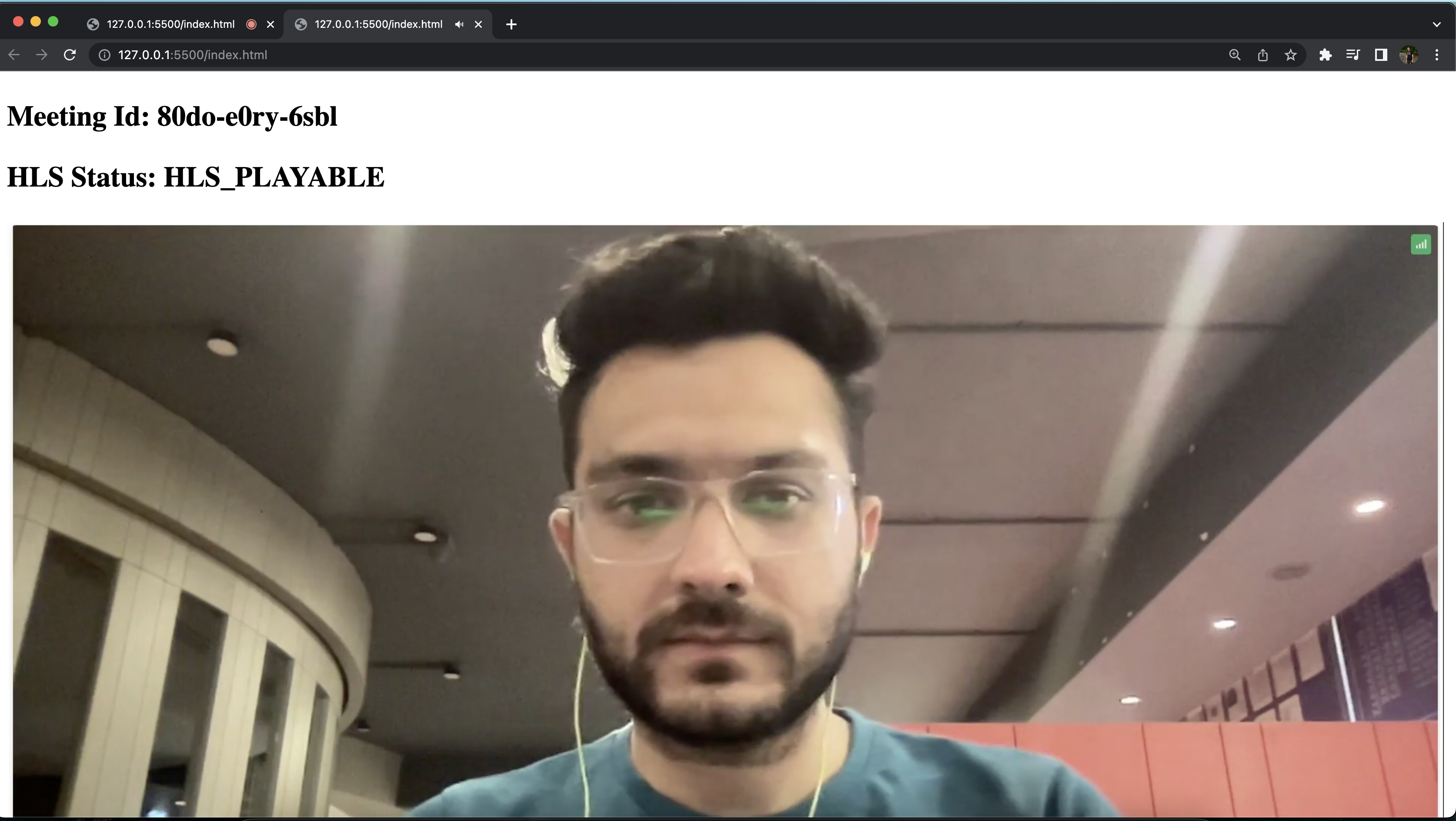
Final Output
You have completed the implementation of a customised live streaming app in Javascript using VideoSDK. To explore more features, go through Basic and Advanced features.
Tip: You can checkout the complete quick start example here.


