
Info: For low-latency interactive live streaming (under 100ms), follow this documentation.
1Help me add HLS live streaming to my iOS app with VideoSDK, using SwiftUI.
2
31. Create a new Xcode project using the App template (iOS 13+, Xcode 15+, Swift 5).
4
52. Add the package `https://github.com/videosdk-live/videosdk-rtc-ios-spm` in Swift
6
7   Package Manager, then add `NSCameraUsageDescription` and
8
9   `NSMicrophoneUsageDescription` to `Info.plist`.
10
113. Create `StartMeetingView` with a `UserRole` of host or viewer that creates a room
12
13   by POSTing to `https://api.videosdk.live/v2/rooms`, plus a `MeetingView` and an
14
15   observable `MeetingViewController` that calls `VideoSDK.config(token:)`,
16
17   `VideoSDK.createCameraVideoTrack(...)` and `VideoSDK.initMeeting(..., mode:)`
18
19   with `.SEND_AND_RECV` for the host and `.SIGNALLING_ONLY` for the viewer.
20
21   Implement `MeetingEventListener` and `ParticipantEventListener`, and render host
22
23   video through `RTCMTLVideoView`.
24
254. Give the host buttons for `meeting?.startHLS()` and `meeting?.stopHLS()`, and
26
27   stop HLS before leaving if the state is starting, started or playable. Implement
28
29   `onHlsStateChanged(state:hlsUrl:)`, publish `hlsState` and
30
31   `hlsUrl?.playbackHlsUrl`, and for the viewer show an `HLSVideoPlayer` on that URL
32
33   once the state is `.HLS_STARTED` or `.HLS_PLAYABLE`, with a waiting message
34
35   otherwise.
36
375. Ask me for a token from app.videosdk.live/api-keys, set it as `AUTH_TOKEN`, then
38
39   run on a real device and join the same meeting id as host on one device and
40
41   viewer on another.
42
43REFERENCE
44
45https://docs.videosdk.live/ios/guide/video-and-audio-calling-api-sdk/quick-start-ios-hls.md
Prerequisites
- iOS 13.0+
- Xcode 15.0+
- Swift 5.0+
Important: One should have a VideoSDK account to generate token. Visit VideoSDK dashboard to generate token
App Architecture
The application consists of two primary interfaces:
Start Meeting View
- Allows users to create a new meeting or join an existing one by selecting their mode (Host or Viewer/Audience)
Meeting View
- Provides Http Live Stream controls and adapts the UI dynamically based on the user's mode (Host or Viewer/Audience).
Getting Started With the Code!
Follow the steps to create the environment necessary to add video calls into your app. Also you can find the code sample for quickstart here.
Info: Important Changes iOS SDK in Version v2.2.0
- The following modes have been deprecated:
CONFERENCEhas been replaced bySEND_AND_RECVVIEWERhas been replaced bySIGNALLING_ONLYPlease update your implementation to use the new modes.
⚠️ Compatibility Notice: To ensure a seamless meeting experience, all participants must use the same SDK version. Do not mix version v2.2.0 + with older versions, as it may cause significant conflicts.
Step 1: Create New iOS Application
Step 1: Create a new application by selecting Create a new Xcode project
Step 2: Add Product Name and Save the project.
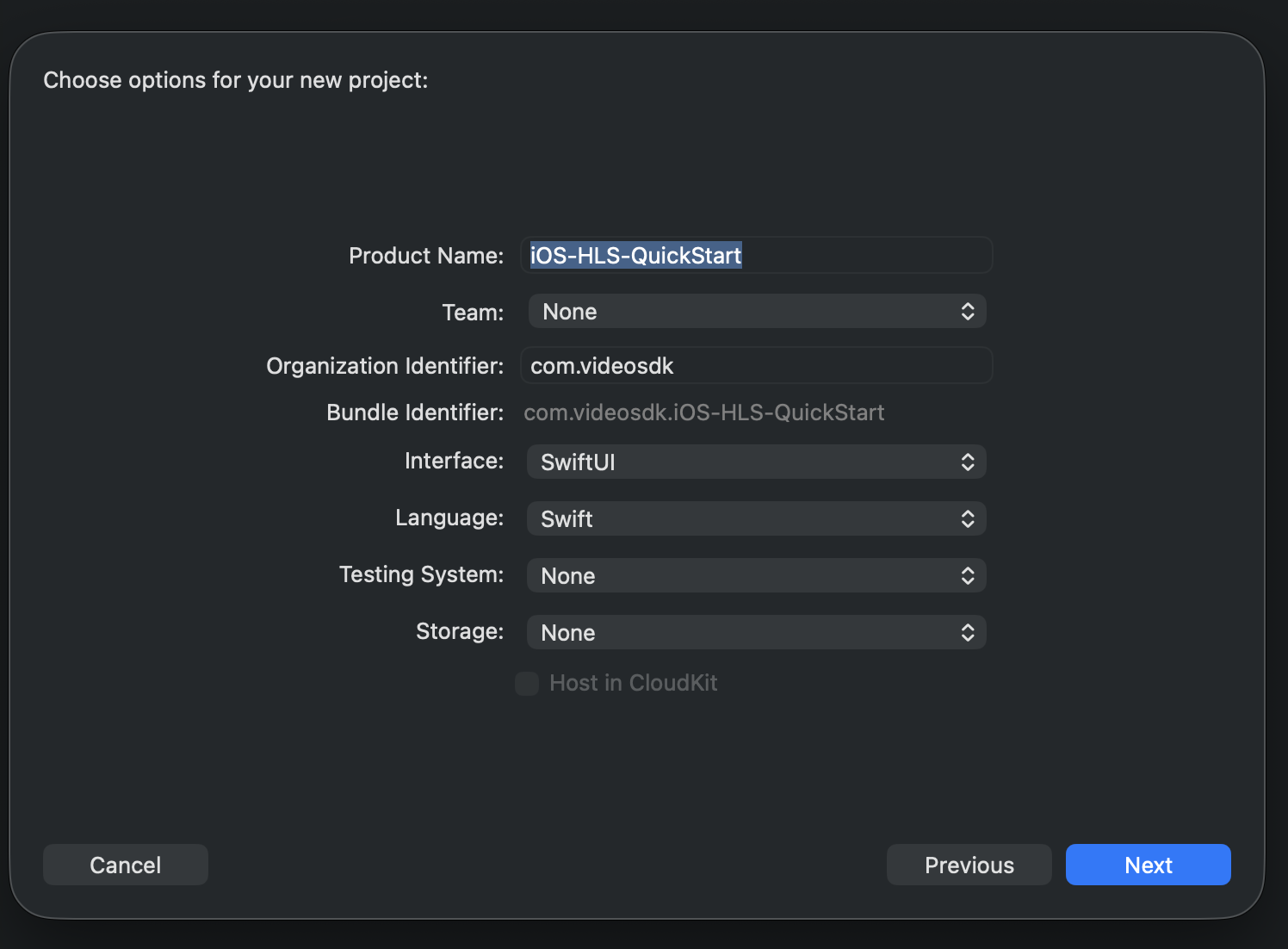
Step 2: VideoSDK Installation
There are two ways to install VideoSDK: Using Swift Package Manager (SPM) or Using CocoaPods.
1. Install Using Swift Package Manager (SPM)
To install VideoSDK via Swift Package Manager, follow these steps:
- Open your Xcode project and go to File > Add Packages.
- Enter the repository URL:
1 https://github.com/videosdk-live/videosdk-rtc-ios-spm- Choose the version rule (e.g., "Up to Next Major") and add the package to your target.
- Import the library in Swift files:
1import VideoSDKRTCFor more details, refer to the official guide on SPM installation.
2. Install Using CocoaPods
To install VideoSDK using CocoaPods, follow these steps:
- Initialize CocoaPods: Run the following command in your project directory:
1pod init- Update the Podfile: Open the Podfile and add the VideoSDK dependency:
1pod 'VideoSDKRTC', :git => 'https://github.com/videosdk-live/videosdk-rtc-ios-sdk.git'- Install the Pod: Run the following command to install the pod:
1pod installFor more details, refer to the official guide on CocoaPods installation.
then declare the permissions in Info.plist :
1<key>NSCameraUsageDescription</key>
2<string>Camera permission description</string>
3<key>NSMicrophoneUsageDescription</key>
4<string>Microphone permission description</string>
Step 3: Project Structure
1quick_start_ios_hls
2   ├── quick_start_ios_hls.swift // Default
3   ├── Screens
4        ├── StartMeetingView.swift
5        └── Meeting
6            ├── Controller
7                └── MeetingViewController.swift
8            └── MeetingView.swift
9   ├── Views
10        ├── HLSPlayer.swift
11        └── ParticipantViewItem.swift
12   ├── Model
13        └── RoomStruct.swift
14   └── Info.plist // Default
15 Pods
16     └── Podfile
Step 4: Create Start Meeting View
The StartMeetingView acts as the entry point for users to initiate or participate in Http Live Streams with the following functionalities:
Create Meeting as Host: Start a new Http Live Stream in
SEND_AND_RECVmode, providing full host privileges.Join as Host: Enter an existing Http Live Stream with
SEND_AND_RECVmode, granting full host controls.Join as Viewer: Join an existing Http Live Stream with
SIGNALLING_ONLYmode, without receiving & producing audio & video.
1import SwiftUI
2
3// MARK: - Meeting Role Enum
4enum UserRole: String { case host = "Host", case viewer = "Viewer" }
5
6struct StartMeetingView: View {
7    //MARK: - Properties
8    @State private var meetingId: String = "<MeetingID goes here>"
9    @State private var navigateToMeeting = false
10    @State private var selectedRole: UserRole = .host
11    @State private var animateButtons = false
12    @State private var isLoading = false
13
14    var body: some View {
15        NavigationStack {
16            ZStack {
17                // Background
18                LinearGradient(
19                    colors: [Color.black, Color.black.opacity(0.9)],
20                    startPoint: .top,
21                    endPoint: .bottom
22                )
23                .ignoresSafeArea()
24
25                VStack(spacing: 30) {
26                    Image("logo")
27                        .resizable()
28                        .renderingMode(.original)
29                        .aspectRatio(contentMode: .fit)
30                        .frame(width: 175, height: 175)
31                        .cornerRadius(25)
32                        .shadow(color: .white.opacity(0.5), radius: 20)
33                    Spacer()
34                    // Create Meeting Button
35                    animatedButton(title: "Create Meeting", bgColor: .blue) {
36                        if (!isLoading) {
37                            Task {
38                                await createMeeting()
39                            }
40                        }
41                    }
42                    // Meeting ID TextField
43                    VStack(alignment: .leading, spacing: 8) {
44                        Text("Enter Meeting ID")
45                            .font(.headline)
46                            .foregroundColor(.white.opacity(0.8))
47
48                        ZStack {
49                            RoundedRectangle(cornerRadius: 14)
50                                .fill(Color.white)
51                                .frame(height: 55)
52
53                            TextField("", text: $meetingId)
54                                .foregroundColor(.black)
55                                .padding(.horizontal)
56                                .textInputAutocapitalization(.never)
57                        }
58                    }
59                    .padding(.horizontal)
60                    // Host + Viewer Buttons
61                    HStack(spacing: 5) {
62                        animatedButton(title: "Join as Host", bgColor: .green) {
63                            selectedRole = .host
64                            navigateToMeeting = true
65                        }
66                        animatedButton(title: "Join as Viewer", bgColor: .orange) {
67                            selectedRole = .viewer
68                            navigateToMeeting = true
69                        }
70                    }
71                    Spacer()
72                }
73                .padding()
74            }
75            .navigationDestination(isPresented: $navigateToMeeting) {
76                MeetingView(meetingId: meetingId, role: selectedRole)
77            }
78        }
79    }
80
81    // MARK: - API: Create Meeting
82    func createMeeting() async {
83        guard let url = URL(string: "https://api.videosdk.live/v2/rooms") else { return }
84        isLoading = true
85        var request = URLRequest(url: url)
86        request.httpMethod = "POST"
87        request.addValue(AUTH_TOKEN, forHTTPHeaderField: "Authorization")
88        do {
89            let (data, _) = try await URLSession.shared.data(for: request)
90            let decoded = try JSONDecoder().decode(RoomsStruct.self, from: data)
91            await MainActor.run {
92                if let roomId = decoded.roomID {
93                    self.meetingId = roomId
94                    self.selectedRole = .host
95                    self.navigateToMeeting = true
96                }
97            }
98        } catch {
99            print("Meeting creation failed:", error)
100        }
101        isLoading = false
102    }
103
104    // MARK: - Reusable Animated Button
105    @ViewBuilder
106    func animatedButton(title: String, bgColor: Color, action: @escaping () -> Void) -> some View {
107        Button(action: {
108            withAnimation(.spring(response: 0.25, dampingFraction: 0.5)) {
109                action()
110            }
111        }) {
112            Text(title)
113                .font(.headline)
114                .foregroundColor(.white)
115                .padding(.horizontal, 5)
116                .frame(height: 55)
117                .frame(maxWidth: .infinity)
118                .background(
119                    RoundedRectangle(cornerRadius: 16)
120                        .fill(bgColor.opacity(0.85))
121                        .shadow(color: bgColor.opacity(0.6), radius: 10, x: 0, y: 4)
122                )
123        }
124        .scaleEffect(animateButtons ? 1 : 0.85)
125        .animation(.spring(response: 0.5, dampingFraction: 0.6), value: animateButtons)
126        .padding(.horizontal, 5)
127    }
128}
Output
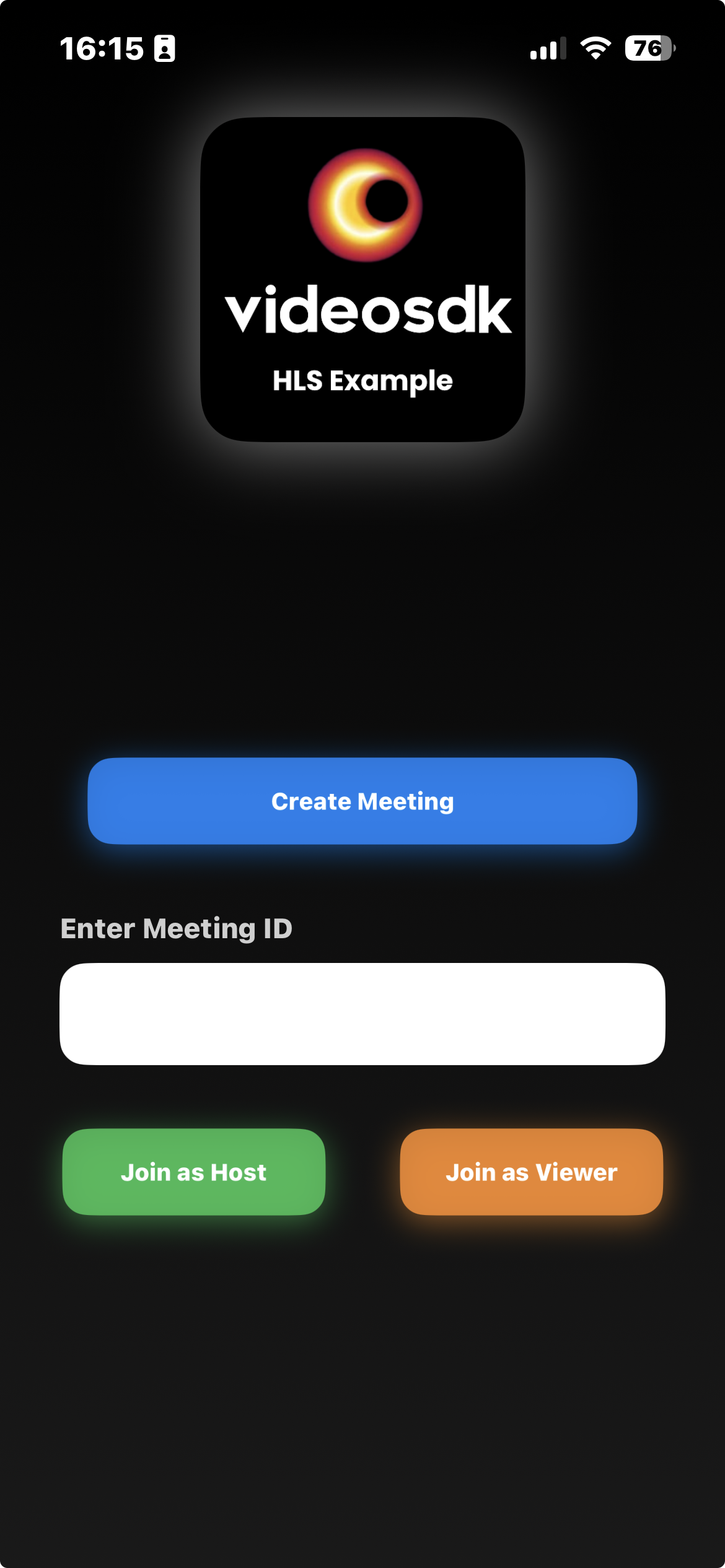
Also add the StartMeetingView in main app as shown below
1import SwiftUI
2
3@main
4struct quick_start_ios_hls: App {
5    var body: some Scene {
6        WindowGroup {
7            StartMeetingView()
8        }
9    }
10}
Before proceeding, let's understand the two modes of a HTTP Live Stream:
1. SENDANDRECV (For Host or Co-host):
- Designed primarily for the Host or Co-host.
- Allows sending and receiving media.
- Hosts can broadcast their audio/video and interact directly with the audience.
2. SIGNALLING_ONLY (For Viewer/Audience):
- Tailored for the Viewer/Audience.
- Doesn't enabled receiving media shared by the Host also.
- Audience members can not view or listen, also cannot share their own media.
Step 5: Initialize and Join the Http Live Stream
In this step, Inside MeetingViewController we will setup initializeMeeting and related functions for it. You will require Auth token, you can generate it using either using videosdk-server-api-example or generate it from the Video SDK Dashboard for developer.
MeetingViewController will implement various event listeners such as MeetingEventListener, ParticipantEventListener.
1import Foundation
2import SwiftUI
3import Combine
4import VideoSDKRTC
5internal import Mediasoup
6
7// MARK: - MeetingViewController
8class MeetingViewController: ObservableObject {
9
10    @Published var participants: [Participant] = []
11    @Published var hlsState: HLSState = .HLS_STOPPED
12
13    @Published var isMicOn: Bool = true
14    @Published var isWebcamOn: Bool = true
15    @Published var meeting: Meeting? = nil
16    @Published var participantVideoTracks: [String: RTCVideoTrack] = [:]
17    @Published var participantMicStatus: [String: Bool] = [:]
18    @Published var playbackURL: String? = nil
19    private var cancellables = Set<AnyCancellable>()
20    let meetingId: String
21    let role: UserRole
22
23    init(meetingId: String, role: UserRole) {
24        self.meetingId = meetingId
25        self.role = role
26
27        // Auto-start meeting logic when created
28        initializeMeeting()
29    }
30    // MARK: - Meeting Initialization
31    func initializeMeeting() {
32        VideoSDK.config(token: AUTH_TOKEN)
33
34        let videoMediaTrack = try? VideoSDK.createCameraVideoTrack(
35            encoderConfig: .h720p_w1280p,
36            facingMode: .front,
37            multiStream: true
38        )
39        meeting = VideoSDK.initMeeting(
40            meetingId: meetingId,
41            participantName: "John doe",
42            micEnabled: self.isMicOn,
43            webcamEnabled: self.isWebcamOn,
44            customCameraVideoStream: videoMediaTrack,
45            multiStream: true,
46            mode: self.role == .viewer ? .SIGNALLING_ONLY : .SEND_AND_RECV
47        )
48
49        // Add event listeners and join the meeting
50        meeting?.addEventListener(self)
51        meeting?.join()
52    }
53
54    // MARK: - HLS Handling
55    func startHLS() {
56        DispatchQueue.main.async {
57            self.meeting?.startHLS()
58        }
59    }
60
61    func stopHLS() {
62        DispatchQueue.main.async {
63            self.meeting?.stopHLS()
64        }
65    }
66
67    // MARK: - Media Toggles
68    func toggleMic() {
69        if (isMicOn) {
70            DispatchQueue.main.async {
71                self.meeting?.muteMic()
72            }
73        } else {
74            DispatchQueue.main.async {
75                self.meeting?.unmuteMic()
76            }
77        }
78        isMicOn.toggle()
79    }
80
81    func toggleWebcam() {
82        if (isWebcamOn) {
83            DispatchQueue.main.async {
84                self.meeting?.disableWebcam()
85            }
86        } else {
87            DispatchQueue.main.async {
88                self.meeting?.enableWebcam()
89            }
90        }
91        isWebcamOn.toggle()
92    }
93
94    // MARK: - Leave Meeting
95    func leaveMeeting() {
96        if (role == .host) {
97            if (self.hlsState == .HLS_STARTED || self.hlsState == .HLS_PLAYABLE || self.hlsState == .HLS_STARTING) {
98                self.meeting?.stopHLS()
99            }
100        }
101        self.meeting?.leave()
102    }
103}
104
105extension MeetingViewController: MeetingEventListener {
106    func onMeetingJoined() {
107        guard let localParticipant = self.meeting?.localParticipant else { return }
108        let isExist = participants.first { $0.id == localParticipant.id } != nil
109        if (!isExist  && (localParticipant.mode != .SIGNALLING_ONLY && localParticipant.mode != .VIEWER)) {
110            participants.append(localParticipant)
111        }
112        // add event listener
113        localParticipant.addEventListener(self)
114    }
115    //...
116}
117
118extension MeetingViewController: ParticipantEventListener {
119    func onStreamEnabled(_ stream: MediaStream, forParticipant participant: Participant) {
120        if let track = stream.track as? RTCVideoTrack {
121            DispatchQueue.main.async {
122                if case .state(let mediaKind) = stream.kind, mediaKind == .video {
123                    self.participantVideoTracks[participant.id] = track
124                }
125            }
126        }
127
128        if case .state(let mediaKind) = stream.kind, mediaKind == .audio {
129            self.participantMicStatus[participant.id] = true // Mic enabled
130        }
131    }
132
133    func onStreamDisabled(_ stream: MediaStream, forParticipant participant: Participant) {
134        DispatchQueue.main.async {
135            if case .state(let mediaKind) = stream.kind, mediaKind == .video {
136                self.participantVideoTracks.removeValue(forKey: participant.id)
137            }
138        }
139        if case .state(let mediaKind) = stream.kind, mediaKind == .audio {
140            // Update microphone state for this participant
141            self.participantMicStatus[participant.id] = false // Mic disabled
142
143        }
144    }
145}
Step 6: Create ParticipantViewItem View
The ParticipantViewItem file manages the participant view for particular participant which is showed in the participants which is host in the meeting.
1import VideoSDKRTC
2import SwiftUI
3internal import Mediasoup
4
5struct ParticipantContainerView: View {
6    let participant: Participant
7
8    @ObservedObject var controller: MeetingViewController
9
10    var body: some View {
11        ZStack {
12            participantView(participant: participant, controller: controller)
13
14            VStack {
15                Spacer()
16                HStack {
17
18                    // Participant name
19                    Text(participant.displayName)
20                        .foregroundColor(.white)
21                        .padding(.horizontal, 8)
22                        .padding(.vertical, 4)
23                        .background(Color.black.opacity(0.5))
24                        .cornerRadius(4)
25
26                    // Mic status indicator
27                    Image(systemName: controller.participantMicStatus[participant.id] ?? false ? "mic.fill" : "mic.slash.fill")
28                        .foregroundColor(controller.participantMicStatus[participant.id] ?? false ? .green : .red)
29                        .padding(4)
30                        .background(Color.black.opacity(0.5))
31                        .clipShape(Circle())
32
33
34                    Spacer()
35                }
36                .padding(8)
37            }
38        }
39        .background(Color.black.opacity(0.9)) // Background color
40        .cornerRadius(10) // Rounded corners
41        .shadow(color: Color.gray.opacity(0.7), radius: 10, x: 0, y: 5) // Shadow effect
42        .overlay(
43            RoundedRectangle(cornerRadius: 10) // Rounded border
44                .stroke(Color.gray.opacity(0.9), lineWidth: 1)
45        )
46
47    }
48
49    private func participantView(participant: Participant, controller: MeetingViewController) -> some View {
50        ZStack {
51            ParticipantView(participant: participant, controller: controller)
52        }
53    }
54}
55
56/// VideoView for participant's video
57class VideoView: UIView {
58    var videoView: RTCMTLVideoView = {
59        let view = RTCMTLVideoView()
60        view.videoContentMode = .scaleAspectFill
61        view.backgroundColor = UIColor.black
62        view.clipsToBounds = true
63        view.transform = CGAffineTransform(scaleX: 1, y: 1)
64
65        return view
66    }()
67
68    init(track: RTCVideoTrack?, frame: CGRect) {
69        super.init(frame: frame)
70        backgroundColor = .clear
71
72        // Set videoView frame to match parent view
73        videoView.frame = bounds
74
75        DispatchQueue.main.async {
76            self.addSubview(self.videoView)
77            self.bringSubviewToFront(self.videoView)
78            track?.add(self.videoView)
79        }
80    }
81
82    required init?(coder: NSCoder) {
83        fatalError("init(coder:) has not been implemented")
84    }
85
86    override func layoutSubviews() {
87        super.layoutSubviews()
88        // Update videoView frame when parent view size changes
89        videoView.frame = bounds
90    }
91}
92
93/// ParticipantView for showing and hiding VideoView
94struct ParticipantView: View {
95    let participant: Participant
96    @ObservedObject var controller: MeetingViewController
97
98    var body: some View {
99        ZStack {
100            if let track = controller.participantVideoTracks[participant.id] {
101                VideoStreamView(track: track)
102            } else {
103                Color.white.opacity(1.0)
104                Text("No media")
105                    .font(.largeTitle)
106                    .foregroundStyle(.black)
107            }
108        }
109    }
110}
111
112struct VideoStreamView: UIViewRepresentable {
113    let track: RTCVideoTrack
114
115    func makeUIView(context: Context) -> VideoView {
116        let view = VideoView(track: track, frame: .zero)
117        return view
118    }
119
120    func updateUIView(_ uiView: VideoView, context: Context) {
121        track.add(uiView.videoView)
122        uiView.videoView.videoContentMode = .scaleAspectFill
123    }
124}
Output
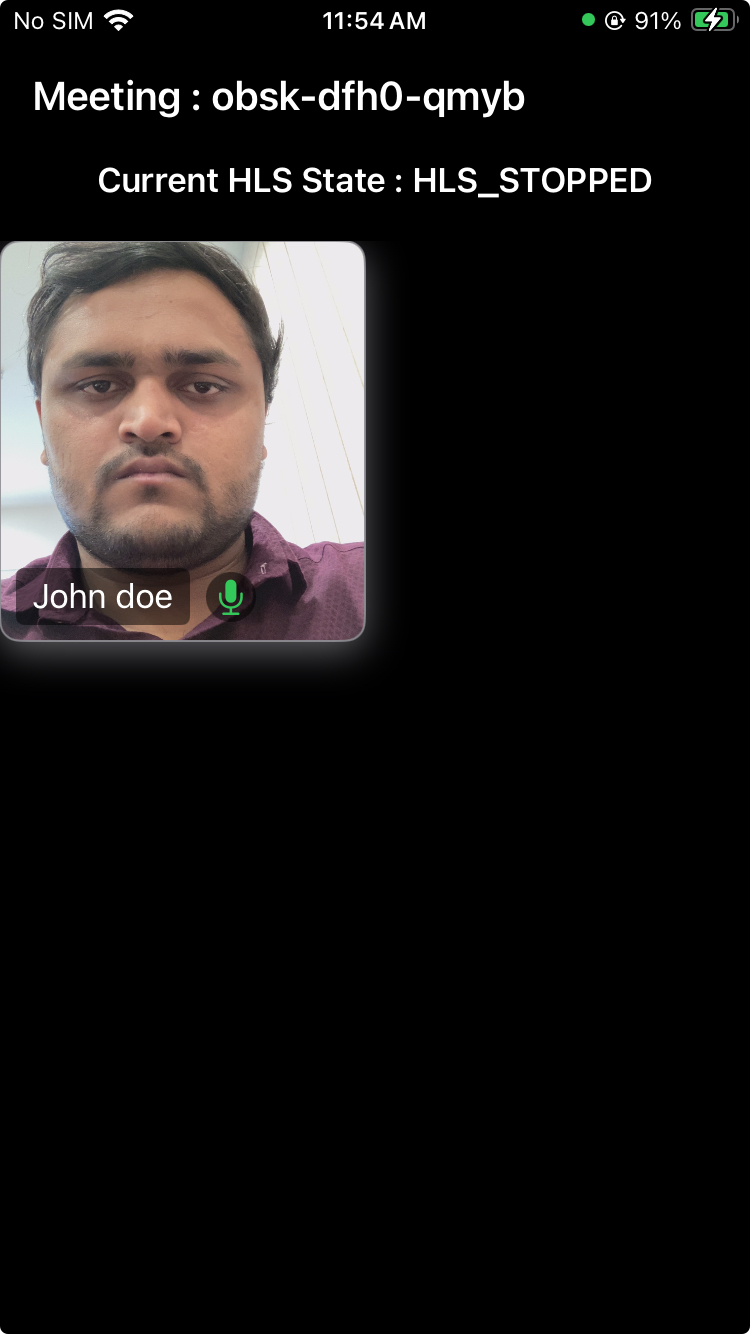
Step 7: Implementing Media Toggles and Start/Stop HLS
Host Controls: Include buttons to toggle the microphone, webcam and HLS, allowing users to mute/unmute their microphone and enable/disable their camera and start/stop the HLS entirely.
Header UI: Includes button for leave the meeting and meetingId also displayed in the Header UI.
1import SwiftUI
2import VideoSDKRTC
3
4struct MeetingView: View {
5
6    @StateObject private var controller: MeetingViewController
7    @Environment(\.dismiss) var dismiss
8
9    init(meetingId: String, role: UserRole) {
10        _controller = StateObject(
11            wrappedValue: MeetingViewController(meetingId: meetingId, role: role)
12        )
13    }
14
15    // Grid layout
16    private let columns = [
17        GridItem(.flexible(), spacing: 10),
18        GridItem(.flexible(), spacing: 10),
19    ]
20
21    var body: some View {
22        ZStack {
23            Color.black.ignoresSafeArea()
24
25            VStack(spacing: 20) {
26
27                // HEADER
28                header
29
30                if controller.role == .host {
31                    // HLS State
32                    Text("Current HLS State : \(controller.hlsState.rawValue)")
33                        .foregroundColor(.white)
34                        .font(.headline)
35
36                    // Participants Grid
37                    ScrollView {
38                        LazyVGrid(columns: columns) {
39                            ForEach(controller.participants, id: \.id) { participant in
40                                ParticipantContainerView(
41                                    participant: participant,
42                                    controller: controller
43                                )
44                                .frame(height: 200, alignment: .center)
45
46                            }
47                        }
48                    }
49
50                    Spacer()
51                } else {
52                    if ((controller.hlsState == .HLS_STARTED || controller.hlsState == .HLS_PLAYABLE) && controller.playbackURL != nil) {
53                        HLSVideoPlayer(
54                            url: URL(string: controller.playbackURL ?? "")!,
55                            width: .infinity,
56                            height: .infinity
57                        )
58                        .cornerRadius(12)
59                        .padding()
60
61                        Spacer()
62                    } else {
63                        Spacer()
64                        Text("Waiting for host\nto start the live streaming")
65                            .font(.title)
66                            .foregroundStyle(.white)
67                            .bold(true)
68                            .multilineTextAlignment(.center)
69                        Spacer()
70                    }
71                }
72
73                // Host Controls
74                if controller.role == .host {
75                    hostControls
76                }
77            }
78        }
79        .navigationBarBackButtonHidden(true)
80        .navigationBarHidden(true)
81    }
82
83    // MARK: Header UI
84    private var header: some View {
85        HStack {
86            Text("Meeting : \(controller.meetingId)")
87                .foregroundColor(.white)
88                .font(.title3.bold())
89
90            Spacer()
91
92            Button {
93                controller.leaveMeeting()
94                dismiss()
95            } label: {
96                Text("Leave")
97                    .font(.headline)
98                    .padding(.horizontal, 18)
99                    .padding(.vertical, 10)
100                    .background(Color.blue)
101                    .foregroundColor(.white)
102                    .cornerRadius(10)
103            }
104        }
105        .padding(.horizontal)
106        .padding(.top)
107    }
108
109    // MARK: Host bottom controls
110    private var hostControls: some View {
111        HStack(spacing: 14) {
112
113            if (controller.hlsState == .HLS_STARTING || controller.hlsState == .HLS_STARTED || controller.hlsState == .HLS_PLAYABLE) {
114                    controlButton(title: "Stop HLS") {
115                        controller.stopHLS()
116                    }
117            } else {
118                controlButton(title: "Start HLS") {
119                    controller.startHLS()
120                }
121            }
122
123            controlButton(title: "Toggle Webcam") {
124                controller.toggleWebcam()
125            }
126
127            controlButton(title: "Toggle Mic") {
128                controller.toggleMic()
129            }
130        }
131        .padding(.bottom, 20)
132    }
133
134    // MARK: Reusable UI Elements
135    func controlButton(title: String, action: @escaping () -> Void) -> some View {
136        Button(action: action) {
137            Text(title)
138                .font(.headline)
139                .padding(.horizontal, 14)
140                .padding(.vertical, 12)
141                .background(Color.blue)
142                .foregroundColor(.white)
143                .cornerRadius(10)
144        }
145    }
146}
Output
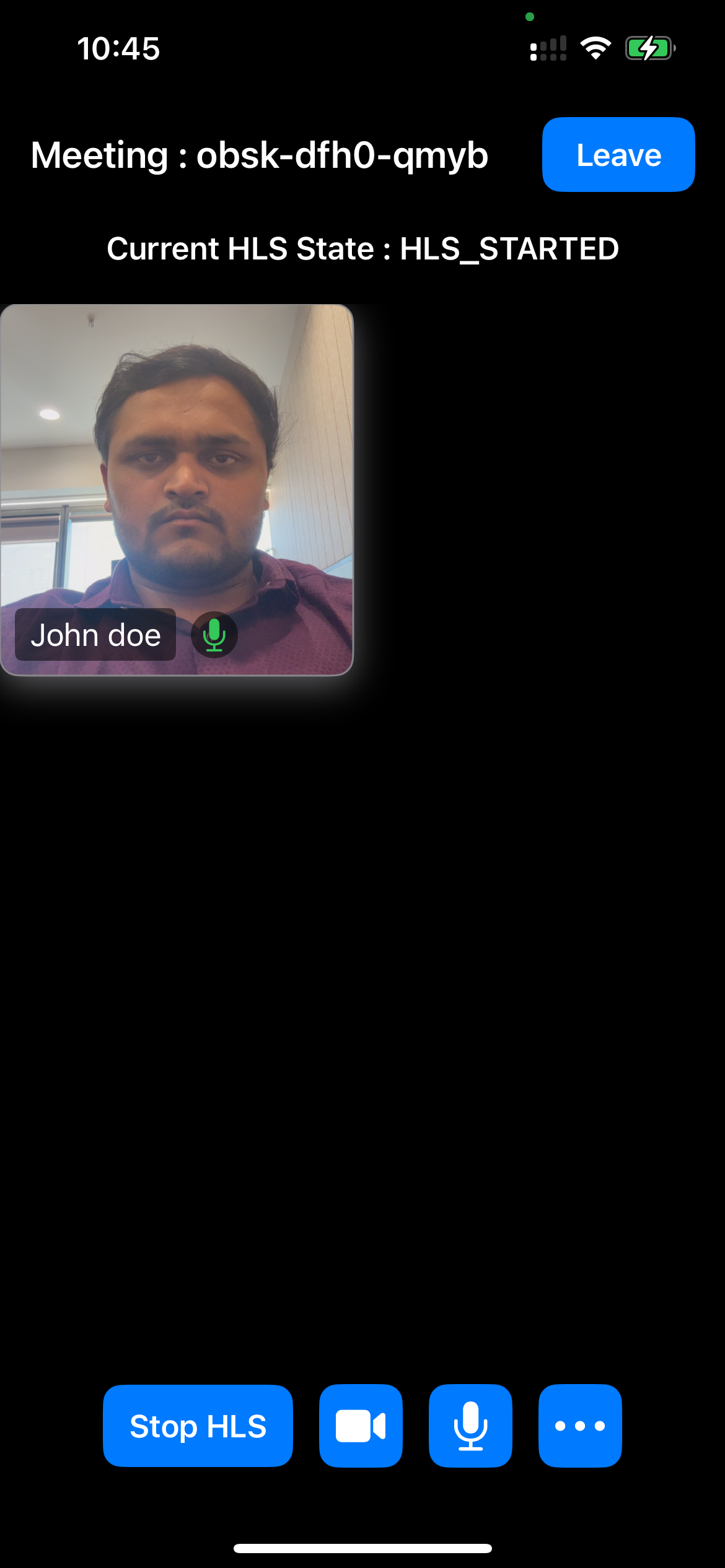
Step 8: Extending Meeting Event Listeners
In this step, we extend the MeetingEventListener implementation in MeetingViewController by adding additional event listeners for enhanced meeting functionality.
These include onParticipantJoined and onParticipantLeft to handle participant updates, onMeetingStateChanged to manage meeting state transitions, and onHlsStateChanged to track HLS state, allowing us to utilize them as needed.
1class MeetingViewController: ObservableObject {
2//...
3 extension MeetingViewController: MeetingEventListener {
4    //...
5    func onParticipantJoined(_ participant: Participant) {
6        let isExist = participants.first { $0.id == participant.id } != nil
7        if (!isExist && (participant.mode != .SIGNALLING_ONLY && participant.mode != .VIEWER)) {
8            participants.append(participant)
9        }
10        // add listener
11        participant.addEventListener(self)
12    }
13
14    func onParticipantLeft(_ participant: Participant) {
15        participants = participants.filter({ $0.id != participant.id })
16    }
17
18    func onMeetingStateChanged(meetingState: MeetingState) {
19        switch meetingState {
20        case .DISCONNECTED:
21                participants.removeAll()
22            default:
23            print("meeting state: \(meetingState.rawValue)")
24        }
25    }
26
27    func onHlsStateChanged(state: HLSState, hlsUrl: HLSUrl?) {
28        hlsState = state
29        switch (state) {
30        case .HLS_PLAYABLE:
31            playbackURL = hlsUrl?.playbackHlsUrl ?? ""
32        default:
33            print("HLS State: \(state.rawValue)")
34        }
35    }
36 }
37    //...
38}
Output
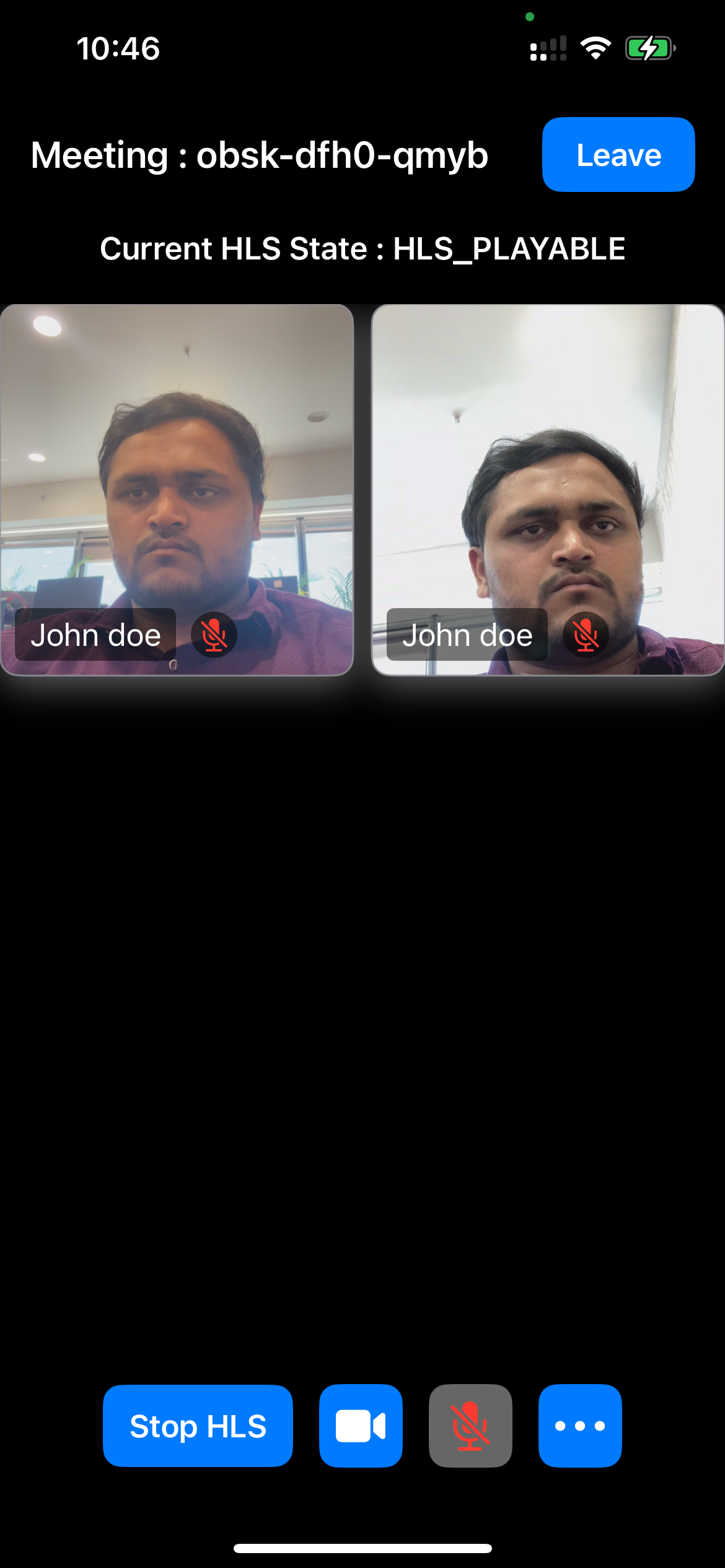
Final Output
We are done with implementation of HLS Live Streaming in iOS Appplication using Video SDK. To explore more features go through Basic and Advanced features.
Tip: Stuck anywhere? Check out this example code on GitHub


