
For low-latency interactive live streaming (under 100ms), follow this documentation.
1Help me add HLS live streaming to my Android app with VideoSDK.
2
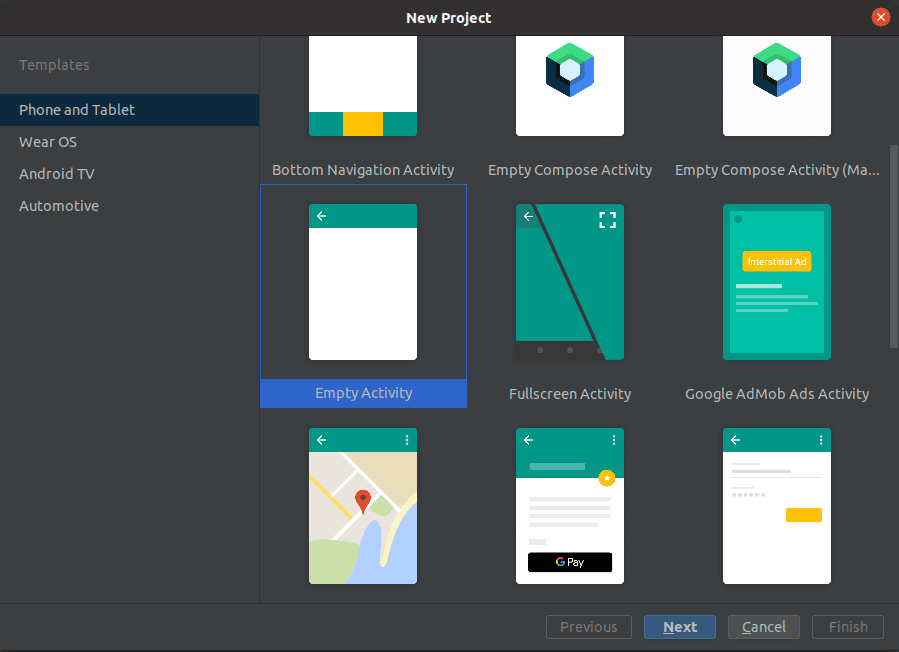
31. Create a Phone and Tablet project with an Empty Activity in Android Studio.
4
52. Add `mavenCentral()` to `settings.gradle` and
6
7   `implementation 'live.videosdk:rtc-android-sdk:2.2.0'`,
8
9   `implementation 'com.amitshekhar.android:android-networking:1.0.2'` and
10
11   `implementation 'com.google.android.exoplayer:exoplayer:2.18.5'` to
12
13   `app/build.gradle`; declare the `INTERNET`, `CAMERA`, `RECORD_AUDIO` and
14
15   `MODIFY_AUDIO_SETTINGS` permissions.
16
173. Create a launcher `JoinActivity` that requests runtime permissions and creates a
18
19   room by POSTing to `https://api.videosdk.live/v2/rooms`, then a `MeetingActivity`
20
21   that calls `VideoSDK.initialize`, `VideoSDK.config(token)` and
22
23   `VideoSDK.initMeeting(..., mode, ...)` with `"SEND_AND_RECV"` for the host and
24
25   `"SIGNALLING_ONLY"` for the viewer, and hosts a `SpeakerFragment` or a
26
27   `ViewerFragment` depending on the mode. Render host video with
28
29   `VideoView` in a `SpeakerAdapter`.
30
314. In the speaker flow, call `meeting.startHls(config)` with layout type
32
33   `"SPOTLIGHT"`, priority `"PIN"`, gridSize 4, orientation `"portrait"`, theme
34
35   `"DARK"`, quality `"high"`, plus `meeting.stopHls()`, and pin the local
36
37   participant with `pin("SHARE_AND_CAM")`. In the viewer flow, implement
38
39   `onHlsStateChanged`, and when the status is `"HLS_PLAYABLE"` build an
40
41   `HlsMediaSource` from `playbackHlsUrl` and play it in a `StyledPlayerView`,
42
43   releasing the player on `"HLS_STOPPED"`.
44
455. Ask me for a token from app.videosdk.live/api-keys, set it as `sampleToken` in
46
47   `JoinActivity`, then run the app and join the same meeting id as host on one
48
49   device and viewer on another.
50
51REFERENCE
52
53https://docs.videosdk.live/android/guide/video-and-audio-calling-api-sdk/quick-start-ILS.md
Prerequisites
Before proceeding, ensure that your development environment meets the following requirements:
- Java Development Kit.
- Android Studio 3.0 or later.
- Android SDK API Level 21 or higher.
- A mobile device that runs Android 5.0 or later.
Important
One should have a VideoSDK account to generate token. Visit VideoSDK dashboard to generate token.
Getting Started with the Code!
Follow the steps to create the environment necessary to add live streaming into your app. Also you can find the code sample for quickstart here.
Info
Important Changes Android SDK in Version v0.2.0
- The following modes have been deprecated:
CONFERENCEhas been replaced bySEND_AND_RECVVIEWERhas been replaced bySIGNALLING_ONLYPlease update your implementation to use the new modes.
⚠️ Compatibility Notice: To ensure a seamless meeting experience, all participants must use the same SDK version. Do not mix version v0.2.0+ with older versions, as it may cause significant conflicts.
Create new Android Project
For a new project in Android Studio, create a Phone and Tablet Android project with an Empty Activity.
Caution
After creating the project, Android Studio automatically starts gradle sync. Ensure that the sync succeeds before you continue.
Integrate Video SDK
Maven Central
settings.gradle
1dependencyResolutionManagement{
2  repositories {
3    // ...
4    google()
5    mavenCentral()
6    maven { url "https://maven.aliyun.com/repository/jcenter" }
7  }
8}
Add the following dependency in your app's app/build.gradle.
app/build.gradle
1dependencies {
2  implementation 'live.videosdk:rtc-android-sdk:2.0.1'
3
4  // library to perform Network call to generate a meeting id
5  implementation 'com.amitshekhar.android:android-networking:1.0.2'
6
7  // other app dependencies
8  }
Important
Android SDK compatible with
armeabi-v7a,arm64-v8a,x86_64architectures. If you want to run the application in an emulator, choose ABIx86_64when creating a device.
Add permissions into your project
In /app/Manifests/AndroidManifest.xml, add the following permissions after </application>.
AndroidManifest.xml
1<uses-permission android:name="android.permission.RECORD_AUDIO" />
2<uses-permission android:name="android.permission.MODIFY_AUDIO_SETTINGS" />
3<uses-permission android:name="android.permission.INTERNET" />
4<uses-permission android:name="android.permission.CAMERA" />
Note
If your project has set
android.useAndroidX=true, then setandroid.enableJetifier=truein thegradle.propertiesfile to migrate your project to AndroidX and avoid duplicate class conflict.
Structure of the project
Your project structure should look like this.
1   app
2   ├── java
3   │    ├── packagename
4   │         ├── JoinActivity
5   │         ├── MeetingActivity
6   │         ├── SpeakerAdapter
7   │         ├── SpeakerFragment
8   |         ├── ViewerFragment
9   ├── res
10   │    ├── layout
11   │    │    ├── activity_join.xml
12   │    │    ├── activity_meeting.xml
13   |    |    ├── fragment_speaker.xml
14   |    |    ├── fragment_viewer.xml
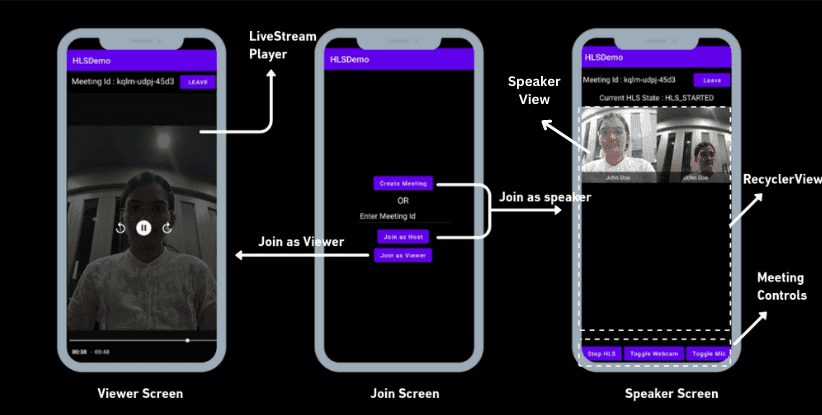
15 │ │ ├── item_remote_peer.xmlJoinActivitycreates a meeting with the VideoSDK Rooms API, or joins an existing meeting as a host or as a viewer.MeetingActivityinitializes and joins the meeting, then swaps inSpeakerFragmentorViewerFragmentbased on the selected mode.SpeakerFragmentrenders the host view with media controls and the Start/Stop HLS control.SpeakerAdapterrenders one tile per host participant with their video stream.ViewerFragmentplays the HLS stream with ExoPlayer once the host starts live streaming.
Note
You have to set
JoinActivityas Launcher activity.
App Architecture
The app uses this screen and class hierarchy:
1JoinActivity
2└── MeetingActivity
3    ├── SpeakerFragment          (mode = SEND_AND_RECV)
4    │   ├── Mic / Webcam / HLS / Leave buttons
5    │   └── RecyclerView
6    │       └── SpeakerAdapter
7    │           └── PeerViewHolder × each host participant
8    └── ViewerFragment           (mode = SIGNALLING_ONLY)
9        ├── waitingLayout        (shown when there is no active HLS)
10        └── StyledPlayerView     (ExoPlayer, plays the HLS stream)
A participant joins in one of two modes:
SEND_AND_RECV— the host. Publishes microphone and camera media, and controls the live stream withstartHls()/stopHls().SIGNALLING_ONLY— the viewer. Publishes nothing and watches the HLS stream through ExoPlayer.
The onHlsStateChanged event drives both sides: it updates the HLS status label for the host, and starts or releases the player for the viewer.
Step 1: Creating Joining Screen
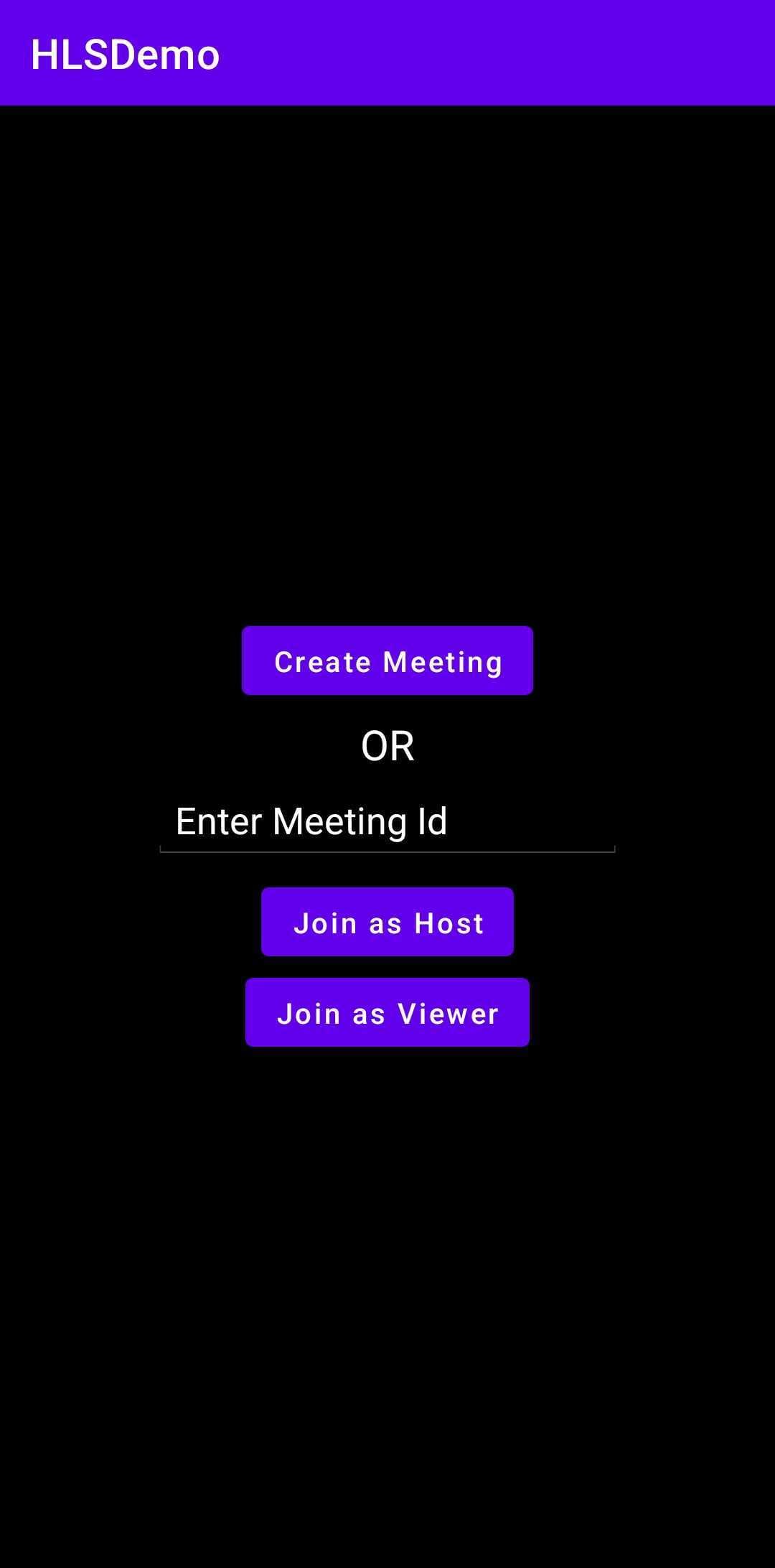
Create a new Activity named JoinActivity.
The Joining screen will include :
- Create Button - This button will create a new meeting for you.
- TextField for Meeting Id - This text field will contain the meeting Id you want to join.
- Join as Host Button - This button will join the meeting as host with
meetingIdyou provided. - Join as Viewer Button - This button will join the meeting as viewer with
meetingIdyou provided.
In /app/res/layout/activity_join.xml file, replace the content with the following.
activity_join.xml
1<?xml version="1.0" encoding="utf-8"?>
2
3<LinearLayout xmlns:android="http://schemas.android.com/apk/res/android"
4    android:id="@+id/createorjoinlayout"
5    android:layout_width="match_parent"
6    android:layout_height="match_parent"
7    android:background="@color/black"
8    android:gravity="center"
9    android:orientation="vertical">
10
11    <Button
12        android:id="@+id/btnCreateMeeting"
13        android:layout_width="wrap_content"
14        android:layout_height="wrap_content"
15        android:text="Create Meeting"
16        android:textAllCaps="false" />
17
18    <TextView
19        android:id="@+id/tvText"
20        android:layout_width="wrap_content"
21        android:layout_height="wrap_content"
22        android:paddingVertical="5sp"
23        android:text="OR"
24        android:textColor="@color/white"
25        android:textSize="20sp" />
26
27    <EditText
28        android:id="@+id/etMeetingId"
29        android:theme="@android:style/Theme.Holo"
30        android:layout_width="250dp"
31        android:layout_height="wrap_content"
32        android:hint="Enter Meeting Id"
33        android:textColor="@color/white"
34        android:textColorHint="@color/white" />
35
36    <Button
37        android:id="@+id/btnJoinHostMeeting"
38        android:layout_width="wrap_content"
39        android:layout_height="wrap_content"
40        android:layout_marginTop="8sp"
41        android:text="Join as Host"
42        android:textAllCaps="false" />
43
44    <Button
45        android:id="@+id/btnJoinViewerMeeting"
46        android:layout_width="wrap_content"
47        android:layout_height="wrap_content"
48        android:text="Join as Viewer"
49        android:textAllCaps="false" />
50
51</LinearLayout>
Integration of Create Meeting API
- Create field
sampleTokeninJoinActivitywhich will hold the generated token from the VideoSDK dashboard. This token will use in VideoSDK config as well as in generating meetingId.
Kotlin
JoinActivity.kt
1class JoinActivity : AppCompatActivity() {
2
3  //Replace with the token you generated from the VideoSDK Dashboard
4  private var sampleToken = ""
5
6  override fun onCreate(savedInstanceState: Bundle?) {
7    //...
8  }
9}- On Join Button as Host
onClickevents, we will navigate toMeetingActivitywith token, meetingId and mode asSEND_AND_RECV. - On Join Button as Viewer
onClickevents, we will navigate toMeetingActivitywith token, meetingId and mode asSIGNALLING_ONLY.
Kotlin
JoinActivity.kt
1class JoinActivity : AppCompatActivity() {
2
3   //Replace with the token you generated from the VideoSDK Dashboard
4   private var sampleToken = "";
5
6   override fun onCreate(savedInstanceState: Bundle?) {
7      super.onCreate(savedInstanceState)
8      setContentView(R.layout.activity_join)
9
10      val btnCreate = findViewById<Button>(R.id.btnCreateMeeting)
11      val btnJoinHost = findViewById<Button>(R.id.btnJoinHostMeeting)
12      val btnJoinViewer = findViewById<Button>(R.id.btnJoinViewerMeeting)
13      val etMeetingId = findViewById<EditText>(R.id.etMeetingId)
14
15      // create meeting and join as Host
16      btnCreate.setOnClickListener {
17          createMeeting(
18              sampleToken
19          )
20      }
21
22      // Join as Host
23      btnJoinHost.setOnClickListener {
24          val intent = Intent(this@JoinActivity, MeetingActivity::class.java)
25          intent.putExtra("token", sampleToken)
26          intent.putExtra("meetingId", etMeetingId.text.toString().trim { it <= ' ' })
27          intent.putExtra("mode", "SEND_AND_RECV")
28          startActivity(intent)
29      }
30
31      // Join as Viewer
32      btnJoinViewer.setOnClickListener {
33          val intent = Intent(this@JoinActivity, MeetingActivity::class.java)
34          intent.putExtra("token", sampleToken)
35          intent.putExtra("meetingId", etMeetingId.text.toString().trim { it <= ' ' })
36          intent.putExtra("mode", "SIGNALLING_ONLY")
37          startActivity(intent)
38      }
39    }
40
41    private fun createMeeting(token: String) {
42      // we will explore this method in the next step
43    }
44}- For Create Button, under
createMeetingmethod we will generate meetingId by calling API and navigate toMeetingActivitywith token, generated meetingId and mode asSEND_AND_RECV.
Kotlin
JoinActivity.kt
1class JoinActivity : AppCompatActivity() {
2  //...onCreate
3 private fun createMeeting(token: String) {
4  // we will make an API call to VideoSDK Server to get a roomId
5  AndroidNetworking.post("https://api.videosdk.live/v2/rooms")
6      .addHeaders("Authorization", token) //we will pass the token in the Headers
7      .build()
8      .getAsJSONObject(object : JSONObjectRequestListener {
9          override fun onResponse(response: JSONObject) {
10            try {
11              // response will contain `roomId`
12              val meetingId = response.getString("roomId")
13
14              // starting the MeetingActivity with received roomId and our sampleToken
15              val intent = Intent(this@JoinActivity, MeetingActivity::class.java)
16              intent.putExtra("token", sampleToken)
17              intent.putExtra("meetingId", meetingId)
18              intent.putExtra("mode", "SEND_AND_RECV")
19              startActivity(intent)
20            } catch (e: JSONException) {
21                e.printStackTrace()
22            }
23          }
24
25          override fun onError(anError: ANError) {
26            anError.printStackTrace()
27            Toast.makeText(this@JoinActivity, anError.message, Toast.LENGTH_SHORT)
28                .show()
29          }
30      })
31  }
32}
Note
Don't confuse with Room and Meeting keyword, both are same thing 😃
- Our App is completely based on audio and video communication, that's why we need to ask for runtime permissions
RECORD_AUDIOandCAMERA. So, we will implement permission logic onJoinActivity.
Kotlin
JoinActivity.kt
1class JoinActivity : AppCompatActivity() {
2  companion object {
3    private const val PERMISSION_REQ_ID = 22
4    private val REQUESTED_PERMISSIONS = arrayOf(
5        Manifest.permission.RECORD_AUDIO,
6        Manifest.permission.CAMERA
7    )
8  }
9
10  private fun checkSelfPermission(permission: String, requestCode: Int) {
11    if (ContextCompat.checkSelfPermission(this, permission) !=
12        PackageManager.PERMISSION_GRANTED
13    ) {
14        ActivityCompat.requestPermissions(this, REQUESTED_PERMISSIONS, requestCode)
15    }
16  }
17
18  override fun onCreate(savedInstanceState: Bundle?) {
19    //... button listeners
20    checkSelfPermission(REQUESTED_PERMISSIONS[0], PERMISSION_REQ_ID)
21    checkSelfPermission(REQUESTED_PERMISSIONS[1], PERMISSION_REQ_ID)
22  }
23}
Output
Step 2: Creating Meeting Screen
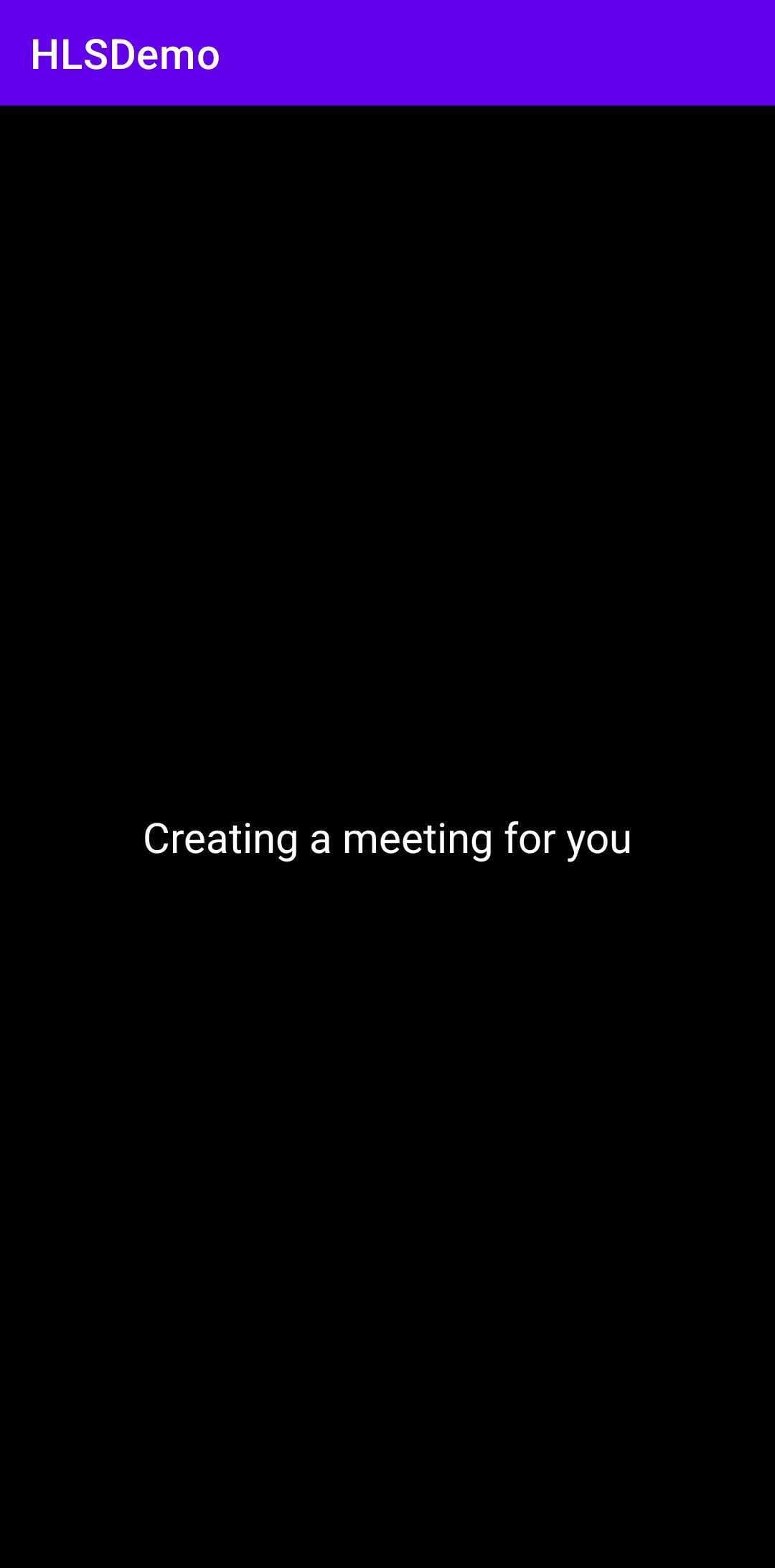
Create a new Activity named MeetingActivity.
In /app/res/layout/activity_meeting.xml file, replace the content with the following.
activity_meeting.xml
1<?xml version="1.0" encoding="utf-8"?>
2<RelativeLayout xmlns:android="http://schemas.android.com/apk/res/android"
3    xmlns:tools="http://schemas.android.com/tools"
4    android:id="@+id/mainLayout"
5    android:layout_width="match_parent"
6    android:layout_height="match_parent"
7    android:background="@color/black"
8    tools:context=".MeetingActivity">
9
10    <TextView
11        android:layout_width="match_parent"
12        android:layout_height="match_parent"
13        android:gravity="center"
14        android:text="Creating a meeting for you"
15        android:textColor="@color/white"
16        android:textFontWeight="700"
17        android:textSize="20sp" />
18
19</RelativeLayout>
The next step is to initialize a meeting, After getting token and meetingId from JoinActivity:
- Initialize VideoSDK.
- Configure VideoSDK with token.
- Initialize the meeting with required params such as
meetingId,participantName,micEnabled,webcamEnabled,modeand more. - Join the room with
meeting.join()method. - Add
MeetingEventListenerfor listening Meeting Join event. - Check mode of
localParticipant, If mode isSEND_AND_RECVthan we will replace mainLayout withSpeakerFragmentotherwise replace withViewerFragment.
Kotlin
MeetingActivity.kt
1class MeetingActivity : AppCompatActivity() {
2  var meeting: Meeting? = null
3      private set
4
5  override fun onCreate(savedInstanceState: Bundle?) {
6    super.onCreate(savedInstanceState)
7    setContentView(R.layout.activity_meeting)
8
9    val meetingId = intent.getStringExtra("meetingId")
10    val token = intent.getStringExtra("token")
11    val mode = intent.getStringExtra("mode")
12    val localParticipantName = "John Doe"
13    val streamEnable = mode == "SEND_AND_RECV"
14
15    // initialize VideoSDK
16    VideoSDK.initialize(applicationContext)
17
18    // Configuration VideoSDK with Token
19    VideoSDK.config(token)
20
21    // Initialize VideoSDK Meeting
22    meeting = VideoSDK.initMeeting(
23        this@MeetingActivity, meetingId, localParticipantName,
24        streamEnable, streamEnable, null, mode, false, null, null
25    )
26
27    // join Meeting
28    meeting!!.join()
29
30    // if mode is SEND_AND_RECV than replace mainLayout with SpeakerFragment otherwise with ViewerFragment
31    meeting!!.addEventListener(object : MeetingEventListener() {
32      override fun onMeetingJoined() {
33          if (meeting != null) {
34            if (mode == "SEND_AND_RECV") {
35              //pin the local participant
36              meeting!!.localParticipant.pin("SHARE_AND_CAM")
37              supportFragmentManager
38                  .beginTransaction()
39                  .replace(R.id.mainLayout, SpeakerFragment(), "MainFragment")
40                  .commit()
41              } else if (mode == "SIGNALLING_ONLY") {
42                supportFragmentManager
43                    .beginTransaction()
44                    .replace(R.id.mainLayout, ViewerFragment(), "viewerFragment")
45                    .commit()
46              }
47          }
48      }
49    })
50  }
51}
Output
Step 3: Implement SpeakerView
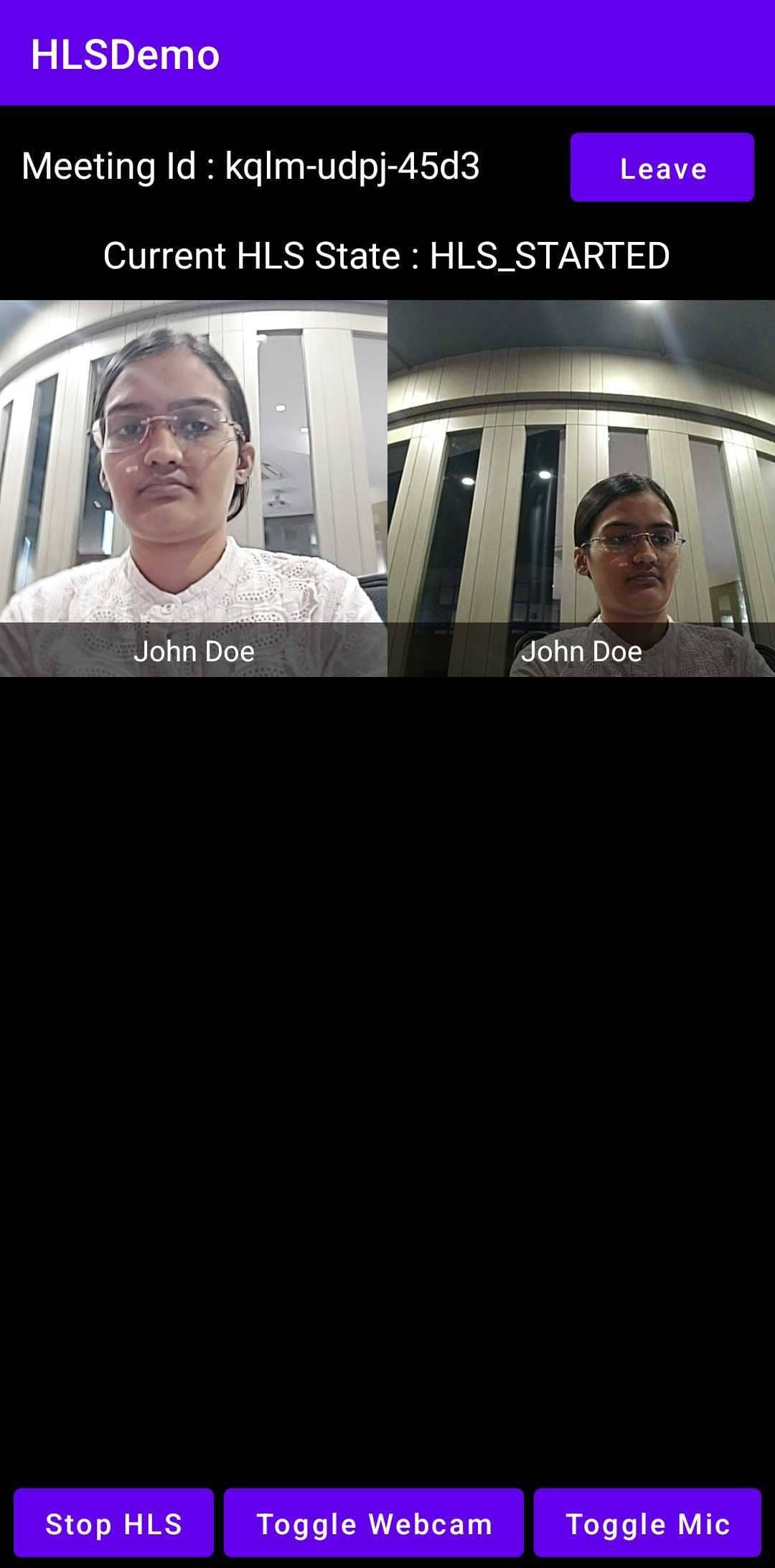
After successfully enter into the meeting, it's time to render speaker's view and manage controls such as toggle webcam/mic, start/stop HLS and leave the meeting.
- Create a new fragment named
SpeakerFragment. - In
/app/res/layout/fragment_speaker.xmlfile, replace the content with the following.
fragment_speaker.xml
1<?xml version="1.0" encoding="utf-8"?>
2<LinearLayout xmlns:android="http://schemas.android.com/apk/res/android"
3    xmlns:tools="http://schemas.android.com/tools"
4    android:layout_width="match_parent"
5    android:layout_height="match_parent"
6    android:background="@color/black"
7    android:gravity="center"
8    android:orientation="vertical"
9    tools:context=".SpeakerFragment">
10
11    <LinearLayout
12        android:layout_width="match_parent"
13        android:layout_height="wrap_content"
14        android:layout_marginVertical="8sp"
15        android:paddingHorizontal="10sp">
16
17        <TextView
18            android:id="@+id/tvMeetingId"
19            android:layout_width="0dp"
20            android:layout_height="wrap_content"
21            android:text="Meeting Id : "
22            android:textColor="@color/white"
23            android:textSize="18sp"
24            android:layout_weight="3"/>
25
26        <Button
27            android:id="@+id/btnLeave"
28            android:layout_width="0dp"
29            android:layout_height="wrap_content"
30            android:text="Leave"
31            android:textAllCaps="false"
32            android:layout_weight="1"/>
33
34    </LinearLayout>
35
36    <TextView
37        android:id="@+id/tvHlsState"
38        android:layout_width="wrap_content"
39        android:layout_height="wrap_content"
40        android:text="Current HLS State : NOT_STARTED"
41        android:textColor="@color/white"
42        android:textSize="18sp" />
43
44    <androidx.recyclerview.widget.RecyclerView
45        android:id="@+id/rvParticipants"
46        android:layout_width="match_parent"
47        android:layout_height="0dp"
48        android:layout_marginVertical="10sp"
49        android:layout_weight="1" />
50
51    <LinearLayout
52        android:layout_width="match_parent"
53        android:layout_height="wrap_content"
54        android:gravity="center">
55
56        <Button
57            android:id="@+id/btnHLS"
58            android:layout_width="wrap_content"
59            android:layout_height="wrap_content"
60            android:text="Start HLS"
61            android:textAllCaps="false" />
62
63        <Button
64            android:id="@+id/btnWebcam"
65            android:layout_width="wrap_content"
66            android:layout_height="wrap_content"
67            android:layout_marginHorizontal="5sp"
68            android:text="Toggle Webcam"
69            android:textAllCaps="false" />
70
71        <Button
72            android:id="@+id/btnMic"
73            android:layout_width="wrap_content"
74            android:layout_height="wrap_content"
75            android:text="Toggle Mic"
76            android:textAllCaps="false" />
77
78    </LinearLayout>
79
80</LinearLayout>- Now, let's set listener for buttons which will allow the participant to toggle media.
Kotlin
SpeakerFragment.kt
1class SpeakerFragment : Fragment() {
2  private var micEnabled = true
3  private var webcamEnabled = true
4  private var hlsEnabled = false
5  private var btnMic: Button? = null
6  private var btnWebcam: Button? = null
7  private var btnHls: Button? = null
8  private var btnLeave: Button? = null
9  private var tvMeetingId: TextView? = null
10  private var tvHlsState: TextView? = null
11  override fun onAttach(context: Context) {
12    super.onAttach(context)
13    mContext = context
14    if (context is Activity) {
15      mActivity = context
16      // getting meeting object from Meeting Activity
17      meeting = (mActivity as MeetingActivity?)!!.meeting
18    }
19  }
20
21  override fun onCreateView(
22      inflater: LayoutInflater, container: ViewGroup?,
23      savedInstanceState: Bundle?
24  ): View? {
25    // Inflate the layout for this fragment
26    val view = inflater.inflate(R.layout.fragment_speaker, container, false)
27    btnMic = view.findViewById(R.id.btnMic)
28    btnWebcam = view.findViewById(R.id.btnWebcam)
29    btnHls = view.findViewById(R.id.btnHLS)
30    btnLeave = view.findViewById(R.id.btnLeave)
31    tvMeetingId = view.findViewById(R.id.tvMeetingId)
32    tvHlsState = view.findViewById(R.id.tvHlsState)
33    if (meeting != null) {
34      tvMeetingId!!.text = "Meeting Id : " + meeting!!.meetingId
35      setActionListeners()
36    }
37    return view
38  }
39
40  private fun setActionListeners() {
41    btnMic!!.setOnClickListener {
42      if (micEnabled) {
43        meeting!!.muteMic()
44        Toast.makeText(mContext, "Mic Muted", Toast.LENGTH_SHORT).show()
45      } else {
46        meeting!!.unmuteMic()
47        Toast.makeText(
48            mContext,
49            "Mic Enabled",
50            Toast.LENGTH_SHORT
51        ).show()
52      }
53      micEnabled = !micEnabled
54    }
55    btnWebcam!!.setOnClickListener {
56      if (webcamEnabled) {
57        meeting!!.disableWebcam()
58        Toast.makeText(
59            mContext,
60            "Webcam Disabled",
61            Toast.LENGTH_SHORT
62        ).show()
63      } else {
64        meeting!!.enableWebcam()
65        Toast.makeText(
66            mContext,
67            "Webcam Enabled",
68            Toast.LENGTH_SHORT
69        ).show()
70      }
71      webcamEnabled = !webcamEnabled
72    }
73    btnLeave!!.setOnClickListener { meeting!!.leave() }
74    btnHls!!.setOnClickListener {
75      if (!hlsEnabled) {
76        val config = JSONObject()
77        val layout = JSONObject()
78        JsonUtils.jsonPut(layout, "type", "SPOTLIGHT")
79        JsonUtils.jsonPut(layout, "priority", "PIN")
80        JsonUtils.jsonPut(layout, "gridSize", 4)
81        JsonUtils.jsonPut(config, "layout", layout)
82        JsonUtils.jsonPut(config, "orientation", "portrait")
83        JsonUtils.jsonPut(config, "theme", "DARK")
84        JsonUtils.jsonPut(config, "quality", "high")
85        meeting!!.startHls(config)
86      } else {
87        meeting!!.stopHls()
88      }
89    }
90  }
91
92  companion object {
93    private var mActivity: Activity? = null
94    private var mContext: Context? = null
95    private var meeting: Meeting? = null
96  }
97}- After adding listeners for buttons, let's add
MeetingEventListenerto the meeting and remove all listeners inonDestroy()method.
Kotlin
SpeakerFragment.kt
1class SpeakerFragment : Fragment() {
2
3  override fun onCreateView(
4      inflater: LayoutInflater, container: ViewGroup?,
5      savedInstanceState: Bundle?
6  ): View? {
7    //...
8    if (meeting != null) {
9      //...
10      // add Listener to the meeting
11      meeting!!.addEventListener(meetingEventListener)
12    }
13    return view
14  }
15
16  private val meetingEventListener: MeetingEventListener = object : MeetingEventListener() {
17      override fun onMeetingLeft() {
18        // unpin the local participant
19        meeting!!.localParticipant.unpin("SHARE_AND_CAM")
20        if (isAdded) {
21          val intents = Intent(mContext, JoinActivity::class.java)
22          intents.addFlags(
23              Intent.FLAG_ACTIVITY_NEW_TASK
24                      or Intent.FLAG_ACTIVITY_CLEAR_TOP or Intent.FLAG_ACTIVITY_CLEAR_TASK
25          )
26          startActivity(intents)
27          mActivity!!.finish()
28        }
29      }
30
31      @RequiresApi(api = Build.VERSION_CODES.P)
32      override fun onHlsStateChanged(HlsState: JSONObject) {
33        if (HlsState.has("status")) {
34          try {
35              tvHlsState!!.text = "Current HLS State : " + HlsState.getString("status")
36              if (HlsState.getString("status") == "HLS_STARTED") {
37                hlsEnabled = true
38                btnHls!!.text = "Stop HLS"
39              }
40              if (HlsState.getString("status") == "HLS_STOPPED") {
41                hlsEnabled = false
42                btnHls!!.text = "Start HLS"
43              }
44            } catch (e: JSONException) {
45                e.printStackTrace()
46            }
47        }
48      }
49  }
50
51  override fun onDestroy() {
52      mContext = null
53      mActivity = null
54      if (meeting != null) {
55          meeting!!.removeAllListeners()
56          meeting = null
57      }
58      super.onDestroy()
59  }
60}- Next step is to render speaker's view. With
RecyclerView, we will be display list of participant who joined the meeting as ahost.
Info
- Here the participant's video is displayed using
VideoView, but you may also useSurfaceViewRenderfor the same.- For
VideoView, SDK version should be2.0.1or higher.- To know more about
VideoView, please visit here.
- Create a new layout for the participant view named
item_remote_peer.xmlin theres/layoutfolder.
item_remote_peer.xml
1<?xml version="1.0" encoding="utf-8"?>
2<FrameLayout xmlns:android="http://schemas.android.com/apk/res/android"
3    xmlns:app="http://schemas.android.com/apk/res-auto"
4    xmlns:tools="http://schemas.android.com/tools"
5    android:layout_width="match_parent"
6    android:layout_height="200dp"
7    android:background="@color/cardview_dark_background"
8    tools:layout_height="200dp">
9
10    <live.videosdk.rtc.android.VideoView
11        android:id="@+id/participantView"
12        android:layout_width="match_parent"
13        android:layout_height="match_parent"
14        android:visibility="gone" />
15
16    <LinearLayout
17        android:layout_width="match_parent"
18        android:layout_height="wrap_content"
19        android:layout_gravity="bottom"
20        android:background="#99000000"
21        android:orientation="horizontal">
22
23        <TextView
24            android:id="@+id/tvName"
25            android:layout_width="0dp"
26            android:layout_height="wrap_content"
27            android:layout_weight="1"
28            android:gravity="center"
29            android:padding="4dp"
30            android:textColor="@color/white" />
31
32    </LinearLayout>
33
34</FrameLayout>- Create a recycler view adapter named
SpeakerAdapterwhich will show the participant list. CreatePeerViewHolderin the adapter which will extendRecyclerView.ViewHolder.
Kotlin
SpeakerAdapter.kt
1class SpeakerAdapter(private val meeting: Meeting) :
2    RecyclerView.Adapter<SpeakerAdapter.PeerViewHolder?>() {
3    private var participantList: MutableList<Participant> = ArrayList()
4
5    init {
6      updateParticipantList()
7      // adding Meeting Event listener to get the participant join/leave event in the meeting.
8      meeting.addEventListener(object : MeetingEventListener() {
9        override fun onParticipantJoined(participant: Participant) {
10          // check participant join as Host/Speaker or not
11          if (participant.mode == "SEND_AND_RECV") {
12              // pin the participant
13              participant.pin("SHARE_AND_CAM")
14              // add participant in participantList
15              participantList.add(participant)
16          }
17          notifyDataSetChanged()
18        }
19
20        override fun onParticipantLeft(participant: Participant) {
21          var pos = -1
22          for (i in participantList.indices) {
23              if (participantList[i].id == participant.id) {
24                  pos = i
25                  break
26              }
27          }
28          if (participantList.contains(participant)) {
29              // unpin participant who left the meeting
30              participant.unpin("SHARE_AND_CAM")
31              // remove participant from participantList
32              participantList.remove(participant)
33          }
34          if (pos >= 0) {
35              notifyItemRemoved(pos)
36          }
37        }
38      })
39    }
40
41    private fun updateParticipantList() {
42      // adding the local participant(You) to the list
43      participantList.add(meeting.localParticipant)
44
45      // adding participants who join as Host/Speaker
46      val participants: Iterator<Participant> = meeting.participants.values.iterator()
47      for (i in 0 until meeting.participants.size) {
48        val participant = participants.next()
49        if (participant.mode == "SEND_AND_RECV") {
50            // pin the participant
51            participant.pin("SHARE_AND_CAM")
52            // add participant in participantList
53            participantList.add(participant)
54        }
55      }
56    }
57
58    override fun onCreateViewHolder(parent: ViewGroup, viewType: Int): PeerViewHolder {
59      return PeerViewHolder(
60          LayoutInflater.from(parent.context).inflate(R.layout.item_remote_peer, parent, false)
61      )
62    }
63
64    override fun onBindViewHolder(holder: PeerViewHolder, position: Int) {
65      val participant = participantList[position]
66      holder.tvName.text = participant.displayName
67
68      // adding the initial video stream for the participant into the 'VideoView'
69      for ((_, stream) in participant.streams) {
70        if (stream.kind.equals("video", ignoreCase = true)) {
71          holder.participantView.visibility = View.VISIBLE
72          val videoTrack = stream.track as VideoTrack
73          holder.participantView.addTrack(videoTrack)
74          break
75        }
76      }
77
78      // add Listener to the participant which will update start or stop the video stream of that participant
79      participant.addEventListener(object : ParticipantEventListener() {
80        override fun onStreamEnabled(stream: Stream) {
81          if (stream.kind.equals("video", ignoreCase = true)) {
82            holder.participantView.visibility = View.VISIBLE
83            val videoTrack = stream.track as VideoTrack
84            holder.participantView.addTrack(videoTrack)
85          }
86        }
87
88        override fun onStreamDisabled(stream: Stream) {
89          if (stream.kind.equals("video", ignoreCase = true)) {
90            holder.participantView.removeTrack()
91            holder.participantView.visibility = View.GONE
92          }
93        }
94      })
95    }
96
97    override fun getItemCount(): Int {
98      return participantList.size
99    }
100
101    class PeerViewHolder(view: View) : RecyclerView.ViewHolder(view) {
102      // 'VideoView' to show Video Stream
103      var participantView: VideoView
104      var tvName: TextView
105
106      init {
107        tvName = view.findViewById(R.id.tvName)
108        participantView = view.findViewById(R.id.participantView)
109      }
110    }
111}- Add this adapter to the
SpeakerFragment
Kotlin
SpeakerFragment.kt
1 override fun onCreateView(
2      inflater: LayoutInflater, container: ViewGroup?,
3      savedInstanceState: Bundle?
4  ): View? {
5    //...
6    if (meeting != null) {
7      //...
8      val rvParticipants = view.findViewById<RecyclerView>(R.id.rvParticipants)
9      rvParticipants.layoutManager = GridLayoutManager(mContext, 2)
10      rvParticipants.adapter = SpeakerAdapter(meeting!!)
11  }
12}
Output
Step 4: Implement ViewerView
When host start the live streaming, viewer will be able to see the live streaming.
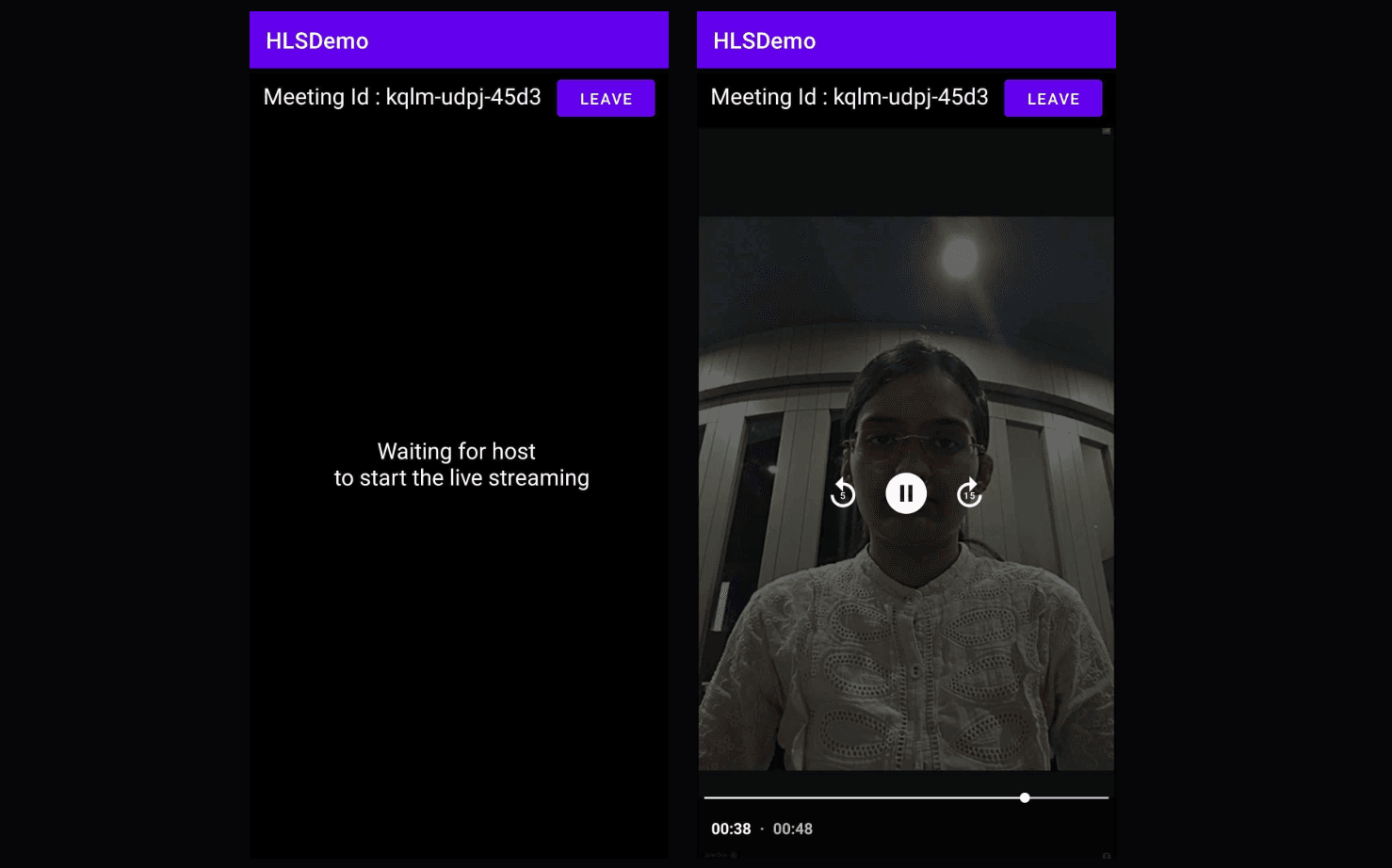
To implement player view, we are going to use ExoPlayer. It will be helpful to play hls stream.
Let's first add dependency into the project.
app/build.gradle
1dependencies {
2  implementation 'com.google.android.exoplayer:exoplayer:2.18.5'
3  // other app dependencies
4  }
Create a new Fragment named ViewerFragment
The Viewer Fragment will include :
- TextView for Meeting Id - The meeting Id that you joined will be displayed in this text view.
- Leave Button - This button will leave the meeting.
- waitingLayout - This is textView that will be shown when there is no active HLS.
- StyledPlayerView - This is mediaplayer which will display livestreaming.
In /app/res/layout/fragment_viewer.xml file, replace the content with the following.
fragment_viewer.xml
1<?xml version="1.0" encoding="utf-8"?>
2<RelativeLayout xmlns:android="http://schemas.android.com/apk/res/android"
3    xmlns:app="http://schemas.android.com/apk/res-auto"
4    xmlns:tools="http://schemas.android.com/tools"
5    android:layout_width="match_parent"
6    android:layout_height="match_parent"
7    android:background="@color/black"
8    tools:context=".ViewerFragment">
9
10    <LinearLayout
11        android:id="@+id/meetingLayout"
12        android:layout_width="match_parent"
13        android:layout_height="wrap_content"
14        android:paddingHorizontal="12sp"
15        android:paddingVertical="5sp">
16
17        <TextView
18            android:id="@+id/meetingId"
19            android:layout_width="0dp"
20            android:layout_height="wrap_content"
21            android:layout_weight="3"
22            android:text="Meeting Id : "
23            android:textColor="@color/white"
24            android:textSize="20sp" />
25
26        <Button
27            android:id="@+id/btnLeave"
28            android:layout_width="0dp"
29            android:layout_height="wrap_content"
30            android:layout_weight="1"
31            android:text="Leave" />
32
33    </LinearLayout>
34
35    <TextView
36        android:id="@+id/waitingLayout"
37        android:layout_width="match_parent"
38        android:layout_height="match_parent"
39        android:text="Waiting for host \n to start the live streaming"
40        android:textColor="@color/white"
41        android:textFontWeight="700"
42        android:textSize="20sp"
43        android:gravity="center"/>
44
45    <com.google.android.exoplayer2.ui.StyledPlayerView
46        android:id="@+id/player_view"
47        android:layout_width="match_parent"
48        android:layout_height="match_parent"
49        android:visibility="gone"
50        app:resize_mode="fixed_width"
51        app:show_buffering="when_playing"
52        app:show_subtitle_button="false"
53        app:use_artwork="false"
54        app:show_next_button="false"
55        app:show_previous_button="false"
56        app:use_controller="true"
57        android:layout_below="@id/meetingLayout"/>
58
59</RelativeLayout>
Initialize player and Playing HLS stream
- Initialize player and play the HLS when the meeting HLS state is
HLS_PLAYABLE, and release it when the HLS state isHLS_STOPPED. Whenever the meeting HLS state changes, the eventonHlsStateChangedwill be triggered.
- when you receive
HLS_PLAYABLEstatus you will receive 2 urlsplaybackHlsUrl- Live HLS with playback supportlivestreamUrl- Live HLS without playback support
Note
downstreamUrlis now deprecated. UseplaybackHlsUrlorlivestreamUrlin place ofdownstreamUrl.
Kotlin
ViewerFragment.kt
1class ViewerFragment : Fragment() {
2  private var meeting: Meeting? = null
3  private var playerView: StyledPlayerView? = null
4  private var waitingLayout: TextView? = null
5  private var player: ExoPlayer? = null
6  private var dataSourceFactory: DefaultHttpDataSource.Factory? = null
7  private val startAutoPlay = true
8  private var playbackHlsUrl: String? = ""
9
10
11  override fun onCreateView(
12    inflater: LayoutInflater, container: ViewGroup?,
13    savedInstanceState: Bundle?
14  ): View? {
15    // Inflate the layout for this fragment
16    val view = inflater.inflate(R.layout.fragment_viewer, container, false)
17    playerView = view.findViewById(R.id.player_view)
18    waitingLayout = view.findViewById(R.id.waitingLayout)
19    if (meeting != null) {
20        // set MeetingId to TextView
21        (view.findViewById<View>(R.id.meetingId) as TextView).text =
22            "Meeting Id : " + meeting!!.meetingId
23        // leave the meeting on btnLeave click
24        (view.findViewById<View>(R.id.btnLeave) as Button).setOnClickListener { meeting!!.leave() }
25        // add listener to meeting
26        meeting!!.addEventListener(meetingEventListener)
27    }
28    return view
29  }
30
31  override fun onAttach(context: Context) {
32      super.onAttach(context)
33      mContext = context
34      if (context is Activity) {
35        mActivity = context
36        // get meeting object from MeetingActivity
37        meeting = (mActivity as MeetingActivity?)!!.meeting
38      }
39  }
40
41  private val meetingEventListener: MeetingEventListener = object : MeetingEventListener() {
42      override fun onMeetingLeft() {
43        if (isAdded) {
44          val intents = Intent(mContext, JoinActivity::class.java)
45          intents.addFlags(
46              Intent.FLAG_ACTIVITY_NEW_TASK
47                      or Intent.FLAG_ACTIVITY_CLEAR_TOP or Intent.FLAG_ACTIVITY_CLEAR_TASK
48          )
49          startActivity(intents)
50          mActivity!!.finish()
51        }
52      }
53
54      @RequiresApi(api = Build.VERSION_CODES.P)
55      override fun onHlsStateChanged(HlsState: JSONObject) {
56        if (HlsState.has("status")) {
57            try {
58              if (HlsState.getString("status") == "HLS_PLAYABLE" && HlsState.has("playbackHlsUrl")) {
59                playbackHlsUrl = HlsState.getString("playbackHlsUrl")
60                waitingLayout!!.visibility = View.GONE
61                playerView!!.visibility = View.VISIBLE
62                // initialize player
63                initializePlayer()
64              }
65              if (HlsState.getString("status") == "HLS_STOPPED") {
66                // release the player
67                releasePlayer()
68                playbackHlsUrl = null
69                waitingLayout!!.text = "Host has stopped \n the live streaming"
70                waitingLayout!!.visibility = View.VISIBLE
71                playerView!!.visibility = View.GONE
72              }
73            } catch (e: JSONException) {
74                e.printStackTrace()
75            }
76          }
77      }
78  }
79
80  private fun initializePlayer() {
81    if (player == null) {
82      dataSourceFactory = DefaultHttpDataSource.Factory()
83      val mediaSource = HlsMediaSource.Factory(dataSourceFactory!!).createMediaSource(
84          MediaItem.fromUri(Uri.parse(playbackHlsUrl))
85      )
86      val playerBuilder = ExoPlayer.Builder( /* context = */mContext!!)
87      player = playerBuilder.build()
88      // auto play when player is ready
89      player!!.playWhenReady = startAutoPlay
90      player!!.setMediaSource(mediaSource)
91      // if you want display setting for player then remove this line
92      playerView!!.findViewById<View>(com.google.android.exoplayer2.ui.R.id.exo_settings).visibility =
93          View.GONE
94      playerView!!.player = player
95    }
96    player!!.prepare()
97  }
98
99  private fun releasePlayer() {
100    if (player != null) {
101      player!!.release()
102      player = null
103      dataSourceFactory = null
104      playerView!!.player = null
105    }
106  }
107
108  override fun onDestroy() {
109    mContext = null
110    mActivity = null
111    playbackHlsUrl = null
112    releasePlayer()
113    if (meeting != null) {
114        meeting!!.removeAllListeners()
115        meeting = null
116    }
117    super.onDestroy()
118  }
119
120  companion object {
121    private var mActivity: Activity? = null
122    private var mContext: Context? = null
123  }
124}
Output
Final Output
Run the app on a physical device or on an emulator created with the x86_64 ABI, and allow the microphone and camera permissions when prompted.
To test the live stream:
- Tap Create Meeting on the first device. It joins as a host in
SEND_AND_RECVmode. - Copy the displayed meeting ID.
- On a second device, enter the same meeting ID and tap Join as Viewer. The viewer joins in
SIGNALLING_ONLYmode and shows "Waiting for host to start the live streaming". - On the host device, tap Start HLS. The HLS state label updates to
HLS_STARTED, thenHLS_PLAYABLE. - The viewer receives
playbackHlsUrlinonHlsStateChangedand ExoPlayer starts playing the stream. - Tap Stop HLS on the host to release the viewer's player and return it to the waiting state.
Your completed Android live streaming app can now:
- Create a new VideoSDK meeting
- Join an existing meeting as a host or as a viewer
- Render host video tiles with
VideoView - Toggle the host's microphone and camera
- Start and stop HLS with a custom layout, orientation, theme, and quality config
- Track the live stream state through
onHlsStateChanged - Play the HLS stream on the viewer side with ExoPlayer
- Leave the meeting and return to the join screen
We are done with implementation of customised live streaming app in Android using Video SDK. To explore more features go through Basic and Advanced features.
Tip
You can checkout the complete quick start example here.


