


Unity WebRTC video streaming for multiplayer games enables real-time, peer-to-peer video and audio directly inside the Unity engine. Developers use the Unity WebRTC package to capture camera feeds and render textures, sending them over a peer connection. For production scaling and managed signaling, VideoSDK provides the RTC infrastructure to handle rooms, TURN servers, and SFU routing without building custom backend components.
Live video in multiplayer games is shifting from a novelty to an expectation. Whether it is in-game streaming, spectator modes, or co-op video chat, players want to see each other. Building a unity webrtc video streaming multiplayer game lets developers embed low-latency video directly into the game client using the same WebRTC standards that power modern communication apps. This article covers the core architecture, Unity WebRTC setup, signaling server design, scaling strategies for larger sessions, and production considerations. By the end, you will understand how to route video tracks between players and when to leverage managed RTC platforms like VideoSDK to skip the backend complexity.
What is Unity WebRTC Video Streaming?
Unity WebRTC video streaming is the process of sending real-time video and audio between Unity game clients using the WebRTC protocol. The Unity WebRTC package provides native bindings to the underlying WebRTC library, allowing developers to interact with peer connections, media streams, and data channels directly from C# scripts. Unlike generic WebRTC libraries, the Unity package integrates with the engine's render pipeline, enabling you to capture RenderTextures and camera outputs as video tracks. It supports standard video codecs like H.264, VP8, and VP9, leveraging hardware acceleration where available to minimize CPU overhead. This is critical for games, where the CPU is already busy with physics, AI, and game logic.
According to the official Unity documentation, the Unity WebRTC package allows developers to stream video and audio data between peers over a network. This makes it possible to build interactive experiences where players see each other's reactions in real time. VideoSDK extends this capability by providing a managed backend that handles the WebRTC room infrastructure, so you can focus on the Unity client side.
Core Architecture for Multiplayer Video
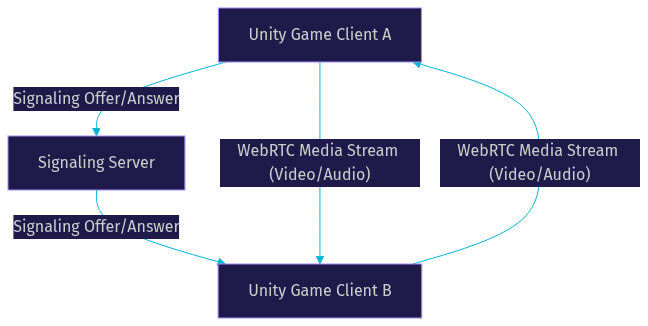
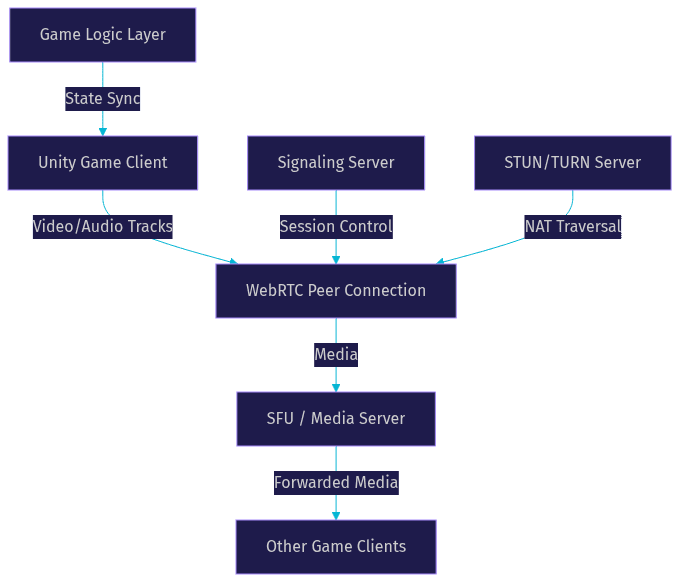
A robust unity webrtc video streaming multiplayer game requires several coordinated components. The Unity client handles game logic, captures video from cameras or webcams, and manages the WebRTC peer connection. A signaling server coordinates the initial handshake, exchanging session descriptions and ICE candidates. STUN and TURN servers handle NAT traversal, ensuring packets reach their destinations across restrictive networks. Finally, the media pipeline encodes, transmits, and decodes the video tracks. Alongside media, WebRTC data channels can be used for game state synchronization, though most games use dedicated networking solutions like Photon Fusion or Mirror for state, reserving WebRTC for audio and video.
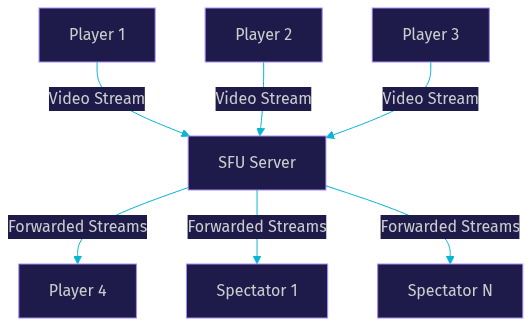
In a peer-to-peer mesh network, every player connects directly to every other player. This works for small groups but scales poorly. For larger sessions, a Selective Forwarding Unit (SFU) receives all video streams and forwards them selectively, reducing client bandwidth. VideoSDK provides a built-in SFU, allowing your Unity game to offload media routing to a managed cloud service.
Signaling Server Design
The signaling server is the matchmaker for WebRTC connections. It does not handle media, but it is critical for exchanging the initial connection details. Developers can build a custom WebSocket server, use third-party services, or rely on Unity Relay. Security is paramount: the server must validate auth tokens and restrict access to valid room IDs. VideoSDK handles signaling natively, providing secure token-based authentication so you do not have to build this layer from scratch.
NAT Traversal and TURN
NAT traversal is essential for multiplayer games because players connect from diverse home networks. STUN servers help clients discover their public IP addresses. When direct connections fail due to strict firewalls, TURN servers relay traffic. Choosing a TURN provider with low latency to your game servers is crucial, as TURN fallback adds routing overhead. VideoSDK includes global TURN infrastructure, minimizing latency for players regardless of their location.
Setting Up Unity WebRTC for a Multiplayer Game
To build a unity webrtc video streaming multiplayer game, start with the prerequisites. You need a recent version of the Unity editor, the Unity WebRTC package installed via the Package Manager, and a compatible render pipeline (URP or HDRP). The setup process involves several distinct steps.
First, import the Unity WebRTC package into your project. Next, configure a RenderTexture in your scene to capture the video feed. You then create a VideoStreamTrack from that RenderTexture or a connected webcam. This track must be added to a WebRTC peer connection instance. To connect with other players, you exchange the peer connection's local description (the offer) through your signaling server, which the remote peer answers. The matchmaking flow typically involves a lobby system where players join a room, receive a list of other participants, and initiate peer connections with each one. If using an SFU like VideoSDK, the client only connects to the server, simplifying the flow to a single connection.
Exposing the video track to other players requires a matchmaking service or data channel to coordinate the session. A common pitfall is the track not rendering on the receiving end, often caused by a texture format mismatch or failing to assign the received track to a RawImage component. Another issue is hitting hardware encoder limits on lower-end devices, which can cause video to freeze. Using VideoSDK's Prebuilt UI or custom SDK can abstract away these track management complexities.
Managing Video Tracks per Player
In a multiplayer setting, each participant sends and receives multiple tracks. You must budget bandwidth carefully. If every player sends a 720p video stream, client bandwidth quickly saturates. Simulcast options allow the sender to transmit multiple resolutions, letting the receiver pick the best quality based on available bandwidth. VideoSDK handles track management automatically, adjusting quality based on network conditions.
Handling Latency and Bandwidth
Latency can break a multiplayer game. Adaptive bitrate settings are necessary to keep video frames moving when network conditions degrade. Resolution scaling reduces the encoder load and bandwidth usage. Video frames should not block the game loop. VideoSDK's network-adaptive streaming automatically adjusts bitrate and resolution, ensuring the video stream does not interfere with critical game state updates.
Scaling Video for Larger Multiplayer Sessions
Scaling a unity webrtc video streaming multiplayer game beyond a few players requires architectural shifts. A pure P2P mesh works for 2 to 4 players. For 4 to 16 players, an SFU is necessary. The SFU receives each player's video stream and forwards it to the others, meaning each client only uploads one stream and downloads N-1 streams. For a 16-player game, a mesh network would require each client to handle 15 upload streams and 15 download streams, which is unfeasible. An SFU reduces this to 1 upload and 15 downloads per client, a massive bandwidth saving. Unity Render Streaming offers server-side mixing, but for game integration, a dedicated RTC backend like VideoSDK is often more efficient.
A hybrid approach might use P2P for squad voice and video, while an SFU handles spectator broadcasts. For example, a battle-royale spectator mode can use an SFU to broadcast the top players' perspectives to thousands of viewers. VideoSDK's Interactive Live Streaming (ILS) mode is designed for exactly this, allowing viewers to join as listeners and be promoted to active speakers if needed.
Production-Ready Considerations
Taking a unity webrtc video streaming multiplayer game to production requires attention to security, performance, and testing. Security involves End-to-End Encryption (E2EE), token validation, and room access control. VideoSDK provides E2EE and role-based access control out of the box. Performance depends on hardware acceleration; encoding video on the GPU reduces CPU load but can impact game frame rates. Profiling tools in Unity help monitor GPU load.
Testing should cover Unity Play Mode, remote builds, and various network conditions. Deployment requires a CDN for TURN servers and cloud signaling. Monitoring is essential to catch dropped frames and high latency. VideoSDK provides session analytics and observability, giving you visibility into the media pipeline without building custom dashboards.
Common Issues and Debugging Tips
Debugging WebRTC in Unity can be tricky. If video is not appearing, check the texture format and ensure the received video track is assigned to a visible UI element. High latency often indicates a TURN fallback; check your ICE candidate gathering logs. Audio-video sync problems usually stem from mismatched clock domains or buffer sizes. A troubleshooting checklist should include verifying signaling messages, checking ICE connection states, and monitoring bandwidth usage. VideoSDK's observability tools can help pinpoint these issues faster.
Real-World Case Study: Multiplayer Co-Op Game with In-Game Video Chat
Consider an indie team building a 4-player co-op horror game. They needed in-game video chat so players could see each other's reactions. They integrated the Unity WebRTC package for the client-side capture but struggled with signaling and TURN infrastructure. By switching to VideoSDK for the backend, they offloaded the room management and NAT traversal. The outcome was a stable video experience with only 30 milliseconds of added latency and a 5 percent CPU overhead, leaving enough performance budget for the game's graphics.
Definitions Glossary
Unity WebRTC Package: A Unity package that provides native bindings to the WebRTC library, enabling real-time video and audio streaming between game clients.
Signaling Server: A server that coordinates the initial handshake between WebRTC peers, exchanging session descriptions and ICE candidates without handling media.
SFU (Selective Forwarding Unit): A media server that receives video streams from multiple participants and forwards them selectively, enabling scalable group video calls.
RenderTexture: A texture in Unity that is created and updated at runtime, often used to capture camera output for WebRTC video tracks.
VideoSDK Room: A virtual meeting space managed by VideoSDK where participants join to share media streams, identified by a unique room ID.
Key Takeaways
- Building a unity webrtc video streaming multiplayer game requires managing video tracks, signaling, and NAT traversal.
- Pure P2P architectures work for small groups, but an SFU is necessary for scaling to 16 or more players.
- Unity's render pipeline integration allows capturing cameras and RenderTextures as video streams.
- Production deployments need robust security, adaptive bitrate streaming, and monitoring.
- VideoSDK provides the managed RTC infrastructure, including SFU and TURN, to simplify scaling and production deployment.
Conclusion
Unity WebRTC video streaming is a viable way to add immersive, real-time video to multiplayer games. While the Unity WebRTC package handles client-side capture, building the backend signaling, TURN, and SFU infrastructure is complex. VideoSDK eliminates this complexity by providing a managed RTC platform with built-in scaling, security, and network-adaptive streaming. Start prototyping your video-enabled game today by exploring the VideoSDK documentation and joining the VideoSDK Discord community. What are you building with VideoSDK? Drop a comment below.
Free $20 Balance for AI Voice Agents & Video Calls
FAQ