


Audio calling enables real-time voice communication between users over the internet using WebRTC or similar protocols. VideoSDK provides a real-time audio SDK that lets developers embed audio-only calling into apps with sub-300ms latency, built-in recording, and network-adaptive streaming. You can integrate it across React, JavaScript, Flutter, React Native, Android, and iOS platforms.
Building a reliable audio calling feature from scratch with raw WebRTC means handling signaling servers, ICE negotiation, codec selection, and media routing on your own. Most teams underestimate this effort until they are deep into production debugging. Audio calling seems simpler than video, but the edge cases around network quality, participant management, and latency are just as unforgiving. By the end of this guide, you will understand how audio calling works, why audio-only experiences matter, and how to integrate voice calling into your application using VideoSDK's real-time audio SDK without wrestling with WebRTC internals.
What is Audio Calling?
Audio calling is defined as real-time voice communication between two or more participants over a network connection, typically using WebRTC or VoIP protocols as the transport layer. Unlike traditional phone calls that rely on circuit-switched networks, modern audio calling uses packet-switched IP networks to transmit voice data as encoded audio packets.
Audio calling works by capturing microphone input through the device audio API, encoding that audio using a codec like Opus, transmitting the encoded packets over a secure connection through a media server or peer-to-peer link, and then decoding and playing back the audio on the receiving participant device. The entire round trip must complete in under 300 milliseconds to feel natural and conversational.
VideoSDK provides audio calling through its Rooms-based architecture, where participants join a shared room and exchange audio streams. The same SDK surface that powers video calling is used with video tracks disabled, giving you the full feature set including recording, transcription, chat, and role-based access control without the overhead of video processing. VideoSDK audio calling capabilities are available across React, JavaScript, Flutter, React Native, Android, and iOS SDKs through the quick start guide.
Why Choose Audio-Only Calling?
Audio-only calling serves a distinct set of use cases where video adds unnecessary overhead without improving the experience. Voice rooms, podcast recording, audio conferencing, social audio apps, prayer groups, sports commentary, and customer support hotlines all benefit from audio-first architecture.
The bandwidth advantage is significant. An Opus audio stream at 24kbps uses roughly 5% of the bandwidth required for a 480p video stream. This makes audio calling viable on 3G networks, in rural areas, and on metered data plans where video would fail or incur excessive costs.
From a UX perspective, audio-only calls reduce cognitive load. Participants do not need to manage camera positioning, lighting, or appearance. This lowers the barrier to joining a call and increases participation rates in community and social audio scenarios. Audio calling also preserves privacy in sensitive contexts like telehealth consultations and legal advisory sessions.
VideoSDK Audio Calling Architecture
VideoSDK audio calling architecture follows a Rooms-based model where a Room acts as the central meeting space. Participants join the Room using a token, and once connected, each participant publishes their audio track to the VideoSDK Cloud media server. The server, operating as an SFU (Selective Forwarding Unit), routes each participant audio stream to all other participants in the Room.
The media flow works as follows. The local device captures microphone audio, encodes it using the Opus codec, and sends it over a secure WebRTC connection to the VideoSDK Cloud. The cloud server receives the encoded audio packets and forwards them to every other connected participant. On the receiving end, each participant SDK decodes the audio and plays it through the device speaker. This happens continuously with sub-300ms latency.
Token authentication governs access. Your backend server generates a JWT token using your VideoSDK API key and secret, and the client SDK uses that token to join the Room. The Room itself is identified by a unique Room ID, and you can configure it with custom metadata, recording preferences, and participant role rules.
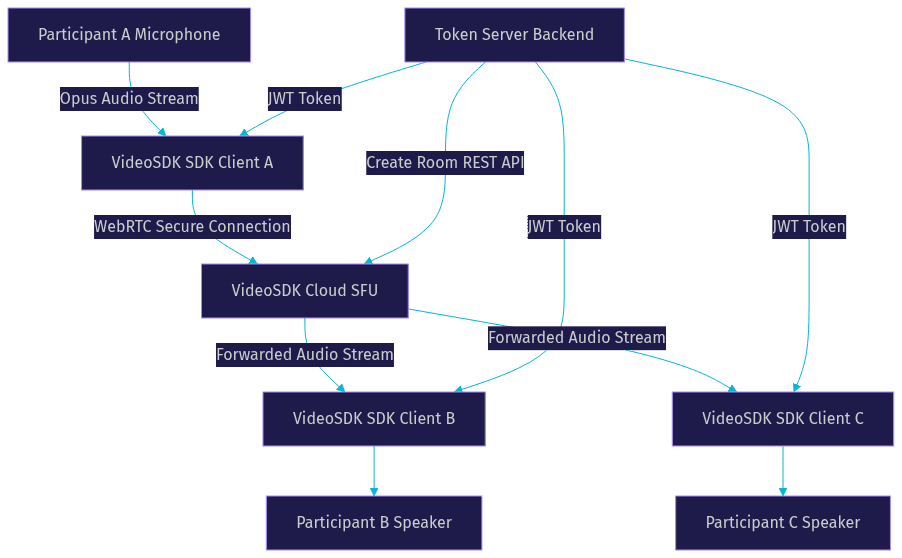
The SFU model is important here. Unlike peer-to-peer mesh networks where each participant connects directly to every other participant (creating quadratic connection complexity), the SFU receives each stream once and forwards it to all recipients. This scales linearly with participant count and keeps client-side bandwidth manageable even in large voice rooms.
Step 1: Generate Your VideoSDK Token
VideoSDK uses token-based authentication to secure access to Rooms. You need to generate a token on your backend server using your VideoSDK API key and secret, then pass that token to the client SDK when initializing a Room connection.
Never expose your API secret on the frontend or in client-side code. Always generate tokens server-side. The token is a JWT that encodes your API key, an expiration timestamp, and optional permissions. Your backend creates the Room using the REST API, generates a token for the participant, and returns both the Room ID and token to the client.
The authentication flow is straightforward. Your server receives a request from the client, validates the user identity through your own auth system, calls the VideoSDK token generation endpoint with your API credentials, and returns the resulting JWT to the client. The client then uses this token to join the Room. For detailed instructions, refer to the Authentication and Token Guide.
Token expiry is a common production issue. Set a reasonable expiration window based on your expected call duration. If a call might last two hours, set the token to expire after three hours to provide a safety margin. If a token expires mid-call, the participant will be disconnected, so plan for renewal logic in long-running sessions.
Integrating Audio Calling into Your App
Initialize the SDK
Start by installing the VideoSDK SDK for your chosen platform. VideoSDK supports React, JavaScript, React Native, Flutter, Android, and iOS. The SDK initialization process involves importing the VideoSDK package, configuring it with your authentication token, and preparing to create or join a Room.
When you initialize the SDK, it establishes a connection to the VideoSDK Cloud infrastructure. The SDK handles the WebRTC handshake, ICE candidate gathering, and media server connection internally. You do not need to manage STUN or TURN servers manually. VideoSDK provides built-in TURN server fallback for environments where direct UDP connections are blocked.
Join or Create a Room
Once the SDK is initialized, the next step is to join a Room. If you are creating a new Room, your backend server calls the Create Room endpoint via the REST API, which returns a unique Room ID. If you are joining an existing Room, you already have the Room ID from the meeting organizer.
The client SDK join method accepts the Room ID and the authentication token. When called, the SDK initiates the WebRTC connection to the VideoSDK Cloud, negotiates the media flow, and begins exchanging audio streams. The join operation is asynchronous, and the SDK emits events when the connection is established, when other participants join, and when audio streams are received.
Handle Audio Streams
After joining the Room, each participant microphone audio is published as an audio track to the Room. The SDK provides methods to access both your local audio track and the remote audio tracks of other participants. You can play remote audio tracks through the device speaker and control your local microphone through mute and unmute operations.
The SDK also exposes audio level information for each participant, which you can use to build active speaker detection UI. When a participant speaks, their audio level rises, and you can visually highlight them in your interface. This is particularly useful in voice rooms with many participants where visual cues help users follow the conversation.
VideoSDK handles audio mixing on the server side. When multiple participants speak simultaneously, the SFU mixes their audio streams and delivers a single mixed audio stream to each participant. This reduces client-side processing load and ensures consistent audio quality regardless of participant count.
Managing Participants and Events
Participant management is central to any audio calling experience. VideoSDK provides a comprehensive event system that fires callbacks when participants join, leave, mute, unmute, or change their audio state. Your application should listen for these events and update the UI accordingly.
When a participant joins the Room, the SDK fires a participant-joined event containing the participant ID, display name, and initial state. When a participant leaves, a participant-left event fires, and you should clean up any UI elements associated with that participant. The SDK also fires events when a participant enables or disables their microphone, allowing you to update mute indicators in real time.
Role-based access control lets you define what each participant can do. A moderator can mute other participants, a speaker can publish audio, and a listener can only receive audio. This is essential for structured voice rooms like AMAs, panel discussions, and podcast recordings where not everyone should be able to speak simultaneously.
Active speaker detection is built into the SDK. The system continuously monitors audio levels across all participants and identifies the current dominant speaker. You can use this information to build dynamic UIs that highlight whoever is talking, which improves the experience in multi-participant voice rooms significantly.
Recording and Transcription Options
VideoSDK includes built-in recording for audio calls. You can start and stop recording programmatically through the SDK or through the REST API. Recording captures all participant audio mixed into a single file, and you can also configure individual participant recording if you need separate audio tracks for post-production editing.
The recording is stored on VideoSDK cloud storage, and you receive a download URL when the recording completes. For podcast recording scenarios, this means you get a production-ready audio file without setting up any separate recording infrastructure. You can also configure recording to start automatically when the Room is created, ensuring no call goes unrecorded.
Real-time transcription is available alongside recording. VideoSDK transcription feature converts spoken audio to text as the call happens, and you can display live captions in your app or store the transcript for post-call analysis. Post-call transcription and summary generation are also available, which is valuable for customer support calls, legal consultations, and medical telehealth sessions where a written record matters.
For detailed setup instructions, refer to the Recording Guide in the VideoSDK documentation.
How does VideoSDK handle audio quality in low-bandwidth conditions?
VideoSDK handles low-bandwidth audio quality through three mechanisms working together: network-adaptive streaming, intelligent codec selection, and built-in noise suppression.
Network-adaptive streaming continuously monitors the available bandwidth between each participant and the VideoSDK Cloud. When bandwidth drops, the SDK automatically reduces the audio bitrate to match what the connection can sustain. The Opus codec, which VideoSDK uses for audio, is highly adaptive and can scale from 6kbps on extremely poor connections up to 510kbps for high-fidelity audio. This means a participant on a weak 3G connection can still participate in the call, just at reduced audio fidelity, rather than being dropped entirely.
Codec selection matters because Opus is specifically designed for real-time voice communication over unreliable networks. It handles packet loss gracefully through built-in forward error correction and can switch between narrowband, wideband, and full-band modes depending on available bandwidth. VideoSDK configures Opus with parameters optimized for voice clarity rather than music fidelity, which is the right tradeoff for most audio calling scenarios.
Noise suppression is applied on the client side before encoding. The SDK filters out background noise like keyboard typing, fan hum, and ambient room noise, which means the encoded audio requires less bandwidth to transmit clearly. This is especially valuable when participants are calling from noisy environments like coffee shops or open offices.
Best Practices for Low-Bandwidth Environments
Designing audio calling for low-bandwidth environments requires proactive engineering decisions. Start by testing your application on simulated poor network conditions, not just on fast office WiFi. VideoSDK network-adaptive streaming handles the runtime adjustments, but your UI should also communicate connection quality to users so they understand why audio quality might degrade.
Implement TURN server fallback as a default, not an option. Many corporate and educational networks block UDP traffic, which WebRTC prefers. VideoSDK provides built-in TURN server support, so participants behind restrictive firewalls can still connect via TCP relay. This is not optional for production deployments serving enterprise or institutional users.
Consider offering an audio-only mode even in apps that primarily use video. When network conditions deteriorate, gracefully degrading from video to audio-only keeps the call alive rather than dropping it entirely. VideoSDK architecture makes this straightforward since audio and video are separate tracks that can be enabled and disabled independently.
Monitor call quality metrics through VideoSDK session analytics. The REST API provides access to connection quality data, packet loss statistics, and bitrate information for each participant. Use this data to identify problematic network segments and proactively warn users before their connection fails completely.
For applications that need to bridge traditional phone networks, VideoSDK SIP integration allows PSTN participants to join the same audio Room as WebRTC participants, ensuring no one is excluded due to connectivity limitations.
Common Pitfalls and Troubleshooting
Token Expiry Mid-Call
The most frequent production issue with audio calling integrations is token expiration during an active call. If your token expires while a participant is connected, they will be abruptly disconnected. Set token expiration to at least 1.5x your maximum expected call duration. For long-running voice rooms that stay active for hours, implement a token refresh mechanism that generates a new token before the current one expires and seamlessly reconnects the participant.
Microphone Permission Denied
On mobile platforms, microphone access requires explicit user permission. If the user denies permission, the SDK cannot capture audio. Always handle the permission denied case gracefully by showing a clear message explaining why microphone access is needed and providing a button to open the device settings where the user can grant permission. On web, the browser prompts for permission automatically, but you should still handle the case where the user dismisses or denies the prompt.
Connectivity Failures Behind Firewalls
Corporate networks, VPNs, and some ISPs block the UDP ports that WebRTC uses for media transport. VideoSDK built-in TURN server fallback handles this, but you need to ensure TURN is enabled in your SDK configuration. If participants report that they can join the Room but no audio is flowing, check whether TURN relay is active. The SDK exposes connection state events that tell you whether the connection is using direct UDP or TURN relay, which helps diagnose firewall issues.
Echo and Audio Feedback
Echo occurs when audio from the speaker is picked up by the microphone and retransmitted. VideoSDK includes echo cancellation, but it can fail when participants use external speakers at high volume or when audio devices are misconfigured. If users report echo, advise them to use headphones. On the engineering side, ensure that the SDK echo cancellation and noise suppression features are enabled in your audio configuration.
Definitions Glossary
Room: A VideoSDK meeting space that participants join to exchange audio and video streams, identified by a unique Room ID and governed by token-based access control.
Participant: A user or AI agent connected to a VideoSDK Room, with their own audio and video tracks, role permissions, and connection state.
Voice Room: An audio-only VideoSDK Room where participants communicate using voice without video, optimized for low-bandwidth scenarios and social audio experiences.
Audio Effect: A processing filter applied to audio tracks in VideoSDK, such as noise suppression, echo cancellation, or virtual background audio masking, that enhances call quality before encoding and transmission.
Token: A JWT generated server-side using your VideoSDK API key and secret that authenticates a participant access to a Room, carrying permissions and an expiration timestamp.
Key Takeaways
- Audio calling over WebRTC requires significantly less bandwidth than video, making it viable on 3G networks and metered data plans where video calling would fail.
- VideoSDK Rooms-based architecture handles WebRTC signaling, ICE negotiation, codec selection, and media routing internally, so you can focus on application logic instead of transport-layer complexity.
- Token-based authentication is mandatory and must be implemented server-side to protect your API secret from client-side exposure.
- Network-adaptive streaming with the Opus codec allows VideoSDK to dynamically adjust audio quality based on real-time bandwidth conditions, keeping calls connected even on poor networks.
- Built-in recording, real-time transcription, and role-based access control come standard with VideoSDK audio calling SDK, eliminating the need for separate infrastructure for these capabilities.
Conclusion
Audio calling remains a critical communication feature for apps where video is unnecessary, impractical, or bandwidth-prohibitive. VideoSDK real-time audio SDK gives you sub-300ms latency voice communication with built-in recording, transcription, noise suppression, and network-adaptive streaming across ten platforms. Whether you are building a social audio app, a podcast recording platform, or a customer support hotline, the VideoSDK audio calling documentation and code samples provide everything you need to ship. Sign up at app.videosdk.live/login to get started with free credits. What are you building with VideoSDK? Drop a comment below and let me know what kind of audio calling use case you are working on.
Free $20 Balance for AI Voice Agents & Video Calls
FAQ