


Introduction
Knowing how to record video streaming is a crucial skill for developers, content creators, and IT professionals in 2025. Whether you need to save an important webinar, capture live stream coding tutorials, or archive software demonstrations, mastering video capture ensures you never miss essential content. This comprehensive guide will walk you through the best methods, tools, and troubleshooting tips to record streaming video effectively on Windows, Mac, and mobile devices. By the end, you’ll understand the legal and technical considerations, the best screen recording software, and how to export crystal-clear recordings in formats like MP4 for easy sharing and editing.
Understanding Video Streaming and Recording
What Is Video Streaming?
Video streaming is the real-time transmission of video content over the internet. Unlike traditional downloads, streaming allows users to watch videos instantly, without needing to store the entire file locally. This technology powers platforms like YouTube Live, Twitch, and many online education portals.
Why Record Streaming Video?
Recording streaming video allows developers to archive live coding sessions, review technical webinars, or create reference libraries for later use. It’s also invaluable for debugging user sessions, documenting software bugs, or sharing knowledge with teammates.
Legal and Ethical Considerations
Recording video streams raises important legal and ethical questions, especially for copyrighted or DRM-protected content. Here’s a mermaid diagram outlining legal vs. illegal use cases:
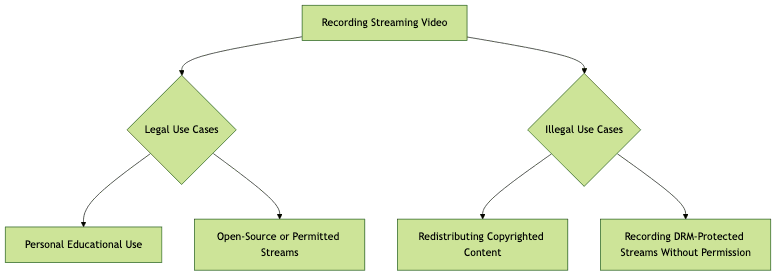
Always ensure you have the right to record and use the content, especially in professional or public settings.
Essential Tools for Recording Video Streaming
Choosing the right streaming video recorder can dramatically impact your workflow and video quality. Here’s an overview of the top screen recording software and browser-based solutions for 2025.
Desktop Screen Recorders (Windows & Mac)
OBS Studio: A free, open-source streaming video recorder ideal for developers. It offers advanced scene composition, audio mixing, and direct MP4 export. Setting up a basic configuration requires minimal scripting:
1{
2    "profile": "High Quality",
3    "output": {
4        "format": "mp4",
5        "resolution": "1920x1080",
6        "bitrate": "6000kbps"
7    },
8    "audio": {
9        "capture": true,
10        "device": "System + Microphone"
11    }
12}
13
Movavi Screen Recorder: Known for its user-friendly interface, Movavi supports scheduled recordings and quick MP4 exports.
ScreenRec: Great for quick captures, instant sharing, and lightweight usage.
Online and Browser-Based Tools
- Screencapture.com: No installation required; record straight from your browser.
- Loom & Screencastify: Browser extensions that make it easy to record tabs, desktops, or webcam overlays.
Pros:
- No software installation
- Fast sharing and cloud uploads
Cons:
- Lower video quality
- Limited control over settings
- Browser permission issues
These streaming video recorders fit different workflows—choose based on your platform, privacy needs, and desired video quality.
Step-by-Step Guide: How to Record Video Streaming on PC
Preparing Your System
Before recording, optimize your system for the best video quality:
- Resolution: Set your display to the highest supported resolution (ideally 1920x1080 or higher).
- Audio: Verify that your system sound and microphone inputs are correctly configured. Use Windows Sound Settings to select the proper audio devices.
Using OBS Studio
OBS Studio is the gold standard for recording streaming video on Windows and Linux. Here’s how to set up a basic recording session:
- Install OBS Studio from obsproject.com.
- Create a new Scene:
- Click the + under "Scenes", name your scene (e.g., "StreamCapture").
- Add Sources:
- Under "Sources", click + and select "Display Capture" to record your entire screen or "Window Capture" for a specific app/browser.
- For audio, add "Audio Output Capture" (system sound) and "Audio Input Capture" (microphone).
- Configure Output Settings:
- File > Settings > Output
- Set Recording Format to
mp4, adjust Bitrate to 6000kbps for HD video.
- Start Recording:
- Click "Start Recording". OBS will save the stream locally.
Sample OBS Studio Config Snippet
1{
2    "scenes": [
3        {
4            "name": "StreamCapture",
5            "sources": [
6                { "type": "Display Capture", "device": "Monitor 1" },
7                { "type": "Audio Output Capture", "device": "Speakers" },
8                { "type": "Audio Input Capture", "device": "Microphone" }
9            ]
10        }
11    ],
12    "output": {
13        "format": "mp4",
14        "bitrate": "6000kbps"
15    }
16}
17
Using Alternative Tools (ScreenRec, Movavi)
- ScreenRec:
- Install and launch ScreenRec.
- Click the camera icon, select the capture area, and start recording streaming video.
- Recordings are saved instantly and can be shared via link or saved locally.
- Movavi Screen Recorder:
- Choose "Record screen", select the area or window.
- Enable system and microphone audio.
- Click "REC" to start. Export to MP4 when finished.
Both tools are ideal for those who want to capture live streams without complex configuration.
How to Record Video Streaming on Mac
Mac users can also record streaming video effectively using built-in and third-party tools:
- QuickTime Player:
- Open QuickTime Player > File > New Screen Recording.
- Select the area to record and enable microphone/system audio (with Soundflower or BlackHole for internal audio capture).
- Click "Record". Save as MOV or export to MP4.
- OBS Studio for Mac:
- The setup is similar to Windows—add display and audio sources.
- For system audio, install an audio routing extension like BlackHole.
Tips:
- Always test audio capture before recording streaming video on Mac.
- Use external microphones for better audio quality.
How to Record Streaming Video on Mobile Devices
iOS
- Use the built-in Screen Recording feature:
- Go to Settings > Control Center > Add "Screen Recording".
- Swipe down for Control Center, tap Record. Videos are saved to Photos.
Android
- Many devices have native screen recorders (pull down Quick Settings > Screen Record).
- For advanced features, try third-party apps like AZ Screen Recorder.
Limitations:
- Some streaming apps block recording via DRM.
- Audio recording may require special permissions or root access.
Tips:
- Record in landscape for the best video quality.
- Check app permissions and privacy policies.
Advanced Tips for High-Quality Recordings
- Resolution & Bitrate: Set to 1080p and at least 6000kbps bitrate for clear video.
- Frame Rate: 30fps is standard, 60fps for smooth live streams (if hardware allows).
- Audio Capture: Always monitor audio sync and levels. Use separate tracks in OBS or external editing tools.
- Editing & Exporting: Use tools like Shotcut, Adobe Premiere, or Movavi to trim, enhance, and export as MP4. Consider cloud storage (Google Drive, Dropbox) for backups and sharing.
- Avoiding Issues: Close unnecessary apps, disable notifications, and ensure your system isn’t overloaded.
Troubleshooting Common Issues When Recording Streaming Video
- Black Screen: Caused by hardware acceleration in browsers. Disable it in Chrome/Firefox settings.
- Audio Not Recording: Ensure correct devices are selected in your screen recording software.
- DRM Restrictions: Some websites block recording—respect copyright and look for official download options.
- Performance Drops: Lower resolution or bitrate, close background apps, and update your GPU drivers.
Conclusion
Mastering how to record video streaming empowers developers and IT professionals to document, share, and archive critical content in 2025. By following this guide, using the right screen recording software, and adhering to legal guidelines, you can capture high-quality streams from any device. Always respect privacy and copyright, and optimize your setup for the best results.
FAQ