


Interactive live streaming on iOS lets viewers react, chat, vote, and even join the stream as co-hosts in real time, instead of watching a delayed one-way broadcast. VideoSDK's iOS Swift SDK supports this through its Interactive Live Streaming (ILS) mode, which keeps latency under a second and includes built-in chat, polls, Q&A, and role switching. This guide walks you through the full implementation, from server-side token generation to production deployment, using natural-language steps you can follow in Xcode with either UIKit or SwiftUI.
Implement Interactive Live Streaming iOS Swift SDK Guide
Most live streaming tutorials for iOS stop at playback. They show you how to render an HLS stream in a video player, and that's it. The viewer watches, maybe with a 10 to 30 second delay, and the app has no way for that viewer to actually participate.
Interactive live streaming is a different product category. The audience can send chat messages that appear instantly, vote in polls, ask questions, and, in the best implementations, be promoted from viewer to co-host and start broadcasting their own camera within the same session. That only works when latency stays under a second, which rules out traditional HLS as the primary transport.
This guide covers the complete path for an iOS developer working in Swift: choosing the right SDK, setting up the environment, understanding the core concepts, wiring the architecture, implementing the streaming flow step by step, adding interactive UI, and hardening the app for production. Every step is explained in plain language so you can map it directly onto your own Xcode project.
Why Choose VideoSDK for iOS Interactive Live Streaming
VideoSDK's iOS SDK is a strong candidate for this use case because its Interactive Live Streaming mode is built on the same real-time architecture as its video calling product, not bolted onto a broadcast pipeline. The practical consequence: latency stays in the sub-second range, and a viewer can be promoted to a speaker mid-stream without a reconnect or a separate session.
Compare that with pure HLS workflows. HLS buffers aggressively to guarantee smooth playback, which is exactly what you want for a sports replay and exactly wrong for a live auction where the host needs to see bids in real time. HLS also gives you no built-in channel for audience interaction; you end up bolting on a separate chat service and hoping the two timelines roughly align.
Among real-time SDK options, LiveKit and Stream both offer solid iOS support, and Alibaba's ARTC stack targets large-scale broadcast scenarios. VideoSDK's differentiators for an iOS Swift developer are the breadth of its built-in interactive tooling (chat, polls, Q&A, reactions, screen share, and recording are all part of the SDK rather than add-ons), the Prebuilt UI Kit for teams that want a working interface without custom UI work, and network-adaptive streaming that automatically adjusts bitrate and resolution when a viewer's connection degrades. The iOS quickstart covers both UIKit and SwiftUI, so you can stay in whichever paradigm your app already uses.
Prerequisites and Environment Setup
Before touching the SDK, get the environment right. You need a Mac running a recent version of Xcode (15 or later as of 2026), an Apple developer account for device testing, and a deployment target of iOS 13 or higher for the current VideoSDK iOS SDK. You also need a VideoSDK account, which you can create at app.videosdk.live; the free tier includes credits sufficient for development and testing.
Device permissions matter more than most tutorials admit. Your app must declare camera and microphone usage descriptions in its information property list, with clear, human-readable explanations, because App Store review rejects vague ones. If you plan screen sharing or background audio, those need their own declarations and background mode capabilities.
Swift Package Manager Integration
Swift Package Manager is the recommended path for new projects. In Xcode, open your project's package dependencies settings, add the VideoSDK iOS package using the repository URL from the iOS SDK documentation, and let Xcode resolve and link the framework into your app target. Once resolution finishes, the SDK's types are available for import in your Swift source files. Verify the resolved version against the release notes so you are building against the current feature set.
CocoaPods Alternative
If your project already uses CocoaPods, the SDK is available as a pod. Add the VideoSDK pod entry to your project's pod specification file, run the install step from the terminal, and open the generated workspace rather than the original project file. The dependency then behaves identically to the Swift Package Manager route. Teams maintaining large legacy codebases often prefer this path because it avoids mixing dependency managers.
Core Concepts of VideoSDK ILS
Every VideoSDK integration, including ILS, is organized around a small set of concepts, and understanding them up front saves hours of confusion later.
A Room is the container for a streaming session. It has a unique identifier, a lifecycle (created, active, ended), and metadata you can attach for things like stream titles. A Participant is anyone connected to that room, whether a host broadcasting video or a viewer watching quietly. Each participant has an identity, a role, and a set of media streams.
A Stream (or track) is a single media unit: one camera feed, one microphone feed, one screen share. The SDK lets you publish, unpublish, and subscribe to tracks individually, which is what makes co-hosting possible without tearing down the session.
A Meeting Token is a signed credential your backend generates that authenticates a participant and encodes their permissions, including their initial role. Never generate tokens on the device; the signing secret would ship inside your app binary.
A Custom Video Track lets you publish processed video, such as a feed with a virtual background applied or a canvas-rendered overlay, instead of the raw camera output.
Role-Based Interaction (Host vs Viewer)
ILS sessions define at least two roles: host (sometimes split into host and co-host) and viewer. The host publishes media; viewers subscribe. The critical feature is dynamic role switching: the host can promote a viewer to co-host at any time, at which point the SDK grants that participant publish permissions and their client begins sending camera and microphone tracks. Demotion works the same way in reverse. This promotion flow is what most HLS-based tutorials simply cannot offer, and it is the heart of interactive formats like live shopping and audience Q&A panels.
Interactive Features Overview
Alongside media, the SDK provides real-time messaging channels for chat, structured events for polls and Q&A, reaction events (emoji bursts), and screen share as a publishable track. Recording can run during the session, and post-call transcription and summaries can be requested afterward. All of these operate over the same low-latency channel as the media, so a poll result and the video it refers to stay in sync.
Architecture Overview
The system you are building has three parts: your iOS app, a small backend you control that mints tokens, and the VideoSDK cloud, which handles signaling and media routing. The diagram below shows how a session comes together, from token issuance through media exchange between participants.
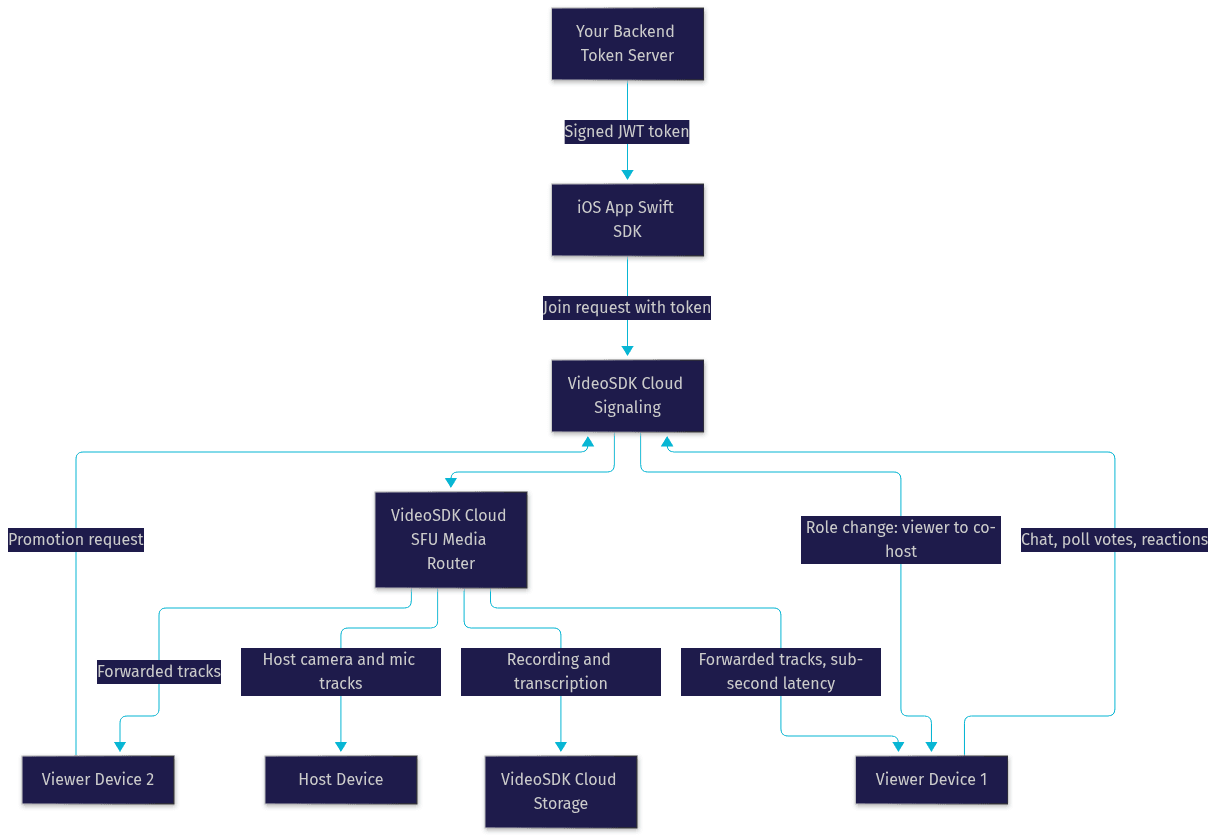
The important detail is that media flows through a selective forwarding unit (SFU) rather than peer-to-peer. Each participant sends their tracks once to the cloud, and the router forwards only what each receiver needs, at a quality their connection can sustain. Signaling (join, leave, role changes, chat events) travels a separate lightweight channel, which is why control messages land instantly even when video is adapting to poor bandwidth.
Step-by-Step Implementation
Work through these steps in order. Each one builds on the previous, and together they take you from an empty project to a functioning interactive stream.
Step 1: Generate a Token on Your Backend
Stand up a small endpoint on your server (Node.js, Python, or anything you already run) that authenticates your user, then generates a signed token using your VideoSDK API key and secret. The token should carry the participant's identity, the permissions you want them to have, and an expiry. The authentication and token guide explains the claim structure in detail. Your iOS app calls this endpoint and receives the token; the secret never leaves your server.
Step 2: Initialize the VideoSDK Client
On app launch, or when the user enters the streaming section, initialize the SDK with the token context your backend provided. Initialization prepares the media pipeline and registers your event listeners. Do this on the main thread and confirm the SDK reports a ready state before presenting any streaming UI.
Step 3: Connect to a Room
Join the room using its identifier and the token. The SDK handles the signaling handshake, and your event listeners fire when the local participant connects, when remote participants arrive, and when the room's state changes. For an ILS session, the room is created in interactive mode; the interactive live streaming docs describe how mode selection works.
Step 4: Publish Local Camera and Microphone Streams
If the local participant joins as a host, request camera and microphone access, then publish those tracks to the room. The SDK negotiates codecs and bitrate with the cloud automatically. If the user joins as a viewer, skip publishing; viewers subscribe only.
Step 5: Subscribe to Remote Streams and Bind Them to Views
As remote participants publish tracks, your event listeners receive them. Subscribe to each track and bind it to a video view in your interface. In SwiftUI this means updating state that drives your view hierarchy; in UIKit it means attaching the track's renderer to a view layer. The iOS SDK guide covers both binding patterns.
Step 6: Enable Role Switching for Co-Hosting
Wire your host UI so that selecting a viewer (for example, a
Free $20 Balance for AI Voice Agents & Video Calls
FAQ