


The Gemini AI Vision API brings multimodal visual understanding to applications by processing images and video frames through Google's Gemini models. Paired with VideoSDK's real-time communication SDKs, developers can build AI meeting assistants that analyze screen-share content and provide live visual commentary during video calls. Get started with the VideoSDK AI Agents documentation.
Virtual meetings generate rich visual data that goes untapped. Slides get shared, diagrams get drawn, code gets reviewed, and nobody captures the visual context. The Gemini AI Vision API changes this by giving applications the ability to see and understand what appears on screen. When you combine that with VideoSDK's low-latency WebRTC rooms, you get an AI meeting assistant that can watch a screen share, understand the content, and respond in real time.
VideoSDK's real-time communication infrastructure delivers sub-300ms media latency across its WebRTC-based rooms, and its screen-share feature captures participant displays at full resolution. By connecting the Gemini Vision API to these streams through the VideoSDK Agent SDK, developers can build agents that reason about live visual content and respond with spoken answers grounded in what they see.
This guide walks through how to integrate the Gemini AI Vision API with VideoSDK to build a multimodal AI agent for video calls. You will learn the architecture, environment setup, agent pipeline design, screen-share processing strategies, and production best practices for shipping a vision-enabled AI assistant.
Understanding Gemini AI Vision API
Google's Gemini AI Vision API is the multimodal layer of the Gemini model family, designed to process and reason about visual inputs alongside text. It accepts images, video frames, and PDF documents as input and returns structured descriptions, answers to questions, and contextual analysis.
Gemini is defined as a multimodal model family that natively processes text, images, audio, and video within a single inference call. The Vision API works by accepting a media input along with a text prompt, encoding the visual content into token representations, and generating a response that references what the model observes in the input.
Model Families and When to Choose Each
Google offers several Gemini model tiers, each suited to different latency and capability requirements. Gemini 1.5 Pro is the most capable model, handling complex reasoning over large visual inputs with a context window of up to two million tokens. It is the right choice when you need deep document analysis, multi-image comparison, or detailed visual reasoning.
Gemini 1.5 Flash is the speed-optimized variant, offering significantly lower latency while maintaining strong visual understanding. For real-time meeting assistants where sub-second response matters, Flash is typically the better choice. Gemini 1.5 Flash-8B is the smallest and fastest model, suitable for lightweight tasks like image classification or simple captioning where deep reasoning is unnecessary.
Input Options and Size Limits
The Vision API accepts images in common formats including JPEG, PNG, and WebP. Video can be provided as a file upload or as a sequence of frames. PDF documents are supported for text extraction with layout awareness. File size limits vary by model tier, with Pro supporting larger inputs. Verify current size limits on Google's Gemini API documentation before deployment.
Typical Use Cases
Common applications include image captioning for accessibility, document parsing for automated data extraction, video summarisation for meeting recordings, and real-time visual question answering. When integrated with VideoSDK, the most compelling use case is contextual meeting assistance: an AI agent that watches a screen share and answers questions about what is currently displayed.
Why Combine Gemini Vision with VideoSDK?
VideoSDK provides the real-time communication layer that makes visual AI useful in live settings. Its WebRTC-based rooms deliver sub-300ms latency for video and audio streams, and its screen-share feature captures participant displays at full resolution. The VideoSDK React SDK, along with SDKs for Flutter, Android, iOS, and React Native, gives developers a consistent way to embed video calling and screen sharing into any application.
Gemini adds visual comprehension to those streams. On its own, VideoSDK transports pixels from one participant to another. With Gemini Vision integrated through the VideoSDK AI Agent SDK, those pixels become semantic input that an AI agent can reason about, describe, and respond to.
The benefits are concrete. A meeting assistant can provide contextual help based on the slides currently being presented. It can take automated notes that reference specific visual content. It can offer UI-aware guidance when someone shares a complex dashboard or code editor. And because VideoSDK handles the real-time transport layer, the AI agent can participate as a voice-enabled participant in the room, responding naturally to spoken questions about what everyone is seeing.
Architecture Overview
The system follows a pipeline architecture where media flows from participants through VideoSDK's media servers into an AI agent worker that calls the Gemini Vision API. The agent captures screen-share frames from the VideoSDK room, sends them to Gemini for analysis, receives a text description or answer, and converts that response into speech through a TTS provider. The spoken response is then played back into the VideoSDK room as audio from the agent participant.
The VideoSDK Python SDK acts as the bridge between the room and the AI pipeline. The Agent Worker is a Python process that joins the room as a participant, subscribes to screen-share tracks, and orchestrates the STT-to-LLM-to-TTS pipeline. A separate token server generates scoped VideoSDK meeting tokens that authenticate both human participants and the agent.
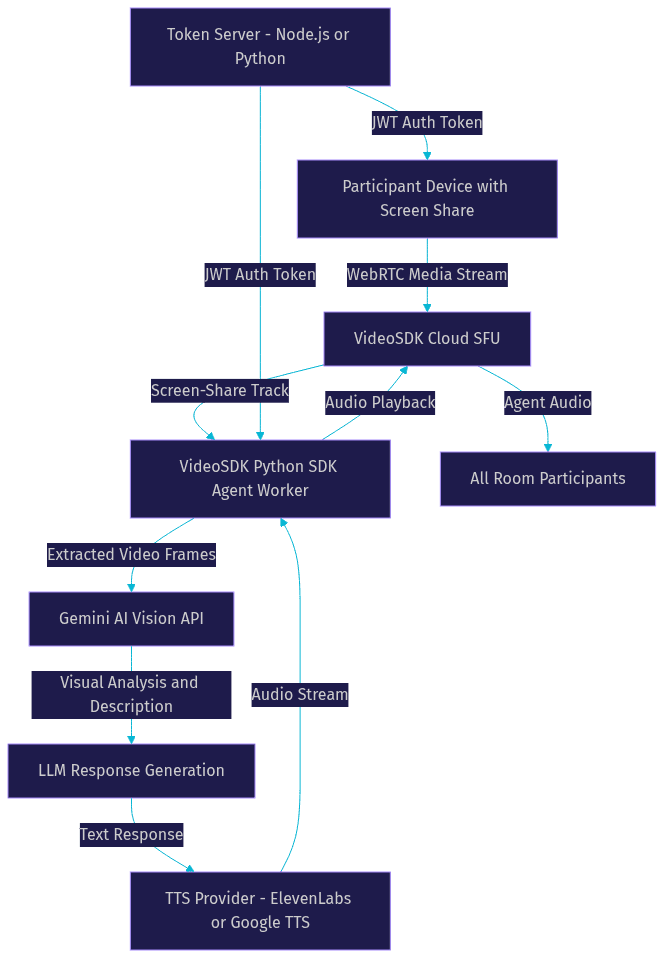
The diagram shows the full round-trip: screen-share content flows from a participant through VideoSDK's media server to the agent worker, which sends frames to Gemini, receives analysis, generates a spoken response, and plays it back into the room. The token server handles authentication for every participant, including the AI agent itself.
Setting Up the Development Environment
Before building the agent, you need accounts and credentials from both Google and VideoSDK. The setup involves obtaining API keys, installing the required Python packages, and configuring environment variables securely.
Prerequisites
You need a Google Cloud account with access to the Gemini API, which you can enable through the Google Cloud Console. You also need a VideoSDK account, which you can create at app.videosdk.live/login. On the development side, Python 3.9 or later is required for the agent worker, and Node.js is needed if you are building a web-based front-end for participants to join the room.
Obtaining API Keys
From Google Cloud, generate a Gemini API key through Google AI Studio or the Cloud Console API credentials page. This key authorizes calls to the Gemini Vision API. From VideoSDK, retrieve your API key and secret from the dashboard. These credentials are used to generate meeting tokens that authenticate participants and agents into rooms. If you plan to use a separate STT provider like OpenAI Whisper for transcription, you will also need an OpenAI API key.
Installing Required Packages
The VideoSDK Python SDK and the Gemini plugin are installed through Python's package manager. The primary packages are the VideoSDK agents framework, the VideoSDK plugins package for Gemini integration, and any additional plugin packages for your chosen STT and TTS providers. You install these by running the package manager with the appropriate package names for the VideoSDK agents framework and the Google Gemini plugin. The exact package names and versions are documented in the VideoSDK Python SDK guide.
Generate Your VideoSDK Token
VideoSDK uses token-based authentication. You need to generate a token server-side using your API key and secret, then pass it to the SDK when the agent joins a room. Never expose your API secret on the client side. Always generate tokens from a backend service. The token encodes permissions and room access scope, and it is passed to the agent worker when it initializes its connection to the VideoSDK room. You can manage rooms programmatically through the VideoSDK REST API, which lets you create rooms, validate tokens, and manage participants from your server.
Configuring Environment Variables
Store all API keys and secrets as environment variables rather than hardcoding them. Your configuration should include the Gemini API key, the VideoSDK API key and secret, and any third-party provider keys. Use an environment variable file or your operating system's environment management to load these at application startup. This keeps secrets out of source control and makes it easy to swap credentials between development and production environments.
Verifying Connectivity
Before building the full agent pipeline, verify that your VideoSDK agent can successfully join a room. Create a test room through the REST API, generate a token, and have the agent worker connect and log its participant status. If the connection succeeds, your credentials and network configuration are correct. If it fails, the most common causes are an invalid or expired token, network firewall blocking WebRTC traffic, or incorrect API key configuration.
Building the AI Meeting Assistant
The AI meeting assistant is an agent that joins a VideoSDK room, watches screen-share content, listens to participant speech, and responds with contextual answers grounded in what it sees. Building it requires defining the agent's purpose, assembling the processing pipeline, and managing the conversational flow.
Defining the Agent's Purpose
Start by deciding what your agent does. A common pattern is a slide assistant that answers questions about the content currently being shared on screen. When a participant asks what a chart shows, the agent captures the current screen-share frame, sends it to Gemini Vision with the participant's question, and speaks the answer back into the room. Other purposes include automated visual note-taking, real-time translation of shared content, or accessibility assistance that describes visual content for participants who cannot see it.
Pipeline Components
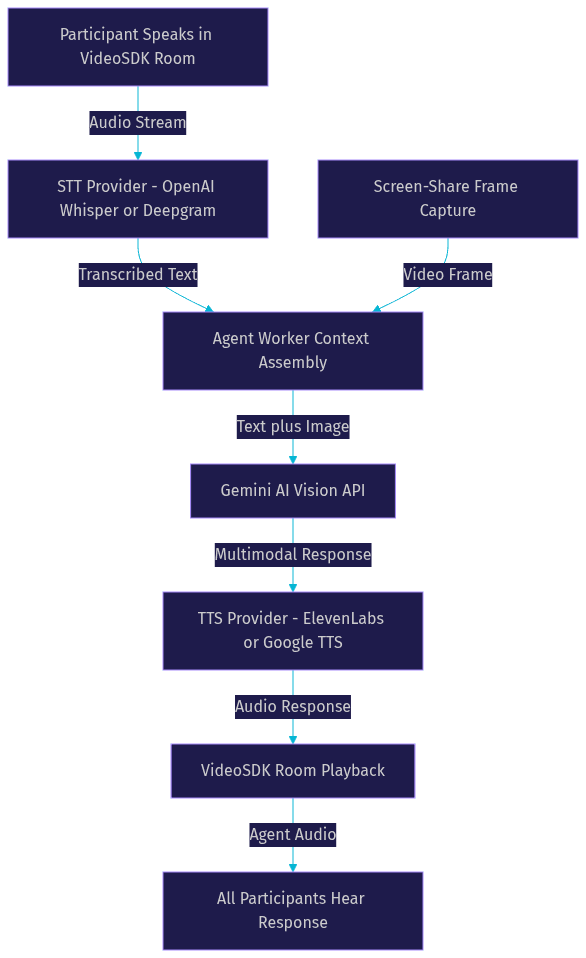
The agent pipeline consists of four stages. Speech-to-text converts participant audio into text using a provider like OpenAI Whisper or Deepgram. The text is combined with a captured screen-share frame and sent to the Gemini Vision API, which acts as the multimodal LLM. Gemini processes both the text question and the visual frame together, generating a response that references the visual content. Finally, text-to-speech converts Gemini's response into natural-sounding audio using a provider like ElevenLabs or Google Cloud TTS.
How the Agent Worker Orchestrates the Flow
The Agent Worker is the Python process that ties everything together. It joins the VideoSDK room as a participant, subscribes to audio and screen-share tracks, and manages the pipeline. When a participant speaks, the worker captures the audio, routes it through STT, and holds the transcribed text. Simultaneously, it captures a frame from the active screen-share track. It then assembles a multimodal prompt containing the transcribed question and the screen-share frame, sends it to Gemini Vision, and waits for the response. Once Gemini returns, the worker passes the text to the TTS provider and plays the resulting audio into the room.
Managing Turn-Taking and Voice Activity Detection
Real-time conversations require accurate turn detection. The VideoSDK Agent SDK includes built-in voice activity detection that determines when a participant has finished speaking. This prevents the agent from interrupting mid-sentence. The turn detection model analyses audio energy and speech patterns to identify natural pause points. You can configure the sensitivity and silence threshold to match your meeting environment. For meetings with multiple active speakers, the agent should only respond when directly addressed, which you can handle by checking if the transcribed text contains a wake word or the agent's name.
Handling Asynchronous Responses
Gemini Vision API calls take time, and the meeting continues while the agent processes. The agent should acknowledge the question quickly, perhaps with a brief spoken cue, then deliver the full answer once Gemini responds. This keeps the meeting fluid and prevents awkward silences. The worker manages this by queuing responses and playing them back when the room audio is quiet, avoiding overlap with active speakers.
Processing Screen-Share Streams
Screen-share processing is the core differentiator of a vision-enabled meeting assistant. The way you capture and send frames to Gemini directly affects response quality, latency, and bandwidth consumption.
Enabling Vision in Room Options
When the agent joins a VideoSDK room, it configures room options to enable vision processing. This tells the SDK to subscribe to screen-share tracks and make frame extraction available to the pipeline. The VideoSDK Agent SDK provides a vision configuration option that activates the frame capture mechanism. Without this enabled, the agent receives audio but has no access to visual content from the room.
Capturing Live Frames vs. Batch Processing
Two approaches exist for frame capture. Live frame extraction pulls individual frames from the screen-share stream at regular intervals, sending each one to Gemini as it arrives. This is ideal for real-time assistance where the agent needs to respond to what is currently on screen. Batch processing collects frames over a period and sends them together, which is more efficient for summarisation tasks but introduces delay. For a meeting assistant, live extraction is the standard choice.
Bandwidth-Aware Frame Extraction Strategies
Sending every frame to Gemini would be wasteful and slow. Instead, extract frames at a controlled interval, such as one frame every two seconds. This provides enough visual context for the agent to understand the current screen state without overwhelming the API. For bandwidth-constrained environments, you can make the interval adaptive: increase the time between frames when network quality drops, and decrease it when the connection is strong. VideoSDK's network-adaptive streaming provides bandwidth information that the agent can use to adjust its frame extraction rate dynamically.
Interpreting Gemini's Response
Gemini Vision returns structured text responses that describe the visual content. Depending on your prompt, the response may include object descriptions, text extracted from the screen, layout information, or direct answers to questions about the visual content. The agent worker parses this response and decides how to use it. If the participant asked a direct question, the response becomes the agent's spoken answer. If the agent is doing passive monitoring, the response is logged as a contextual note that can be referenced later.
Feeding Analysis Back Into the Conversation
The visual analysis becomes part of the agent's conversational context. When a participant asks a follow-up question, the agent can reference the previous visual analysis without needing to re-capture the frame, as long as the screen content has not changed. The worker maintains a short context window of recent frame descriptions, allowing the agent to answer questions about previously shared content without reprocessing the image. This context management is handled by the Agent SDK's built-in context window feature.
Best Practices and Production Considerations
Moving from a development prototype to a production deployment introduces security, scaling, and reliability requirements that quickstarts often skip.
Security
Use scoped meeting tokens that restrict what each participant can do. The agent should receive a token with permissions limited to joining the room, subscribing to tracks, and publishing audio. It should not have administrative privileges. Enable end-to-end encryption for sensitive meetings, and use role-based access control to ensure only authorised participants can share screens that the agent analyses. The VideoSDK Prebuilt UI Kit includes built-in waiting room and role management features that complement these security practices.
Scaling
For meetings with many participants or high-resolution screen shares, enable VideoSDK's cloud proxy and TURN fallback to handle restrictive network environments. High-resolution streams consume more bandwidth, so consider capping screen-share resolution at 1080p for the agent's analysis path. The VideoSDK infrastructure handles media routing at scale, but your agent worker needs adequate compute resources to process frames and call Gemini within acceptable latency windows.
Latency Optimisation
Choose Gemini 1.5 Flash for sub-second response times in real-time meeting scenarios. Reserve Gemini 1.5 Pro for offline summarisation or complex analytical tasks where latency is less critical. Tune your frame extraction interval to balance freshness against API call frequency. A two-second interval is a good starting point, but you can reduce it to one second for fast-paced presentations or increase it to five seconds for static content like document review.
Error Handling
Vision API calls can fail due to rate limits, network issues, or content policy violations. The agent should handle these gracefully by falling back to an audio-only response that acknowledges the question without visual context. Implement retry policies with exponential backoff for transient failures. If Gemini is unavailable, the agent can still participate as a voice-only assistant using the LLM's text-only mode.
Monitoring
Use VideoSDK's session analytics to track room health, participant connectivity, and media quality. Log agent events including frame capture timestamps, Gemini API call durations, and TTS generation times. This data helps you identify bottlenecks in the pipeline and optimise the agent's responsiveness over time. The VideoSDK REST API provides endpoints for pulling post-call analytics that can be correlated with your agent logs.
Future Possibilities
The integration of Gemini Vision with VideoSDK opens several directions for more advanced multimodal agents. As Google continues to develop Gemini's real-time video capabilities, agents will be able to process continuous video streams rather than discrete frames, enabling live commentary that tracks changes on screen as they happen.
Combining vision with VideoSDK's Conversational Graph would enable deterministic workflows for structured meetings. A loan application review meeting, for example, could follow a graph-defined flow where the agent verifies documents on screen at each step, asks specific questions, and collects structured data before transitioning to the next node.
VideoSDK's interactive live streaming mode could extend vision-enabled agents to large audiences. A presenter sharing slides to thousands of viewers could have an AI co-host that provides real-time visual commentary, answers audience questions about the slides, and generates post-event summaries with visual references.
The convergence of real-time transcription, visual analysis, and conversation summarisation points toward AI agents that not only assist during meetings but also produce structured action-item lists, visual highlights, and searchable archives of everything that was shared and discussed.
Definitions Glossary
Agent Worker: The Python process that runs a VideoSDK AI agent and manages its session lifecycle inside a VideoSDK room, including media subscription, pipeline orchestration, and audio playback.
Pipeline: The sequential processing chain in a VideoSDK AI agent that connects STT, LLM, vision, and TTS providers to transform participant speech and visual content into spoken responses.
Vision and Multi-modality: VideoSDK's capability to process visual inputs alongside audio and text, enabling AI agents to reason about screen-share content, camera feeds, and other visual media within a room.
Room: A VideoSDK meeting room that participants join to share media streams, identified by a unique room ID and authenticated through meeting tokens.
Turn Detection: The mechanism in the VideoSDK Agent SDK that determines when a participant has finished speaking, allowing the AI agent to respond without interrupting active speakers.
Key Takeaways
- The Gemini AI Vision API processes images and video frames through Google's multimodal models, enabling applications to understand and reason about visual content in real time.
- VideoSDK provides the WebRTC infrastructure, screen-share tracks, and AI Agent SDK needed to connect Gemini Vision to live video calls with sub-300ms media latency.
- Choosing the right Gemini model tier is critical: Flash for real-time sub-second responses, Pro for deep visual reasoning and offline analysis.
- Bandwidth-aware frame extraction, scoped token authentication, and graceful error handling are essential for moving from prototype to production.
- VideoSDK's Agent Worker orchestrates the full STT-to-Gemini Vision-to-TTS pipeline, managing turn detection and asynchronous responses to keep meetings fluid.
Conclusion
Combining the Gemini AI Vision API with VideoSDK gives developers the tools to build AI meeting assistants that truly understand what participants see. VideoSDK handles the real-time transport of audio and screen-share media, while Gemini provides the visual reasoning that makes the agent's responses contextual and useful. The open-source VideoSDK agents framework and Gemini plugin make this integration accessible to any developer with Python experience. Start by exploring the VideoSDK AI Agents documentation, then join the VideoSDK Discord community to share what you build. What kind of vision-enabled meeting assistant are you building with VideoSDK? Drop a comment, I'd love to hear about your use case.
Free $20 Balance for AI Voice Agents & Video Calls
FAQ