


Introduction
Video bitrate is the amount of data transmitted per second during a video stream, measured in kilobits per second (kbps) or megabits per second (Mbps). For developers building streaming applications, understanding Video Bitrate for Streaming is crucial. It directly impacts visual quality, latency, and viewer experience. Set it too high, and users with poor connections suffer buffering; set it too low, and the video becomes pixelated and blurry. In 2026, as real-time communication and interactive streaming continue to dominate, mastering bitrate tuning is a non-negotiable skill.
Understanding Video Bitrate Fundamentals
At its core, video bitrate is determined by resolution, frame rate (fps), and compression efficiency. A common metric used to estimate the required bitrate is Bits Per Pixel (BPP). BPP represents the number of bits used to encode each pixel in each frame.
A BPP of 0.1 is generally considered a good starting point for standard dynamic range video using modern codecs. The formula to calculate the target bitrate is straightforward: multiply the resolution (width × height) by the frame rate, and then multiply by the desired BPP.
1function calculateBitrate(width, height, fps, bpp) {
2  const pixelsPerFrame = width * height;
3  const pixelsPerSecond = pixelsPerFrame * fps;
4  const bitsPerSecond = pixelsPerSecond * bpp;
5
6  // Convert bits to kilobits
7  const kbps = bitsPerSecond / 1000;
8  const mbps = kbps / 1000;
9
10  return {
11    kbps: Math.round(kbps),
12    mbps: parseFloat(mbps.toFixed(2))
13  };
14}
15
16// Example: 1080p at 30fps with a BPP of 0.1
17const bitrate = calculateBitrate(1920, 1080, 30, 0.1);
18console.log(`Target Bitrate: ${bitrate.mbps} Mbps (${bitrate.kbps} kbps)`);
19// Output: Target Bitrate: 6.22 Mbps (6220 kbps)
Higher resolutions and frame rates demand higher bitrates to maintain the same visual quality. However, the relationship isn't strictly linear due to spatial and temporal compression, making codec choice the next critical factor.
How Codec Choice Affects Video Bitrate for Streaming
The video codec you choose dictates how efficiently your video is compressed. Newer codecs can deliver the same visual quality at significantly lower bitrates, which is vital for optimizing Video Bitrate for Streaming.
| Codec | Compression Efficiency | Typical Bitrate Reduction | Best Use Case |
|---|---|---|---|
| H.264 (AVC) | Baseline | 0% (Baseline) | Broad compatibility, older devices |
| H.265 (HEVC) | ~50% better than H.264 | ~50% | High-resolution streaming, mobile |
| VP9 | ~40-50% better than H.264 | ~45% | Web streaming (YouTube native) |
| AV1 | ~30% better than VP9/HEVC | ~65% vs H.264 | Next-gen streaming, WebRTC |
While H.264 remains the most universally supported codec, AV1 is rapidly gaining traction in WebRTC environments for its superior low-bitrate performance. When calculating optimal streaming bitrate, always factor in codec efficiency bitrate—a more efficient codec allows you to lower the bitrate without sacrificing quality.
Platform-Specific Bitrate Recommendations
Different platforms have varying bitrate limits and requirements. Exceeding these limits can result in transcoding, which introduces latency and degrades quality.
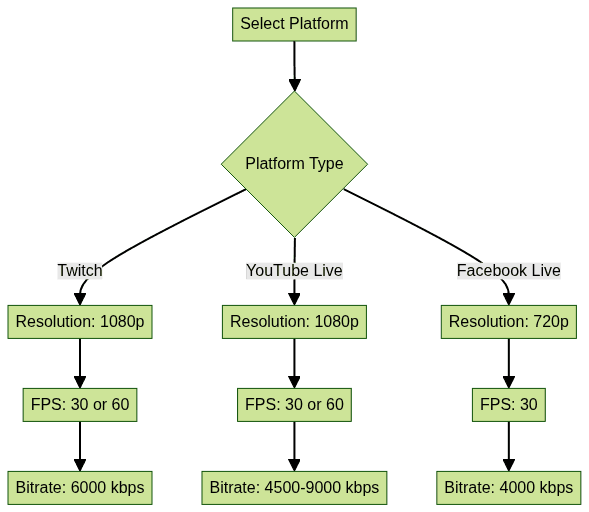
- Twitch: For 1080p 60fps, Twitch recommends a maximum bitrate of 6000 kbps. For 720p at 30fps, 3000 kbps is standard.
- YouTube Live: YouTube is more flexible, supporting 1080p at 60fps with bitrates between 4500 and 9000 kbps. They support adaptive bitrate streaming natively.
- Facebook Live: Facebook limits 1080p streams to 6000 kbps, but 720p at 30fps with 4000 kbps is the sweet spot for stability.
- Custom RTMP: When building your own platform, you control the limits. Aim for a balance between quality and your users' average upload bandwidth for streaming.
VideoSDK's Real-Time Communication Suite and Bitrate Management
When building custom video applications, managing bitrate dynamically is complex. VideoSDK's suite of products handles the heavy lifting, ensuring optimal Video Bitrate for Streaming across various scenarios.
Video Calling API & SDKs
VideoSDK's flagship Video Calling API & SDKs utilize a Rooms-based architecture over WebRTC. The platform automatically handles bitrate negotiation and network-adaptive streaming. If a participant's network degrades, VideoSDK automatically adjusts the bitrate and resolution to maintain sub-300ms latency without dropping the connection. VideoSDK also supports webrtc android, enabling native mobile experiences with the same adaptive bitrate capabilities.
For developers who need granular control, the SDK allows you to set a custom max bitrate. Here is an example using the VideoSDK javascript video and audio calling sdk:
1import { Meeting } from "@videosdk.live/rtc-js-prebuilt";
2
3// Initialize meeting with custom video bitrate
4const meeting = new Meeting({
5  apiKey: "YOUR_API_KEY",
6  meetingId: "meeting-id",
7  name: "Developer",
8  micEnabled: true,
9  webcamEnabled: true,
10  maxVideoBitrate: 5000 // Set max bitrate to 5000 kbps (5 Mbps)
11});
12
13// You can also dynamically adjust the bitrate during the call
14meeting.changeVideoBitrate(2500); // Lower bitrate to 2.5 Mbps for bandwidth conservation
For a quicker integration, you can use the embed video calling sdk to add video calls with minimal code, while still benefiting from automatic bitrate management.
Interactive Live Streaming (ILS)
For scenarios where audiences need to interact in real-time, VideoSDK's Interactive Live Streaming (ILS) provides sub-second latency. Unlike traditional HLS streams with 10-30 second delays, ILS uses the same SDK surface as video calling. You can switch modes dynamically using
changeMode(). Bitrate settings for ILS are optimized for low-latency audience interaction, ensuring that hosts and co-hosts maintain high-quality streams while viewers receive an adaptive feed.Audio Calling & Voice Rooms
In audio-first scenarios, such as podcast recording or Clubhouse-style social audio rooms, video is unnecessary. VideoSDK's Voice SDK provides dedicated audio rooms optimized for low-bandwidth scenarios, allowing you to drop video bitrate entirely while retaining full features like recording and roles.
Calculating the Right Bitrate for Your Stream
To calculate the optimal streaming bitrate, follow these steps:
- Determine Resolution and FPS: Identify your target (e.g., 1080p at 30fps).
- Assess Motion Level: High-motion content (like gaming) requires a higher BPP (0.15 - 0.2), while talking-head videos can use a lower BPP (0.08 - 0.1).
- Select Codec: Choose your codec (e.g., H.264 or AV1) and adjust the calculated bitrate based on its efficiency.
- Calculate Base Bitrate: Use the BPP formula from earlier.
- Add Headroom: Ensure your upload bandwidth is at least 1.5x your target bitrate. If your target is 6 Mbps, you need at least 9 Mbps upload speed.
You can verify your stream's actual bitrate using
ffprobe:1ffprobe -v error -select_streams v:0 -show_entries stream=bit_rate -of default=noprint_wrappers=1:nokey=1 input.mp4For a more integrated approach, you can use a video streaming bitrate calculator or refer to VideoSDK docs for built-in analytics tools that help determine the right settings for your specific use case.
Best Practices for Maintaining Stable Video Bitrate
Maintaining a stable stream requires more than just setting the right initial bitrate.
- Keyframe Interval: Set your keyframe interval to 2 seconds (e.g., 60 frames at 30fps). This is crucial for adaptive bitrate streaming and prevents decoder errors.
- Profile Selection: Use the
Highprofile for H.264 when quality is paramount, but fall back toBaselinefor mobile devices with limited hardware encoding support. - Hardware Encoders: Utilize hardware encoders like NVENC (NVIDIA) or AMF (AMD) to reduce CPU load and maintain consistent frame times.
- VideoSDK Features: When using VideoSDK, leverage features like breakout rooms and screen share carefully. Screen sharing typically requires higher bitrate for text clarity, while virtual backgrounds can increase encoding complexity. VideoSDK handles these transitions smoothly, but monitoring is advised.
Monitoring and Optimizing Bitrate in Production
Once your application is live, continuous monitoring is essential. VideoSDK provides a robust REST API for server-side orchestration and session analytics. You can fetch real-time bitrate metrics to identify participants experiencing poor network conditions.
Set up alerting on bitrate drops. If a participant's bitrate consistently falls below a threshold, you can trigger server-side logic to degrade resolution gracefully or notify the user. VideoSDK analytics API provides endpoints to pull post-call analytics, allowing you to analyze bitrate vs resolution trade-offs and optimize future sessions.
Conclusion
Choosing the correct Video Bitrate for Streaming is a delicate balance of resolution, frame rate, codec efficiency, and network conditions. By understanding the fundamentals of bits per pixel and leveraging modern codecs, developers can deliver high-quality streams without overwhelming viewer bandwidth. VideoSDK's comprehensive suite—from the Video Calling API to Interactive Live Streaming—provides the adaptive bitrate streaming and network-adaptive tools necessary to handle these complexities automatically. Start building with VideoSDK today – Try it for free to ensure your real-time video applications deliver flawless quality.
Free $20 Balance for AI Voice Agents & Video Calls
FAQ