


Sentiment analysis voice is the process of detecting emotional states from spoken audio by analyzing acoustic features like pitch, pace, volume, and prosody alongside transcribed text. Unlike text-only sentiment, it captures tone and paralinguistic cues that reveal hidden frustration, urgency, or satisfaction. Developers can build real-time voice sentiment pipelines using speech-to-text, feature extraction, and classification models, with platforms like VideoSDK providing the real-time audio infrastructure to power them.
Customer support calls, telehealth sessions, live streaming chats, and voice-first surveys all share one thing: the words people say matter less than how they say them. A caller who says "everything is fine" in a flat, clipped tone is not fine. A patient who answers "I'm okay" with a trembling voice is not okay. Text-only sentiment analysis misses these signals entirely.
Sentiment analysis voice fills that gap by combining acoustic feature extraction with natural language processing to classify emotions in real time. This guide walks through the core concepts, the acoustic features that matter, how to architect a production pipeline, the datasets and benchmarks available, practical use cases, and the challenges you will face when shipping this to production.
Understanding Sentiment Analysis Voice: Basics and Benefits
Sentiment analysis voice is defined as the computational detection of emotional states from spoken language using both acoustic signals and linguistic content. It works by capturing audio, extracting features like pitch contours and speech rate, transcribing the speech to text, and feeding both modalities into a classification model that outputs sentiment scores or emotion labels.
Text-only sentiment analysis looks at words in isolation. If a customer types "the service was fine," a text model labels it neutral or positive. But voice sentiment analysis examines the acoustic envelope around those words. A slow, monotone delivery with a falling pitch at the end signals resignation or dissatisfaction. A fast, high-pitched delivery signals excitement or anxiety. The voice carries information that text strips away.
VideoSDK supports this workflow through its real-time transcription capabilities and audio calling SDK, which provide the low-latency audio infrastructure needed to capture and route speech for sentiment processing.
The benefits are measurable. Call centers that overlay sentiment scoring on live calls can route frustrated callers to supervisors before escalation. Healthcare platforms can flag patients showing signs of distress during remote consultations. Live streaming platforms can gauge audience reaction in real time and adjust content accordingly.
Why Voice Beats Text-Only Sentiment
Voice sentiment detection captures emotional signals that text-only models structurally cannot access. When someone types "sure, whatever," the text model sees indifference. When someone says it with a sigh and a rising pitch, the voice model detects passive aggression or frustration.
Consider a customer support scenario. A caller says, "Your product works as expected, thanks." Text sentiment scores this as positive. But the acoustic features tell a different story: a slow speech rate, low energy, and a flat intonation contour suggest the caller is disappointed but being polite. A voice sentiment model catches this dissonance and flags the interaction for follow-up.
In healthcare, the stakes are higher. A patient in a telemedicine session might verbally confirm they are taking their medication, but their speech may reveal hesitation, long pauses, or a trembling voice. Speech emotion recognition can surface these cues to clinicians, enabling earlier intervention for anxiety, depression, or cognitive decline.
The core advantage is multimodal fusion. By combining linguistic content from transcription with acoustic embeddings from the raw audio, voice sentiment models achieve significantly higher accuracy than text-only approaches. Research consistently shows that adding acoustic features to text-based sentiment models improves classification accuracy by 15 to 30 percent across standard emotion datasets.
Core Acoustic Features for Sentiment Analysis Voice
Acoustic features are the raw signals that voice sentiment models extract from audio to classify emotion. These features capture how something is said, independent of what is said. Understanding them is essential for building or selecting a sentiment analysis voice pipeline.
Pitch and Intonation
Pitch, measured as the fundamental frequency of the voice, is one of the strongest indicators of emotional state. Rising pitch at the end of a phrase can signal surprise, uncertainty, or a question. Falling pitch often signals finality, sadness, or resignation. A wide pitch range suggests excitement or emotional engagement, while a narrow, flat range suggests boredom or depression.
Intonation contours, which track pitch movement across an utterance, provide richer signal than single-point pitch measurements. Models that analyze pitch trajectories over time outperform those that use average pitch alone.
Speech Rate and Pauses
Speech rate, measured in syllables or words per second, correlates strongly with emotional arousal. Fast speech often signals urgency, anxiety, or excitement. Slow speech with frequent pauses can indicate hesitation, sadness, cognitive load, or deliberate emphasis.
Silence patterns matter too. A long pause before answering a question might indicate uncertainty or discomfort. Frequent short pauses mid-sentence can signal cognitive strain or emotional suppression. Voice sentiment models that incorporate pause duration and distribution capture these nuances.
Volume and Energy
Volume and acoustic energy relate to the intensity of emotional expression. Loud, high-energy speech often signals anger, confidence, or enthusiasm. Quiet, low-energy speech can signal sadness, fear, or withdrawal.
Energy variability, the degree to which loudness fluctuates within an utterance, is more informative than average volume. A speaker who shifts from quiet to loud mid-sentence may be building frustration, while a speaker who maintains steady low energy may be disengaged.
Spectral and Prosodic Features
Beyond pitch, rate, and volume, voice sentiment models extract spectral features that capture voice quality. Mel-frequency cepstral coefficients, or MFCCs, represent the short-term power spectrum of sound and are widely used in speech processing. Formant frequencies relate to vocal tract shape and can distinguish between tense and relaxed voice quality.
Prosodic features combine pitch, timing, and energy into higher-level patterns. Jitter, the variation in pitch period length, and shimmer, the variation in amplitude, are voice quality measures that correlate with emotional stress. Spectral centroid and spectral flux capture brightness and timbral changes that text models cannot access.
Building a Voice Sentiment Pipeline
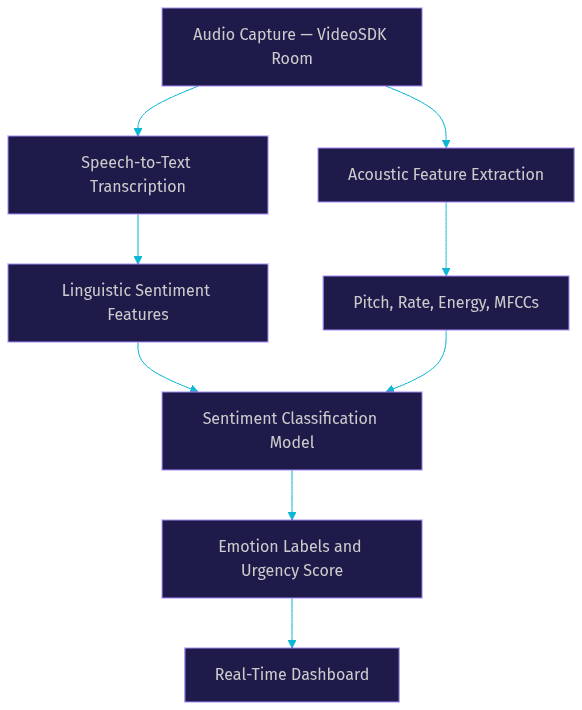
A production voice sentiment pipeline transforms raw audio into actionable emotion scores in real time. The architecture has three layers, each with distinct responsibilities and technical requirements.
Transcription Layer
The foundation of any voice sentiment pipeline is high-quality speech-to-text. Transcription accuracy directly impacts the linguistic sentiment component. If the STT model mishears "I am not happy" as "I am happy," the text sentiment flips entirely.
Developers should choose an STT provider that handles conversational audio, background noise, and multiple speakers. VideoSDK's real-time transcription integrates with leading STT providers and delivers low-latency transcription within VideoSDK rooms, making it a strong foundation for sentiment pipelines.
The transcription layer must also handle speaker diarization, the process of separating multiple speakers in a conversation. Without diarization, sentiment scores blend emotions from different speakers, producing noise.
Sentiment Classification Layer
Once you have transcribed text and extracted acoustic features, the classification layer fuses them into emotion predictions. Two approaches dominate.
The first uses a specialized speech emotion recognition model trained on labeled audio datasets. These models take raw audio or precomputed acoustic features and output emotion labels like happy, sad, angry, neutral, or frustrated. They are fast but limited to the emotion taxonomy they were trained on.
The second approach feeds both the transcribed text and a summary of acoustic features into a large language model. The LLM reasons about the linguistic content while the acoustic features provide paralinguistic context. This approach is more flexible and can generate nuanced sentiment descriptions, but it introduces higher latency.
For real-time applications, developers often combine both: a fast acoustic model for instant emotion flags and an LLM for deeper analysis on flagged segments.
Real-Time Scoring and Dashboard
The final layer converts model outputs into actionable scores. A common pattern maps emotions to a 0 to 100 urgency score, where anger and frustration push the score higher and calm satisfaction keeps it low. These scores feed into live dashboards that supervisors, clinicians, or content moderators can monitor.
Real-time voice analytics require sub-second processing to be useful in live interactions. If a sentiment score arrives five seconds after the caller speaks, the moment for intervention has passed. Latency optimization at every layer, from audio capture to model inference, is critical.
The diagram below shows the end-to-end data flow for a voice sentiment pipeline:
Datasets and Benchmarks for Voice Sentiment
Training and evaluating voice sentiment models requires labeled datasets where audio recordings are annotated with emotion categories. Several datasets are widely used in research and commercial development.
The SpeechSense dataset provides an 8-class emotion taxonomy covering neutral, happy, sad, angry, fearful, disgusted, surprised, and calm. It is designed for conversational speech and includes diverse speaker demographics, making it suitable for training production models.
VoxCeleb-Emotion extends the VoxCeleb speaker recognition dataset with emotion labels extracted from celebrity interview videos. It offers large-scale, in-the-wild audio with natural emotional expression, though the labels are auto-generated rather than human-annotated, which introduces noise.
Commercial datasets from providers like Mozilla Common Voice and proprietary collections from STT vendors offer additional training data, though emotion labels are often sparse.
Evaluation metrics for voice sentiment models include classification accuracy, macro F1 score across emotion classes, and word error rate impact from the transcription layer. A model that achieves 85 percent accuracy on a 5-class taxonomy is considered production-ready for many use cases. However, class imbalance remains a challenge: neutral speech dominates real-world data, so models must be evaluated on per-class precision and recall, not just overall accuracy.
Practical Applications
Customer Service Automation
Call centers use voice sentiment detection to monitor live calls and flag frustrated customers for supervisor intervention. Sentiment scores feed into routing systems that prioritize escalations and trigger automated follow-up surveys. Teams using VideoSDK's audio calling SDK can overlay sentiment scoring on every call without additional infrastructure.
Healthcare Patient Monitoring
Telehealth platforms analyze patient voice patterns during remote consultations to detect signs of depression, anxiety, or cognitive decline. Changes in speech rate, pitch variability, and pause patterns over time can signal deteriorating mental health, enabling earlier clinical intervention.
Employee Pulse Surveys
Voice-first employee feedback tools replace static survey forms with spoken responses. Sentiment analysis on voice responses captures emotional nuance that written surveys miss, giving HR teams a more accurate read on morale and engagement.
Live-Streaming Audience Feedback
Live streaming platforms use real-time voice analytics to gauge audience reaction during broadcasts. VideoSDK's Interactive Live Streaming supports sub-second latency, allowing sentiment models to process audience audio and feed reaction scores back to hosts in real time.
Challenges and Best Practices
Building a production voice sentiment pipeline introduces several engineering challenges that go beyond model selection.
Multi-speaker diarization is the first hurdle. In a customer service call, the agent and the caller speak over each other, interrupt, and overlap. Without accurate speaker separation, sentiment scores blend both parties. Use diarization-aware models or route each speaker's audio to separate sentiment classifiers.
Background noise degrades acoustic feature extraction significantly. Call center environments, mobile calls from public spaces, and telehealth sessions in noisy homes all introduce noise that distorts pitch and energy measurements. Apply noise suppression before feature extraction. VideoSDK includes built-in noise suppression in its SDK, which cleans audio at the source before it reaches your pipeline.
Language diversity poses another challenge. Most voice sentiment datasets are English-centric. Models trained on English prosody patterns do not transfer cleanly to tonal languages like Mandarin, where pitch carries lexical meaning rather than emotional signal. For multilingual deployments, train or fine-tune models on language-specific datasets.
Latency constraints are unforgiving in real-time applications. Every layer adds delay: audio capture, network transport, STT inference, feature extraction, and classification. Profile each layer and optimize the critical path. Consider edge processing for feature extraction to reduce round-trip latency.
Privacy compliance is non-negotiable. Voice data is biometric data in many jurisdictions. Under GDPR and CCPA, you must obtain explicit consent before recording and analyzing voice, implement data retention policies, and provide deletion mechanisms. Anonymize speaker identities where possible and store sentiment scores separately from raw audio.
Future Trends in Sentiment Analysis Voice
The field is moving toward multimodal models that fuse audio, video, and text into unified emotion representations. Models like Google Gemini Live and OpenAI Realtime API are beginning to process audio natively, reducing the need for separate STT and acoustic feature extraction stages.
Real-time LLM integration is accelerating. Instead of piping features into a separate classifier, developers can stream audio and transcription directly into a multimodal LLM that generates sentiment analysis as part of its response. This simplifies architecture but increases compute costs.
Edge-device processing is becoming viable for voice sentiment. On-device models running on mobile phones or IoT devices can extract acoustic features locally, reducing latency and addressing privacy concerns by keeping raw audio on the device. VideoSDK's IoT SDK and support for edge deployments make this architecture practical for connected device applications.
Definitions Glossary
Sentiment Analysis Voice: The computational detection of emotional states from spoken audio by analyzing acoustic features and linguistic content together, producing emotion labels or sentiment scores.
Prosody: The patterns of stress, intonation, and rhythm in speech that convey emotional meaning beyond the literal words, including pitch contours, speech rate, and pause patterns.
Speaker Diarization: The process of segmenting an audio stream by speaker identity, assigning each segment to a specific speaker so that sentiment analysis can be applied per person rather than across blended audio.
MFCC (Mel-Frequency Cepstral Coefficient): A representation of the short-term power spectrum of sound on the Mel scale, widely used as an acoustic feature in speech emotion recognition models.
Paralinguistic Cues: Vocal signals that accompany speech but are not part of the linguistic content, including tone, pitch variation, pacing, pauses, and voice quality, all of which carry emotional information.
Key Takeaways
- Sentiment analysis voice combines acoustic feature extraction with text-based sentiment to detect emotions that text-only models miss, improving classification accuracy by 15 to 30 percent in benchmark studies.
- Core acoustic features include pitch and intonation contours, speech rate and pause patterns, volume and energy variability, and spectral features like MFCCs and formants.
- A production pipeline requires three layers: high-quality speech-to-text transcription, a sentiment classification model that fuses linguistic and acoustic inputs, and a real-time scoring dashboard with sub-second latency.
- Practical applications span customer service automation, healthcare patient monitoring, employee pulse surveys, and live-streaming audience feedback, all of which can be built on VideoSDK's real-time audio infrastructure.
- Key challenges include speaker diarization, background noise, language diversity, latency constraints, and privacy compliance, each requiring specific engineering solutions.
Conclusion
Sentiment analysis voice is moving from research demos to production systems as real-time audio infrastructure, STT accuracy, and multimodal models mature. The developers who win in this space will be the ones who treat voice sentiment as a full pipeline problem, not just a model selection problem. Audio capture quality, speaker separation, noise suppression, latency optimization, and privacy compliance matter as much as the classification model itself. If you are building a voice application that could benefit from real-time emotion detection, start with VideoSDK's audio calling SDK and layer sentiment analysis on top. You can sign up for free at app.videosdk.live/login and explore the code samples to get started. What are you building with sentiment analysis voice? Drop a comment below, I would love to hear what use case you are working on.
Free $20 Balance for AI Voice Agents & Video Calls
FAQ