


Introduction to AI Voice Agents in Government Services
AI Voice Agents are intelligent systems designed to interact with users through voice commands. They process spoken language, understand user intent, and provide appropriate responses. These agents are crucial in the government sector for streamlining citizen services, providing quick access to information, and enhancing user experience.
In this tutorial, we will build an AI Voice Assistant tailored for government services. This agent will assist citizens by providing information about government procedures, resources, and updates. Using the VideoSDK framework, we'll implement core components such as Speech-to-Text (STT), a Language Model (LLM), and Text-to-Speech (TTS).
Architecture and Core Concepts
High-Level Architecture Overview
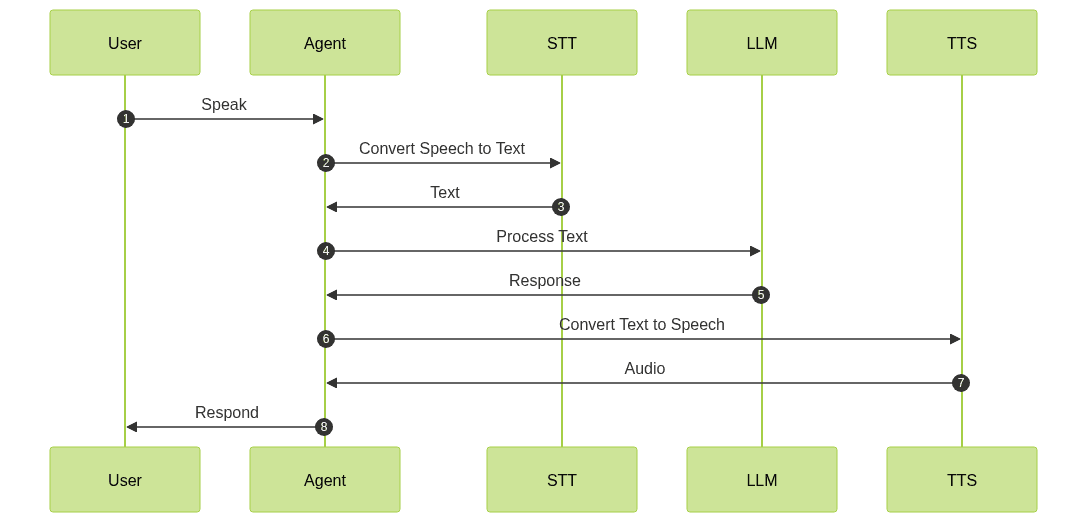
The architecture of our AI Voice Agent Quick Start Guide involves several key components that work together to process user input and generate responses. The flow starts with capturing user speech, converting it to text, processing the text with a language model, and finally converting the response back to speech.
Understanding Key Concepts in the VideoSDK Framework
- Agent: The core class representing your bot, handling interactions and logic.
- Cascading pipeline in AI voice Agents: Manages the flow of audio processing, integrating STT, LLM, and TTS.
- VAD & TurnDetector: These components help the agent determine when to listen and when to speak.
Setting Up the Development Environment
Prerequisites
Before starting, ensure you have Python 3.11+ installed and a VideoSDK account. Sign up at app.videosdk.live.
Step 1: Create a Virtual Environment
Create a virtual environment to manage dependencies:
1python -m venv venv
2source venv/bin/activate  # On Windows use `venv\Scripts\activate`
3
Step 2: Install Required Packages
Install the necessary packages using pip:
1pip install videosdk
2pip install python-dotenv
3
Step 3: Configure API Keys
Create a
.env file in your project directory and add your VideoSDK API key:1VIDEOSDK_API_KEY=your_api_key_here
2Building the AI Voice Agent: A Step-by-Step Guide
Here is the complete code for our AI Voice Agent:
1import asyncio, os
2from videosdk.agents import Agent, AgentSession, CascadingPipeline, JobContext, RoomOptions, WorkerJob, ConversationFlow
3from videosdk.plugins.silero import SileroVAD
4from videosdk.plugins.turn_detector import TurnDetector, pre_download_model
5from videosdk.plugins.deepgram import DeepgramSTT
6from videosdk.plugins.openai import OpenAILLM
7from videosdk.plugins.elevenlabs import ElevenLabsTTS
8from typing import AsyncIterator
9
10# Pre-downloading the Turn Detector model
11pre_download_model()
12
13agent_instructions = "You are a knowledgeable and efficient AI Voice Assistant designed specifically for government services. Your primary role is to assist citizens by providing accurate information about various government services, procedures, and policies. You can guide users on how to access government resources, explain the steps required for different applications, and provide updates on government initiatives. However, you must always clarify that you are not a government official and that users should verify information through official government channels. You should not provide legal advice or personal opinions. Your responses should be clear, concise, and based on verified government sources. Always encourage users to visit official government websites for the most current and detailed information."
14
15class MyVoiceAgent(Agent):
16    def __init__(self):
17        super().__init__(instructions=agent_instructions)
18    async def on_enter(self): await self.session.say("Hello! How can I help?")
19    async def on_exit(self): await self.session.say("Goodbye!")
20
21async def start_session(context: JobContext):
22    # Create agent and conversation flow
23    agent = MyVoiceAgent()
24    conversation_flow = ConversationFlow(agent)
25
26    # Create pipeline
27    pipeline = CascadingPipeline(
28        stt=[Deepgram STT Plugin for voice agent](https://docs.videosdk.live/ai_agents/plugins/stt/deepgram)(model="nova-2", language="en"),
29        llm=[OpenAI LLM Plugin for voice agent](https://docs.videosdk.live/ai_agents/plugins/llm/openai)(model="gpt-4o"),
30        tts=[ElevenLabs TTS Plugin for voice agent](https://docs.videosdk.live/ai_agents/plugins/tts/eleven-labs)(model="eleven_flash_v2_5"),
31        vad=[Silero Voice Activity Detection](https://docs.videosdk.live/ai_agents/plugins/silero-vad)(threshold=0.35),
32        turn_detector=[Turn detector for AI voice Agents](https://docs.videosdk.live/ai_agents/plugins/turn-detector)(threshold=0.8)
33    )
34
35    session = [AI voice Agent Sessions](https://docs.videosdk.live/ai_agents/core-components/agent-session)(
36        agent=agent,
37        pipeline=pipeline,
38        conversation_flow=conversation_flow
39    )
40
41    try:
42        await context.connect()
43        await session.start()
44        # Keep the session running until manually terminated
45        await asyncio.Event().wait()
46    finally:
47        # Clean up resources when done
48        await session.close()
49        await context.shutdown()
50
51def make_context() -> JobContext:
52    room_options = RoomOptions(
53    #  room_id="YOUR_MEETING_ID",  # Set to join a pre-created room; omit to auto-create
54        name="VideoSDK Cascaded Agent",
55        playground=True
56    )
57
58    return JobContext(room_options=room_options)
59
60if __name__ == "__main__":
61    job = WorkerJob(entrypoint=start_session, jobctx=make_context)
62    job.start()
63
Step 4.1: Generating a VideoSDK Meeting ID
To generate a meeting ID, use the following
curl command:1curl -X POST \
2 https://api.videosdk.live/v1/meetings \
3 -H "Authorization: Bearer YOUR_API_KEY" \
4 -H "Content-Type: application/json"
5Step 4.2: Creating the Custom Agent Class
The
MyVoiceAgent class extends the Agent class and is responsible for defining the agent's behavior. It initializes with specific instructions and handles entry and exit interactions.Step 4.3: Defining the Core Pipeline
The
[AI voice Agent core components overview](https://docs.videosdk.live/ai_agents/core-components/overview) provides a comprehensive understanding of the CascadingPipeline, which is crucial for processing audio. It integrates various plugins:- DeepgramSTT: Converts speech to text.
- OpenAILLM: Processes text and generates responses.
- ElevenLabsTTS: Converts text responses back to speech.
- SileroVAD: Detects voice activity to manage listening.
- TurnDetector: Identifies when the agent should speak.
Step 4.4: Managing the Session and Startup Logic
The
start_session function manages the agent's lifecycle, including starting and stopping the session. The make_context function sets up the environment, and the if __name__ == "__main__": block ensures the script runs as a standalone program.Running and Testing the Agent
Step 5.1: Running the Python Script
Execute the script using:
1python main.py
2
Step 5.2: Interacting with the Agent in the Playground
After running the script, you will receive a playground link in the console. Open this link in a browser to interact with your agent.
Advanced Features and Customizations
Extending Functionality with Custom Tools
You can extend the agent's capabilities by adding custom tools using the
function_tool feature.Exploring Other Plugins
Explore additional plugins for STT, LLM, and TTS to enhance your agent's functionality.
Troubleshooting Common Issues
API Key and Authentication Errors
Ensure your API key is correctly set in the
.env file.Audio Input/Output Problems
Check your microphone and speaker settings if you encounter audio issues.
Dependency and Version Conflicts
Ensure all dependencies are up-to-date and compatible with Python 3.11+.
Conclusion
Summary of What You've Built
In this tutorial, you've built an AI Voice Assistant for government services using the VideoSDK framework.
Next Steps and Further Learning
Explore additional features and plugins to enhance your agent's capabilities further.
FAQ