


An AI voice call is a real-time phone or web conversation where a human speaks to an AI agent that listens, reasons, and responds with synthesized speech in under a second. VideoSDK provides an open-source AI Agent SDK that connects STT, LLM, and TTS providers into a single pipeline with built-in telephony support, so you can deploy production-grade voice AI without stitching together a dozen separate services. Start with the AI Agents introduction to see the full architecture.
A typical AI voice call today completes a full reasoning cycle in roughly 500 to 800 milliseconds, fast enough that callers often cannot tell they are speaking to a machine. That number would have been unthinkable two years ago, when cascaded speech-to-text, language model inference, and text-to-speech generation routinely added up to three or more seconds of dead air. The gap between those two numbers is why AI voice calls have moved from lab demos to production call centers, outbound sales dialers, and appointment scheduling systems in 2026.
This article walks through what an AI voice call actually is, how the architecture fits together, what technical challenges you will hit in production, and how to choose a platform. You will also get a step-by-step narrative for building your first AI voice call without touching a single code snippet, plus production considerations that most quickstarts skip entirely.
What Is an AI Voice Call?
An AI voice call is defined as a real-time, bidirectional voice conversation between a human caller and an AI agent that processes spoken input through a speech-to-text engine, reasons over that text with a language model, and responds with synthesized speech. Unlike traditional IVR systems that rely on rigid menu trees and DTMF tone input, an AI voice call understands natural language, handles open-ended questions, and adapts its responses based on conversation context.
VideoSDK provides AI voice call capabilities through its AI Agent SDK, which orchestrates the entire STT-to-LLM-to-TTS pipeline inside a VideoSDK room and connects that room to traditional phone networks via SIP telephony integration.
Core Components
Every AI voice call relies on four core components working in a single pipeline. The first is speech-to-text (STT), which transcribes the caller's audio in real time. The second is a large language model (LLM) that interprets the transcription, maintains conversation context, and generates a text response. The third is text-to-speech (TTS), which converts the LLM's response into natural-sounding audio. The fourth is turn detection, sometimes called voice activity detection (VAD), which determines when the caller has finished speaking and when the AI agent should begin responding.
These four components must operate as a tightly coupled pipeline, not as independent services. If any stage introduces excessive latency, the entire conversation feels broken. VideoSDK's Agent Worker manages this pipeline as a single Python process, with pipeline hooks that let you inject custom logic at each stage without breaking the real-time contract.
Real-Time vs. Batch Processing
The critical distinction between an AI voice call and older voice AI systems is latency. Batch processing systems record audio, send it to a transcription service, wait for results, generate a response, and play it back. This approach works for voicemail analysis or post-call summarization but fails completely for live conversation. Callers expect responses within roughly one second. Anything beyond that feels unnatural, and beyond two seconds, callers assume the system is broken.
Real-time AI voice calls use streaming STT that transcribes audio as it arrives, streaming LLM inference that generates tokens incrementally, and streaming TTS that begins synthesizing audio before the full LLM response is complete. This overlapping of pipeline stages is what brings total response time under one second.
Architecture of a Modern AI Voice Call
The architecture of a production AI voice call spans five layers, each with a specific role in moving audio from the caller to the AI pipeline and back. Understanding this flow is essential because latency accumulates at every hop, and a single slow component can make the entire conversation feel sluggish.
The caller initiates the call through a traditional phone network or a web-based WebRTC client. The call arrives at a telephony gateway, which converts SIP signaling and RTP audio into a format the media server can process. The media server, typically a WebRTC SFU, routes the audio stream to the AI pipeline. Inside the AI pipeline, the STT engine transcribes the incoming audio, the LLM generates a response, and the TTS engine synthesizes the response audio. That audio flows back through the media server, through the telephony gateway, and to the caller's device.
VideoSDK handles this entire flow through its Rooms-based architecture. The AI Agent Worker joins a VideoSDK room as a participant, receives the caller's audio stream, processes it through the pipeline, and publishes the synthesized response audio back to the room. When the call comes from a traditional phone line, VideoSDK's SIP telephony integration bridges the PSTN call into the same room.
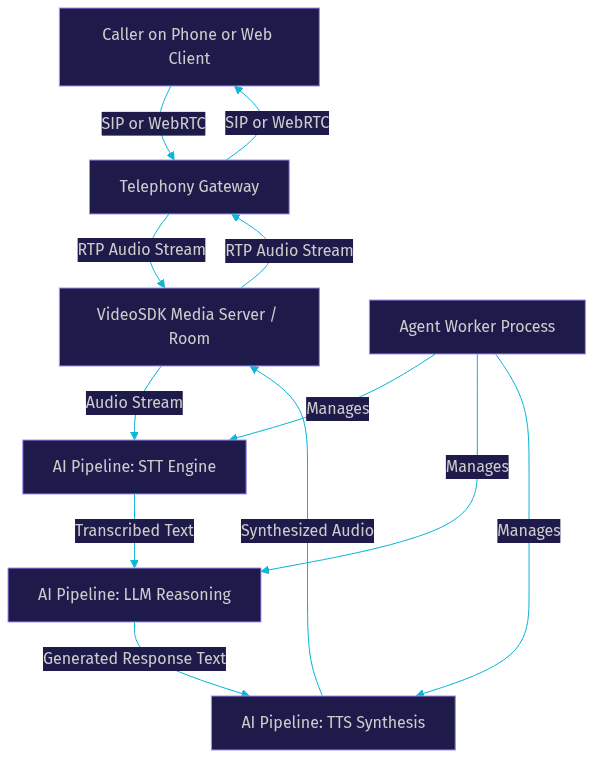
The diagram above shows the round-trip path that every AI voice call takes. The Agent Worker orchestrates the three pipeline stages and ensures that audio flows back to the caller with minimal delay. The media server acts as the central hub, eliminating the need for direct peer connections between the caller and the AI pipeline.
Key Technical Challenges
Building an AI voice call that feels natural is harder than wiring together an STT API, an LLM API, and a TTS API. Five technical challenges dominate production deployments: latency management, network reliability, barge-in handling, voice quality, and security.
Latency is the most visible challenge. Every millisecond matters, and the budget is tight. Network reliability becomes critical when calls originate from mobile networks with intermittent connectivity. Barge-in handling determines whether the AI agent can gracefully stop talking when the caller interrupts, which is a natural conversational behavior that most systems get wrong. Voice quality affects both the caller's audio input and the synthesized response audio. Security and compliance requirements vary by industry but become especially stringent in healthcare, financial services, and any scenario involving payment card data.
Latency Management
Latency in an AI voice call accumulates from multiple sources: network transport, STT processing, LLM inference, TTS synthesis, and audio buffering. Production systems target a total round-trip latency of under 800 milliseconds, which leaves roughly 200 milliseconds per pipeline stage.
Several techniques help meet this budget. Edge media servers placed geographically close to callers reduce transport latency. WebRTC connections offer lower latency than SIP for web-based callers because they use UDP with sub-300 millisecond transport times. Adaptive bitrate audio encoding adjusts quality based on available bandwidth, preventing buffering delays on poor connections. VideoSDK's network-adaptive streaming automatically adjusts bitrate and resolution based on real-time bandwidth detection, which is critical for mobile callers on unstable networks.
According to the W3C WebRTC specification, WebRTC's UDP-based transport layer is designed for sub-500 millisecond real-time media delivery, making it the preferred transport for latency-sensitive voice applications.
Barge-In and Turn Detection
Barge-in is the ability of an AI agent to stop speaking mid-sentence when the caller begins talking. Without barge-in, the caller must wait for the agent to finish its entire response before speaking, which feels unnatural and frustrating.
Traditional voice activity detection uses simple energy thresholds to detect speech, but this approach generates false positives from background noise and false negatives when the caller speaks softly. Semantic VAD, which uses a lightweight model to distinguish speech from noise, significantly improves accuracy. VideoSDK's Agent SDK includes built-in turn detection that uses semantic VAD to determine when a caller has finished speaking and when the agent should respond, with configurable sensitivity thresholds for different environments.
The Conversational Graph layer adds another dimension: it lets you define deterministic conversation flows where turn-taking rules are explicit rather than left to the LLM's judgment. This is especially valuable for compliance-driven conversations like loan applications or insurance claims, where every step must happen in a specific order.
Choosing the Right AI Voice Call Platform
Selecting an AI voice call platform requires evaluating five criteria that directly affect your ability to ship and scale. Model flexibility determines whether you can swap STT, LLM, and TTS providers as better models emerge. Pricing model affects your unit economics, especially for high-volume outbound calling. Telephony support determines whether you can connect to traditional phone networks or only web clients. Compliance certifications matter for regulated industries. SDK breadth determines how many platforms you can deploy on.
VideoSDK scores well across all five criteria. Its open-source Agent SDK supports multiple STT providers including Deepgram, OpenAI Whisper, and AssemblyAI, multiple LLM providers including OpenAI, Anthropic Claude, and Google Gemini, and multiple TTS providers including ElevenLabs, Cartesia, and OpenAI TTS. . Its SIP telephony integration supports Twilio, Vonage, Telnyx, and Plivo. The SDK covers Python for the agent worker, plus React, React Native, Flutter, Android, and iOS for client-side integration.
Comparison Table
[LINKABLE ASSET: comparison table]
| Platform | Target Latency | Pricing Model | Multi-Language Support | Telephony Integration | SDK Breadth |
|---|---|---|---|---|---|
| VideoSDK | Sub-800ms | Per-minute with free tier | 30+ languages via provider plugins | Built-in SIP gateway (Twilio, Telnyx, Vonage, Plivo) | Python, React, React Native, Flutter, Android, iOS, JavaScript |
| Vapi | Sub-1s | Per-minute with usage tiers | 20+ languages | Twilio, Vonage integration | JavaScript, Python |
| Retell AI | Sub-1s | Per-minute with volume discounts | 15+ languages | Twilio integration | JavaScript, Python |
VideoSDK's key differentiator in this comparison is its combination of built-in telephony support and broad SDK coverage. Most competing platforms require you to bring your own telephony provider and handle SIP gateway configuration yourself. VideoSDK's telephony integration includes an inbound gateway, outbound gateway, and routing rules engine, reducing the integration surface area significantly.
Building an AI Voice Call: Step-by-Step Narrative
Building a production AI voice call involves five phases. Each phase has specific decisions and configuration steps that determine whether your call will feel natural or robotic. This walkthrough explains the intent and expected behavior of each step without showing implementation syntax.
Step 1: Provision a Phone Number
Before any AI processing happens, you need a phone number that callers can dial. You provision this number through a SIP trunk provider like Twilio, Telnyx, or Plivo. The provider assigns you a phone number and configures a SIP trunk that forwards incoming calls to a destination URL or IP address. In a VideoSDK deployment, that destination is the VideoSDK telephony inbound gateway. When a call arrives, the gateway creates a new VideoSDK room and bridges the PSTN audio into that room as a WebRTC media stream.
Step 2: Configure the AI Pipeline
The AI pipeline configuration defines which STT, LLM, and TTS providers your agent will use, plus the system prompt that shapes the agent's personality and behavior. You select a real-time STT provider like Deepgram for its low-latency streaming transcription, an LLM like OpenAI's GPT-4o or Google Gemini for reasoning, and a TTS provider like ElevenLabs or Cartesia Sonic for natural-sounding speech synthesis. . The system prompt should define the agent's role, conversation boundaries, and fallback behavior when the caller asks something outside the agent's scope.
VideoSDK's Agent SDK lets you define this pipeline declaratively. You specify the STT plugin, LLM plugin, and TTS plugin, and the Agent Worker handles the streaming connections between them. Pipeline hooks let you intercept transcribed text before it reaches the LLM, or intercept generated text before it reaches the TTS, which is useful for profanity filtering, PII redaction, or custom response formatting.
Step 3: Connect the Telephony Gateway
With the phone number provisioned and the pipeline configured, you connect the telephony gateway to your AI agent. This involves creating routing rules that map incoming calls to specific agent configurations. For example, calls to your sales line route to an outbound sales agent, while calls to your support line route to a customer support agent with a different system prompt and knowledge base.
VideoSDK's telephony routing rules engine handles this mapping. You define rules based on the dialed number, caller ID, or time of day, and each rule points to a specific agent session configuration. The gateway handles DTMF events, call transfer, and warm transfer natively, so you can build complex call flows without managing SIP signaling yourself.
Step 4: Test with a Real Call
Testing an AI voice call requires actually dialing the number and having a conversation. Simulator tools can verify that the pipeline processes audio, but they cannot replicate the real-world conditions that break production systems: background noise, network jitter, caller accents, and unexpected questions.
During testing, listen for three things. First, measure the time between when you finish speaking and when the agent begins responding. If it exceeds one second, investigate which pipeline stage is the bottleneck. Second, test barge-in by speaking while the agent is talking. The agent should stop mid-sentence and begin processing your new input. Third, test edge cases: silence, background noise, rapid interruptions, and questions outside the agent's scope.
Step 5: Monitor and Iterate
Production AI voice calls require continuous monitoring. VideoSDK provides session analytics through its REST API, including call duration, participant count, and recording metadata. Pipeline observability features in the Agent SDK let you log STT confidence scores, LLM token generation times, and TTS synthesis durations for each turn.
Iterate based on what you observe. If STT confidence is low for certain accents, consider switching to a different STT provider or enabling de-noise processing. If LLM responses are too verbose, tighten the system prompt. If callers frequently interrupt the agent, adjust the turn detection sensitivity.
Production Considerations
Moving from a working test call to a production deployment introduces several requirements that quickstarts and tutorials routinely skip.
First, all client-side connections must use HTTPS. Browsers refuse to access microphones over unencrypted connections, and WebRTC requires secure contexts for media device access. Second, TURN servers are essential for callers behind restrictive firewalls or NATs. Without a TURN relay, calls from corporate networks or mobile carriers that block UDP will fail silently. VideoSDK includes cloud proxy and TURN server support, but you should verify the configuration for your deployment region.
Third, scaling requires horizontal agent worker deployment. Each agent worker process handles one conversation. For high-volume call centers, you need a process manager or container orchestration system that spawns new workers on demand. VideoSDK Agent Cloud handles this automatically, but self-hosted deployments require Kubernetes or Docker-based scaling.
Fourth, logging and observability are non-negotiable. Every call should produce structured logs with timestamps for each pipeline stage, enabling you to identify latency bottlenecks and conversation failures. Fifth, compliance requirements vary by industry. Healthcare applications need HIPAA-compliant data handling. Payment processing calls need PCI-DSS compliance. European deployments need GDPR compliance. VideoSDK supports E2E encryption and geo-fencing, but you are responsible for configuring these features correctly for your regulatory environment.
Real-World Use Cases
AI voice calls are deployed across several industries in 2026, each with distinct requirements and conversation patterns.
Customer support bots handle tier-1 support calls, resolving common issues like password resets, billing inquiries, and order status checks without human intervention. According to Artificial Analysis's Speech Arena benchmark, modern STT models achieve word error rates below 10% on conversational audio, making them reliable enough for automated support. .
Appointment scheduling agents handle inbound calls to clinics, salons, and service businesses. They check availability, book appointments, send confirmations, and handle rescheduling. The Conversational Graph is particularly valuable here because the booking flow must follow a specific sequence: collect patient details, check availability, confirm the slot, and send a notification.
Outbound sales dialing agents call prospects with personalized pitches based on CRM data. They handle initial qualification, answer common objections, and transfer interested prospects to human sales representatives. VideoSDK's call transfer and warm transfer features make this handoff seamless.
Multilingual help desks serve callers in their preferred language without hiring agents for every language. By pairing a multilingual LLM with language-appropriate TTS voices, a single AI agent can serve callers in 30 or more languages.
Emergency response systems use AI voice calls to triage incoming reports, collect critical information, and dispatch appropriate resources. These systems require ultra-low latency and high reliability, making the choice of media server and telephony gateway critical.
Future Trends in AI Voice Calls
Four trends are shaping the next generation of AI voice call technology.
Emotion-aware synthesis is emerging as TTS providers like Hume and ElevenLabs add emotional control to their APIs. Agents will detect caller frustration from speech patterns and adjust their tone accordingly, making conversations feel more empathetic.
Multimodal agents are moving beyond voice-only interactions. VideoSDK's Agent SDK already supports vision and multi-modality, enabling agents that can see a caller's camera feed, analyze documents held up to the camera, or interpret visual context during a video call.
On-device inference is reducing latency further by running parts of the pipeline on the caller's device. While full LLM inference on mobile devices remains impractical, lightweight STT models and VAD can run locally, reducing the round-trip latency for initial speech detection.
Regulatory evolution is accelerating. As AI voice calls become indistinguishable from human agents, regulators are introducing disclosure requirements. Some jurisdictions now require AI agents to identify themselves as automated at the start of a call. Building disclosure into your system prompt is a simple compliance step that protects against future regulatory action.
Definitions Glossary
AI Voice Call: A real-time bidirectional voice conversation between a human and an AI agent that processes speech through STT, LLM, and TTS in a single streaming pipeline with sub-second response times.
Agent Worker: The Python process that runs a VideoSDK AI agent and manages its session lifecycle, including the STT-to-LLM-to-TTS pipeline and all real-time media handling.
Barge-In: The ability of an AI voice agent to stop speaking mid-response when the caller begins talking, enabled by continuous voice activity detection during TTS playback.
Turn Detection: The mechanism that determines when a caller has finished speaking and when the AI agent should begin responding, using semantic voice activity detection rather than simple energy thresholds.
SIP Telephony Integration: The bridge between traditional phone networks (PSTN) and WebRTC-based AI agent rooms, enabling callers on standard phones to reach AI voice agents without a web client.
Conversational Graph: A deterministic, graph-based conversation orchestration layer that controls conversation flow through defined nodes and transitions while the LLM handles only natural language generation.
Key Takeaways
- An AI voice call requires four tightly coupled components (STT, LLM, TTS, and turn detection) operating as a single streaming pipeline with total round-trip latency under one second.
- VideoSDK's open-source Agent SDK and built-in SIP telephony integration eliminate the need to stitch together separate telephony, media server, and AI pipeline services.
- Barge-in handling and semantic VAD are the features that separate natural-feeling AI voice calls from robotic ones, and most platforms still get this wrong.
- Production deployments require HTTPS, TURN servers, horizontal agent worker scaling, structured logging, and industry-specific compliance configuration that quickstarts skip.
- The Conversational Graph layer enables deterministic conversation flows for compliance-driven use cases like loan applications, appointment booking, and insurance claims where LLM judgment alone is insufficient.
Conclusion
AI voice calls have crossed the threshold from demo to production in 2026, and the platforms that win are the ones that handle the full stack: telephony gateway, media server, AI pipeline, and client SDKs. VideoSDK's combination of an open-source Agent SDK, built-in SIP integration, and multi-platform client coverage makes it one of the few platforms where you can build, test, and scale an AI voice call without assembling a dozen separate services. Start with the AI Agents documentation to explore the full architecture, or join the VideoSDK Discord community to see what other developers are building. What are you building with VideoSDK? Drop a comment below, I would love to hear what kind of AI voice call use case you are working on.
FAQ