


An AI voice agent demo API is a hosted or self-hosted endpoint that lets developers prototype real-time voice interactions by chaining speech-to-text, a large language model, and text-to-speech into a single conversational pipeline. VideoSDK provides an open-source AI Agent SDK that connects these components to VideoSDK rooms, enabling sub-second voice AI interactions without building the entire WebRTC and signaling stack from scratch. Start with the VideoSDK AI Agents introduction to explore the full pipeline architecture.
Developers building voice-first applications face a cold-start problem: you want to validate a conversational AI idea in hours, not weeks. But wiring together a speech-to-text engine, an LLM, a text-to-speech provider, a WebSocket transport layer, and a turn-detection mechanism is a multi-day engineering effort before you even hear the agent speak. An AI voice agent demo API collapses that stack into a single interface you can call from a browser or mobile app. Whether you are testing a customer-support bot, an appointment-booking assistant, or an interactive voice shopping experience, a demo API lets you hear the agent respond, measure latency, and iterate on prompts before committing to a production architecture.
What Is an AI Voice Agent Demo API?
An AI voice agent demo API is defined as an interface that accepts audio input from a user, processes it through a speech-to-text engine, routes the transcript to a large language model for reasoning, converts the LLM response to speech via a text-to-speech service, and returns synthesized audio to the caller in near real-time. The API abstracts the orchestration of these four components so a developer can focus on conversation design and prompt engineering rather than media pipeline plumbing.
A demo API works by establishing a duplex streaming session, typically over WebSocket or WebRTC, where audio flows in both directions simultaneously. The user speaks into their microphone, audio chunks are sent to the API, and the API returns synthesized speech responses as they are generated. This differs from a batch transcription API, which accepts a completed audio file and returns a transcript after processing. A voice agent demo API must handle streaming, interruption, and turn detection in real time.
VideoSDK provides this capability through its AI Voice Agent SDK, which runs an Agent Worker as a Python process inside a VideoSDK room. Users connect via web, mobile, or phone, and the agent processes their speech through a configurable pipeline of STT, LLM, and TTS providers.
Core Building Blocks
Every AI voice agent demo API relies on four core components working in concert.
Speech-to-Text (STT) converts incoming audio streams into text transcripts. Providers like Deepgram, OpenAI Whisper, and AssemblyAI offer streaming STT endpoints that return partial transcripts as the user speaks, enabling low-latency response generation.
Large Language Model (LLM) takes the transcript and generates a conversational response. Developers can bring their own LLM, choosing from OpenAI, Anthropic Claude, Google Gemini, or open-weight models like Meta Llama, depending on cost and latency requirements.
Text-to-Speech (TTS) converts the LLM response into natural-sounding audio. Providers like ElevenLabs, Cartesia, and OpenAI TTS offer streaming synthesis that returns audio chunks as the text is generated, reducing time-to-first-audio.
Turn Detection and Semantic VAD determines when the user has finished speaking and the agent should respond. Semantic voice activity detection goes beyond simple silence detection by understanding conversational context, reducing false triggers when the user pauses mid-sentence.
Architecture Overview
The end-to-end pipeline for an AI voice agent demo API follows a linear but bidirectional flow. Audio enters through the user's microphone, travels over a WebSocket or WebRTC connection to the API endpoint, and is processed sequentially through STT, LLM, and TTS stages. The synthesized audio returns over the same connection to the user's speaker. Turn detection runs in parallel, monitoring the incoming audio stream to identify when the user has completed their utterance or when they interrupt the agent mid-response.
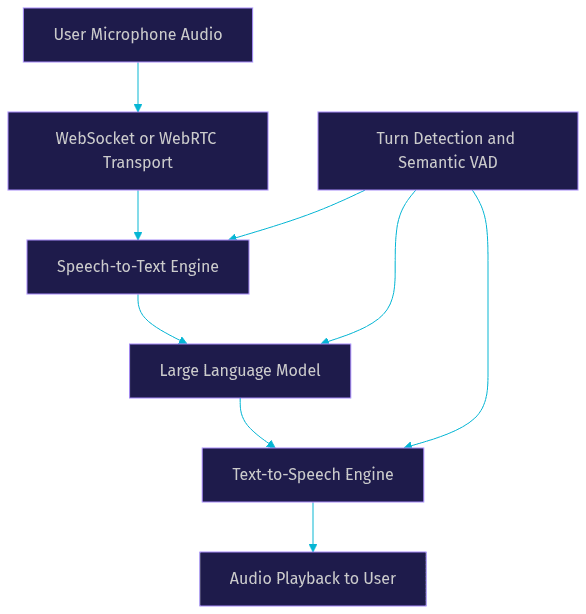
In a VideoSDK-based architecture, the Agent Worker manages this pipeline inside a VideoSDK room. The room acts as the media transport layer, handling WebRTC negotiation, audio encoding, and participant management. The agent joins the room as a participant, receives audio streams from human participants, processes them through the pipeline, and publishes synthesized audio back to the room.
Managed vs. DIY Demo APIs
Developers evaluating an AI voice agent demo API face a fundamental choice: use a managed platform that bundles the entire pipeline behind a single endpoint, or build a DIY pipeline by selecting and integrating individual STT, LLM, and TTS providers. Each approach has distinct trade-offs in latency, flexibility, and operational overhead.
Managed platforms like AssemblyAI, Inworld, and LiveKit offer hosted demo APIs where you send audio and receive synthesized speech without managing individual components. These platforms handle WebSocket management, turn detection, barge-in, and model orchestration for you. The trade-off is reduced control over model selection and potential vendor lock-in.
DIY pipelines using open-source frameworks like Pipecat or VideoSDK's open-source Agent SDK give you full control over every component. You choose your STT provider, your LLM, your TTS engine, and your turn-detection strategy. You can swap models per conversation, run on-premises for security compliance, and tune costs by selecting cheaper models for simple queries and premium models for complex reasoning.
Managed Demo API Benefits
A managed demo API provides a single endpoint that handles the entire voice agent pipeline. You authenticate, open a streaming session, send audio, and receive responses. The platform manages sub-second latency through optimized model routing, built-in turn detection that handles conversational nuances, and automatic scaling as your concurrent sessions grow. For developers prototyping a concept or validating a use case, a managed API eliminates the need to evaluate, integrate, and monitor multiple AI providers simultaneously. You can go from idea to working voice agent in under an hour.
DIY Demo API Benefits
A DIY pipeline gives you granular control over every decision in the stack. You can select a low-latency STT provider like Deepgram for real-time transcription, pair it with a cost-effective LLM for routine queries, and use a premium TTS provider for natural-sounding responses. You can run the entire pipeline on your own infrastructure for industries with strict data residency requirements. The open-source nature of frameworks like VideoSDK's Agent SDK means you can inspect, modify, and extend any component. The trade-off is operational overhead: you manage WebSocket connections, handle reconnection logic, monitor model availability, and debug pipeline failures yourself.
Key Performance Metrics
When evaluating an AI voice agent demo API, four metrics determine whether the experience feels natural to end users.
Latency is the time from when a user stops speaking to when the agent begins responding. Median latency below one second feels conversational. Anything above 1.5 seconds feels sluggish and causes users to repeat themselves. The biggest latency contributors are LLM inference time and TTS synthesis time, so choosing streaming-capable providers for both is critical.
Word Error Rate (WER) measures how accurately the STT engine transcribes user speech. According to Artificial Analysis's Speech Arena benchmark, top streaming STT providers achieve WER below 10% on conversational audio. Lower WER means the LLM receives a more accurate transcript, producing better responses. Always test WER with audio that matches your target deployment environment, not clean studio recordings.
Barge-in handling determines whether the agent stops speaking when the user interrupts. Without barge-in, the agent continues talking over the user, creating a frustrating experience. With barge-in, the agent detects the user's voice, stops TTS playback, and begins processing the new utterance. This requires tight coordination between turn detection, TTS playback, and the LLM context window.
Scalability refers to how many concurrent sessions the API can handle. Managed platforms typically scale automatically. DIY pipelines require you to provision sufficient GPU capacity for LLM inference and manage connection pooling for STT and TTS providers. For a demo, scalability matters less, but it becomes critical when transitioning to production.
Building a Quick AI Voice Agent Demo API Prototype
Building a working voice agent prototype involves five steps. Each step builds on the previous one, and by the end you will have a functional demo that accepts user speech, processes it through an AI pipeline, and returns synthesized audio responses.
1. Obtain API Credentials and Set Up a Token Server
Every AI voice agent demo API requires authentication. You need API credentials from your chosen platform or from individual STT, LLM, and TTS providers. The critical security principle is that API secrets must never live on the client side of your application. Instead, set up a lightweight token server that holds your credentials and issues short-lived tokens to the frontend.
In a VideoSDK-based setup, you generate a VideoSDK token server-side using your API key and secret. The frontend requests this token from your server, then uses it to initialize the SDK and join a room. The token grants scoped access to a specific room for a limited time, reducing exposure if the token is compromised.
2. Create a Demo Session (Room)
Once authenticated, you create a demo session that the user and the AI agent will join. In VideoSDK's architecture, this session is a room. You send a request to the REST API to create a room, specifying a unique room ID or letting the API generate one. The response includes a room ID and a participant token.
When creating the session, you configure the agent's pipeline by selecting your STT provider, LLM, and TTS engine. You also set conversation parameters like the system prompt that defines the agent's persona, the language model's temperature, and the TTS voice characteristics. These settings define the agent's behavior for the duration of the session.
3. Stream Audio via WebSocket
With the session created, the user's device opens a duplex streaming connection to the API. Audio from the microphone is captured in small chunks and sent to the server. The server processes each chunk through the STT engine, which returns partial transcripts as the user speaks.
When turn detection identifies that the user has finished speaking, the complete transcript is sent to the LLM. The LLM generates a response, which is immediately forwarded to the TTS engine. The TTS engine returns synthesized audio chunks that are sent back to the user's device over the same connection. The user hears the response as it is generated, not after the entire response is synthesized.
In a VideoSDK room, this streaming happens over WebRTC, which provides lower latency than raw WebSocket connections and handles network adaptation automatically. The VideoSDK React SDK and other platform SDKs manage the media transport layer, so you focus on the conversation logic.
4. Enable Barge-in and Semantic VAD
Barge-in is what separates a natural voice agent from a rigid playback machine. When enabled, the agent continuously monitors incoming audio even while it is speaking. If the user begins talking, the agent stops TTS playback mid-sentence, discards the remaining synthesized audio, and processes the user's new utterance.
Semantic VAD improves on basic silence detection by considering conversational context. A user who pauses to think should not trigger the agent to respond prematurely. Semantic VAD models analyze the audio stream for patterns that indicate the user has genuinely finished their turn versus simply pausing. You configure this through flags in the agent pipeline setup, specifying sensitivity levels and minimum silence durations.
5. Test and Iterate
With the pipeline running, test the demo using a simple web interface or the browser console. Speak naturally to the agent and observe three things: how quickly the agent begins responding after you stop speaking (latency), how accurately it transcribes your speech (WER), and whether it handles interruptions gracefully (barge-in).
Iterate on the system prompt to refine the agent's conversational style. Adjust the LLM temperature to control response creativity. Try different TTS voices to find one that matches your use case. If latency is too high, experiment with faster LLM providers or streaming TTS engines. The demo phase is where you discover what works before investing in production infrastructure.
Best Practices and Common Gotchas
Building a voice agent demo reveals a set of recurring issues that catch developers off guard. Knowing these ahead of time saves hours of debugging.
Token expiration handling is the most common failure. Tokens issued by your authentication server have a finite lifespan, often 30 to 60 minutes. If a user's session exceeds this duration, the token expires and the connection drops silently. Implement token refresh logic that requests a new token before the current one expires, and handle reconnection gracefully so the user does not notice the interruption.
Network-adaptive bitrate matters when users are on mobile networks or unreliable connections. If your demo sends high-quality audio at a fixed bitrate, users on 3G or congested networks experience audio gaps and stuttering. VideoSDK handles this automatically through its network-adaptive streaming feature, which adjusts bitrate and resolution based on real-time bandwidth detection. If you are building a DIY pipeline, you need to implement this adaptation yourself or accept degraded audio quality on poor connections.
Session time-outs occur when the API or room platform closes idle sessions. If a user pauses for an extended period, the session may terminate to free resources. Implement keepalive signals or configure longer time-out windows for demo purposes. Always inform the user if the session has ended and provide a reconnection path.
Turn-detection mismatches happen when the VAD sensitivity does not match the user's speaking style. A user who speaks softly or with frequent pauses may trigger false turn-end events, causing the agent to respond prematurely. Conversely, a user who speaks rapidly without pauses may never trigger a turn-end event, leaving the agent silent. Tune the VAD sensitivity based on your target user demographic and test with real users early.
Real-World Use Cases
AI voice agent demo APIs power a growing range of applications across industries. Understanding these use cases helps you design your demo with the right conversation patterns and performance targets.
Customer-support phone bots handle inbound calls to answer common questions, route complex issues to human agents, and collect initial diagnostic information. The demo API lets you prototype the conversation flow, test how the agent handles unexpected user inputs, and measure whether the latency meets caller expectations. VideoSDK's telephony integration bridges SIP phone calls to WebRTC rooms, so the same agent pipeline works for both web and phone callers.
Appointment-booking assistants interact with users to find available time slots, confirm details, and send calendar invitations. The demo phase validates whether the agent can handle date and time ambiguity, manage multi-turn conversations, and extract structured data like names and phone numbers. For structured flows like this, VideoSDK's Conversational Graph provides deterministic conversation orchestration where business rules, not LLM judgment, control branching.
Interactive voice shopping lets users browse products, ask about features, and complete purchases through voice. The demo tests whether the agent can handle product catalog queries, recommend items based on preferences, and guide users through checkout. Latency is critical here because users expect immediate responses when browsing.
In-app voice navigation for games enables players to control game elements, request information, or interact with NPCs using natural language. The demo validates whether the agent can handle game-specific vocabulary, respond within the latency budget of a real-time game loop, and maintain context across multiple interactions.
Cost and Pricing Overview
Understanding the cost structure of an AI voice agent demo API helps you budget for prototyping and plan for production scaling. Most platforms and DIY pipelines follow a usage-based pricing model, but the components and rates vary significantly.
Managed voice-agent platforms typically charge per minute of conversation, with rates ranging from a few cents to over a dollar per minute depending on the models used. This rate bundles STT, LLM, and TTS costs into a single line item. Free tiers usually offer a limited number of minutes per month, sufficient for prototyping but not for production traffic.
DIY pipelines bill each component separately. STT providers charge per audio minute, LLM providers charge per token (input and output), and TTS providers charge per character or per audio minute. A typical one-minute conversation might incur STT costs for one minute of audio, LLM costs for a few hundred tokens of input and output, and TTS costs for a few hundred characters of synthesized speech. The total is often lower than a managed platform for high-volume usage, but you bear the operational cost of managing multiple vendor relationships.
VideoSDK offers a free tier with credits for new accounts, letting you prototype without upfront cost. For production pricing, verify current rates on the VideoSDK pricing page. When estimating monthly spend for a demo, calculate concurrent sessions times average session duration times per-minute cost, then add a 20 percent buffer for retries and edge cases.
Definitions Glossary
Speech-to-Text (STT): A service that converts spoken audio into text transcripts, often in real time using streaming endpoints. VideoSDK's AI Agent SDK supports multiple STT providers including Deepgram, OpenAI Whisper, and AssemblyAI.
Text-to-Speech (TTS): A service that converts text into natural-sounding synthesized audio, ideally with streaming output to minimize time-to-first-audio. VideoSDK integrates with providers like ElevenLabs, Cartesia, and OpenAI TTS.
Turn Detection: The mechanism that determines when a user has finished speaking and the AI agent should begin responding, critical for natural conversational flow.
Semantic VAD: Voice activity detection that uses contextual understanding to distinguish between a user pausing mid-thought and genuinely completing their turn, reducing premature agent responses.
Agent Worker: The Python process that runs a VideoSDK AI agent and manages its session lifecycle inside a VideoSDK room, orchestrating the STT, LLM, and TTS pipeline.
Barge-in: A feature that allows a user to interrupt the AI agent mid-response, causing the agent to stop speaking and process the new user input immediately.
Key Takeaways
- An AI voice agent demo API collapses the STT, LLM, TTS, and turn-detection stack into a single interface, letting developers prototype voice-first applications in hours instead of weeks.
- Managed platforms offer speed and simplicity while DIY pipelines using open-source frameworks like VideoSDK's Agent SDK provide full control over model selection, cost tuning, and data residency.
- Sub-second latency, low word-error-rate, reliable barge-in handling, and semantic VAD are the four metrics that determine whether a voice agent feels natural to users.
- Token expiration, network-adaptive bitrate, session time-outs, and turn-detection sensitivity are the most common gotchas that derail voice agent demos.
- VideoSDK's open-source AI Agent SDK, Conversational Graph for deterministic flows, and built-in telephony integration provide a path from demo to production without switching platforms.
Conclusion
An AI voice agent demo API is the fastest path from idea to working voice prototype. Whether you choose a managed platform for speed or a DIY pipeline for control, the goal is the same: hear the agent speak, measure its latency, and iterate on its conversation design before investing in production infrastructure. Start with a managed demo to validate your concept, then transition to a DIY pipeline using VideoSDK's open-source Agent SDK when you need custom model selection, deterministic conversation flows, or telephony integration. The VideoSDK AI Agents documentation walks you through every component of the pipeline, from agent worker setup to multi-agent switching. Sign up at app.videosdk.live/login to claim your free credits and build your first voice agent today. What are you building with VideoSDK? Drop a comment below, I would love to hear what kind of voice agent use case you are working on.
FAQ